- Telegram allows multiple active sessions and offers a panel to view and close all connected devices.
- The app includes options to limit what each session can do and automatically close inactive sessions after a certain time.
- Signs of changes in your profile, strange messages, or unexpected codes may indicate that your account has been compromised.
- Two-step verification and app locking enhance security and reduce the risk of account theft.

If you use Telegram on your mobile, computer, and web version, it's very easy to end up with multiple sessions open at the same time Without you even realizing it. And of course, if one of those devices isn't under your control, anyone with physical access to it can. I could read your conversations almost as if it were you.
Furthermore, it should be noted that Telegram does not strictly limit the number of devices. where you can log in, unlike other apps like WhatsApp. This is great for everyday convenience, but also opens the door to oversights, forgotten sessions, or, directly, to that an attacker could break into your account and remain "crouched" for weeks.
What are open sessions on Telegram and where can you find them?

On Telegram, every time you log in on a mobile phone, PC, tablet, or browser, a record is created. active session associated with your accountThese sessions can be maintained for a long time even if you don't use the device daily, so your account remains accessible there.
To manage this, Telegram groups all the information in a specific section. On mobile, this section appears within Settings > Privacy and security > Active sessions (In some versions, it's simply called "Devices"). On the desktop or web, it's usually listed as "Active Sessions" or "Devices" in the settings menu.
Within this panel you will first see the current session highlightedThat is, the device you're currently using. Just below it appears a list of the other devices where your account is logged in, with enough information to easily identify each one.
Telegram displays data such as device type, model, operating system, and browser (if it's the web version), in addition to the last date and time of activity. This makes it easier to locate an old mobile phone, a work PC, or a browser you may have used only once and where you left your session open.
If you tap or click on one of the sessions in the list, in many cases you will also see the approximate IP address and location estimated (city or region), which can help you distinguish whether that connection is yours or could be something suspicious.
How to close open sessions in Telegram (step by step)
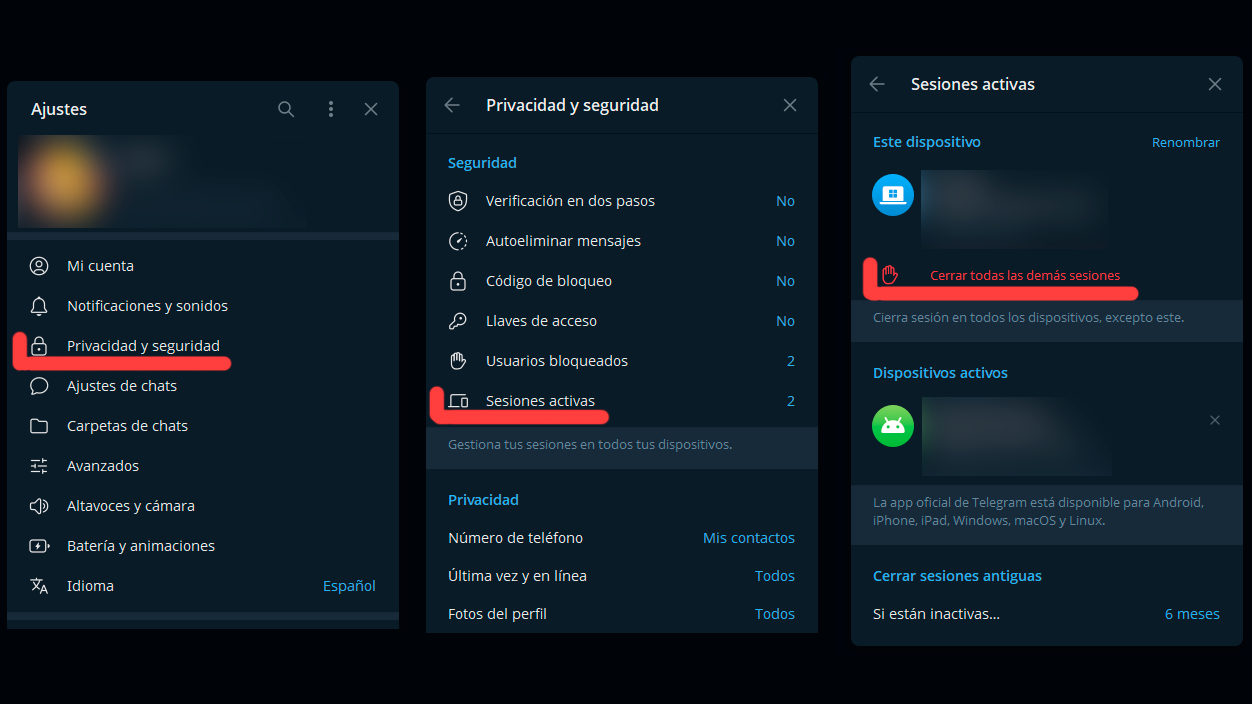
When you detect a login you don't recognize, or a device you no longer use, the wisest course of action is close that session as soon as possibleTelegram makes it quite easy, both to do it individually and to "sweep" everything that is not your main device.
From your mobile device, enter Settings > Devices (or "Active Sessions" depending on the version). There You'll see your current device and, below it, the rest.If you tap on any specific session, a window opens with detailed information and a red button that says "Log out"Click there and the session will end on that computer immediately.
If you want to do a thorough cleanup because you have too many devices connected and you don't feel like going one by one, you'll see the option within that same section. "Close all other sessions"When using it, only the session on the device you are using remains active, and the session is closed on all others.
This mass shutdown does not delete any chats or files from the Telegram cloud. It simply... ejects all connected devices And if you want to use any of them again, you'll have to log in again. This is very useful if you've been using Telegram for years and have lost count of which computers, tablets, or phones you've used to log in.
In the desktop client and the web version, the mechanism is very similar: from the settings, go to Active sessions or devicesReview the list and click on the sessions you want to close, or use the "Close all others" button if you want to start from scratch.
Log in to Telegram using a QR code

In addition to managing open sessions, the device panel also allows you to quickly log in to a new computer using a QR code, without relying on the classic SMS or call with the numeric code.
In the mobile app, within the Devices section, you will see the button "Link desktop device" (or similar), which directly opens the QR scanner. At the same time, on the computer or tablet where you want to log in, simply open Telegram Desktop or Web and choose the option to log in using a QR code.
The process is simple: the desktop client displays a unique QR code on the screen And by scanning it with your mobile phone from the Devices section, your account will be instantly logged in on that new device. It's a more convenient way and, moreover, it prevents you from risking using codes that could be intercepted by phishing.
This feature is especially useful if you use Telegram on a Shared PC, at work or on someone else's computerbecause you can quickly log in and out from your mobile without having to wait for verification messages.
Configure active sessions and limit what each device can do.
Telegram not only lets you view and close sessions, it also offers an extra level of control: you can adjust what types of activities are allowed on every device where your account is open. It's a kind of "fine-tuning" of security.
When you access the details of a specific session (by tapping on it in the Devices list), in addition to seeing the device model, IP address, and approximate location, you will find switches for allow or block that device from receiving calls or participate in secret chats.
For example, you might have Telegram on your work PC and decide that You don't want calls ringing thereor that secret chats cannot be initiated from that device. Disabling these options will allow the device to continue working for chatting, but it will not be able to receive those types of incoming events.
On desktop devices, such as Telegram Desktop, the secret chats option may not even appear, since Secret chats are designed for mobile phones and its support on other clients is limited. Even so, call setup is usually available on most platforms.
Playing with these options helps you tailor security to your specific needs: you can leave a secondary device with only the essentials, while your main phone maintains full functionality and absolute control about the account.
Automatically close inactive sessions
Another interesting feature is that Telegram includes a system for Automatically close sessions that have been inactive for a while.This way, if you forget to log out of a computer or mobile device you no longer use, the app itself will automatically log you out after a certain period of time.
Within the Active Devices or Sessions section, the option usually appears at the bottom. "Automatically close sessions" or a similar setting, where you can choose the period of inactivity after which sessions will be cancelled.
The timeframes that Telegram offers are usually 1 week, 3 months, 6 months or 1 yearBy default, it is usually set to 6 months, but you can shorten it if you often use public computers, work devices, or other environments where you don't want to leave your account open for long periods.
This feature cannot be completely disabled: there will always be a maximum time limit. The idea is that if a session is forgotten on a device you no longer control, Don't leave that door open forever.When the configured inactivity period is reached, the session will expire and you will need to log in again.
By combining automatic shutdown with periodic manual reviews of the device list, you have virtually complete control. all open sessions in your account, significantly reducing the risk of unwanted access.
What to do if you detect suspicious sessions or a hack

If, when reviewing your open sessions, you see a device you don't recognize, or you're almost certain that someone has entered without permission, the first thing to do is Cut off their access immediately.After that, you'll need to strengthen security to prevent it from happening again.
The initial step is to go to Settings > Devices > Close all other sessionsThis way, you only keep the session active on the phone you're holding and disconnect anyone connected from another device. Alternatively, you can go session by session and tap "Log Out" only on the ones you don't recognize.
Next, it is highly recommended to activate or change the two-step verification If you haven't already set it up. This way, even if an attacker obtains a login code via SMS or phone call, they won't be able to log in without knowing the additional password you've chosen.
After securing the sessions, it's a good idea to review your recent chats and activity Check your account. See if there are any sent messages you don't remember, if you've been added to any suspicious channels or groups, or if your profile information has changed without your knowledge.
If an attacker has used your account to send phishing emails, it's a good idea to notify your contacts. A simple message explaining that your account was compromised and that... Ignore any recent strange messages It can save more than one person trouble.
Recover a Telegram account if you no longer have access
It's possible you won't detect the attack in time, and the scammer will end up closing all your active sessions, leaving you locked out. In that scenario, you still have some options. regain control of your accountprovided you act quickly.
The first option is to try logging in again with your phone number from the official Telegram app. Enter your number, request the code via SMS And when you receive it, enter it into the app. If you had two-step verification enabled, it will also ask for the additional password.
If you manage to get in, go straight to Settings > Devices Use the option to log out of all other sessions to kick the attacker out. Keep in mind that as soon as you enter your number, all devices connected to that account will receive a notification that a login attempt is underway, so the attacker will know you're trying to recover it.
If for any reason you are unable to regain access via SMS, you can Contact Telegram supportFrom the app, go to Settings and tap "Ask a question." This opens a chat with the volunteer support bot, which will initially provide automated responses. If you'd like to speak with a person, you can choose something like "Skip and contact volunteers" or describe your issue and request to be redirected.
If you have lost access completely and cannot use the app, you have the option to fill out a contact form on the official Telegram websitePlease include your phone number and email address, and explain the situation in detail. Responses may take some time, but this is an additional channel when you no longer have any open sessions of your own.
If all else fails and there is no way to recover the account, the extreme alternative is delete the account associated with your number and create a new one. However, this means permanently losing your chat history and administrator privileges in groups and channels where you were in charge.
Strengthen your account security: lock, 2FA, and habits
Beyond managing open sessions, it's essential to add some extra layers of protection so that No one can easily access your account.even if it's done with your mobile phone or a verification code.
First, activate a lock code for the app itselfTelegram lets you protect access with a PIN, pattern, or even biometric methods like fingerprint or facial recognition, depending on your device. It's a local barrier: if someone gets hold of your unlocked phone, they won't be able to open Telegram without that code.
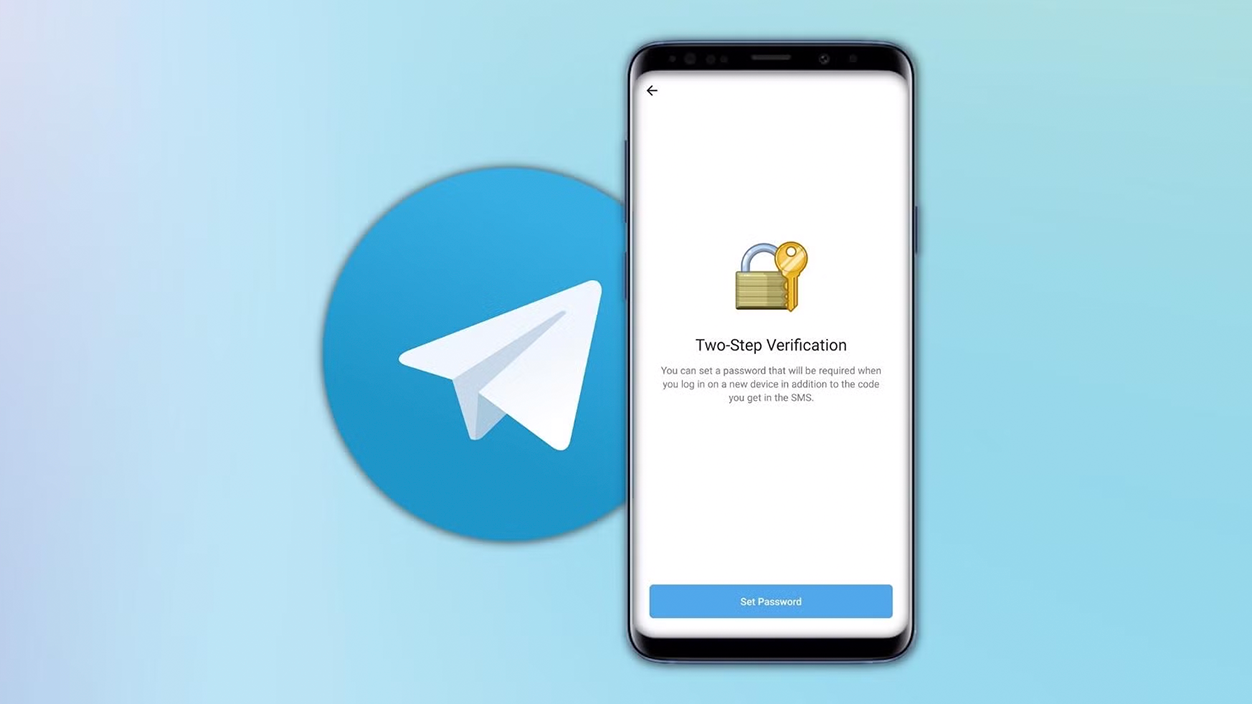
However, this local block doesn't prevent someone from logging into your account from another device. For that, you need the two-step verification (2FA). You can activate it in Settings > Privacy and security > Two-step verificationThe process involves creating an additional password, providing a recovery email address, and confirming a code sent to that email address.
Since then, whenever someone wants to log in to your account from a new device, in addition to the code that arrives via SMS or Telegram, You will have to enter that password that only you know.This makes life much more difficult for attackers who rely on stealing specific codes through phishing.
You should use a unique and strong password that you don't reuse for other services. If you tend to forget them, consider using a password manager. password managerso that you can invent long and complex keys without having to memorize them all.
Finally, get into the habit of checking the Devices / Active Sessions section from time to time. A quick check every now and then will allow you to... detect unusual loginsSessions that have been open for months, or devices that you no longer use and should get rid of.
Keeping open Telegram sessions under control, enabling app lock and two-step verification, and being alert to signs of phishing and suspicious activity are simple steps that make a big difference; with these measures, your account will remain yours even if you use Telegram on multiple devices and for years.
Index
- 1 What are open sessions on Telegram and where can you find them?
- 2 How to close open sessions in Telegram (step by step)
- 3 Log in to Telegram using a QR code
- 4 Configure active sessions and limit what each device can do.
- 5 Automatically close inactive sessions
- 6 What to do if you detect suspicious sessions or a hack
- 7 Recover a Telegram account if you no longer have access
- 8 Strengthen your account security: lock, 2FA, and habits

I am a technology enthusiast who has turned his "geek" interests into a profession. I have spent more than 10 years of my life using cutting-edge technology and tinkering with all kinds of programs out of pure curiosity. Now I have specialized in computer technology and video games. This is because for more than 5 years I have been writing for various websites on technology and video games, creating articles that seek to give you the information you need in a language that is understandable to everyone.
If you have any questions, my knowledge ranges from everything related to the Windows operating system as well as Android for mobile phones. And my commitment is to you, I am always willing to spend a few minutes and help you resolve any questions you may have in this internet world.