- AHCI mode makes better use of the SATA interface than IDE or Intel RST in many scenarios, improving performance, stability, and features such as NCQ and hot swap.
- Windows 10 and 11 are fully compatible with AHCI, but switching from IDE or Intel RST should be prepared to avoid boot failures.
- On HP computers, enabling AHCI involves first adjusting the operating system (registry or bcdedit) and then changing the SATA mode in the BIOS.
- Careful use of the HP BIOS allows you to optimize storage and gaming without compromising security or warranty if you follow the manufacturer's instructions.
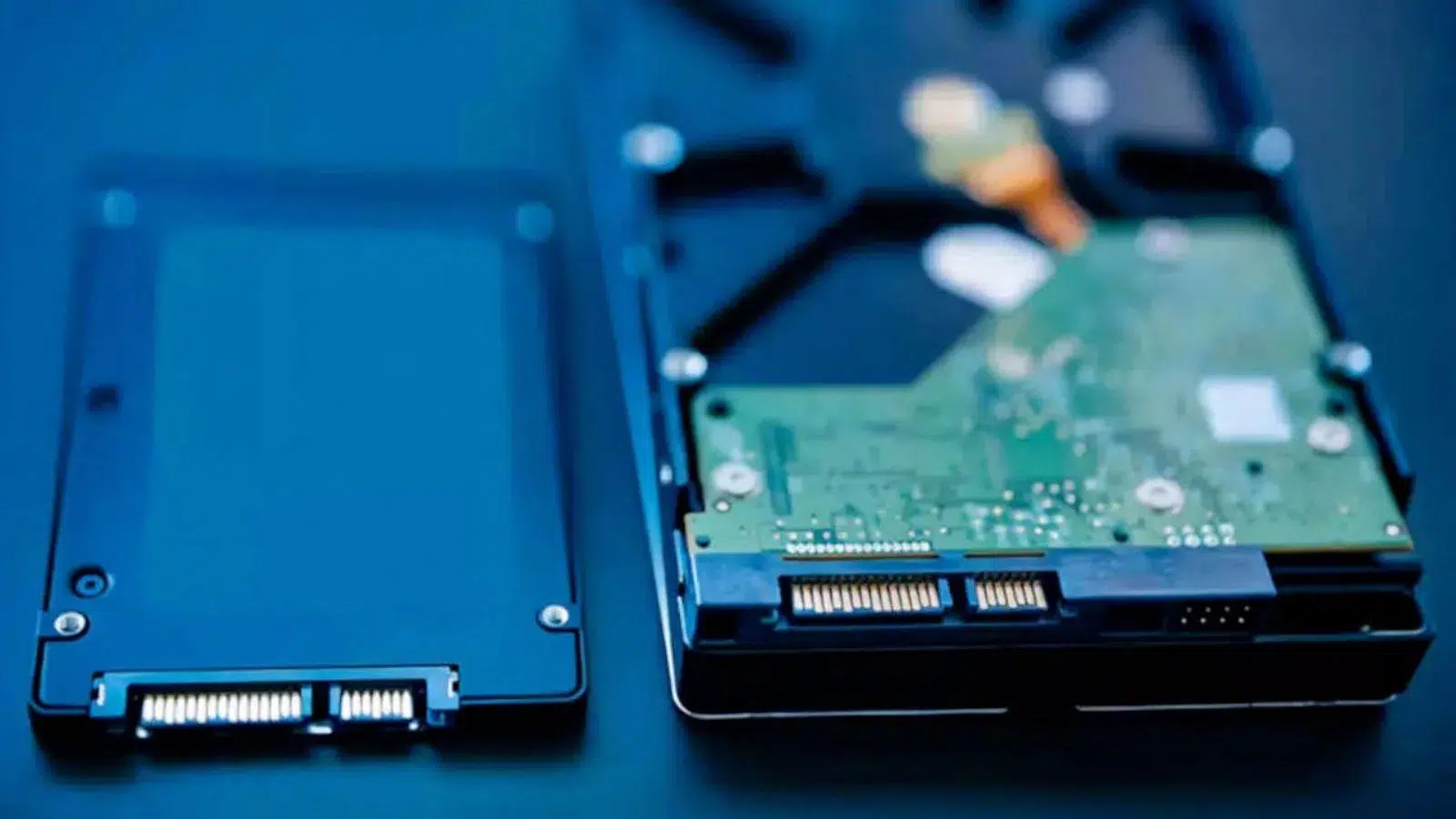
¿How do I enable AHCI mode in the HP BIOS? If you have an HP PC with a hard drive or SSD connected via SATA, you can likely get some performance improvement by changing the BIOS settings to AHCI modeThis setting isn't always well explained, and many people worry about potential startup errors or data loss when changing it. Let's see how it all works, what the real risks are, and how to do it safely.
Furthermore, many modern HP computers (including OMEN models and other laptops or desktops from the brand) offer options such as Intel RST, IDE or AHCI in the BIOS storage section. Understanding what each mode means, what advantages AHCI offers over IDE, and what happens with SATA and NVMe SSDs is key to deciding if it's worth enabling AHCI and how to do it without having to reinstall Windows or touch your files.
What is AHCI mode and why is it important on an HP PC?
AHCI mode stands for Advanced Host Controller Interface, a standard that defines how the operating system communicates with SATA-connected drives (both HDD as SSD SATAUnlike the old IDE mode, AHCI was designed to take advantage of the advanced features of the SATA interface and offer more performance and flexibility.
In practice, when you see a SATA configuration option called AHCIWhat you're activating is this operating mode for the storage controller. The operating system (Windows, Linux, etc.) must have the appropriate drivers loaded to communicate with the disk in AHCI mode; if they aren't active because it was installed in another mode, the result can be the typical blue screen or boot loop when changing the option in the BIOS.
One of the great advantages of AHCI is that it unlocks the use of technologies such as NCQ (Native Command Queuing)This allows the controller to reorganize read and write requests so that the disk makes the least possible movement (in HDDs) or better manages operation queues (in SATA SSDs). Also, being a modern standard, it offers greater stability and compatibility with current operating systems versus the outdated IDE mode.
Another important point is the function of hot swapWith AHCI, you can connect or disconnect certain SATA drives while the computer is powered on, a common feature in servers, NAS devices, and towers with removable drive bays. While less common in a home HP computer, the capability is there and is part of the advantages of AHCI mode.
Advantages of AHCI over IDE and other SATA modes
On many older or entry-level HP computers, especially those with mechanical hard drives, you can still find the SATA controller configured to IDE mode for backward compatibility. This mode emulates the operation of older IDE/ATA drives, which only makes sense if you use very old operating systems or tools that don't support AHCI.
With AHCI enabled, the HP computer's SATA controller can take advantage of features such as NCQThis improves how the disk receives requests. On a traditional hard drive, this translates to fewer head movements and, therefore, better overall performance when there are many small read/write operations. While it's not magic, the difference is noticeable in I/O-intensive scenarios.
There is also an improvement in terms of robustness and stabilityThe AHCI standard is natively supported in Windows from Vista onwards, in most modern Linux distributions, and in other systems such as BSD or Solaris, making the storage stack behave more predictably and in line with what these systems expect.
Regarding the topic of hot swapIn professional environments, this is crucial: being able to remove or install SATA drives without shutting down the server prevents critical service interruptions (think of a server that controls traffic, traffic lights, or 24/7 services). While it may not be as dramatic in an HP laptop or a home desktop, the capability is supported by the standard and is another advantage over IDE.
In summary, IDE mode on a modern PC, except in very specific compatibility cases, is a vestige of the pastOn most recent HP computers, the SATA mode is usually set to AHCI by default; even so, it's a good idea to enter the BIOS and check, especially if you're going to add a new SATA SSD or want to optimize your system to the fullest.
Differences between AHCI, IDE, and Intel RST in HP computers

In addition to IDE and AHCI, many HP computers, especially modern laptops and desktops, offer a choice of Intel RST (Intel Rapid Storage Technology) or Intel RST Premium within the SATA configuration. This adds another layer of complexity when you want to enable AHCI, because on some systems the default mode is Intel RST.
In Intel RST mode, the SATA/NVMe controller operates through a Intel-specific driver which allows, among other things, RAID management, caching with Intel Optane, and certain proprietary optimizations. Windows is installed using these drivers, so if you switch directly from Intel RST to AHCI in the BIOS without preparing the system, it's very likely that Windows 10 or 11 won't boot and get stuck in a loading loop or display an error on startup.
If you're coming from a typical HP scenario where the system was running on Intel RST and you want to switch to AHCI so that Windows correctly recognizes a additional SATA SSD Or, to simplify the setup, you'll first need to enable AHCI support within Windows itself before accessing the BIOS. We'll see later how to do this without reinstalling the operating system or losing data.
In contrast, the jump of IDE to AHCI This is more common on older computers, both HP and other brands. In these cases, Windows may have disabled AHCI services by default because they weren't needed during installation. To correct this, you need to modify the Windows registry or use specific commands that force the AHCI drivers to load on the next boot.
Therefore, when you think about enabling AHCI in the BIOS of an HP, first check which mode you currently have: IDE, AHCI or Intel RSTThe strategy to follow for change will depend directly on that starting point.
AHCI mode compatibility with different operating systems
AHCI mode support is very broad, but not absolute. In the HP environment, it's most common to use Windows 10 or 11However, there are also users with Linux or older versions of Windows. Each system handles AHCI slightly differently, and it's helpful to be aware of those differences.
In the case of Microsoft, Windows has supported AHCI since Windows VistaWindows 7, 8, 8.1, 10, and 11 include native drivers for this mode, so they can take advantage of it without the need for external drivers, except in cases where manufacturer-specific packages are used (Intel chipset, AMD, etc.). In Windows XP, however, AHCI support is not native, and special drivers would have to be loaded during installation, which is impractical nowadays because XP is no longer supported.
In modern distributions of GNU/LinuxAHCI support was integrated starting with kernel 2.6.19, so virtually any current distribution (Ubuntu, Debian, Fedora, etc.) is fully compatible. The great thing about Linux is that, generally, all you need is Enable AHCI in BIOS from HP and that's it: no need to do registry tricks or additional commands for the system to recognize the drive.
Other systems such as OpenBSD, FreeBSD, NetBSD or Solaris They also added AHCI support years ago (versions 4.1 and later in OpenBSD, for example). In the case of macOS, the approach is different because Macs don't have the typical PC BIOS: storage access is managed by the system itself, and the user usually doesn't have to modify anything at a low level.
If you're on an HP with Windows 10 or 11, you can rest easy: AHCI is fully compatible And, when configured correctly, it shouldn't give you any problems, as long as you prepare the mode change by following the appropriate steps to avoid startup failures.
AHCI and SSD: Is there really a noticeable difference?
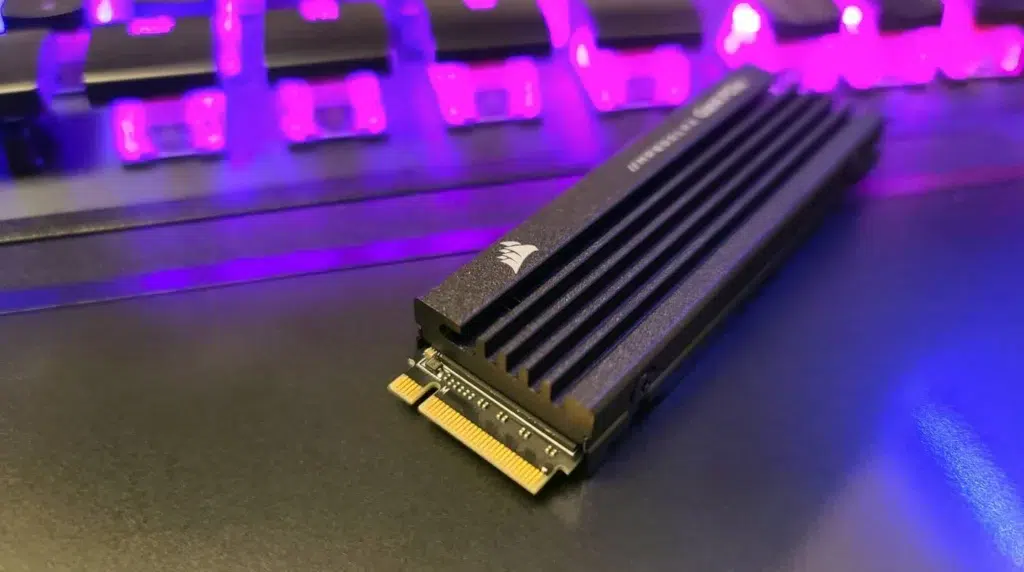
In theory, many of the classic advantages of AHCI, such as the NCQ optimized for mechanical discsThey have less impact on an SSD. A SATA SSD has no platters or heads to move, and the latency to access any sector is practically uniform, so reorganizing requests based on the physical position of the data becomes pointless.
Even so, AHCI mode offers benefits even with solid-state drives. The way command queues and commands are managed sequential versus random operations Yes, it can be affected. There are scenarios where AHCI prioritizes sequential operations over other requests, which at the flash controller level can translate into more efficient behavior.
Another important detail is that, although many HP computers already use NVMe SSD For the system (especially modern laptops and desktops), the NVMe interface doesn't depend on the AHCI mode of the classic SATA BIOS, but rather on its own PCIe controller. In other words, enabling or disabling AHCI primarily affects drives connected via SATA (SATA HDDs and SSDs), not NVMe drives.
On HP machines where the operating system is in a NVMe SSD If you install an additional SSD or HDD via SATA as a data drive, maintaining AHCI is usually the best option for that second drive. If your system is configured for Intel RST and you're having trouble getting Windows to recognize a new SATA drive, switching to AHCI might be worth considering, provided it doesn't compromise booting from the NVMe drive.
If you still use a HDD as main drive For Windows on your HP, the best option is to consider migrating to an SSD as soon as possible. An HDD is still useful for mass storage (backups, large files, etc.), preferably in an external enclosure or as a second internal drive, but using it as your system drive will negatively impact overall performance, whether or not you use AHCI.
Switching from IDE to AHCI in Windows without reinstalling (applicable to HP)
Many users find themselves in the situation of having installed Windows with the BIOS in IDE mode And when they then try to switch to AHCI, the system fails to boot. This happens because Windows wasn't using the AHCI drivers during installation and has them disabled; when the BIOS mode is changed, it no longer knows how to communicate with the disk.
The trick to solving this is to manually activate AHCI services You need to modify the Windows registry before changing the option in your HP's BIOS. You can manually edit these values using the registry editor, or you can use a pre-made .reg file that makes the changes automatically, as many classic Windows 7 guides do.
In systems like Windows 7, they are usually keys related to msahci e iaStorVSetting the "Start" value to 0 for these services forces Windows to load the corresponding drivers on the next boot. Once this is done, you can restart, enter the HP BIOS, and change the SATA mode to AHCI without the system failing to boot.
The idea is very simple: first, Windows is prepared to have AHCI drivers readyThen the mode is changed in the BIOS, and finally Windows detects the new driver and finishes installing whatever is necessary at startup. When it's finished, it will usually require another restart to confirm the configuration.
If you don't want to edit the registry manually, there is a technique compatible with modern versions of Windows (10 and 11), which is based on booting the system into safe mode using the bcdedit command. This same strategy also works when the HP PC is using AHCI but you want to switch from Intel RST or IDE, as we will see below.
Switch from Intel RST to AHCI on HP without losing data
On current HP systems, it is very common to find the storage controller configured in Intel RST (Intel Rapid Storage Technology)When you add a new SSD or want to switch everything to AHCI, changing this option without preparing Windows can cause the system to enter a boot loop or display an error message after restarting.
The good news is that you can switch from Intel RST to AHCI in many cases without formatting or reinstalling Windows 10 or 11, and without damaging your files, as long as you follow a careful process. One common method involves using the Windows safe mode as an intermediary so that the system loads the AHCI drivers before you change the BIOS option.
A typical procedure (which many users have successfully performed on HP, Lenovo, and other brands) is:
First, in Windows, open the Start menu, search for "cmd" or "Command Prompt" and run it as Administrator. In the console, type the command:
bcdedit /set {current} safeboot minimal
This forces Windows to boot into Safe Mode with a minimal set of drivers the next time it starts. Then, restart your HP and, while it's booting up, press the appropriate key to enter the BIOS (usually it's ESC, F10, F2 or DEL (depending on the model, although HP tends to use F10 or ESC).
Within the BIOS, go to the storage options or "Storage" and locate the configuration for SATA modeSwitch from Intel RST (or Intel RST Premium) to AHCI, save the changes, and exit. The computer will restart, this time in Safe Mode, but with AHCI enabled; Windows will load the necessary drivers for the new disk access mode.
Once you're on the desktop in safe mode, reopen the command prompt as administrator and run the following command:
bcdedit /deletevalue {current} safeboot
Restart again and the HP should boot into normal mode, with AHCI in operation without needing to reinstall or lose files. In many cases, Windows will detect the new driver, automatically install any missing drivers, and may ask you to perform one final restart.
Enabling AHCI from the HP BIOS step by step
Beyond preparing Windows, it's important to know exactly where to click in the HP BIOS To activate AHCI mode. The specific path depends on the model and whether it's a classic BIOS or a more modern UEFI firmware, but the general concept is the same.
To enter the BIOS on most HP computers, turn off the computer and turn it on while repeatedly pressing the key ESC or F10On some models, F2 or DEL is used, so if one doesn't work, try the other. Once inside, look for the menu related to storage, storage or advanced, where the SATA options appear.
Within the storage section, you should find a setting like "SATA Device Mode," "SATA Configuration," or something similar. That's where you'll be able to choose between IDE, AHCI or RAID/Intel RSTDepending on the device. Select AHCI, save the changes (usually with F10) and exit the BIOS to restart the system.
If you're following the process in safe mode (bcdedit) or have prepared the Windows registry, the system should recognize the new mode without problems upon restarting. Otherwise, you risk Windows failing to boot, so it's very important not to touch this option lightly if the operating system is already installed and running.
On HP OMEN and other gaming laptops, the BIOS usually includes more advanced options, but the logic behind AHCI mode is the same. These systems typically come pre-configured in AHCI or Intel RST from the factory, especially if they integrate NVMe SSDs and combined HDDs, so it's always a good idea to check the specific documentation for your model if you have any doubts.
HP BIOS settings for performance and gaming
In HP's gaming desktops and laptops, such as the OMENThe BIOS not only controls AHCI mode, but also other parameters that directly influence gaming performance. Even so, any significant changes should be made with caution to avoid compromising stability or voiding the warranty.
Regarding memory and processor, many OMEN models allow you to activate memory profiles (such as XMP or equivalent) that adjust the RAM frequencies and latenciesThis can boost FPS and overall system responsiveness, but you need to make sure the modules are compatible. On CPUs, some systems allow slight adjustments to power or turbo limits, although the margin is usually more controlled than on enthusiast-level motherboards.
Regarding graphics, the BIOS options typically control things like Integrated GPU vs. dedicated GPUThis includes the amount of memory allocated to the integrated graphics or the graphics boot priority order. On systems with dedicated NVIDIA or AMD graphics, the operating system driver almost always dictates the settings, but it's still useful to know what's configured at the firmware level.
It is also advisable to review the parameters of energy management In the HP BIOS: CPU C states, aggressive power-saving functions, etc. For a gaming PC, it's usually a good idea to prioritize stability and performance over extreme power saving, always within safe temperature ranges and respecting the manufacturer's recommendations.
Finally, we must not forget advanced storage and boot options, where AHCI mode is combined with other features such as Secure Boot, boot order, UEFI/Legacy compatibilityetc. Properly adjusting these parameters helps the system boot quickly from the correct SSD and avoids conflicts with secondary drives.
Advanced settings and security considerations when accessing the BIOS
If you decide to delve deeply into the BIOS of your HP To activate AHCI or optimize other parameters, it's helpful to understand some basic principles. safety and common senseA poorly executed change can prevent the system from starting, although it can almost always be reversed.
Before touching anything critical (including SATA mode), it is highly recommended to back up your important data and review the duplicate recovery partitionsAlthough a properly executed AHCI switch shouldn't delete files, you can never rule out the possibility of something going wrong, a power outage, or an unexpected problem occurring during startup.
Regarding overclocking and extreme settings, many HP models, even OMEN models, severely limit what can be done from the BIOS to protect the hardware and warranty. Forcing unsupported voltages or frequencies can cause problems. compromise stability and it is not necessary to activate AHCI or for normal system use; they are completely different areas.
If after making changes the PC It does not start Or if it gets stuck in a strange loop, remember that most modern BIOSes allow you to restore default values, either through an internal "Load Defaults" option or, as a last resort, by resetting the CMOS (via a jumper or by removing the battery on desktop computers). Always consult the specific manual for your HP model before resorting to that.
Finally, keep in mind the warrantyGenerally, modifying BIOS settings such as AHCI mode, boot order, or similar configurations does not void an HP warranty, as these are considered normal usage settings. However, aggressive overclocking or flashing unofficial firmware could have implications. If you have any doubts, consult the official documentation or contact HP support.
In short, enabling AHCI in the BIOS of an HP is usually a recommended setting to get more out of SATA storage, provided it is done carefully, the drivers are prepared in Windows, and basic safety measures are respected to avoid putting the system or data at risk.


Passionate about technology since he was little. I love being up to date in the sector and, above all, communicating it. That is why I have been dedicated to communication on technology and video game websites for many years. You can find me writing about Android, Windows, MacOS, iOS, Nintendo or any other related topic that comes to mind.