- Power modes and CPU limits in Windows 11 reduce heat and noise without touching the BIOS.
- Apps like FanControl, HWiNFO, or NBFC allow for reliable curves and monitoring.
- Physical maintenance (cleaning, cooling base and thermal paste) makes all the difference.
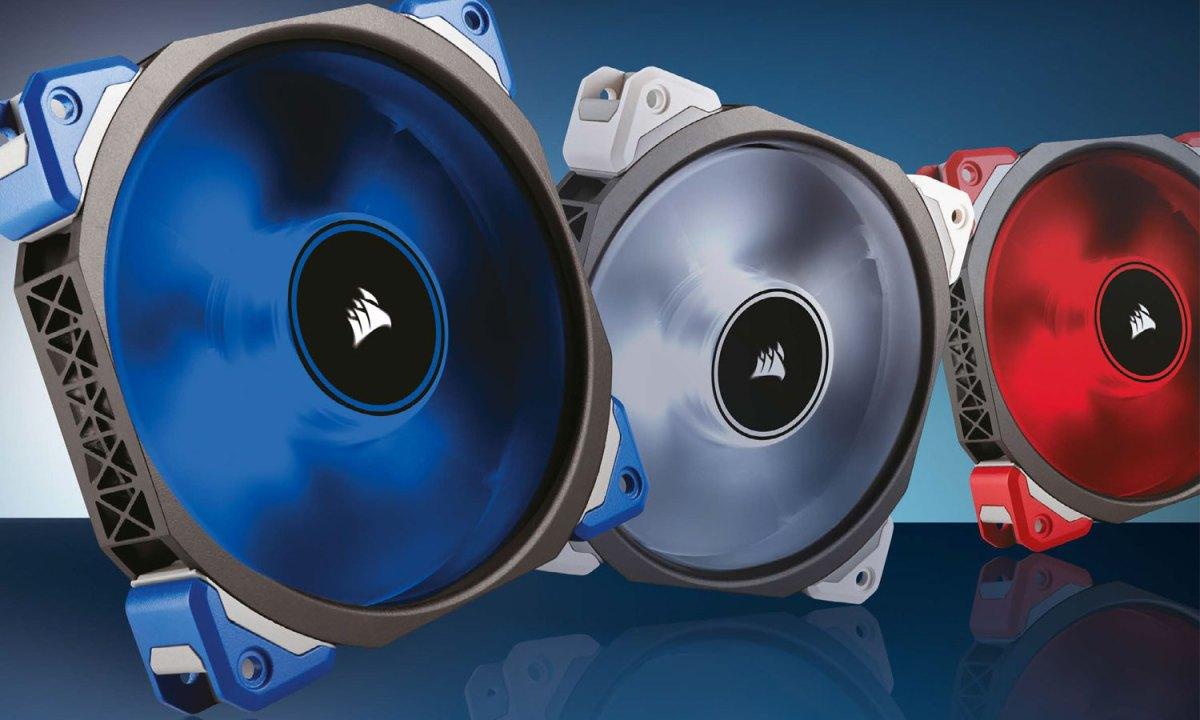
If your Windows 11 laptop sounds like an airplane or gets overheated, you're not alone. The system adjusts the fan according to the load.And when we push the CPU or GPU hard, it's normal for it to spin fast and make noise. The key is knowing what you can modify in Windows, when to use third-party software, and what habits or maintenance save you heat and noise.
In this guide you will find everything you need to reduce noise and temperature without compromising the health of the equipment. We've gathered system settings and reliable utilities. to control fans, diagnostic steps, physical maintenance, and practical tips for balancing performance and quiet operation. And yes, you'll see what's changed in Windows 11 compared to classic power options. Let's learn all about How to limit fan speed and control laptop temperature in Windows 11.
When is it normal for the fan to spin more and make more noise?
In modern laptops, the fan speeds up depending on the workload and accumulated heat. If you compile, edit video, or play gamesThe CPU and GPU generate more heat, and the system increases its revolutions per minute (RPM) to maintain performance. It's expected that the system will be louder in these situations.
The environment also plays a role: in rooms at 25°C or higher, The fan will turn on more frequently To compensate. Placing the laptop on fabric or soft surfaces can block vents and cause temperatures to spike; always leave the air inlets and outlets clear.
During battery charging, and especially until it reaches 100%, may require additional refrigerationIt's common to notice increased fan activity when you plug in the device, especially if you're working at the same time.
The first 24 hours after setting up or resetting the device are special: Windows indexes, synchronizes, and updates in the backgroundThat spike in workload can keep the fan running faster until everything stabilizes.
Watch out for strange noises: clicking, rubbing, or squeaking are not normal. The fan should sound like airflow.It doesn't feel like it's rubbing against something. If it persists after cleaning, check with the manufacturer for support and repair options.
Measure temperature and detect bottlenecks
Before changing anything, it's advisable to confirm the diagnosis. Measures CPU and GPU temperature Using tools like Open Hardware Monitor or the device's own firmware (BIOS/UEFI), you'll see current readings and be able to estimate whether you're within safe limits.
Open Task Manager and sort by CPU to hunt down resource-intensive processes. End blocked or abnormally high-consumption tasks It usually reduces the temperature instantly. If the failure is temporary, restarting clears the state and prevents you from getting stuck dealing with zombie processes.
Keep your drivers and firmware up to date. On Surface devices, the Surface app allows you to... Check and apply updates Drivers and BIOS can be updated in a couple of clicks. For other manufacturers, you'll need to use their official tool or Windows Update.
What you can adjust in Windows 11 to reduce noise and heat
Windows 11 changed some things compared to Windows 10. The old advanced option called system cooling policy It does not appear on many computers with Windows 11Even so, there are useful controls without touching the BIOS.
You can change the power mode from Settings. Go to Start > Settings > System > Power & battery and choose the Recommended power modeCompared to Better performance, this profile limits peak power consumption and usually results in less heat and a more relaxed fan.
In the classic power panel (type powercfg.cpl in the search bar), you can edit a power plan and access advanced settings. There, if your hardware exposes it, you'll see processor power management. Lower the maximum processor state It reduces voltage and temperature from 100% to 95-98% with minimal impact on office tasks or browsing.
Manufacturer tools also help. On HP laptops, OMEN Gaming Hub includes profiles such as Comfort that reduce temperature. On other devices, it looks for its own suite (Lenovo, ASUS, Acer, etc.) to activate silent or thermal modes.
If you don't want to mess with the BIOS and need immediate flexibility, you can combine power modes with fan control software. The goal is to modulate curves and peaks: that the fan doesn't suddenly turn on for no reason, but that it responds when needed.
PWM vs voltage: how do fans control the fans
4-pin (PWM) fans allow control the speed more preciselyThe 3-pin connectors are voltage-regulated, and the adjustment is less precise. Whenever possible, use PWM to define temperature/speed curves; otherwise, voltage control is better than nothing.
Reliable programs for controlling fans and temperatures
There is a good range of utilities, many of them free, that allow you to monitor and in some cases control the speed. These are the most prominent ones and its strengths and weaknesses:
SpeedFan It monitors voltages, temperatures, and fans, including SMART hard drive speeds. It allows you to activate automatic speed based on sensor readings. It's powerful, but it's in English and requires advanced knowledge for fine-tuning.
Notebook FanControl (NBFC) It provides complete control over fans in many laptops (Sony, Lenovo, HP, Dell, Asus, Acer, etc.). It offers profiles per model and real-time readings. Used indiscriminately. It could leave the equipment without cooling. under heavy loads; it's not for improvisation.
Argus Monitor It controls system and motherboard fans and allows for curves based on multiple sensors (CPU, GPU, SSD, motherboard). It features a clear interface and profiles. The free version lasts 30 days. license required later; it's also in English.
Open Hardware Monitor It is open source for monitoring sensors (temperature, load, clock, RPM). It works on Windows and Linux x86 without installation. It's not for beginners and its interface is in English, but as a thermometer it's excellent.
TPFanControl It is designed for ThinkPad and compatible laptops. It allows reduce fan noise It monitors CPU and system temperatures, displaying CPU/GPU temperatures. Lightweight and free, but with a limited interface and no guarantee of compatibility with all brands.
FanControl by Rem0o (GitHub) offers a modern interface, custom curves, and support for multiple sensors via Libre Hardware Monitor and HWiNFO. It allows profiling of each fan, consumes few resources and it is open source.
HW Monitor It displays real-time speed (CPU and up to 3 fans), min/max, voltages, and temperatures. Very reliable for viewing data, but does not allow RPM modificationIt is used for diagnosis, not control.
EasyTune (Gigabyte) includes Smart Fan Auto for adjusting fans and overclocking options. Free, functional, and focused on Gigabyte motherboards, but the interface is... unattractive and in English.
HWiNFO It's one of the best for reading sensors. It allows you to visualize data in graphs and on some devices. adjust fansFree, very comprehensive, although its reports may be less detailed than rivals in certain sections.
MSI Afterburner It's used for GPU overclocking, viewing FPS, voltages, and controlling the graphics card's fan curve (up to 5 profiles). Useful for gaming and manage GPU fansIt takes time to master it.
Corsair iCUE Controls Corsair product fans and RGB lighting, with monitoring and alerts. Allows Silent, game, and movie modesLimited to compatible hardware of the brand for direct control.
Zotac FireStorm It offers overclocking and GPU/CPU fan control on compatible systems, with a very clear interface. It's free, although fewer fine functions than other suites.
ASUS AI Suite 3 and Fan Xpert 4 They allow you to control CPU, GPU, and chassis fans, as well as monitor temperatures, voltages, and frequencies. Intuitive design and simple setupbut they work with ASUS hardware.
FanCtrl It displays motherboard, CPU, GPU, and disk temperatures, and allows you to adjust fans by temperature or silent/maximum power mode. The interface could be improved, but it works. very complete and free.
fan-control (Open source project) manages sensors and speeds, creates custom curves, and also works on Linux and macOS. Ad-free and with configurations by scenario to avoid sudden jumps.
FanControl by Rem0o: This is how you master curves
Upon first opening, the wizard detects fans, tests minimum and maximum speeds, and labels each header. You can rename groups like CPU Fans or Case To keep it tidy. If there are connectors you don't use, hide them so they don't get in the way.
In the Curves section, create a new curve and choose the temperature source (for example, the CPU). Edit points with the mouse or from the temperature and percentage fields to trace a progressive profile: quieter at rest, higher flow under load.
On a CPU, something like this usually works well: 20% up to 40°CBoost to 40% at around 60°C and then increase to 100% at 80°C. Adjust for your hardware; some GPU fans won't start below 40%, so respect their minimum threshold.
Assign the curve to each fan and repeat for the graphics card and case. FanControl also helps you to monitor temperatures and RPM at a glance, although it doesn't save maximums like other purely monitoring apps.
If it doesn't detect fans, check for conflicts: close MSI Afterburner, EVGA Precision, or disable Fan Xpert in Armoury Crate. You can delay the start In the options, change Start at User Log On to 30 seconds to allow time for the drivers to load.
Best practices for lowering laptop temperatures
Use your laptop on hard, flat surfaces, avoiding sofas, blankets, or clothing. Leave the input and output slots clear. And avoid direct sunlight or nearby heat sources. The environment dictates: ventilate the room on hot days.
Cooling pads add a bonus when you're editing video or playing games. Better made of aluminum and with good airflow (See the CFM). There are also small exhaust fans that draw hot air through the grille; they are more discreet, but less effective than a good cooling pad.
If the device is old, opening it up and cleaning the dust is a lifesaver. Use compressed air, blowing gently without pointing it directly at the nozzle, and then gently brush the dust. Clean blades and grates carefully to recover flow without damaging components.
In older laptops, the thermal paste may have lost its properties. Change thermal paste and thermal pads It returns conductivity on the CPU and GPU. This is a task for advanced users: if you have any doubts, seek technical support.
System-wide settings configure sleep or shutdown when you are not using the equipment for hours. If it rests, it does not generate heat. and extends battery and fan life. If you also have an SSD, check out this article: NVMe SSD at 70°C without gaming: causes, diagnosis and effective solutions.
Reduce noise without compromising cooling.
Find the balance: quality fans make less mechanical noise and last longer. Define smooth curves that avoid sharp peaks and that they don't start at full speed due to a momentary temperature spike.
Check for vibrations: a loose mount transmits resonance to the casing and makes more noise than necessary. Cleaning reduces turbulence and buzzingwhich often come more from dust than from pure speed.
Risks of poor ventilation
When it gets too hot, the system protects itself by lowering the frequency: you'll notice stuttering, FPS drops, and slow tasks. Thermal throttling is the first symptom that the temperature is rising.
Prolonged poor ventilation can cause instability: memory errors, blue screens, or file corruption. Heat accelerates degradation and shortens the lifespan of CPUs, GPUs, and VRMs.
In extreme cases, very high temperatures can cause electrical failures. Beyond performance, it's a matter of safety.And constant noise at maximum speed is also a problem in offices or shared spaces.
Other methods: BIOS/UEFI and physical drivers
If none of the apps suit you, many BIOS/UEFIs allow ventilation curves per sensorIt's the most robust method and doesn't depend on Windows. You adjust it once and forget about it.
For desktop computers, there is the option of front bay regulators to manually control fans. For laptops, the alternative is a cooling pad., since there is no room for internal physical controllers.
Quick FAQs
Can a fan control program damage hardware? Yes, if you configure it incorrectly and leave the RPMs too low under load. If you're unsure what you're doing, stick to safe values or use automatic profiles.
Does the same program work for laptop and desktop? It depends on the hardware and sensors. Some work on both, but Laptops are more restrictive and they don't disclose all the controls.
Why isn't an app detecting all my fans? They may be on an incompatible hub, the software may not recognize the board's controller, or another program is interferingIt closes manufacturer suites or delays app startup.
Does it affect energy consumption? Yes, although the impact of the fans is small. Higher RPMs consume more fuel.But you'll notice it less than a change in CPU/GPU.
If you stick with one idea, let it be this: Start by measuring, adjust power modes And if you need to fine-tune things, use a trusted app for curve control. Pay attention to placement, keep the equipment clean, and remember that a good ambient temperature is always your best ally for the fan.

Passionate about technology since he was little. I love being up to date in the sector and, above all, communicating it. That is why I have been dedicated to communication on technology and video game websites for many years. You can find me writing about Android, Windows, MacOS, iOS, Nintendo or any other related topic that comes to mind.