We'll tell you how to install OpenCode on Windows and start programming with AI agents. This tool has significant advantages: it's open source, easy to use, and not dependent on a single AI vendorWhether you're just starting out in the world of programming or you're an expert, it will be useful to know about it and how to use it.
Why install OpenCode on Windows for AI programming
Imagine having a super-intelligent junior programmer working alongside you. Well, OpenCode is exactly that: an open-source programming assistant that reads files, edits code, executes commands, and solves complex tasks in multiple steps. What's more, it's free, cross-platform (Windows, macOS, and Linux), and It works from the terminal, as a desktop application, and as an extension for IDEs..
Another important advantage is that OpenCode It does not depend on a single AI providerYou can use Claude, Gemini, DeepSeek, OpenAI, or even local models with Ollama without needing the internet. This gives you the freedom to choose the model that best suits your needs and budget. But its true power lies in its agent architecture.
OpenCode doesn't just answer questions. It can plan taskschaining tools and even deploy specialized sub-agents to explore your code before proposing changes. All of this makes it an ideal alternative to utilities like Cursor, Claude Code, or Roo CodeLet's look at the steps to install OpenCode on Windows for programming with AI.
Requirements to install OpenCode on Windows
Before installing OpenCode on Windows, you need Node.js. OpenCode is developed in JavaScript/TypeScript, so Node.js is your required runtime environmentSo you have to go to nodejs.org/es/download and download the .msi installer of the latest available version.
Next, run the installer, accept the terms, select the installation path, and complete the process. verify that everything is correctOpen the terminal (Win + R) and run node -v y npm -vYou should see the version numbers for Node.js and npm. If both appear, you're ready to continue.
Method 1: Installing OpenCode with npm (recommended for developers)
The easiest way to install OpenCode on Windows and start programming with AI is using the Node.js package managerYou just need to open the terminal and run the command. npm install -g opencode-aiThe -g parameter stands for "global", which allows OpenCode to be run from any folder.
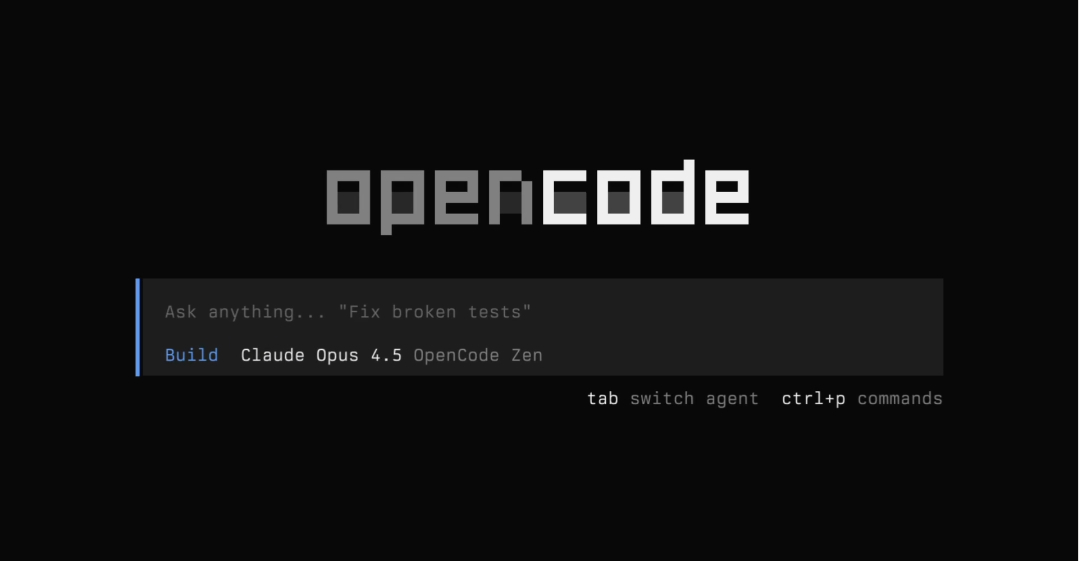
Again, it's advisable to verify the installation by requesting the version using the command opencode --versionIf you see the version number, the installation was successful. Now you just need to launch OpenCode in your project: navigate to the project folder and run cd ruta/a/tu/proyecto and then opencode. This will open the TUI interface (Terminal User Interface) where you can interact directly with the AI agent.
Method 2: Install OpenCode on Windows using the desktop installer
Another way to install OpenCode on Windows is through the desktop installer. This is ideal for those who aren't comfortable using the terminal and prefer a more streamlined approach. more graphic experienceYou just have to go to the official OpenCode website at opencode.ai and download OpenCode Desktop Installer.exe.
Next, click on the downloaded file and the installer will run automatically. In a few seconds, OpenCode will be installed on your system and the graphical interface will open. This version is ideal for getting started, but if you want Explore the full potential of agents and automationIt's best to familiarize yourself with the terminal version.
Configuring AI models after installing OpenCode on Windows
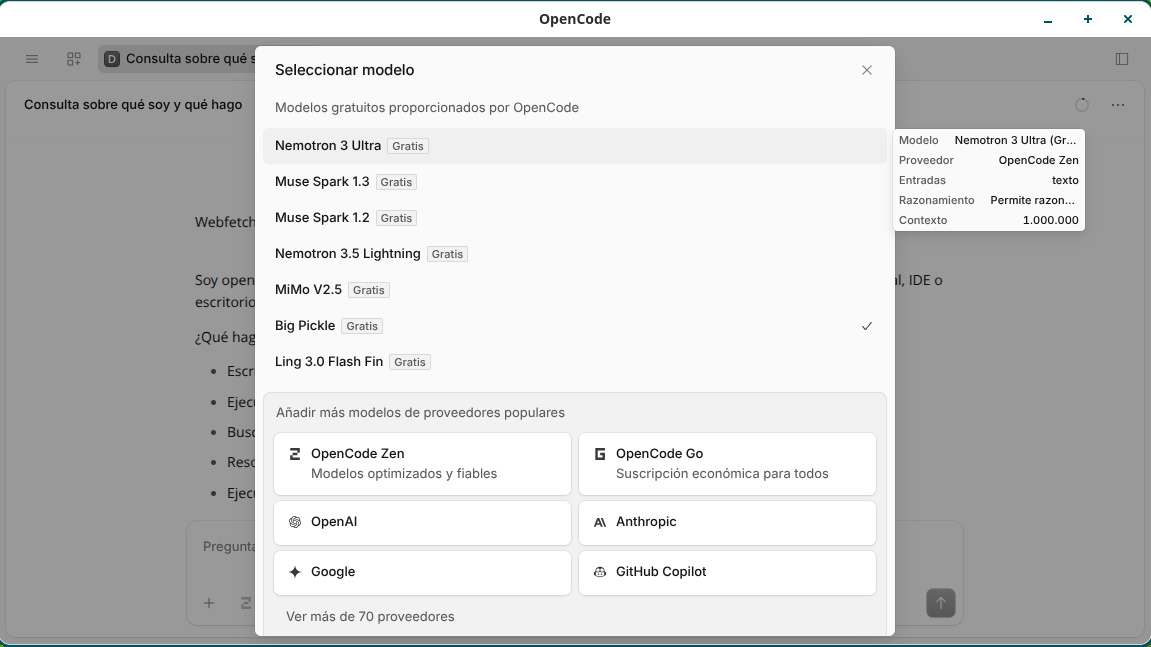
OpenCode is free, but to make it work you need to provide an API key for an AI model. The good news is that you have many options to choose from. To start, you can use one of the free templates that OpenCode includes through OpenRouterYou don't need to configure anything: these models appear automatically in the model selector within the interface.
If you're using OpenCode from the terminal, you also need to set up an AI provider with the built-in command /connect. The assistant will show you a list of integrated providers. (OpenAI, Anthropic, Google, Moonshot AI, OpenCode Zen, etc.). Select yours and enter your API key when prompted. If you don't have an API key, you can use Cloudflare Workers AI, which offers free quotas.
And if you have hardware with sufficient GPU power and don't want to consume paid API quotas, you can connect a local modelTo do this, you just need to start an Ollama server on Windows and connect OpenCode to your local model by entering the connection parameters. localhost.
The world of agents in OpenCode
After installing OpenCode on Windows and configuring an AI provider, you're ready to explore its true potential. Agents in OpenCode are standalone programs that can do things like:
- Read and understand your entire project by analyzing the file structure and content to have a complete context.
- Plan complex tasks by breaking them down into simpler, more manageable steps.
- Use tools to read files, edit them, run commands, determine or verify the results of your actions.
- Learning from experience, as it maintains persistent sessions that recall the context of previous conversations.
Furthermore, you can use the agents in different working modes that adapt to the different phases of a development project. By default, the agents in OpenCode comes in mode Build, with permission to read files, edit them using patches, and run Bash/PowerShell commands when you need to build or test the project.
Pressing the key Tab At TUI you can switch to agent Plan. In this mode, the system requests manual confirmation before applying changes to the disk or running scripts in the terminal. This mode is very useful for analyzing complex architectures or running diagnostics without the risk of accidentally overwriting files.
Essential commands for using agents

Within the OpenCode interface, you can use these commands to interact with the agents:
/init: Generates an AGENTS.md file in your project, which contains the rules that OpenCode will read in each session to understand the conventions and architecture of your project./connet: Opens the setup wizard to connect new AI model providers./model: Displays and allows changing the active AI model
Another advantage of installing OpenCode on Windows is that, during a conversation, you can summon sub-agents by using @ mentions:
@Explore: Analyzes the codebase quickly without making modifications.@Scout: Inspects external documentation, downloads cached dependency repository, and compares sources.
It's clear: installing OpenCode on Windows is a game-changer for any programmer. It's not just smart autocomplete: it's a AI agent that understands your code and helps you build itIf you decide to try it, you'll get all the tools you need to start programming smarter.

From a young age, I've been fascinated by all things scientific and technological, especially those advancements that make our lives easier and more enjoyable. I love staying up-to-date on the latest news and trends, and sharing my experiences, opinions, and tips about the devices and gadgets I use. This led me to become a web writer a little over five years ago, focusing primarily on Android devices and Windows operating systems. I've learned to explain complex concepts in simple terms so my readers can easily understand them.