- Resetting Photoshop's workspace and preferences usually resolves most interface glitches and strange program behavior.
- When the configuration is severely corrupted, it is advisable to manually clear the settings and adjust performance, RAM, and virtual memory disks.
- Having backups of settings, workspaces, and brushes allows you to reinstall Photoshop without losing your customizations.
- If errors persist, uninstalling older versions and reinstalling Photoshop from scratch can fix conflicts and deep corruption.
When Photoshop opens with corrupted workspacesWith misplaced panels or strange errors, working becomes a real ordeal. Sometimes the problem is "just" a chaotic interface, and other times it goes much further: tools that fail, notifications that don't appear, random crashes, or even files that seem corrupted.
In this article you will see, step by step, how Reset Photoshop workspaces and preferencesHow to thoroughly clean its system settings, which parameters to adjust to improve performance, and in what situations it's more cost-effective to uninstall and reinstall the program. All explained in Spanish (Spain), with a practical approach so you can get back to work without wasting time or, above all, your projects. We're going to show you a complete guide on... Photoshop opens with corrupted workspaces: how to reset them.
When Photoshop appears corrupt: a real-life example of a damaged file
Not all problems boil down to a misaligned interface. Sometimes the conflict manifests itself in a much more dramatic way: a PSD file that won't open after a system failure. Imagine a very common situation: you're using Photoshop CC 20 with a dual monitor setup, one of them loses signal, you quickly save the document you've been working on for days and restart your computer. You return to Windows, open Photoshop, and the file gives an error saying that the format is invalid.
In a case like this, many people try everything. Other PSDs open without a problemSo it doesn't seem like a general program failure. You check that the file extension is .psd, you check if it was renamed incorrectly, but everything looks fine from Windows Explorer. The real trouble starts when you check the file with a hex editor and only see 00000000 in every row… that indicates that the actual document data has been lost.
Many users are considering resorting to file recovery programsBut there's a catch: these utilities focus primarily on recovering deleted or lost files, not on repairing a file that exists but whose data has been overwritten with zeros. If the faulty PSD file hasn't been deleted, but its contents have been corrupted, a disk scan won't always help.
To make matters worse, you check the "previous versions" of the file in Windows and there aren't any available. You check the system restore points and the last one is from five days ago, before you even started your illustration. If the file weighs, for example, 14 MBYou might think there's still something recoverable, but if upon examination you see only zeros, the reality is that there's very likely no way to save it.
This extreme example helps to understand something important: some corruptions don't depend on Photoshop settings, but rather on hardware, system, or saving errors. In those cases, resetting workspaces won't save the file. But in most everyday problems (broken interface, strange errors, unstable behavior), clear Photoshop settings Yes, it makes a difference.
Restore Photoshop workspaces to their original state
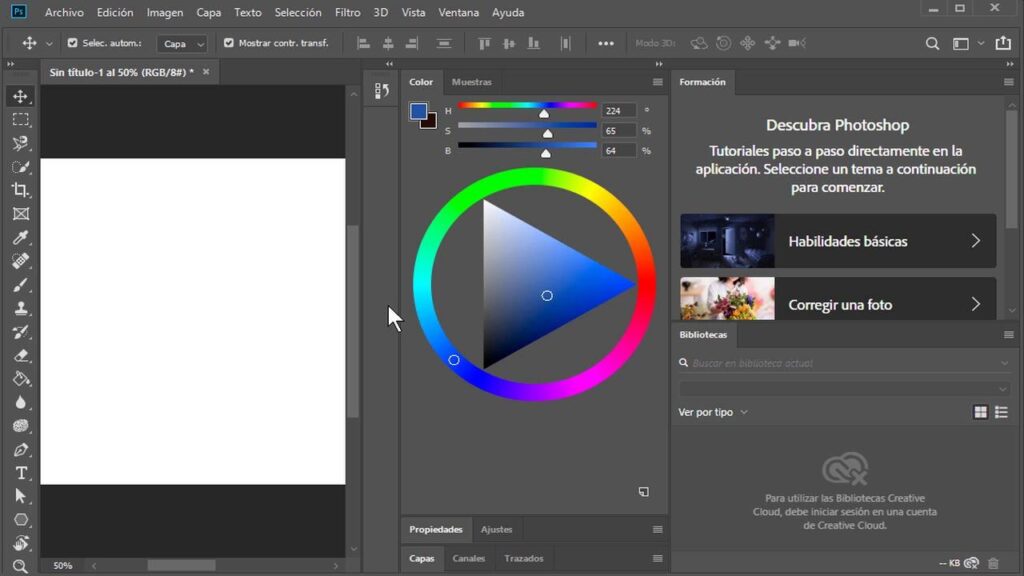
Very often, "corrupt workplaces" are nothing more than a interface that is not configured by dragging panelsAccidentally closing windows or changing options without realizing it is easy. Photoshop allows you to customize the interface almost to the limit: floating panels, relocated toolbars, hidden tabs… and after many changes, it's easy to lose track of essential tools.
If the problem is that you can no longer find the panels you use daily, that windows appear off-screen (very common with multi-monitor setups), or that the workspace seems "broken," the first thing you should do is return to the default workspacePhotoshop offers several predefined work profiles, including the classic one.
To restore the original interface, you have to go to the menu «Window > WorkspaceThis section displays the various workspaces that Photoshop offers ready to use: for example, photography, painting, 3D, graphics, and web, etc. The standard workspace, which many users identify as the traditional Photoshop layout, is usually called "Essentials."
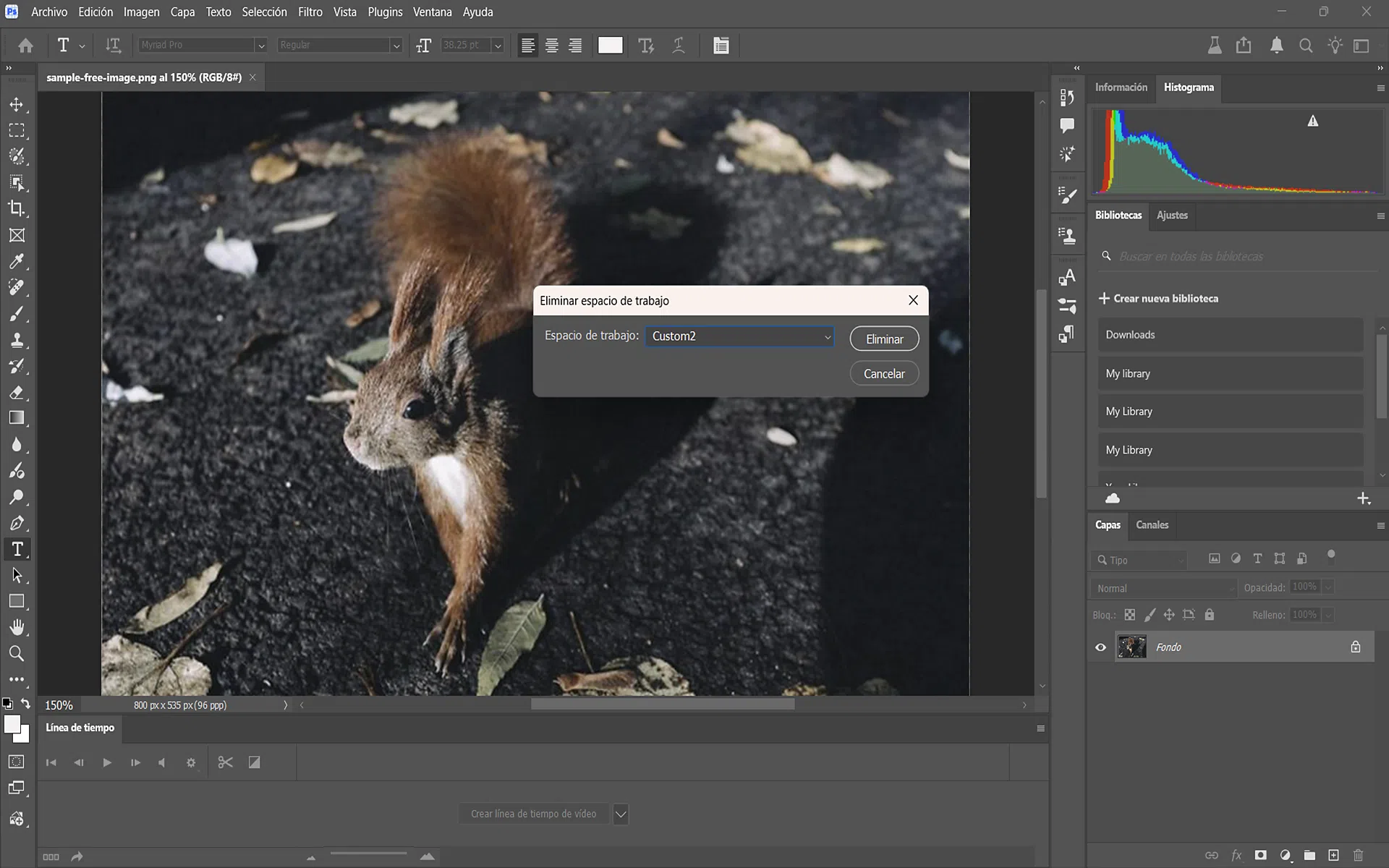
If you haven't selected it, select it. The moment you choose «Essential aspectsThe interface reverts to the pre-configured layout that Adobe considers the base. However, you may have modified it yourself in the past. In that case, within the same workspaces menu, you'll see the optionRestore essential aspects"By clicking it, Photoshop restores that space to its original factory state."
This same mechanism works with the other predefined workspaces: 3D, Painting, Photography, and others. If a particular workspace has become cluttered with floating panels, missing windows, or accumulated changes, Simply select the corresponding "Restore" option so that it regains its original design.
How to customize without damaging the default workspace
Photoshop is designed so you can customize its interface to your liking, but it's best to do so in a way that... Don't ruin the original workspacesThere's a very simple trick to achieve this: instead of directly modifying "Essential Aspects" (or another standard space), create a new one from this one.
The path is the same: «Window > Workspace > New workspaceWhen you select it, Photoshop will ask you for a name. Choose something meaningful like "Personal Painting," "Quick Touch-Up," or whatever feels right. From that moment on, all the changes you make to the interface will be saved associated with that custom workspace.
This way, you will be able to move panels, hide windows, pin tools Or rearrange the sidebar without fear of losing the original design. If you ever tire of that layout, simply return to "Essentials" in the spaces menu, and it will be unchanged. If you wish, you can also restore it as described earlier to return it to its exact factory layout.
This practice of using personalized workspaces is especially useful if you share equipment with other people or if you work with others. different disciplines within PhotoshopIllustration, photo editing, interface design, etc. Each type of task can have its own workspace without affecting the predefined ones or turning them into chaos.
Completely reset Photoshop preferences
When the problem goes beyond panel layout and you experience unexpected crashes, tools that stop working without explanation, missing notifications, or erratic performance, it's usually a sign that Photoshop preferences are corruptedHere we're talking about a deeper reset than just the workspaces.
To access the preferences window, the fastest way is to use the keyboard shortcut Control + K (on Windows). You can also access it from the "Edit > Preferences" menu. Once inside, in the "General" section, you'll see two important buttons related to restoration.
The first one is used for retrieve all warning boxes that you previously marked as "Don't show again." If, for example, you disabled an important confirmation message and now want it to reappear, this option allows you to restore it. While useful, it doesn't significantly affect the program's behavior.
The second button, however, is the really key one: «Restore preferences on exitClicking this will prompt Photoshop to ask if you really want to restore the factory settings when you close the program. If you accept, the next time you close and reopen Photoshop, all preferences will be restored to their original state, as if you had just installed it.
This process resets a multitude of settings: custom keyboard shortcuts, interface preferences, tool behavior, certain performance parameters, notifications, and generally any option you might have changed in the various preference sections. In many cases, Instability problems or rare failures disappear after performing this complete reset.
However, after restoring your preferences, you will have to return to Configure Photoshop your wayThis includes: preferred units of measurement (for example, switching from centimeters to pixels), user interface (visible panels, dark or light theme), tool behavior, and more. It's a small time commitment in exchange for getting a fully functional program back.
Manually clear Photoshop settings from the system
Sometimes, even after using the "Restore preferences on exit" option, some problems persist, especially if they have accumulated. corrupt configuration files in the system. Photoshop, like any other application, saves its settings in user-specific folders that can be deleted or copied as a backup.
If you want to do a thorough cleaning, the procedure involves going to the route where Photoshop stores your configuration dataIn Windows, it's usually something like this: Users//AppData/Roaming/Adobe/Adobe Photoshop /Adobe Photoshop SettingsThe exact folder may vary depending on the installed version, but the general structure is similar.
Once you locate that folder, you have two options. If you want to completely remove the settings so that Photoshop regenerated them from scratchClose the program and delete the "Adobe Photoshop Settings" folder. The next time you launch Photoshop, it will detect that no previous configuration data exists and create new files with all the default values.
If, on the other hand, you want backup your current settings Before experimenting, don't delete the folder directly. Instead, copy it to another directory or rename it something like "Settings_backup". That way, if you're not happy with the changes or things get worse, you can always restore those files and get your preferences back to how they were.
This manual deletion is often especially useful when you've tried all of Photoshop's built-in restoration options and the program is still behaving strangely. Removing system settings forces the application to rebuild the entire configuration environmentwhich often solves errors that are difficult to diagnose.
Optimize Photoshop performance from its settings
Beyond corrupt workspaces, many users suffer from Photoshop as a program slow, heavy, or sluggishThis is especially true when working with high-resolution photos, very large files, or multiple images at once. This isn't always due to corrupted settings; often it's a matter of suboptimal performance configuration.
Photoshop includes a very powerful preferences panel where you can adjust how it uses RAM, the GPU (graphics card)This includes the cache and other system resources. To access it, go to "Edit > Preferences > Performance". This section is worth reviewing carefully if you notice stuttering, freezing, or sluggishness.
Within "Performance" you will find a control to decide What percentage of your computer's RAM do you want to allocate to Photoshop?By default, the program calculates a recommended value, but you can increase or decrease it depending on how much memory you have installed and whether you usually use other heavy applications at the same time.
You will also see options related to the GPU usageEnabling hardware acceleration can improve smoothness when zooming, rotating the canvas, or applying certain filters, provided your graphics card supports it and is properly configured. If you suspect the GPU is causing crashes or strange artifacts, you can try temporarily disabling it from here and see if the problem disappears.
Another important section is the configuration of the image cacheAdjusting the number of cache levels and their size will help improve performance when zooming in/out and navigating large documents. A larger cache uses more memory, but it also improves the smoothness of many visual processes. This other guide might be helpful: How to fix program errors when saving files in Adobe Photoshop
Configure virtual memory disks correctly
When RAM runs out, Photoshop resorts to what are called virtual memory disks (scratch disks). In practice, these are disk drives where the program stores temporary data while it runs. If these disks are poorly chosen or full, performance plummets and errors due to lack of space may occur.
Many users with modest computers (4 or 8 GB of RAM, for example) notice that when applying many layers, complex filters, or working with huge files, Photoshop starts to consume resources uncontrollablyWhat's actually happening is that, since there isn't enough RAM, the program is using the hard drive as an extension of memory.
To configure these disks, return to the preferences window and enter the « sectionVirtual memory disksThere you'll see a list of the different drives available on your computer, along with the free space on each one. You can select one or more drives for Photoshop to use as temporary storage.
The best option, if you have one, is to choose one. SSD drive (solid-state drive) as a virtual memory disk, since its read and write speeds are far superior to those of a traditional mechanical hard drive. It's also a good idea to avoid using the same drive where the operating system is running out of free space, to prevent excessive workload sharing.
Properly configured virtual memory disks can significantly reduce crashes caused by insufficient space and improve overall program responsiveness when working at the limits of your hardware. They won't fix a corrupted workspace on their own, but they are part of a better solution. solid and stable configuration.
Remove old versions of Photoshop that may be causing conflicts.
In many teams, they accumulate, almost without realizing it, several different versions of PhotoshopPerhaps you installed a new edition without uninstalling the previous one, or Creative Cloud added a newer version while leaving the old one on your system. While this may seem harmless, it can cause conflicts.
Although you can't normally open two versions of Photoshop at the same time without further ado, the remains of previous facilities Plugins, registry entries, and shared libraries can interfere with the behavior of the version you use daily. This can result in unusual errors, features that stop working correctly, or problems updating.
To check, go to the Windows Control Panel (or the "Apps & features" section in Settings) and review the list of installed programs. If you see older versions of Photoshop that you no longer need, the best course of action is uninstall them completelyThis reduces the possibility of incompatibilities between libraries and components.
This will alleviate the load on the system and provide a cleaner environment for the current version of Photoshop. It's not a magic bullet, but it's an important step if you've been accumulating installations for years. successive updates on top of others.
When is it worth reinstalling Photoshop instead of just restoring?
Restoring workspaces and preferences is often sufficient in many cases, but there are situations where the problem lies in the Photoshop installation itself or in damaged internal program filesIn those circumstances, reinstalling from scratch is like "formatting" only Photoshop.
Some signs that things are getting serious are quite clear: the program is closes suddenly for no reasonAbsurd errors that didn't appear before suddenly appear, tools that have always worked randomly stop working, or the opening time increases significantly more than normal.
Another warning sign is when The updates are not installing correctlyThey either freeze mid-process or, once applied, create more problems than they solve. This can indicate corrupted files within the installation itself, conflicts with remnants of previous versions, or other deep-seated system issues.
In parallel, if after trying to restore workspaces, reset preferences, manually clear settings, and adjust performance, Photoshop continues to misbehave, it's time to take drastic measures. Here, the most sensible option is uninstall Photoshop completely and reinstall it cleanly.
Before doing so, it is advisable to save anything you don't want to lose: custom brushes, presets, custom workspacesStyles, actions, etc. Many of these resources can be exported. Taking a few minutes to back everything up will save you trouble later.
How to uninstall and reinstall Photoshop step by step
To reinstall Photoshop as cleanly as possible, the ideal solution is to use Adobe Creative Cloudwhich is Adobe's official application manager. From there you can uninstall and reinstall without having to search for old or dubious installers online.
The first option is to open the Creative Cloud app and locate Photoshop in the list of installed applications. From there you can uninstall the programDuring the process, Adobe will ask if you want to keep your settings and personal data or delete them as well. If your goal is to restore Photoshop to its original state, it's best to choose the option to delete your preferences as well.
Another option is to go to the Windows Settings menu, to "Apps" or "Add or Remove Programs," find Photoshop, and uninstall it from there. In many cases, this will also redirect you to the Creative Cloud process, as it's responsible for managing the installation.
After uninstalling, some files may remain. remnants of files in the Program Files directoryTo ensure a complete cleanup, go to "Program Files" and "Program Files (x86)" and locate the "Adobe" folder. If there are no more Adobe applications you need in that location (or you only want to remove anything related to Photoshop), delete the corresponding directories.
Once the program is uninstalled and you have removed any remaining files, it is recommended Restart your PC To clear background processes and release any files that were in use, return to Creative Cloud, download the latest version of Photoshop available for your subscription, and perform a clean install.
When the installation is complete, open Photoshop and you'll see that Everything is exactly as it comes from the factoryGeneral parameters, workspaces, default dimensions, side panels, etc. From here you can start restoring your brushes, actions, custom workspaces, and so on, but make sure the program behaves stably.
Take a few minutes to check that the The tools respond well.Ensuring the interface is in order and that performance preferences (RAM, GPU, virtual memory disks) are configured to your liking will prevent you from falling into the same problems again.
With this combination of Restore workspaces, reset preferences, manually clear settings, optimize performance, and, if necessary, reinstall from scratch.You have a full range of solutions for almost any problem related to corrupted workspaces or strange Photoshop behavior. While some severely damaged files may be beyond repair, keeping your installation and settings under control greatly reduces the chances of encountering serious errors precisely when you need everything to work perfectly.

Passionate about technology since he was little. I love being up to date in the sector and, above all, communicating it. That is why I have been dedicated to communication on technology and video game websites for many years. You can find me writing about Android, Windows, MacOS, iOS, Nintendo or any other related topic that comes to mind.