- Steam's desktop control functionality allows you to control your PC with a controller, but it can cause conflicts.
- There are methods to override specific HID drivers that emulate the mouse and keyboard.
- Joystick drift can cause the cursor to move on its own if the Steam setting is active.
- Disabling specific drivers is an alternative when Steam's internal options don't work.
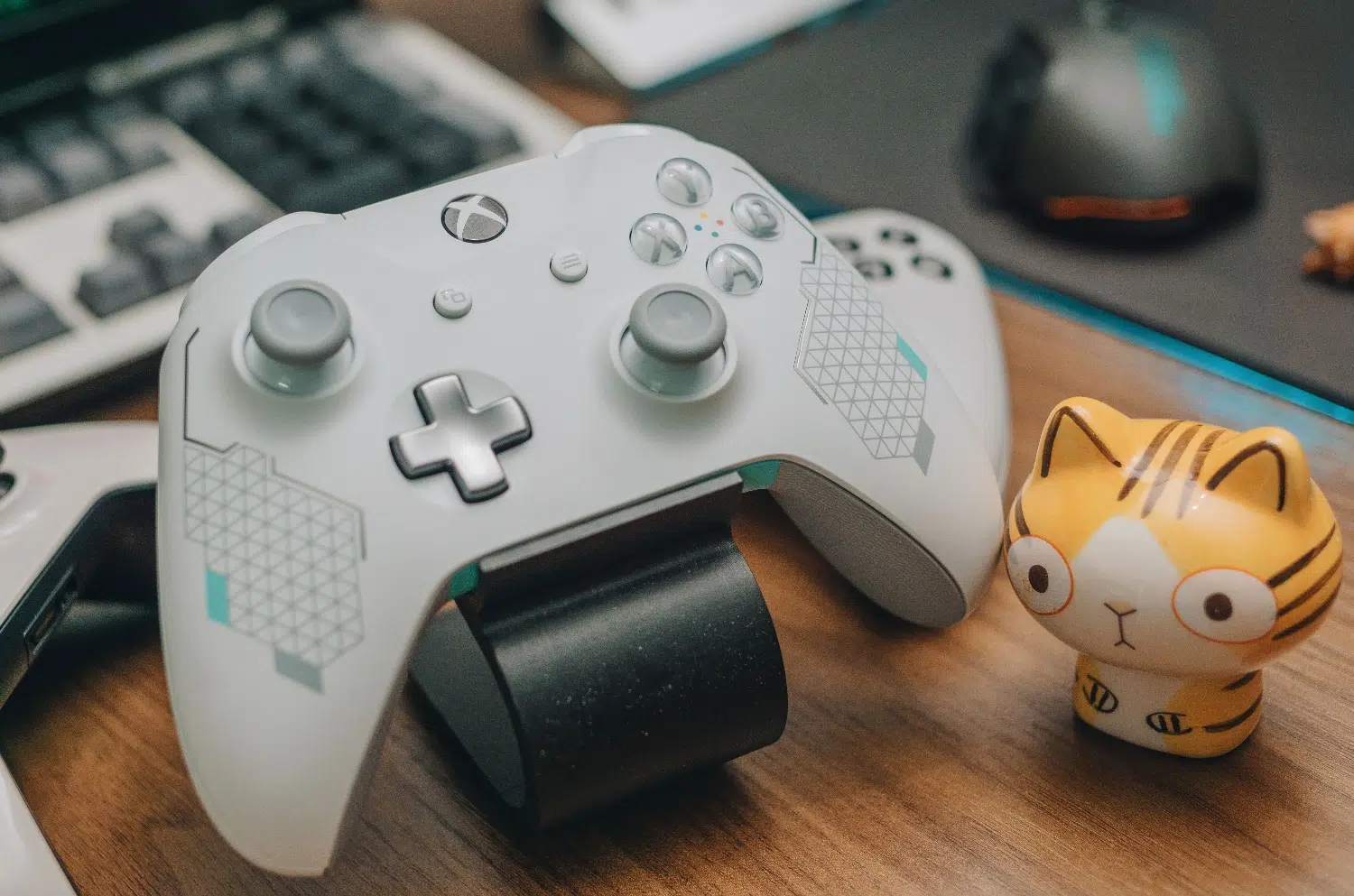
Does Steam move the mouse cursor with the controller outside of games: how to disable it? It's probably happened to you: you're relaxing on your PC, you have Steam open, and suddenly the mouse cursor starts acting on its own or moves every time you touch the controller. This happens because Steam has a built-in feature that lets you navigate the desktop as if you were on a console, which sounds great in theory, but In practice, it can be a real nuisance. if you just want to play.
For many of us, the PC is our work and design tool, and having a joystick that emulates a mouse can lead to... Let's accidentally enter weird commands Or the cursor might be bouncing around the screen due to dreaded stick drift. If you find yourself in this situation and don't want to be closing Steam every time you need to use the mouse normally, here are the keys to fixing it.
The problem of desktop control and drift
When Steam detects a controller, it activates desktop mode by default. The problem arises when the controller has slight wear on the sticks, causing it to the cursor moves on its ownThis is not only annoying outside of games, but sometimes the mouse cursor appears on screen while you're playing, interfering with the experience and causing... the character moves erratically or the camera looks down without us having touched anything.
Sometimes, the system gets stuck in a loop where the controller constantly switches between being a gaming device and a keyboard or mouse, preventing proper menu navigation. While many try to fix this through Steam Input settings or Big Picture mode, there are cases where These official options are ineffective And we need to go one step further.
Technical solution via the Control Panel
If Steam's software options have let you down, there's a more radical but effective way to disable this feature directly from the Windows operating system. The goal is to disable HID device that Steam uses to emulate the mouse and keyboard.
Steps to disable the emulated mouse
To begin, go to the Control Panel and enter the Mouse section. Once there, navigate to the Hardware tab. You'll see several devices listed as "HID-compliant Mouse." The trick is to locate the one that indicates its location is AlphaMouseWhen you find it, go into its properties and select the option to deactivate the deviceWith this, the joystick will immediately stop moving the cursor.
Eliminating keyboard interference
To prevent the controller from sending stray keystrokes that the PC interprets as keys, follow a similar process but in the Keyboard section of the Control Panel. In the Hardware tab, look again for the driver related to... AlphaMouseIn some systems, simple deactivation is not possible, so the solution is uninstall the device directly. This ensures that the controller functions as a standard USB peripheral, without interfering with the physical keyboard.
Impact on gaming experience
It's important to mention that making these adjustments doesn't affect the functionality of games within Steam or other streaming applications, such as those for Xbox One. Your physical mouse and keyboard will continue to work perfectly, while the controller will be limited to... send control signals and not desktop browsing. This is the ideal solution for those of us who use our PCs for graphic design or web browsing and don't want a connected controller to interfere with our workflow. obstruction to the workflow.
By removing these specific controllers, we made the controller simply a controller, eliminating cursor flickering and preventing the system from confusing game inputs with desktop commands, thus allowing the joystick to be strictly for playing.
Disabling the AlphaMouse drivers in the Windows control panel removes peripheral emulation, thus resolving unintentional cursor movement caused by Steam or controller drift without affecting gameplay functionality.
Frequently Asked Questions
Why does my mouse cursor move on its own when I have Steam open?
This happens because Steam activates desktop mode, which allows you to control the PC with the controller, and if the joystick has drift, the cursor will move without you touching the device.
How can I disable the mouse on the controller if the Steam options aren't working?
This can be done from the Windows Control Panel by disabling the HID-compliant mouse device listed as AlphaMouse in the hardware tab.
Will disabling these drivers affect my Steam games?
No, the controller will continue to function correctly within games; only the ability to control the cursor and keyboard on the desktop is disabled.
What to do if the controller enters unintentional keyboard commands?
You need to go to the Control Panel, Keyboard section, and uninstall the AlphaMouse driver to prevent the controller buttons from emulating PC keys.
Is it possible to fix the problem without closing Steam?
Yes, by disabling the AlphaMouse HID drivers in the operating system, the controller stops moving the mouse even if Steam remains open.
Why does the mouse cursor appear while I'm playing with a controller?
This occurs when the game detects mouse movement due to Steam emulation or drift, which can cause erratic behavior in the character or camera.
Index
