
Given that Telegram is one of the most efficient and fastest messaging platforms, it's surprising when it experiences synchronization problems. You open the desktop version and suddenly dozens of messages appear that are hours old, or even from the previous day.What to do if Telegram Desktop doesn't sync new messages until you open them? Let's review the solutions.
Why doesn't Telegram Desktop sync new messages until you open them?

Telegram rarely experiences synchronization problems between its different versions: mobile app, desktop app, and web. And when they do occur, it's usually not a service failure, but rather a restrictions in the local app and operating systemTherefore, when Telegram Desktop doesn't sync new messages until you open it, you need to check the settings on both devices.
Keep in mind that Telegram Desktop It's not a heavy application, but it does require maintenance. socket (Communication channel) open with Telegram's servers. This is what makes synchronization between the mobile and desktop apps almost instantaneous. But, if The operating system is configured to save energy and resources.It may cut that connection.
Consequently, Telegram is not working in the background and has stopped updating automatically.The same thing happens if the local app is set to remain inactive in the background. In any case, it only detects new notifications when you manually open the application. Knowing this, you can see where to look when Telegram Desktop doesn't sync new messages until you open it. Let's look at the solutions.
Verify that Telegram Desktop is allowed to start automatically
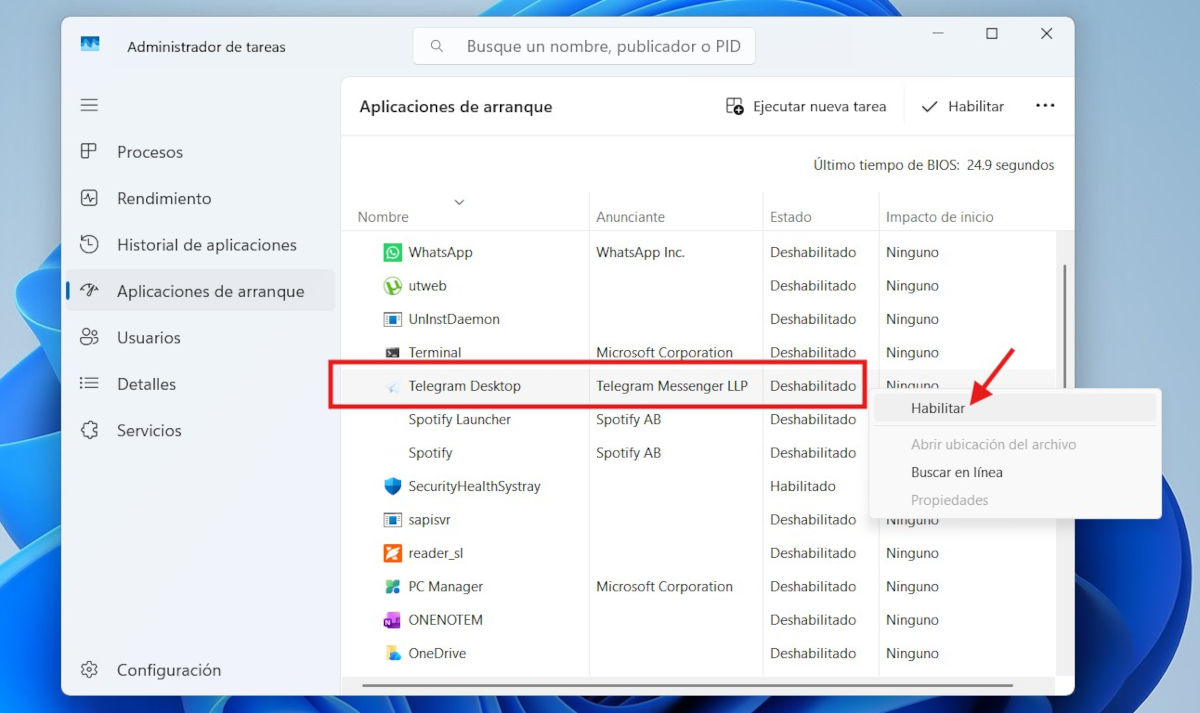
If you want Telegram Desktop to automatically sync messages, you need to add it to your startup applications. This way, When the computer starts up, the app will also start up and synchronize. with its cloud service. But if it's not included among your startup apps, you'll only receive new messages when you open it manually.
So, if Telegram Desktop isn't syncing new messages until you open it, follow these simple steps. First, Open the Task Manager (Windows) and go to the tab Startup applicationsIn the list of applications, find Telegram Desktop and make sure its status is Enabled. If it's disabled, enable it. This will allow Telegram to run in the background every time you log in to Windows.
Telegram Desktop is not syncing new messages: check the app settings
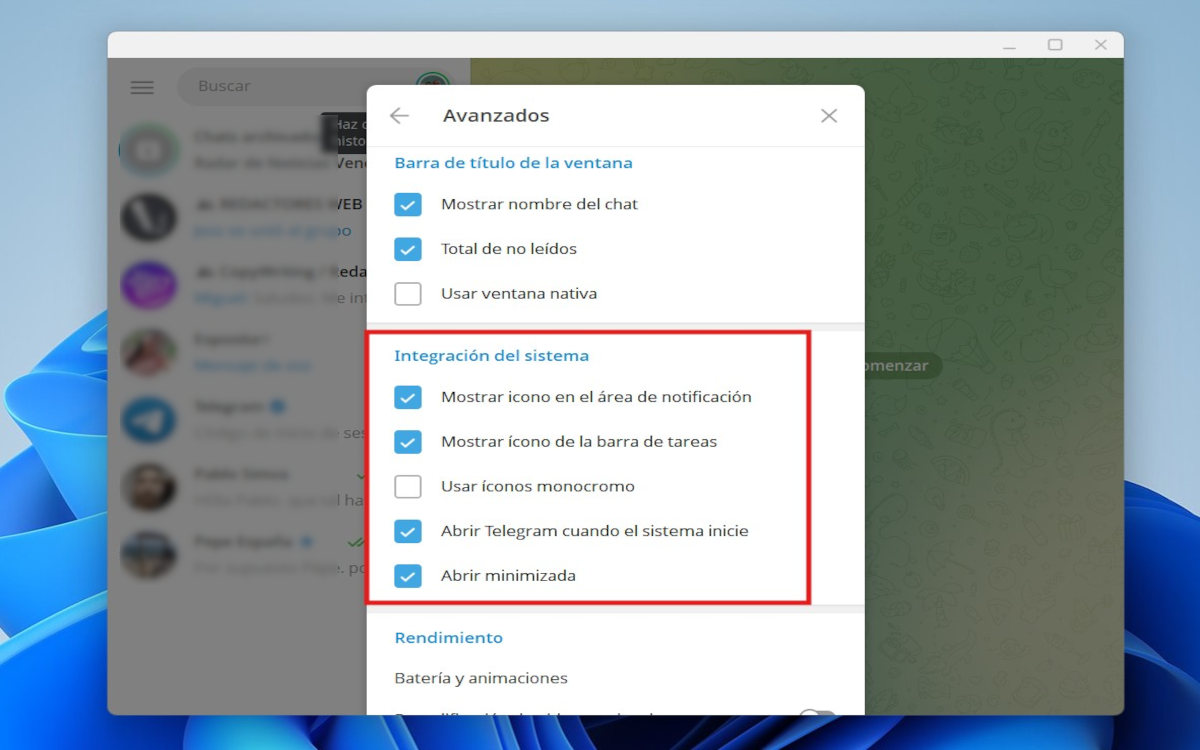
You should also check the app's settings if Telegram Desktop isn't syncing new messages. In that section, the application includes a couple of options that allow you to... keep it active even when the window is closedBut if this feature is disabled, Telegram will close completely and won't be able to sync anything.
Open Telegram Desktop and click on the three horizontal lines in the upper left corner. Now click on Settings and then in Advanced. There, look for the section System integration and check the following boxes:
- Show icon in the notification area.
- Show icon in the taskbar.
- Open Telegram when the system starts.
- Open minimized.
All of this will allow that Telegram will continue running in the background and you can receive messages without needing to open the main window. In fact, you'll see the app icon in the system tray, along with the number of new messages. This will almost certainly resolve the synchronization issues.
Energy optimization versus synchronization
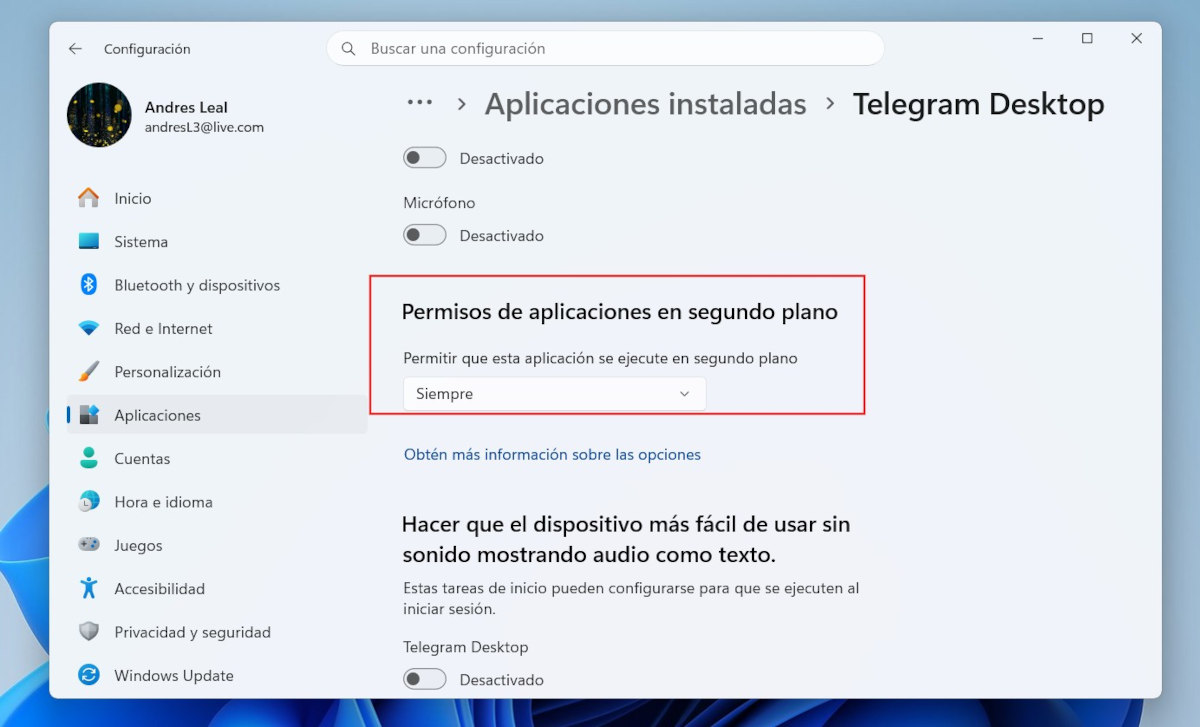
Another setting worth noting is the power optimization the system has applied to the Telegram app. Windows 11 and macOS are becoming increasingly aggressive with their power management. In order to save some battery and resourcesThe system can suppress the operation of applications like Telegram.
This It prevents the app from syncing in the background.And you only see the flood of new messages when you open it. Therefore, if Telegram Desktop isn't syncing new messages, follow these steps:
- In Windows, go to Settings – System – Power & battery.
- Expand the tab Battery usage.
- Find Telegram in the list of applications, click on the three dots and select Manage background activity.
- Now look for the Background app permissions section.
- Expand the options and select Always to tell the system not to suppress Telegram's functionality at any time.
On macOS, you need to find the Telegram app in Finder. Right-click on the app and select Get Info. If you see the Prevent App Nap option (in older versions of macOS), select it. Otherwise, go to the settings panel. Battery – Options, and make sure Low Power mode is not activated.
Is the problem still happening? Restart your session.
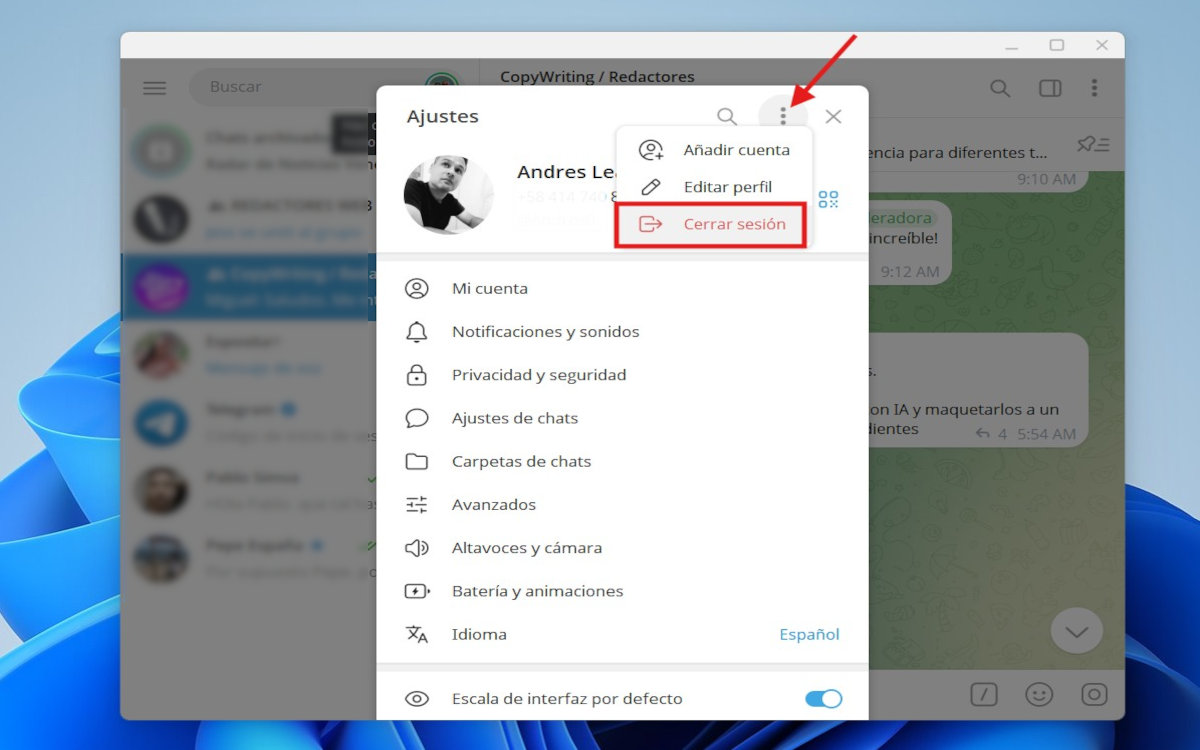
Is Telegram Desktop still not syncing new messages until you open it? In this case, we need to look a little deeper. Perhaps it's because Problems with the account you used to log inIt's still running, but the client doesn't maintain an active connection... until you open the app. This often happens after an app update or network changes.
Solution? Log off and log back in to your PCThis refresh resolves any synchronization issues associated with your account. To log out of Telegram on your PC, open the app and click the three horizontal lines. Then, click the three vertical dots above your profile picture. Click Log Out, confirm, and you're done.
Now you'll need to log in again, either by scanning the QR code from the Telegram mobile app or using your phone number. After that, make sure you Configure the app as explained in the previous sections.Give it permission to start with the system and to remain active in the background.
As you can see, the problem with Telegram Desktop not syncing new messages until you open it has a solution. Start by relax system settings and app settings to ensure nothing prevents Telegram from syncing. If that doesn't work, the best solution is to log in again. This resolves the issue in almost all cases.
