- Slow downloads or 0 B/s on the Xbox app for PC are a frequent problem even with fast fiber connections.
- Using the Microsoft Store as an intermediary to initiate the download often unlocks speed and improves performance.
- Adjustments such as temporarily disabling Windows Defender, avoiding VPNs, and reviewing delivery optimization can help.
- Changing the DNS settings and using the Store as a stable alternative are additional measures when the Xbox app continues to run slowly.
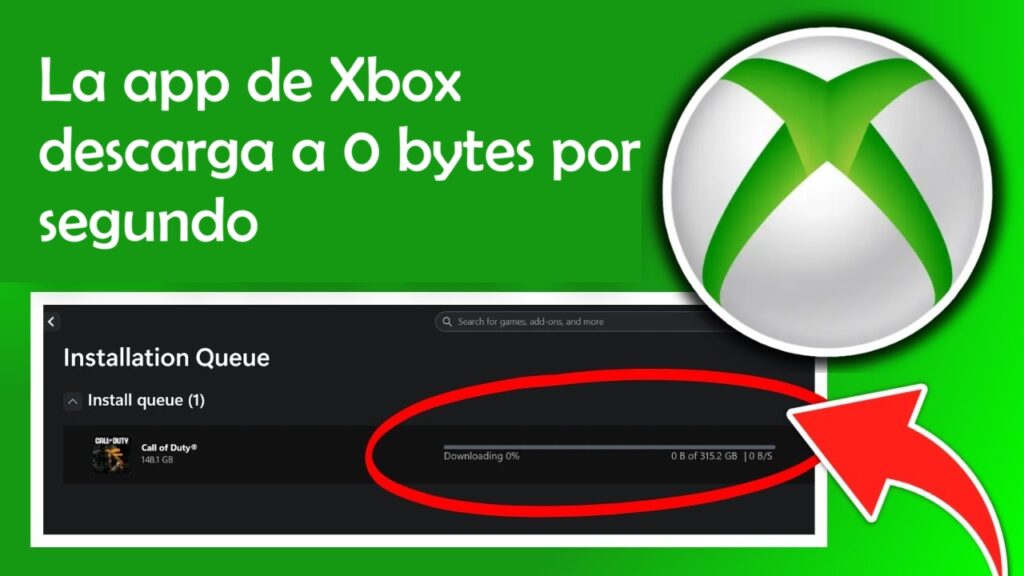
If you've come here desperate because the Xbox app downloads at 0 bytes per second or at a ridiculously slow speedYou're in the right place. Many gamers are in the same boat: a fast fiber optic connection, a wired Ethernet computer, everything runs smoothly on Steam or Epic Games… and yet, on the Xbox app, games barely budge from 0% after hours of waiting.
The frustrating thing is that, in most cases, the Xbox app It doesn't even show a clear error.It simply shows 0 KB/s or a few KB/s, freezes, or progresses at a snail's pace. Sometimes, after 3 or 4 hours, the game is stuck at a measly 4% while you've already tried a thousand things: restarts, Windows settings, scripts, uninstalling and reinstalling the app… Let's break down why this happens and what specific solutions you can apply.
Why does the Xbox app on PC download so slowly (or get stuck at 0 B/s)?
The first thing to understand is that, even if your connection is very good, The download speed in the Xbox app for Windows depends on several internal factors of the system and Microsoft's own infrastructure. It's not as simple as "my fiber optic connection is 600 Mbps, I should always be able to download at full speed."
Many users with connections of 300, 500 Mb or even 1 Gb Reports indicate that on other launchers (Steam, Origin, Epic, etc.) games download at 40-80 MB/s without breaking a sweat, but on the Xbox app, the same systems are stuck at 5-10 MB/s or even less. In some extreme cases, the speed drops to 0 MB/s for extended periods and barely rises above that.
This behavior is neither isolated nor new: Xbox Game Pass for PC and the Xbox app have long suffered from certain performance issues.especially those related to downloads. Microsoft is releasing updates, but some users still experience these bottlenecks regularly.
Real example: hours of waiting to reach 4%
To illustrate the problem, imagine the case of a player who Build a new PC for gaming, take advantage of the Game Pass offer for €1 for the first month, Download the Xbox app And, excited, he begins the installation of a title he had his sights set on.
After clicking install, you'll see that The download is barely moving.His computer is connected via Ethernet cable to a fast connection, and on other platforms everything works perfectly. However, on the Xbox app, after four hours, the game has barely reached a meager 4%. No error messages, no clear explanation: the speed simply gets stuck at 0 KB/s or a few KB/s for long periods.
During that time, the user tries almost everything: Reset the Microsoft Store, run PowerShell scripts recommended in forums, adjust Windows delivery optimization settings, uninstall the Xbox app, delete EA Play, and restart your PC repeatedly.Pausing and resuming downloads, even starting downloads from the Store instead of the Xbox app, seems to make no difference, and the feeling of helplessness grows.
Incredibly, This type of case is often repeated in the PC gaming communityIt is precisely from this frustration that tricks and solutions have emerged that, fortunately, are working quite well for many people.
The most effective solution: use the Microsoft Store as a “shortcut”
Among all the ideas that have been shared in forums and communities, There is one method that stands out because it usually improves download speed very noticeably.The key is to use the Microsoft Store as an intermediary to force the game to download at full speed, even if you then manage it from the Xbox app.
The procedure is based on the fact that The Xbox app and the Microsoft Store share the same download infrastructureHowever, they don't always manage the cache or the assigned servers the same way. For some reason, initiating and forcing a download from the Store often unlocks the speed and makes much better use of bandwidth.
How to speed up Xbox downloads on PC with the Microsoft Store
The following details the step-by-step method for testing this solution. It doesn't touch anything "dangerous" and can be easily reversed, so it's a A good first option before getting into more technical changes:
- Start downloading the game from the Xbox app
Open the Xbox app for Windows, find the game you want to install with Game Pass or that you've purchased, and click "Install." Let the download begin, even if it's slow or shows 0 B/s. - Pause the download and close the Xbox app completely
In the downloads section or "Manage Installations," pause the game download. Then, Close the Xbox app completely; make sure it is not minimized or running in the background (you can check in the Task Manager if it is still open and close it from there). - Open the Microsoft Store and search for the same game
Go to the Windows Start menu and open the Microsoft Store. In the search bar, type the name of the game you were trying to download from the Xbox app. You should see it listed as available with Game Pass or as a product already associated with your account. - Click on “Install” from the Microsoft Store
On the game's page, click the "Install" button. The download may be queued and begin immediately. This action requires that the system manages the download "as if it were" from the Storealthough it is essentially the same content used in the Xbox app. - Reopen the Xbox app and check the actual speed.
With the download underway from the Store, open the Xbox app again and go to the "Manage installations" section or something similar. There you'll see the game downloading; in many cases, you'll see that The speed has increased dramatically. compared to before using this trick.
Numerous players report that, after following these steps, The download speed goes from a few MB/s to values very close to the maximum of your connection.Others indicate that, although it doesn't reach the maximum, at least it stops getting stuck at 0 B/s and moves smoothly.
However, some users point out that if you're going to install several games one after the other, You may need to repeat the process for each title. to ensure everyone downloads quickly. It's not ideal, but until Microsoft completely fixes the problem, this "shortcut" with the Store is proving to be one of the most consistent solutions.
Other tricks to improve slow downloads on the Xbox app
In addition to the Microsoft Store method, there are a number of tweaks you can try on your PC to prevent Windows or security programs from limiting the speed of the downloads.
1. Temporarily disable Windows Defender real-time protection
One of the factors that can slow down the speed is that the antivirus analyzes each fragment of the files that are downloaded. In the case of Windows 10 and 11, Windows Defender is enabled by default and its real-time protection can, on some computers, penalize downloads of the Xbox app.
One possible test is Temporarily disable this protection while you download the games and turn it back on when you're finished. It's not something you should leave off permanently, but as a test it can help you see if this is the bottleneck:
- Open Windows settings and go to "Update & Security" or "Privacy & Security", depending on the version.
- Go to “Windows Security” and then to “Virus and threat protection”.
- Go to “Manage settings” and disable the “Real-time protection” option.
- Start the download in the Xbox app and check if the speed improves noticeably.
If you see a clear difference, you can choose to Deactivate it only while downloading large games and reactivate it immediately afterwardsRemember that it is important not to leave your computer without antivirus protection in the long term.
2. Avoid VPNs and congested networks
Another common factor is the use of shared networks or VPNs. Many VPN connections limit bandwidth or add latency, which causes The Xbox app misinterprets the available speed or connect to less optimal servers.
To rule out this problem, do the following:
- Disconnect any VPNs. or the proxy service you're using while downloading the game.
- If you share the network with other people who are consuming a lot of bandwidth (4K streaming, massive uploads, etc.), try Download during off-peak hours Or connect your PC directly to the router via Ethernet cable if you aren't already doing so.
This way, you ensure that Slow speed isn't simply due to your local network being overloaded or a VPN throttling the speed..
3. Review delivery optimization and background services
Windows includes a feature called “Delivery optimization"that can affect how bandwidth is distributed between updates and downloadsIf the settings are too restrictive, the Xbox app could be limited without you realizing it.
It's recommended to go into Windows settings, in the updates and delivery section, and check if you have Bandwidth limits enabled for background downloadsIn many cases, disabling those limits or allowing it to use a higher percentage of your connection helps Xbox app downloads perform better.
In addition, you can also restart the background delivery service You can access this through the settings or the Windows Services panel. Sometimes, simply restarting this component resolves crashes or unusual states that were affecting performance.

Changing the DNS: an option that sometimes helps
Some users and Microsoft support agents suggest trying change the DNS servers used by your connectionThis doesn't always make a huge difference to download speed, but it can influence how Microsoft's content server addresses are resolved and hopefully connect you to a more optimal route.
A Microsoft community specialist suggests, for example, using servers with addresses 4.2.2.1 and 4.2.2.2 as DNSThe general process for changing them in Windows is this:
- Open Windows Settings or Control Panel
You can do this from the start menu by searching for "Settings" or "Control Panel", depending on your preferred path. - Access the network section
In Settings, go to “Network & Internet”; in the classic Control Panel, go to “Network and Sharing Center”. - Select the connection you want to modify.
It could be your connection to Ethernet or Wi-Fidepending on how you connect to the internet. - Open the connection properties
Click on “Properties” or “Hardware Properties”, depending on what appears in your version of Windows. - Search for “Internet Protocol version 4 (TCP/IPv4)”
In the list of connection elements, select “Internet Protocol version 4 (TCP/IPv4)” and click on the “Properties” button. - Select “Use the following DNS server addresses”
Enable the option that allows you to manually enter DNS addresses. - Enter the recommended DNS servers
In the corresponding fields, enter 4.2.2.1 and 4.2.2.2 as the preferred and alternate DNS servers, or Use other trusted DNS servers. that you prefer (for example, those from your provider, Google DNS, Cloudflare, etc.). - Save the changes and try the download again.
Click "OK" to apply the changes and restart your network connection if necessary. Then, try starting the download again in the Xbox app and check if it works. The speed improves or stabilizes.
It is important to keep in mind that Changing your DNS does not guarantee a speed improvement.In some cases it might help, and in others it might not make a difference. But it's a relatively simple, reversible adjustment that's worth trying if you're stuck with downloads at 0 B/s.
Download from the Microsoft Store as a stable alternative
From within the Microsoft community itself, some agents comment that, in their experience, It's "normal" for some games to download faster and others slower in the Xbox app, and that there are slight variations depending on the title and the time.
However, they also recommend one very simple thing: Try downloading the game directly from the Microsoft Store when the Xbox app is running particularly poorly.As we have already seen, both share the same content backend, but the Store sometimes behaves more stably.
In practice, this means that if you see the Xbox app stuck at 0 B/s or progressing at a snail's pace, you can:
- Cancel or pause the download in the Xbox app.
- Open the Microsoft Store, search for the game and click “Install”.
- Let the Store handle the main download, and then monitor progress from one application or another.
In many cases, this simple change of "window" is enough to show that The download from the Microsoft Store is more consistentEven if it's the same game and the same connection. It's not a permanent solution, but it is a quick way to work around some temporary Xbox app issues.
While Microsoft continues to refine the PC experience, the most practical approach is to combine several of these ideas: Use the Store as a "lever" to unlock speed, check that Windows Defender isn't slowing things down too much, avoid VPNs and congested networks, and, if necessary, tweak the DNS settings.This way, you're much more likely to leave behind the infamous 0 B/s and start truly taking advantage of your fiber connection when downloading games with the Xbox app on your computer.
Index
- 1 Why does the Xbox app on PC download so slowly (or get stuck at 0 B/s)?
- 2 Real example: hours of waiting to reach 4%
- 3 The most effective solution: use the Microsoft Store as a “shortcut”
- 4 How to speed up Xbox downloads on PC with the Microsoft Store
- 5 Other tricks to improve slow downloads on the Xbox app
- 6 Changing the DNS: an option that sometimes helps
- 7 Download from the Microsoft Store as a stable alternative
