- Windows can display or group duplicate printers by sharing a driver, port, and HardwareID, something especially noticeable in Windows 7.
- Cleaning devices in the Device Manager, tweaking the Registry, and using diagnostic tools help to correct duplicates and locked queues.
- Double or blurry prints are usually due to unsuitable paper, lack of stability, dirty nozzles or printheads, and alignment or configuration errors.
- Each brand (Epson, Canon, HP, Brother) provides specific cleaning, alignment, and maintenance routines that are key to restoring print quality.
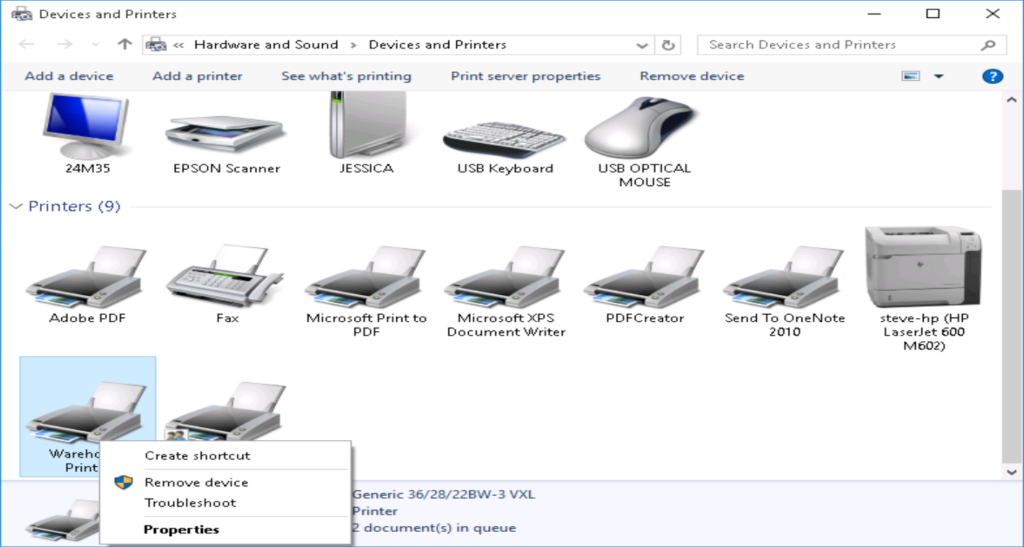
It's disconcerting. When a printer appears twice in Windows (or even more) in the device list. Sometimes, it starts doing strange things like grouping printers, suddenly losing them, or printing blurry or double print. You're usually not sure if the problem is with the system itself, the driver, the USB connection, or even a recent update that has messed everything up.
In this guide you will find a Explanation This guide covers the most common reasons why a printer appears multiple times in Windows, why it sometimes disappears or is grouped under a single icon, and what to do when printouts appear double or blurry. We'll look at generic solutions for Windows (7, 10, 11) and also specific measures for brands like Epson, Canon, HP, and Brother, in addition to several advanced procedures using the Registry and Device Manager.
Why might a printer appear twice in Windows?
In most cases, when you see the same printer duplicated in Windows This isn't a serious bug, but rather a way the system manages drivers, ports, and print profiles. Even so, it can lead to conflicts, stuck print jobs, or simply confusion when choosing where to print.
One of the most common reasons is that the system detects More than one instance of the same printer with the same driver and the same portFor example, two printers installed with the same driver and on the same LPT1 port or the same virtual USB port. In Windows 7, this can cause multiple printers to be grouped under a single icon in "Devices and Printers," even though internally there are multiple print queues.
It is also possible that they have been installed Two different drivers for the same printer (For example, a PCL controller and a PS controller, or a standard controller and a manufacturer-specific controller). In these cases, Windows may display more than one entry for what appears to be the same device, when in reality they are different logical printers.
Finally, sometimes duplication is the visible consequence of software conflicts, updates, PDF tools, or print queue problemsIt is relatively common to see a physical printer and, in addition, a PDF printer associated with Acrobat or another program that also appears and disappears or stops working after some change in the system.

Printer grouping in Windows 7: expected behavior
In Windows 7 there is a specific behavior that may surprise you: Multiple installed printers are displayed as a single icon in “Devices and printers”. This occurs when several technical conditions are met that the system interprets as meaning it is the same device.
The grouping depends primarily on these factors: same controller, same port, and same HardwareIDThe HardwareID is the identifier that Windows uses to recognize the exact type of device. If two printers share the same HardwareID and the same port, the system assumes they are essentially the same physical printer, even if they have different print queues.
This behavior is not a mistake, but a This functionality was designed by MicrosoftThe idea is to simplify the device view and avoid cluttering it with multiple visually identical icons. However, when you need to clearly identify which print queue corresponds to each configuration, this grouping can be cumbersome.
To solve this, you can create a specific "Printers" icon on the desktop This displays all queues separately, without applying the "Devices and Printers" grouping logic. This is done through a small modification to the Windows Registry.
Create a desktop icon “Printers” using the Registry
If you want to see clearly all printers installed separatelyWithout grouping, you can add the old "Printers" shortcut to the desktop using the Registry Editor. It's a simple adjustment, but you should do it carefully.
The general steps are as follows:
- Open the Registry Editor. Click the Start button, type REGEDIT.EXE (without quotes) and press Enter. If the User Account Control warning appears, select “Yes”.
- In the left panel, expand the keys until you locate the route HKEY_LOCAL_MACHINE\SOFTWARE\Microsoft\Windows\CurrentVersion\Explorer\Desktop\NameSpace.
- Right-click on the key NameSpace and select “New” > “Key”. Enter this GUID as the exact name, including the curly braces: {2227a280-3aea-1069-a2de-08002b30309d}.
- With the new key selected, in the right panel right-click on the “(Default)” value and choose “Modify”. In “Value data” enter Printers (without quotation marks) and confirm.
- Close the Registry Editor.
- Return to the desktop, right-click on an empty space, and choose "Refresh." A new icon should appear called Printers which shows all installed printers individually.
It is important to remember that Touching the Registry has risksAn incorrect change can cause instability or the system to stop working correctly. It is always recommended to export the key you intend to modify or create a restore point before making advanced changes.
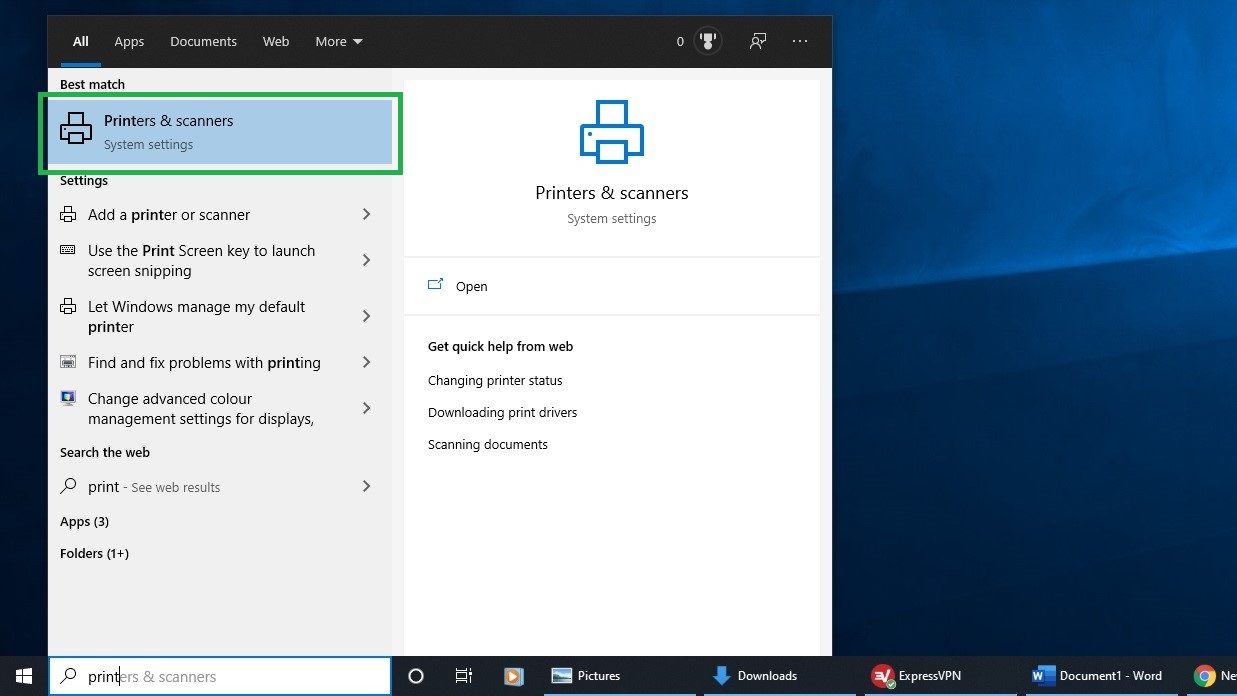
Check the manufacturer's drivers, ports, and software.
When you see a duplicate printer, a good first check is to review the official manufacturer software and the way it is installedIn “Programs and features” you will usually find an entry that refers to the printer package (for example, the manufacturer's name, the management suite, the full driver, etc.), which does not always exactly match the printer name you see in “Devices and printers”.
In some cases, what appear to be two identical printers may actually be two different devices within the manufacturer's package: a standard queue, another for printing to PDF or XPS, another specifically for scanning, or profiles with different configurations (for example, one aimed at saving toner and another at maximum quality).
Before uninstalling anything, it's a good idea to identify if your two printers are actually two different logical queues with their own utility (for example, one with a PCL controller and another with PS) or if they are duplicates created by errors when installing, disconnecting and reconnecting via USB or updating drivers.
Using automated tools and Windows troubleshooting
Microsoft and some manufacturers have developed automated tools to repair problems with devices, drivers, and the print queue. Systems like Windows 7 had specific "Fix it" utilities for this. detect and correct printer problems and hardware in general.
In more modern versions of Windows (10, 11), these tools are integrated as problem solversFrom the system settings you can run the printer troubleshooter, which attempts to detect stuck print queues, corrupted drivers, or related services that are not active.
If your system is of 64 bits And if you're using an older tool, you might need to run it in compatibility modeIn that case, right-click on the executable, go to "Properties" and in the "Compatibility" tab select an appropriate mode (for example, Windows 7 compatibility) before running it.
If your printer connects via USBIt is also helpful to follow general Windows recommendations for troubleshooting USB devices: try a different port, check the cable, avoid unpowered hubs, or check if the device appears intermittently in Device Manager.
Remove duplicate printers from Device Manager
When the printer appears twice, one of the most effective ways to "clean" the system is Show hidden devices in Device Manager and remove any remaining instances.
The general procedure would be:
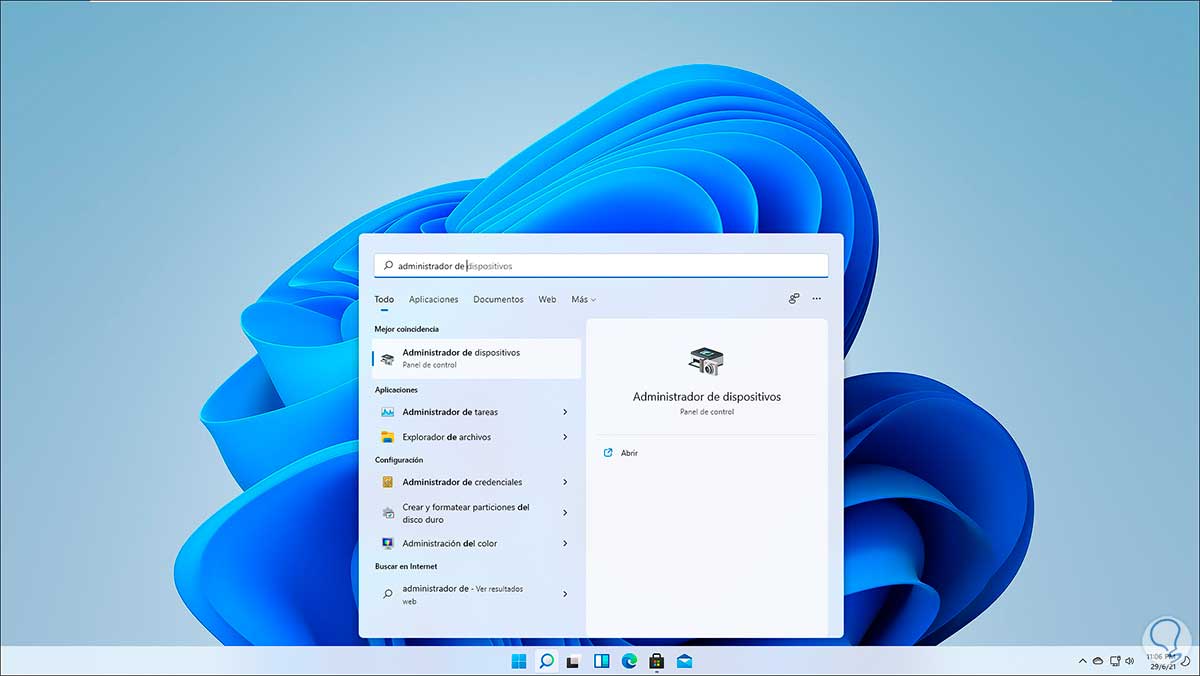
- Open the Device ManagerYou can do this by searching for it from the Start menu or by running devmgmt.msc.
- In the top bar, enter the menu "See" and select “Show hidden devices”. This will make visible printers and devices that are no longer connected, but still have associated drivers.
- Expand the sections “Imaging devices” y “Printers”Check if multiple printers appear with the same name or are clearly duplicates.
- In each duplicate entry, right-click and choose “Uninstall device”Make sure you don't delete the instance you're actually using.
This method helps to eliminate remnants of previous facilities (for example, if the printer was connected to different USB ports) which can cause confusion or conflicts with the print queue.
Clean the Windows Registry: printer key
If you continue to experience problems after removing devices in Device Manager, you can check the printers' internal configuration in the Registry. All printers installed on the system are located under the key HKEY_LOCAL_MACHINE\SYSTEM\CurrentControlSet\Control\Print\Printers.
Within this path, you will see a folder for each installed printer. If you detect duplicate folders with the same name If you know they no longer correspond to any real device, you can consider deleting them manually, but with many precautions.
Before deleting anything, it is essential to create a backup of the “Printers” keyTo do this, in the Registry Editor:
- Right-click on the folder Printers and select “Export”.
- Save the .reg file to your Desktop or another secure location. This file will allow you to restore the key if something goes wrong.
- Once the key has been exported, you will be able to delete it. only the subfolders that clearly belong to duplicate printers or non-existent.
Changes to the Registry have a profound effect on the system. Modifying these keys incorrectly can have serious consequences. can cause serious failures which may even require reinstalling Windows. If you're not experienced with the Registry, it's advisable to seek professional support or stick to less invasive methods.
After deleting the duplicate entries and closing the Registry Editor, restart your computer. Once you're back in Windows, check if the printers are displayed correctly and if the one you need is working properly.
Print queue and spooler service problems
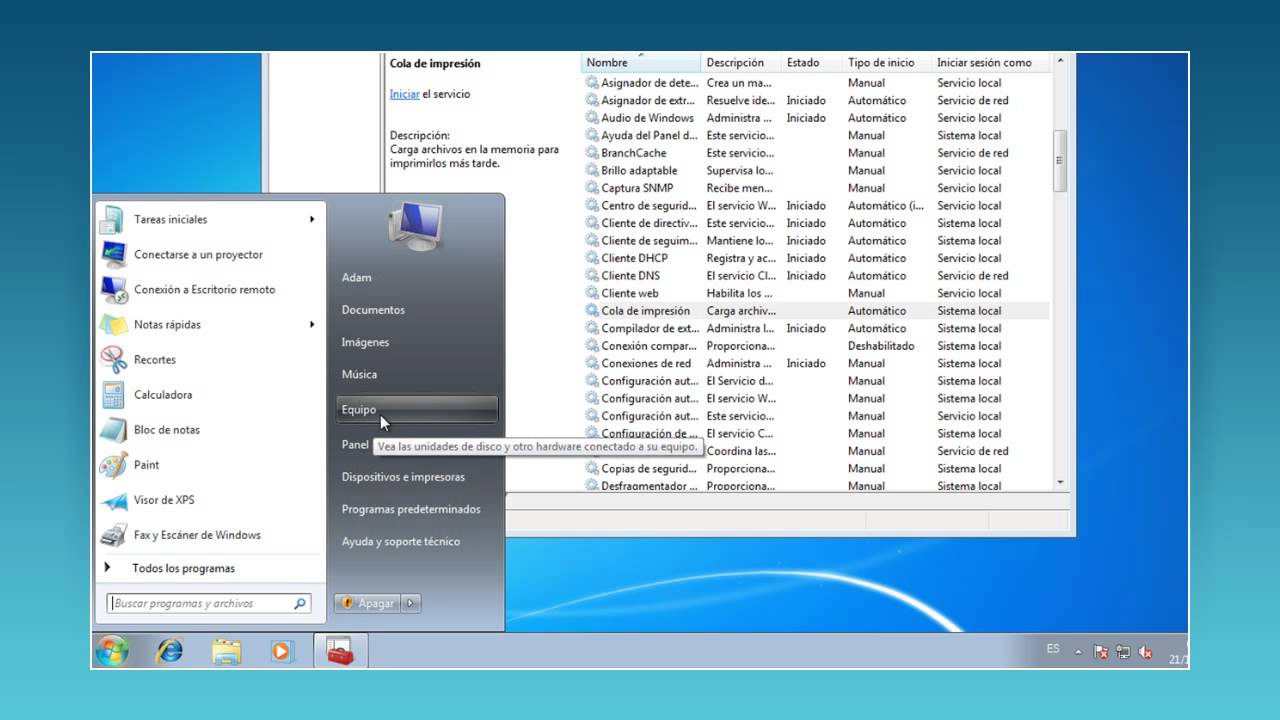
Another very common source of printing errors, printers that disappear, or jobs that never finish is the print queueThe service responsible for managing these jobs is called print queue or “Print Spooler” and, if it gets stuck, it can prevent the printer from responding or its states from being updated.
On some computers, when you open the services console to check the "Print Queue," you may find that the buttons for “Start”, “Stop” or “Restart” appear disabledas if the service were frozen. This usually indicates a deeper problem, related to permissions, corrupted system files, or conflicts with other applications.
Some of the measures that are usually proposed are:
- Attempt Restart the print spooler service from Services or from the command line.
- Manually empty the print jobs folder in system32\spool\PRINTERSIn some cases, after showing hidden and system files, this folder may appear empty, because the stuck jobs are not there or the problem is with the service itself.
- Check if a recent Windows update This could have caused the problem. Some users have tried uninstalling updates without improving the situation, so it's not always the cause.
- Investigate whether there is a conflict with third-party applications such as Adobe Acrobat (for example, the Acrobat PDF printer), especially if the problem only affects virtual printers or if it started after updating this software.
When the queuing service is so blocked that you can't even start or stop it, it may be a deep Windows 7 flaw in that specific installation, especially if it happens on several computers on the same network with a similar combination of operating system, automatic updates and printing software.
Disappearance of shared network printers
In some small office networks, it's quite common for a printer connected by USB to a specific computer to act as a “print server” for other computers on the network. This can be seen, for example, with a Canon 1023 connected via USB to a Windows 7 PC that share the printer with other computers, some physical and others connected by Wi-Fi.
When a system problem occurs (update, conflict with Acrobat, print queue failure, etc.), it can happen that the shared printers disappear The print job is triggered on multiple client computers at once: both the physical network printer and virtual printers (such as the Adobe PDF printer). Meanwhile, the "slave" computer connected directly via USB can continue printing without problems.
These situations usually point to a problem at the level of Windows 7 and shared printing servicesIt's not so much the physical device itself. Furthermore, if you have another computer with a different system (for example, a laptop with automatically updated Windows Vista and Adobe Acrobat) that doesn't experience these problems, it strengthens the suspicion that the root cause lies in the specific combination of Windows 7, drivers, and updates.
In these scenarios, in addition to checking the print queue and services, it is very useful to check:
- That the shared printer is still configured correctly on the host computer and that the sharing option has not been disabled.
- That they Customers detect the printer again on the network or you can add it again manually.
- That there is no security software or firewall blocking communication with the print server.
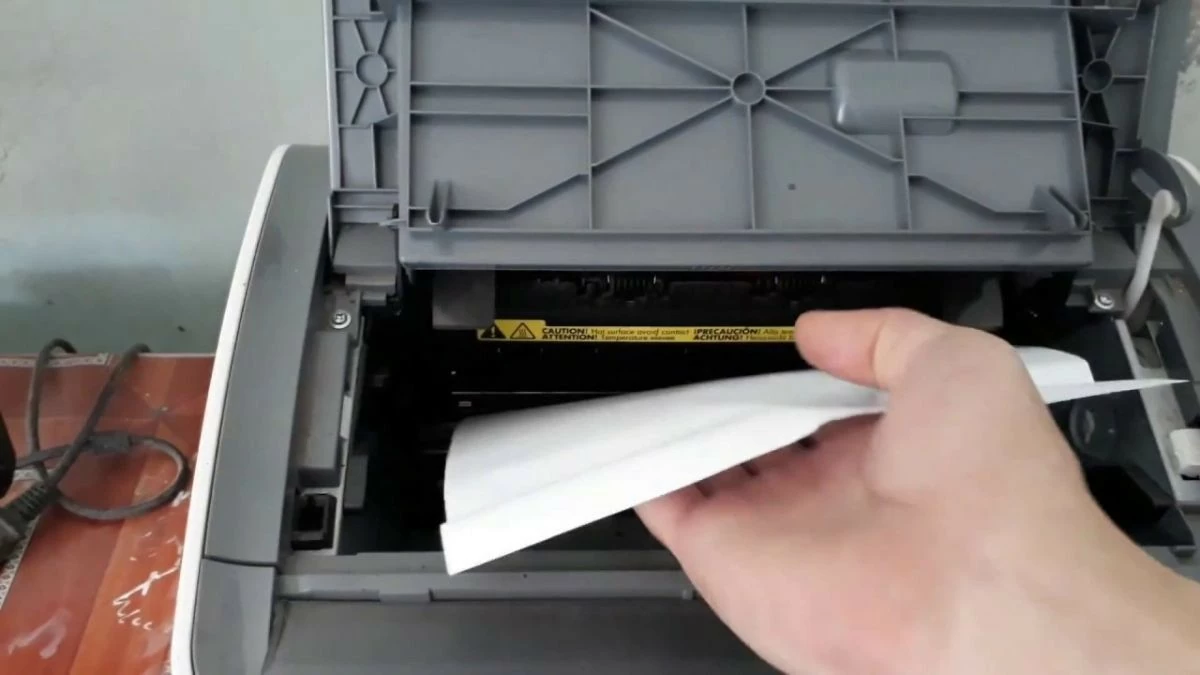
HP printers stuck and locked.
With HP printers, it's especially common to encounter printing jobs that get stuck in the queue, preventing new documents from being sent. This can happen with both USB and network printers, and often causes the user to see several queues or printers that are "not responding".
For these cases, HP recommends in its documentation and from the Microsoft Community itself to perform several steps:
- Delete all pending jobs You can check the print queue from the Windows printer control panel or using HP's own tools. Sometimes the problem is as simple as a corrupted document blocking the rest of the print job.
- Follow the instructions in the official troubleshooting guide of jobs that get stuck in the queueThese guides usually include restarting the print spooler service, cleaning the spool folder, and reinstalling drivers if necessary.
- If the problem persists, go to manufacturer technical supportsince there may be model, firmware or driver-specific issues that require specific steps.
On many computers running Windows 10 and Windows 11, the system also offers a built-in printer troubleshooter This tool attempts to detect if the printer is offline, if the driver is unresponsive, or if the print queue needs to be reset. It's a good first step before resorting to more advanced procedures.
Blurry or double printing: hardware and paper causes
Sometimes, what is interpreted as "the printer is printing double" has nothing to do with duplicates in Windows, but rather with the fact that The result on the paper appears unfolded, with shadows, or slightly displaced.It's a different problem, but very common and important to understand, because the solution lies more in the hardware than in the operating system.
The first thing to check is the type and condition of paperA sheet of paper in poor condition can completely ruin print quality. Typical causes of blurry or double printing related to paper include:
- Wet paper or stored in an environment with too much humidity.
- Leaves that are they bend or wrinkle during the process printing.
- Paper with wrinkles, creases, or damaged edges before entering the printer.
- Use of a unsuitable type of paper for the selected print mode (for example, very thick paper with a normal paper setting, or vice versa).
Another important factor is the physical stability of the printerIf the printer is on an uneven surface, an unstable piece of furniture, or in a place where it vibrates, these vibrations can cause the lines to shift slightly and appear duplicated. Make sure the printer is on a level surface. firm and perfectly flat.
Problems with injectors, printheads and ink
In inkjet printers, print quality depends directly on the injectors and printheadsThese are the tiny nozzles responsible for projecting the ink onto the paper. If the nozzles are partially clogged with dried ink, dust, or dirt, it's normal for smudges to appear. shadows, double lines, or blurred text.
Another common cause of double impressions is the lack of ink in one of the cartridgesWhen a cartridge is nearly empty, the printer may not be able to maintain a consistent flow throughout the print path, resulting in irregularities that are perceived as duplication or blurring.
It is also crucial that the cartridges are aligned correctlyAlignment is the process by which the printer precisely coordinates the position of each cartridge relative to the paper. If this alignment fails or becomes misaligned (for example, after changing a cartridge, moving the printer, or performing any mechanical adjustment), the different layers of ink do not overlap exactly, and the result appears as if there are two slightly offset images.
Configuration errors and printer drivers
Beyond the physical aspects, a bad controller configuration or a faulty or incompatible driver It can cause strange results when printing: double letters, shifts, incorrect colors, or half-printed pages.
Among the most frequent configuration errors are:
- Select a paper type in the driver that does not match with the actual paper in the tray.
- Use a quality or resolution mode not recommended for that type of paper or for the condition of the printer.
- To have the wrong driver for the model (for example, a generic driver when a manufacturer-specific one is needed).
- Old driver installations that have become corrupted after operating system updates.
Often, a simple reinstalling the official driver Downloaded from the manufacturer's website, along with a review of the paper and quality settings in the print dialog box, solves these "double printing" problems that are actually due to the software.
Brand-specific solutions
Epson
In the case of Epson, when you start to see shadows, text duplications, or blurry resultsThe most common solution is to perform a printhead cleaning from the printer's own software or from the integrated panel.
Epson printers typically offer two levels of maintenance:
- Standard printhead cleaning, which removes some of the dried ink and light clogs.
- Thorough printhead cleaning, a more intensive process that consumes considerably more ink, but can recover severely clogged printheads.
Before you embark on deep cleaning, keep in mind that these processes They use a lot of ink.It is advisable to assess whether other factors are at play (such as unsuitable paper or mechanical problems) and, if possible, perform a normal cleaning and injector test before moving to the more aggressive mode.
Canon
Printers Canon They also require special attention to the printhead cleaning and cartridge alignment When duplicate or blurry text appears, you can launch these maintenance routines in a guided manner using Canon's software.
In many Canon models, it is also key to check the printing carriageThat is, the mechanism that moves the cartridges from left to right. This carriage is usually made of metal and moves on guides that require a minimum level of lubrication. If the lubrication is insufficient If there is accumulated dirt, the carriage may move irregularly and cause duplications or jumps in the text.
To solve this, it is recommended Clean the mechanism and apply a light layer of suitable greaseFor example, calcium grease similar to that used on bicycle chains. It should be applied sparingly and only to the points indicated by the manufacturer, avoiding contact with the paper or printing areas.
HP
In printers HP, when the letters begin to appear duplicated or blurredThe first thing to do is run a print test or diagnostic page This information is provided by the printer itself or by HP software. This page helps identify whether the problem is related to alignment, low ink, or dirty printheads.
If the problem persists after testing, HP recommends:
- Extract the ink cartridges y clean the contacts carefully Metallic particles, both in the cartridge and inside the printer, can cause communication problems and affect print quality. Dried ink residue or dirt can also be a factor.
- Perform a cleaning of the encoderThe encoder is a transparent strip located behind the print carriage that allows the printer to accurately determine the printhead's position. If this strip is dirty, the printer may become confused and produce duplicate lines. Cleaning must be done very carefully, without excessive rubbing, to avoid damaging it.
- Wear original HP cartridgesAlthough recycled or compatible cartridges are attractive due to their price, they do not always offer the same quality, and in many cases are the cause of double or irregular printing problems.
- Select the suitable paper in the print driver, so that the type of paper chosen matches the one loaded in the tray.
- Check the ink level Check each cartridge using the HP app. If any color is running low, it's best to replace it to prevent print quality degradation.
Brother
Brother It's another very widespread brand, especially in office laser printers. When a double image, blurry or with shadows In these models, there are several key points to review.
One of the first is the drum statusIf the printer displays a drum error message or the drum is damaged, it's very likely that you'll get double prints or poor toner adhesion. In these cases, the solution almost always involves... replace the drum unit.
It is also important to choose the right one “Media Type” in the print optionsThis setting tells the printer what type of paper or material to print on. If the setting is incorrect (for example, thick paper set to normal), the print may not adhere properly and shadows may appear.
In addition, Brother recommends doing cleaning of cartridges and internal components to remove toner residue and dust that may accumulate on the drum or fuser. Finally, as with other brands, it's advisable to ensure the machine is properly supported and does not vibrate during printing.
Best practices when setting up and using a printer
Beyond the specific problems, there are a number of general good practices which greatly help to prevent the printer from appearing twice, getting lost, the print queue from failing, or starting to print blurry.
Among the most important are:
- Always install the Latest driver from the manufacturer's official websiteavoiding relying exclusively on the generic drivers that Windows installs by default.
- Avoid connecting and disconnecting the printer because different USB ports Unnecessary, as this can create multiple instances of the device.
- Review the paper type and quality settings in every printing job, especially if you frequently change the type of paper.
- Do not abuse third-party tools that create virtual printers (such as PDF, XPS, etc.) without knowing exactly what they do, as they can cause conflicts with the print queue.
- Maintain the printer clean, stable and with consumables in good condition, following the maintenance plan recommended by the manufacturer.
Knowing the reasons why A printer may appear duplicated in Windows.Understanding how device grouping works in versions like Windows 7, and what physical and configuration factors influence double or blurry printouts, makes it much easier to rule out problems. By combining Microsoft diagnostic tools, careful use of the Registry and Device Manager, and brand-specific maintenance routines (Epson, Canon, HP, Brother), most issues can be resolved without drastic measures and in a matter of minutes.


Editor specialized in technology and internet issues with more than ten years of experience in different digital media. I have worked as an editor and content creator for e-commerce, communication, online marketing and advertising companies. I have also written on economics, finance and other sectors websites. My work is also my passion. Now, through my articles in Tecnobits, I try to explore all the news and new opportunities that the world of technology offers us every day to improve our lives.