- VRR in Windows synchronizes the monitor's refresh rate with the GPU's FPS to reduce tearing, stuttering, and input lag.
- The system's VRR function complements technologies such as FreeSync, G-Sync, Adaptive-Sync, and HDMI VRR, without replacing them.
- To make the VRR switch appear in Windows, you need the current system version, a compatible monitor, and recent WDDM drivers.
- DRR and manual Hz adjustment allow you to balance smoothness and power consumption, while VRR focuses on delivering the best gaming experience.
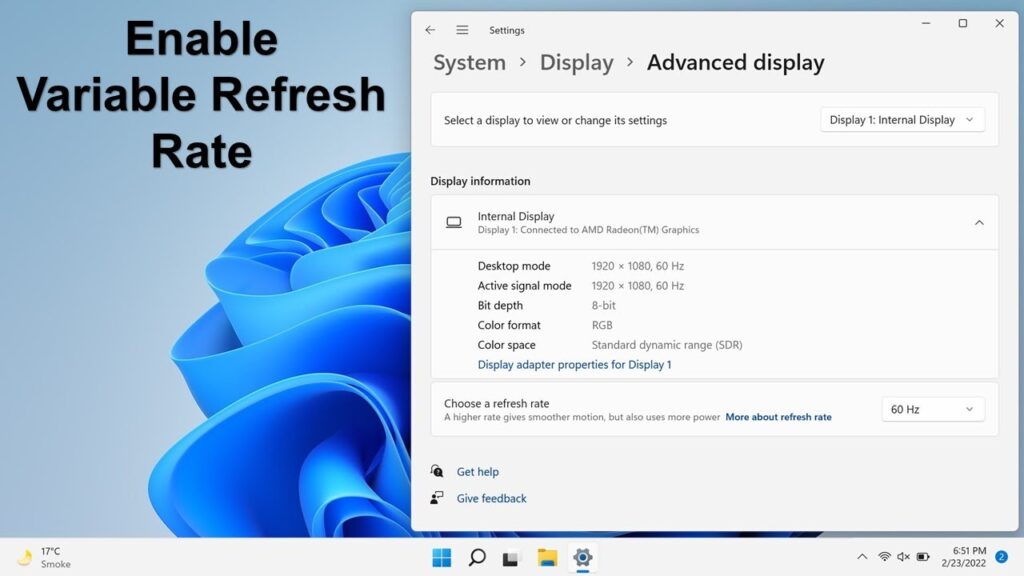
Those who use Windows for gaming, watching movies, or working with multimedia content often don't fully take advantage of one of its most powerful features for gaming: the variable refresh rate or VRR integrated into the systemIt's one of those options that often goes unnoticed in the settings panel, but makes a clear difference in smoothness when activated correctly.
Beyond simply increasing graphics settings or decreasing shadows in your games, understanding how it works VRR in Windows 11 (Along with FreeSync and G-Sync) it helps eliminate screen tearing, reduce stuttering, and minimize input lag. Let's take a closer look at exactly what it is, how to activate it in Windows 10 and Windows 11, what requirements it has, how it differs from V-Sync, what to do if the option doesn't appear, and also how it affects mods and advanced settings.
What is VRR (Variable Refresh Rate) and why does it matter in Windows?
La monitor refresh rate It is the number of times per second that the screen updates the image: 60 Hz, 120 Hz, 144 Hz, 240 Hz, 360 Hz, etc. In a traditional configuration, this frequency is fixed, while the frames per second (FPS) generated by the GPU vary in real time according to the scene load.
When the GPU does not send frames in sync with the monitor's fixed refresh rate, the typical "Tearing" and "stuttering"Especially in fast-paced games or those with sudden FPS changes. That's where VRR comes in: the screen stops operating at a fixed frequency and starts dynamically adapting to the FPS output of the graphics card.
In short, VRR allows the monitor or TV to change its refresh rate (Hz) on the fly. to match the GPU's actual speed. If the PC is outputting 87 FPS, the panel operates at around that 87 Hz; if it drops to 54 FPS, the monitor also lowers its refresh rate, as long as it's within its compatible range. This results in a much smoother and more continuous experience, without image tearing.
This dynamic adaptation not only improves the gaming experience, it also helps to Reduce artifacts in very fast videos or demanding multimedia contentFurthermore, by not always forcing the maximum frequency, the panel can save some energy when the FPS drops, which can be very beneficial for battery life in laptops.
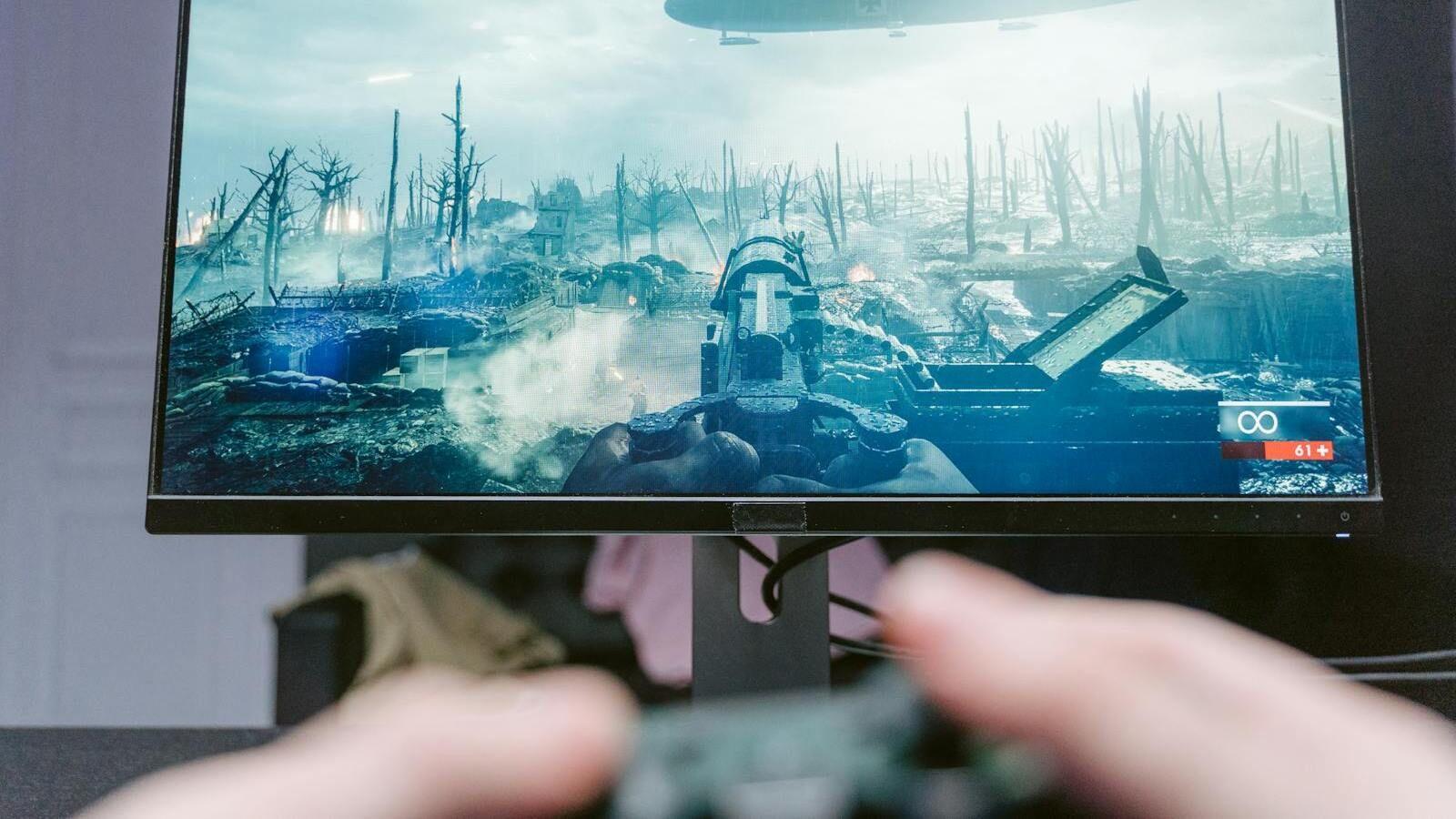
VRR standards: FreeSync, G-Sync, Adaptive-Sync, and HDMI VRR
The VRR concept is not owned by a single brand: It is not a technology exclusive to a specific manufacturer.What we have on the market are several standards that essentially do the same thing, but each with its own ecosystem.
- On AMD's side, the technology is called FreeSyncIt is based on the VESA Adaptive-Sync standard over DisplayPort and, in many models, is also enabled over HDMI. It operates within a frequency range defined by the monitor manufacturer (e.g., 48-144 Hz) and is integrated into the Radeon drivers.
- At NVIDIA we find G-Syncwhich exists in two main variants: monitors with a dedicated G-Sync module (specific hardware inside the monitor) and displays «G-Sync Compatible"They use Adaptive-Sync without the module, validated by NVIDIA via software. Both technologies adjust the panel's refresh rate to the FPS in real time, but the model with the module typically undergoes stricter quality and performance validations."
- The VESA organization, for its part, defines Adaptive-Sync as part of the DisplayPort standard, and the HDMI consortium introduced HDMI VRR Starting with HDMI 2.1. The latter is key in modern televisions, especially for consoles and PCs connected via HDMI, as it allows for reduced stuttering and tearing in 4K games up to 120 Hz depending on the model.
In summary, when Windows talks about VRR, it relies on these existing technologies: G-Sync, FreeSync, Adaptive-Sync and HDMI VRRMicrosoft's role is to complement them from the operating system, especially in games that do not offer native support for them.
Requirements for viewing and using VRR in Windows
For the variable refresh rate option to appear in Windows and work as it should, the computer has to pass a list of fairly strict conditions. If even one part is missing, the VRR switch may not display. in the graphics settings.
Regarding the operating system, in Windows 10 you need at least version 1903 or later (May 2019 Update). In Windows 11, the feature is built-in from the start, provided the hardware supports it. Have the system fully updated It reduces many compatibility problems.
At screen level, your monitor or TV should be Compatible with any VRR technology: G-Sync, FreeSync or Adaptive-SyncThis can be done via DisplayPort (the most common on PCs) or HDMI 2.1, as is the case with many modern televisions. In practice, if your monitor advertises FreeSync or G-Sync on the box, you're on the right track.
Regarding the graphics card and drivers, Microsoft requires that the GPU support WDDM 2.6 or higher on Windows 10 and WDDM 3.0 on Windows 11This translates to relatively recent drivers. In the case of NVIDIA, this means drivers from the 430.00 WHQL series onwards on Windows 10; for AMD, versions 19.5.1 or later for system-level VRR support.
There are also minimum power requirements: a NVIDIA GeForce GTX 10xx or higher, or an AMD Radeon RX 400 or newerThese ranges cover virtually any current gaming PC, but if you're using very old hardware, you might simply not be compatible.
How to enable VRR in Windows 11 step by step
If you meet the requirements, enabling variable refresh rate in Windows 11 is quite simple. The system itself guides you to the key options from the "Settings" panel. It is worth reviewing two sections: advanced display and advanced graphics.
The quickest way is to open the Settings menu using the keyboard shortcut Win + IOnce there, in the left-hand column select "System" and then go to the "Display" section. There you will see the basic options for resolution, HDR, and similar settings.
To check your monitor's basic compatibility with VRR, scroll down and click on «Advanced display"On that screen you'll see the current refresh rate and other monitor data. If your panel doesn't support variable refresh rate technology, nothing related to VRR will be displayed here, but don't worry yet."
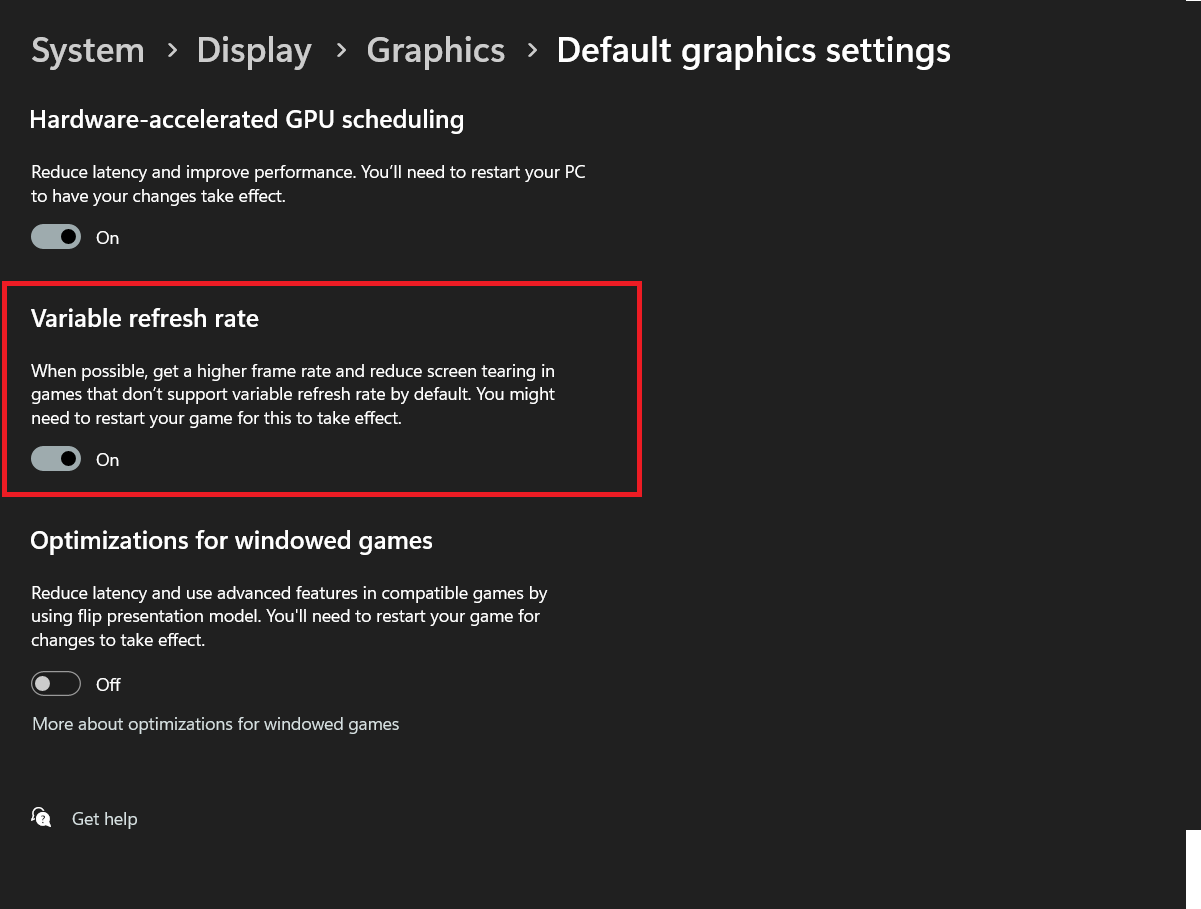
Go back to the main "Screen" menu and this time enter "GraphicsWithin that section, look for the link or button for "Advanced graphics settingsThat's where Windows 11 places the "Variable refresh rate" option. If your computer meets all the requirements we mentioned earlier, you'll see a switch that you can turn on or off.
Keep in mind that if your monitor does not support VRR (neither FreeSync nor G-Sync nor Adaptive-Sync)The "Variable refresh rate" option simply won't appear. This isn't a system error; the hardware doesn't support the feature, and Windows hides it to avoid confusion.
VRR vs V-Sync: Key differences for gaming
Many players have been using this for years. V-Sync (vertical synchronization) to try to combat screen tearing. It's a classic technology that has been around for a while and works very differently from VRR, with significant implications for performance and input lag.
When you activate V-Sync, the idea is simple: The GPU is forced to wait for the monitor to finish refreshing. before sending a new frame. This prevents you from seeing chunks of several frames at once (screen tearing), because the graphics card "coordinates" with the panel's refresh rate. The problem is that if the GPU can run very fast, it gets throttled; and if it can't keep up with the screen's refresh rate, there are sudden drops to lower multiples (for example, from 60 FPS to 30).
The cost of this is that it increases the input lagThis is especially noticeable in competitive shooters or fighting games, where every millisecond counts. Furthermore, in scenarios where the FPS drops irregularly, the experience can feel sluggish and unresponsive.
With VRR the approach is the opposite: Instead of slowing down the GPU to match the monitor, it's the screen that adjusts its refresh rate to the actual FPS.The graphics card is not forced to wait, and the panel changes its refresh rate in real time, following the rhythm of the game within its compatible range.
The result is a very attractive combination: Tearing disappears and input lag remains much lower than with classic V-Sync.That's why VRR (G-Sync, FreeSync, etc.) has become the de facto standard for gaming, while V-Sync is increasingly used as a complement or disabled in favor of these modern technologies.
What is DRR (Dynamic Refresh Rate) in Windows 11
In addition to the variable refresh rate designed for gaming, Windows 11 introduces another feature called Dynamic Refresh Rate (DRR)Although it may sound similar, its main objective is to balance fluidity and power consumption, especially in laptops.
DRR allows the operating system to automatically switch between various refresh rates supported by the display (for example, 60 Hz and 120 Hz) depending on what you're doing. When you're browsing, scrolling through long documents, or writing with a digital pen, The system can increase its frequency to make scrolling and typing appear smoother..
Conversely, when you're simply reading, on the desktop with minimal activity, or viewing content that doesn't require high performance, Windows can lower the clock speed, reducing power consumption. Thus, You get the best of both worlds: smooth performance when you need it and more battery life when you don't..
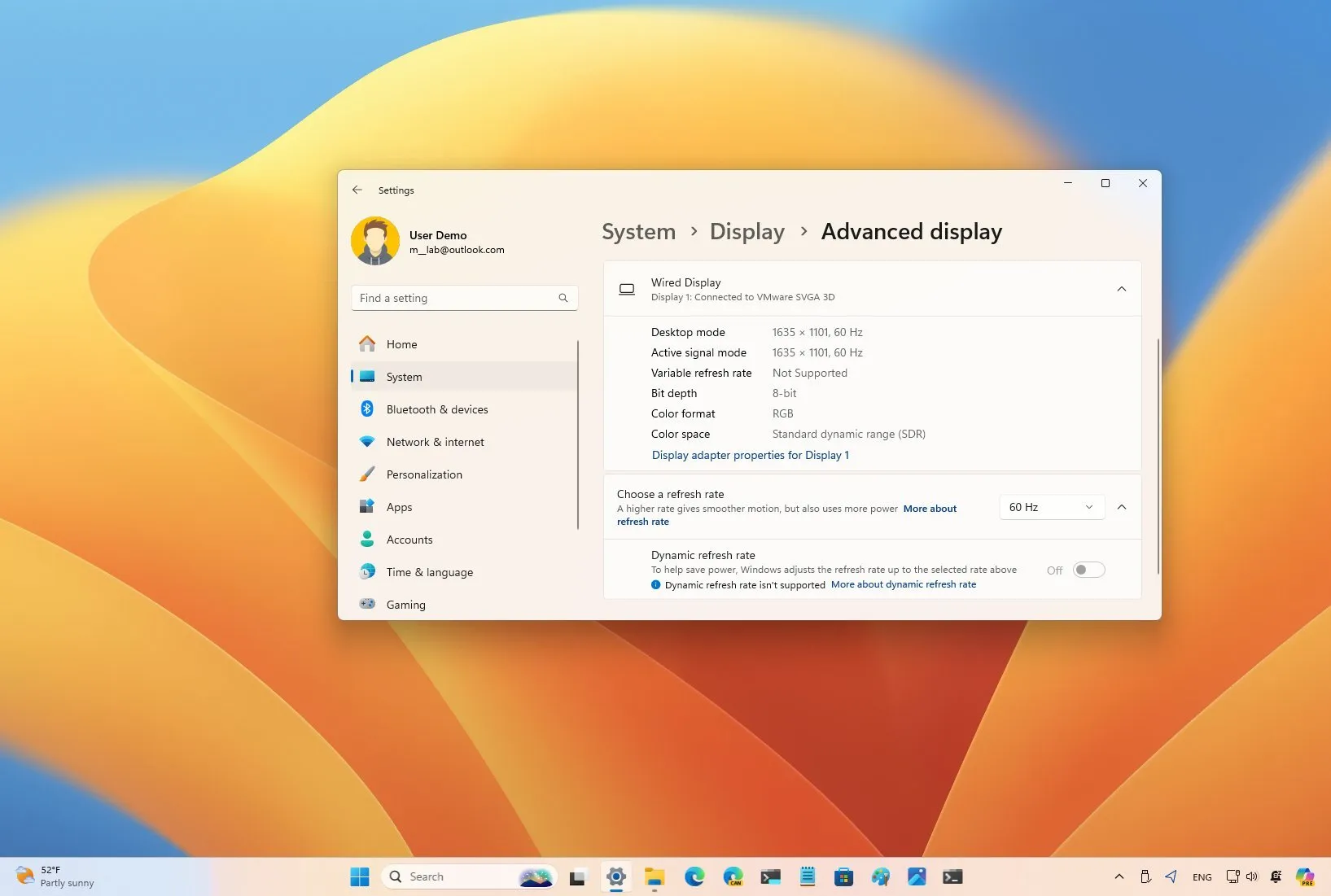
To activate or deactivate DRR, you need to go to «Home > Settings > System > Display > Advanced display"and use the 'Dynamic Refresh Rate' switch." It will only appear if the monitor and GPU support this specific feature, which is primarily focused on modern laptop displays.
DRR does not replace VRR in games; rather, it is a intelligent Hz management layer for everyday use, while VRR focuses on coordinating the monitor with the FPS of the graphics engine in real time.
How to manually change the refresh rate in Windows
Apart from VRR and DRR, you can always manually adjust the fixed frequency of your monitor from WindowsThis is useful if you want to force 144 Hz on the desktop, try 60 Hz to save energy, or make sure you're using the maximum supported refresh rate.
In Windows 11, the official path is: Start button, then "Settings", go to "System" and then to "Display". At the bottom you will find the linkAdvanced screen settings", which is where everything related to Hz is concentrated."
If you use multiple monitors, first select «Choose screen» the screen you want to configure. Each monitor may have its own different options and frequency ranges, so it's a good idea to verify that you're selecting the correct panel.
In the section «Update frequencyYou will be able to choose from the refresh rates supported by that specific monitor. For example, 60 Hz, 120 Hz, 144 Hz, 240 Hz, etc. Only the resolution and refresh rate combinations that the panel supports and that Windows detects through the drivers will appear.
Keep in mind that Not all screens support high frequencies.And in some cases you will have to use DisplayPort or HDMI 2.1 to access the maximum refresh rates, especially at high resolutions such as 1440p or 4K.
Flickering on VRR monitors: Is it dangerous for the screen?
On some modern monitors, especially high-frequency OLED models (e.g., 240 Hz or 360 Hz), it is relatively common to notice small flickers or brightness changes in menus and loading screens when VRR is active. This is most noticeable when FPS drops sharply or fluctuates significantly at low ranges.
The cause is usually that the monitor is adjusting its refresh rate to match the incoming signal, and in those areas of the game (loading, transitions, menus) the FPS can spike significantly. Some panels react to these changes with slight flickering, which sometimes disappears or diminishes once the FPS stabilizes during gameplay.
Technically, That flickering is not harmful to the monitor in the long run.It is not a symptom that the panel is breaking, but rather a side effect of VRR operating near the limits of its range or with certain overdrive modes of the panel.
If it bothers you a lot, you can try several things: disabling VRR only in certain games, adjusting the FreeSync/G-Sync range in the GPU control panel, or using an FPS limit to prevent sudden drops. You can also disable VRR in Windows and leave only the graphics card's technology enabled, or vice versa, depending on the results.
In summary, It's not something that's going to destroy the monitor over time.However, it can be visually distracting. Adjusting settings and experimenting with different combinations is usually the best way to minimize it.
Enabling FreeSync/G-Sync and Windows VRR at the same time? Compatibility
A very common question is whether it's advisable to have both activated at the same time. FreeSync (in the AMD panel), G-Sync (in the NVIDIA panel), and the Windows VRR switchThe short answer is that, in most cases, there is no direct conflict, because the Windows function is designed precisely to complement, not to replace.
For example, if you have a FreeSync monitor with an AMD graphics card, the usual procedure is to activate FreeSync in the AMD software and then Also enable "Variable refresh rate" in Windows graphics settingsWindows will use VRR for DX11 games in full screen that are not factory supported, while titles that do support FreeSync will work as usual.
The same applies to G-Sync and compatible monitors on NVIDIA: you can have your G-Sync profile active and, if everything is compatible, You can also use Windows VRR to extend support in some games.If you detect specific problems with a particular title, you can disable VRR from the system and limit yourself to the GPU control panel.
In specific cases, certain games or configurations may perform worse when using both layers simultaneously. If you experience graphical glitches, black screens, or instability, it's recommended to try one combination or the other. only FreeSync/G-Sync from the driver, or FreeSync/G-Sync + VRR from Windowsand keep whatever works best on your PC.
In any case, there's no risk of "breaking" anything by having both options active. It's more a matter of convenience and stability than hardware security.
In short, it is worth emphasizing that these technologies are here to stay: Variable refresh rate has become a key factor when choosing a monitor or TV for gaming.If you're thinking about upgrading your monitor, checking if it offers FreeSync, G-Sync Compatible, or HDMI 2.1 with VRR is almost as important as the resolution or panel type. Properly configured in Windows, it can completely transform the smoothness and responsiveness of your games, videos, and everyday apps.

Editor specialized in technology and internet issues with more than ten years of experience in different digital media. I have worked as an editor and content creator for e-commerce, communication, online marketing and advertising companies. I have also written on economics, finance and other sectors websites. My work is also my passion. Now, through my articles in Tecnobits, I try to explore all the news and new opportunities that the world of technology offers us every day to improve our lives.