- WhatsApp Desktop saves files in specific internal paths on Windows and macOS, different from the usual user folders.
- In Windows, subfolders are used under AppData, and in macOS under Library/Containers, organizing the content by year and type.
- WhatsApp Web does not create its own folder and depends entirely on the browser's download settings.
- Knowing these routes makes it possible to automate copies, movements, and sending of files to other systems or servers.

When you work a lot with WhatsApp from your computer, sooner or later you wonder where on earth it stores all those files you send and receive. Images, documents, videos and audios They go through the desktop app or through WhatsApp WebBut it's not always clear which folder they end up in or how to access them afterwards.
Additionally, if you want to set up a slightly more advanced workflow, such as automate the movement of incoming images To review file backups without relying on your mobile device, you need to know precisely which paths WhatsApp Desktop uses on Windows and macOS. In this article, we'll... to break all that down calmlyThis way, you have complete control over where your files are stored, what you can do with them, and what limitations WhatsApp Web has compared to the desktop application.
Where does WhatsApp Desktop save files on Windows?

In the Windows desktop version, WhatsApp doesn't save files in an obvious location like "Pictures" or "Downloads." The app uses an internal user folder within AppData. All the files you send and receive from WhatsApp Desktop They are stored by default in a specific path associated with your Windows user.
La general route (depending on the version of WhatsApp Desktop you have installed) The location where the files are stored is as follows: (replacing YourUserName with your actual Windows username):
C:\Users\YourUserName\AppData\Local\Packages\5319275A.WhatsAppDesktop_cv1g1gvanyjgm\LocalState\shared\transfers
This folder is the core where WhatsApp Desktop for Windows is located. It leaves the transferred files behind.If you've ever gone crazy looking for a photo or document that you knew you had opened on your computer but couldn't find in "Downloads", it's very likely that it was here.
Within transfers You'll see that the content isn't random: WhatsApp organizes files into folders based on year.This means you will find subfolders of the type 2023, 2024etc., which makes it much easier to locate something if you remember approximately when you received or sent it.
To access this path without too much trouble, the easiest way is to copy and paste it directly into the address bar of Windows File Explorer, replacing YourUserName is your account name on that device. As soon as you press Enter, the WhatsApp folder will open with all its subfolders and files.
It should be noted that AppData is a hidden folderSo, if you try to navigate by clicking through folder by folder, you might not see it if you don't have hidden items enabled. You can change this from the "View" tab in File Explorer by selecting the option to show hidden files and folders, or simply use the direct path in the address bar.
Once inside the transfers folder, you can copy, move, rename, or process the files however you like. For automated workflowsThis location is key: synchronization tools, scripts, or third-party programs can monitor this path and act whenever a new file appears.
WhatsApp Desktop on Windows and advanced use of the transfers folder
If your idea is to set up something like a "robot" that moves incoming photos to another location, uploads files to a server, or processes them in some way, the transfers folder becomes your starting point. WhatsApp Desktop downloads incoming files there when you open them or interact with them, so you can get hooked on that flow.
In a Windows environment, it is common to use PowerShell scripts or small programs that are monitoring that folder. Every time a new file appearsYou can trigger an action: copy it to another folder on the network, upload it to FTP, compress it, rename it with some logic... the possibilities are wide.
It's important to understand that, although you can automate a lot, WhatsApp itself does not offer direct FTP integration.There isn't an official FTP contact to send files to for automatic uploads. However, you can use your local Windows folder as an intermediary: WhatsApp places the files there, and your script or application handles connecting to an FTP server or other external system.
At the level of security and privacyIt is worth remembering that The files stored in AppData are associated with your session userThey're not public to everyone using that PC, but anyone with access to your Windows account can, in principle, open that path and view the content. If you're concerned about that, you might consider encrypting your user profile or limiting computer sharing.
Where does WhatsApp Desktop save files on macOS?
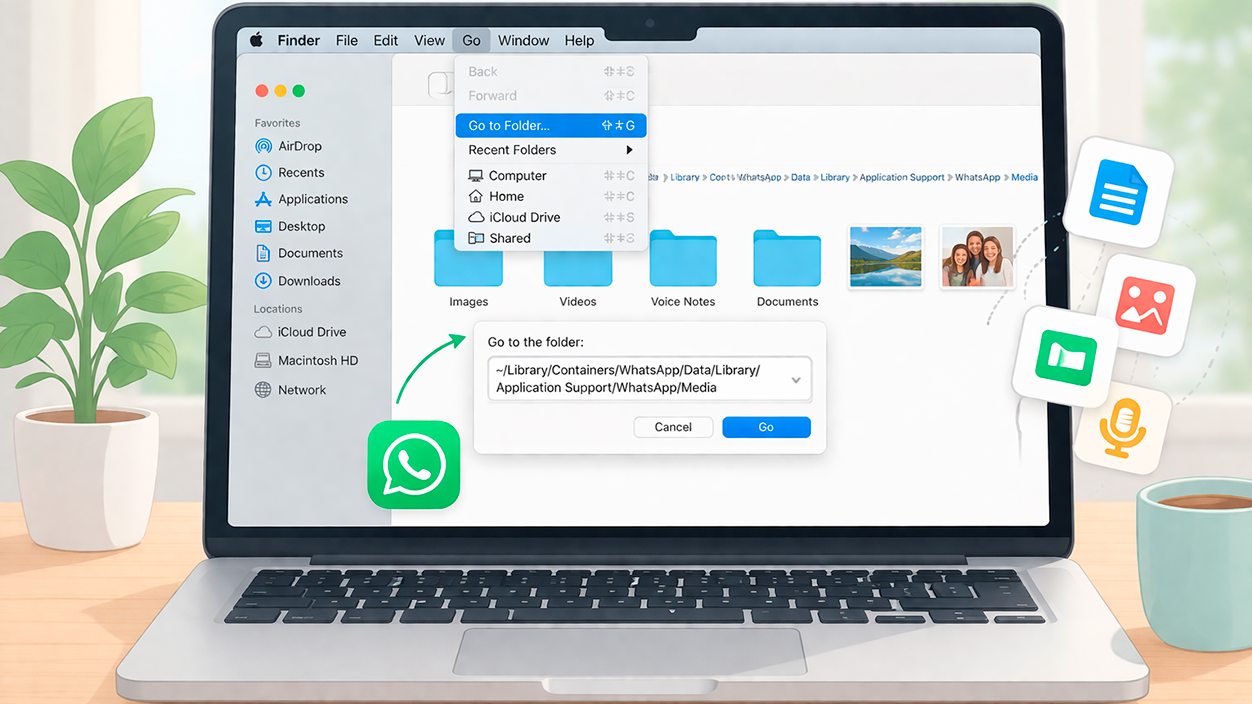
On Mac, things change a little: the directory structure is different, but the logic is the same. WhatsApp Desktop uses an internal folder within your user accountThis folder is accessible from the Finder using the "Go to Folder" option. It also stores all your multimedia files and documents.
The main path to locate WhatsApp files on macOS is:
~/Library/Containers/WhatsApp/Data/Library/Application Support/WhatsApp/Media
The symbol ~ represents your user folder (for example, /Users/tuusuario). Within that path, the folder Media This is where the elements handled by the application are concentrated: images, videos, audios, documents and other types of files that you have exchanged from the desktop app.
To access this folder, open Finder and go to the "Go" menu at the top. From there, select the option "Go to the folder..."In the window that appears, type (or paste) the complete path above and press Enter. At that point, Finder will take you directly to the WhatsApp directory. where the local files are located.
In macOS, as in Windows, some of these folders are intentionally somewhat hidden. The user's Library folder is usually hidden. To prevent accidentally deleting important files, "Go to folder..." is the cleanest way to avoid problems and get exactly where you need to go without permanently revealing hidden items.
Within Media You'll find subfolders that categorize content by type: images, videos, voice notes, documents, etc. This structure is quite convenient if you want manage multimedia files in a more organized wayby making backups, cleaning up old elements, or integrating part of the content into other projects (presentations, documents, video editing, etc.).
Advanced file management in WhatsApp Desktop for Mac
If you're someone who works with a lot of images and documents on a daily basis, taking advantage of this macOS route allows you to go a step further. Automation applications such as Automator or Shortcuts They can monitor the Media folder and trigger actions when a new file is detected.
For example, you could set up a flow that copies all the incoming images from WhatsApp to a specific folder in iCloud Drive, or rename documents based on the date they were downloaded. You can also automatically move certain types of files to external drives, network-shared folders, or cloud storage systems.
Just like in Windows, There is no native function to use an "FTP contact" within WhatsAppHowever, nothing prevents an external script or tool from monitoring the WhatsApp folder and uploading any new files to a remote server. This is especially useful if you want to centralize files you receive via WhatsApp to manage them from other work environments.
Regarding access control, the files are hosted under your system user account, so Only users with access to your account on the Mac They will be able to see that content. As always, if you handle sensitive information, make sure you have strong passwords and, if possible, disk encryption enabled (for example, FileVault) to protect data at rest as well.
Where does WhatsApp Web save files on your computer?

WhatsApp Web works differently than the desktop app in terms of local storage. The web version depends directly on the browser. that you are using (Chrome, Edge, Firefox, Safari, etc.) and does not, by itself, create a WhatsApp folder with all the files as happens with WhatsApp Desktop.
When you use WhatsApp Web and open an image, video, or document, the system does not automatically download them to a specific path like a "WhatsApp folder". They are only saved persistently if you choose to download those files manually.Until you perform that action, the file is handled as a temporary browser resource.
If you want to save a specific file you received via WhatsApp Web, you have to click on the file within the conversation and then click on the icon. download or save which appears (usually a small button with a down arrow or similar). At that point, the browser will give you two common options, depending on your settings:
- Automatically save to the default downloads folder that the browser has configured.
- Ask yourself which folder you want to save each file in., if you have the option to choose location each time enabled.
In other words, with WhatsApp Web There is no single fixed path where all the files accumulate. The final location depends on your browser's download settings and your choices each time you save something.
If you're the type to download everything without looking, chances are that The destination folder should be the "Downloads" folder on your systemThis applies to Windows, macOS, and Linux. You can change this behavior in your browser settings, specifying a different default folder or forcing it to always ask for confirmation before saving.
Practical tips for managing WhatsApp files on your computer

Beyond knowing the exact routes, there are some habits that can make your life much easier when working with files in WhatsApp from your PC or Mac. The first step is to decide from the beginning how you want to organize what you receive.especially if you deal with many documents or images every day.
If you primarily use WhatsApp Desktop, it might be a good idea create your own folders outside of AppData or Library where you copy and organize anything you want to keep long-term. The application's internal paths are not intended as a permanent archive, but as working areas, and it's possible that with updates or cache cleanups, some content may no longer be available as you expected.
If you use WhatsApp Web a lot, check your browser's download settings. Configure it to always ask you where to save. This can help you avoid losing files in a chaotic Downloads folder. Another practical option is to pin a "WhatsApp" folder within your user account and use it as the default destination for everything you download from your chats.
It is also useful on both Windows and macOS, take advantage of the system's search engines (The File Explorer search box, Spotlight on Mac, etc.) can be used to quickly locate a file if you remember part of its name or extension. This can save you a lot of time searching through years, subfolders, and different types of files.
Finally, if you're worried about disk space, check your WhatsApp storage folders from time to time, especially if you frequently receive messages. large videos or many documentsDeleting what you no longer need or moving it to external drives or the cloud will help keep your system lighter and more organized.
With all of the above, it's quite clear that WhatsApp Desktop and WhatsApp Web manage files differently, and if you know exactly where each one looks, you can take full control. Identify the internal paths of Windows and macOSUnderstanding that the web version depends on browser settings and relying on external automations allows you to transform WhatsApp into more than just a simple chat, making it an integrated part of your daily workflow without losing sight of the organization, space, and privacy of your files.


I am a technology enthusiast who has turned his "geek" interests into a profession. I have spent more than 10 years of my life using cutting-edge technology and tinkering with all kinds of programs out of pure curiosity. Now I have specialized in computer technology and video games. This is because for more than 5 years I have been writing for various websites on technology and video games, creating articles that seek to give you the information you need in a language that is understandable to everyone.
If you have any questions, my knowledge ranges from everything related to the Windows operating system as well as Android for mobile phones. And my commitment is to you, I am always willing to spend a few minutes and help you resolve any questions you may have in this internet world.