- Word dims the header and footer while you edit the body.
- Double-click on the header to see its color and edit it.
- Check the final appearance in File → Print or in the PDF.
- If it's still gray, check the header format or printer settings.

If the Word header appears gray when editing In the body of the document, you are most likely seeing the usual dimming of the view Print designWord retains the color you gave to the text or logo. To check, double-click the header or open File → Print and check out the preview.
The same applies to the footer. If the gray also appears in the PDF or the printed copy, you can pinpoint the cause based on where it's visible.
Why does Word dim the header while you type?
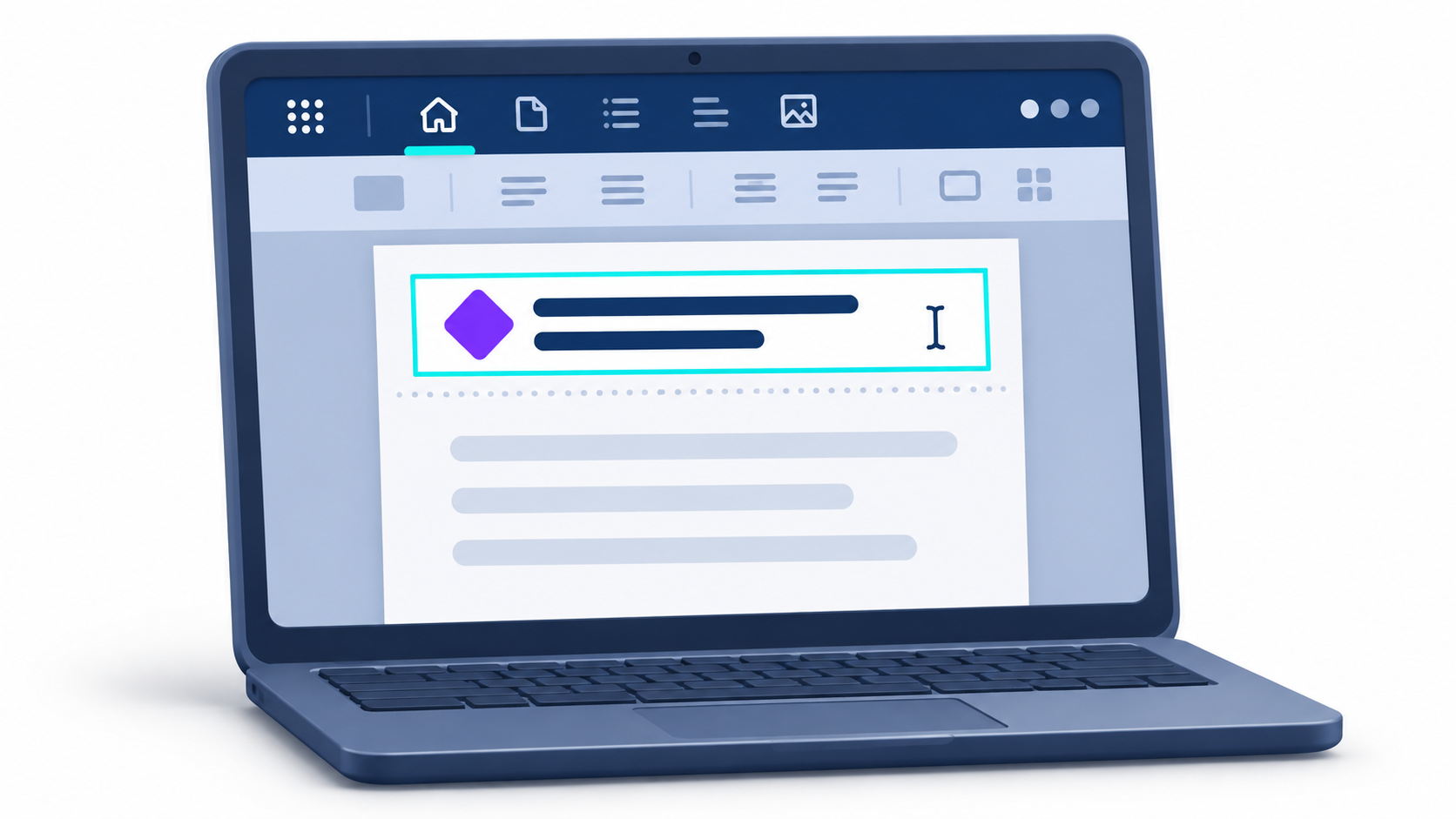
In the view Print design In desktop Word, the header and footer become less prominent when your cursor is in the document body. If you do this double-click on the top margin To open the header, you'll see that area with its formatting color, and the main text will be dimmed. You can do the same test in the bottom margin to check the footer.
If you're having trouble opening the header with your mouse, go to Insert → Header → Edit HeaderTo return to the main text, press Close header and footer Or double-click outside that area. If you also want to change the content or add a logo, see how to set headers and footers in word.
How to check the header before printing or saving the PDF
Open File → Print To view the document header and body simultaneously, including their formatting colors, you can preview the document without printing it. If the header regains its color in the preview, you can leave the formatting as is.
If you are going to send the document, you can also Convert Word file to PDF and open the saved copy. Check the header on the page where you detected the problem, especially if the document has several sections with different headers.
What to do if the header is still gray in the PDF or on paper
- If the text also appears gray with the header openSelect that text and check its Font color in the tab StartChoose the color you want to use and review the preview again.
- If only the logo appears turned offSelect it and review it Image formatCheck the transparency and color adjustment applied. If it was already clear in the original file, you can replace it with a copy using the correct color.
- If the PDF looks good and the paper comes out gray, open File → Print and check the printer properties. If it supports color printing, select Color rather Grayscale o Black and white.

Frequently Asked Questions
Is it normal for the Word header to appear lighter than the rest of the text?
This is a common behavior of the program that serves to visually distinguish the header from the body of the document while typing.
Will the gray color of the header appear like this when the document is printed?
The opacity effect is only visual on screen and the text will be printed with the actual color and intensity you have chosen.
How can I make the header display its true color on screen?
To view the actual color, you must double-click on the header area to enter edit mode.
Is there a way to disable the gray header tint in Word?
There is no configuration option to remove this visual effect as it is a native feature of Word's interface design.
What if the header still appears gray after printing?
If the physical result is gray, it is because the color selected in the font settings is gray and not due to the program preview.
Index