
Are you running out of space on your main disk due to the size of large language models? Changing the folder where Ollama stores the models might be the solution. In this article, we'll show you how. How to change the default path to another drive using environment variables on Windows, Linux and macOS, keeping your system optimized without uninstalling anything.
Why change the folder where Ollama saves the models?
Does changing the folder where Ollama stores the models really save space? Yes. But with an important caveat: you're not actually reducing the size of the models, but rather freeing up space on your main drive. Language models (LLMs) are multi-gigabyte binary files and cannot be compressed further than they already are through quantization.
Yet, By changing the folder where Ollama saves the models, you achieve the following:
- Decongest the system disk (usually C: or the root partition /): You prevent the disk where your operating system is installed from filling up. This often slows down your computer or prevents important updates.
- You use other discs: Changing the folder where Ollama stores models allows you to move folders that weigh 20 GB or 50 GB or more to a mechanical hard drive, a secondary SSD, or external storage with greater capacity.
Now, if what you want is to reduce the total space that the models occupy, you have two effective alternatives: on the one hand, you can use versions with higher quantization, which are smaller modelsIt's better to download variants like q4_K_M instead of q8_0 or fp16. And, on the other hand, it's recommended Delete templates you no longer use or tests that you no longer use directly from the console with ollama rm nombre_del_modelo.
How to change the folder where Ollama saves models to save space
To change the folder where Ollama saves the models (which by default is usually located on the main drive). C:\Users\Usuario\.ollama\models), you have to define the environment variable OLLAMA_MODELSBelow, we explain how to do it on Windows, Linux, and macOS.
On Windows

Follow these Steps to change the folder where Ollama saves the models in Windows:
- Close Ollama completely: Right-click on the Ollama icon in the taskbar (notification area) and select Quit Ollama to prevent file locks during transfer.
- Move the current folder (Optional): If you already have the templates downloaded and don't want to download them again, go to
C:\Users\TuUsuario\.ollamaand move the models folder to the new location (for example,D:\Ollama\models o E:\ModelosIA). - Create the Environment Variable in Windows:
- Press the key Windows + R, writes sysdm.cpl and press Enter.
- Go to the tab Advanced options and click on the button Environmental variables…
- In the User variables (or system variables) section, click on New…
- Fill in the fields with the following information:
- Variable name: OVEN_MODELS
- Value of the variable: D:\Ollama\models (or the exact path where you want to save the models from now on).
- Click on Accept in all the windows.
- Restart Ollamama: Open the Ollama application again. From now on, all commands
ollama runoollama pullThey will download and read the files directly from the new path you chose.
On Linux
In Linux, The change is made by defining the environment variable OLLAMA_MODELS before the Ollama service runs. If you installed Ollama Using the official script, it runs as a background service managed by systemdFollow these steps to change the folder where Ollama stores models in Linux.
- Edit the Ollama service:
sudo systemctl edit ollama.service. - Add the environment variable. In the file that will open, add the following lines, replacing the path with your new folder:
[Service]
Environment="OLLAMA_MODELS=/ruta/deseada/ollama/models". - Assign permissions to the new folder. Make sure the ollama user has access to the new location:
sudo chown -R ollama:ollama /ruta/deseada/ollama/models. - Recharge and restart the service:
sudo systemctl daemon-reload
sudo systemctl restart ollama.
On macOS

If you're using the Ollama graphical application on macOS, the cleanest way to define the variable globally for the system is by launchctlTo change the folder where Ollama saves models on macOS Follow the steps below:
- Completely close Ollama from the top menu bar.
- Set the permanent environment variable. To do this, open Terminal and run the command:
launchctl setenv OLLAMA_MODELS "/Ruta/Deseada/ollama/models". - Restart Ollama from your Applications folder.
However, if you run Ollama directly from the terminal instead of the graphical app, you just need to add export OLLAMA_MODELS="/Ruta/Deseada/ollama/models" to your file ~/.zshrc o ~/.bashrc.
Extra tips for saving space
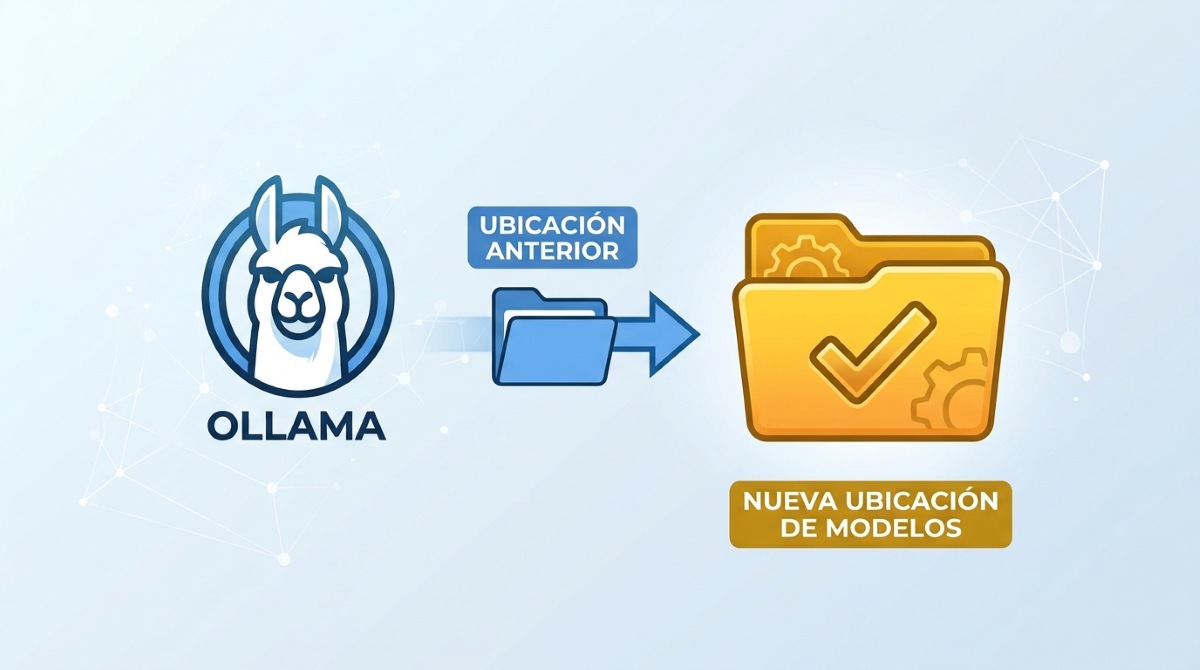
Changing the folder where Ollama stores models isn't the only thing you can do to save disk space. While it's true that this is one of the main measures you can take if you have very large language models, There are other practical measures that will help you optimize your spaceThese are some of them:
- Choose efficient quantizations: Unless you require very strict mathematical or coding accuracy, download the q4_K_M or q4_0 versions. These offer an optimal balance between quality and size, reducing the model's weight by up to 60-70% compared to fp16 with minimal loss of accuracy.
- Choose modern "Small/Medium" models: Recent models with lower parameters (such as 3B to 8B parameters) often outperform older 14B or 30B models by taking up half the space.
- Don't use so many language models: Instead of having several specialized models (one for writing, one for translating, another for chatting…), choose a single model that is more general, but versatile enough to serve you for most everyday tasks.
- Remove orphaned blobs: Ollama stores the layers in the folder
manifestsyblobsIf you cancel a download midway, residual files may remain. Delete the old version withollama rmensuring the removal of its associated files.
In summary, change the folder where Ollama saves the models It's a simple and straightforward procedure that prevents overloading your main hard drive.By reconfiguring the environment variable, you free up essential space on your operating system and manage your AI models more flexibly on larger capacity drives without sacrificing performance.
Index
