Does Chrome show a text cursor on all websites? Accidentally pressing F7 is the most common cause of this annoying behavior. Deactivating it takes less than five seconds.We'll tell you everything about cursor navigation and how to remove it.

If Chrome displays a text cursor on all the websites you visit, it means that the Cursor navigationThis is an accessibility feature designed for people who have difficulty using a mouse or trackpad. When enabled, Chrome places a blinking text cursor on the webpage, similar to that of a word processor like Word.
And what is the use of cursor navigation? The feature allows the user to move around the page, select text, and click on links using only the keyboard's arrow keys. The catch is that Google Chrome has assigned this function to the F7 key.a detail that few users know.
So, if you were typing or using keyboard functions and accidentally pressed F7, Chrome activates this mode. And, unless you know what's going on, it can be a little confusing or even annoying to see a text cursor on every website. Furthermore, you realize that... With cursor navigation enabled, the Home and End keys do not work as expected..
The quickest solution: the F7 key

What to do if Chrome shows a text cursor on all websites? The most direct solution to restore normal browser behavior is simply Press the F7 key again on your keyboard. Doing so should immediately disable cursor navigation mode in Chrome.
In some cases, the function was activated through the settings menu and not with the hotkey. You'll know this if, when you press F7, you see that A pop-up dialog box appears It will ask you if you want to enable or disable cursor navigation. In either case, make sure it's disabled.
It is also the problem with laptop keyboardsOn these devices, the F7 key often shares functions with another key, such as volume control or screen brightness. Therefore, you may need to hold down the Fn (Function) key while pressing F7.
If the above doesn't work either, you can try holding down the right Shift key for a few secondsOn some laptop models, this action disables cursor navigation, although it's not an official Google solution. But you lose nothing by trying it.
Chrome displays a text cursor on all websites: remove it from Chrome settings
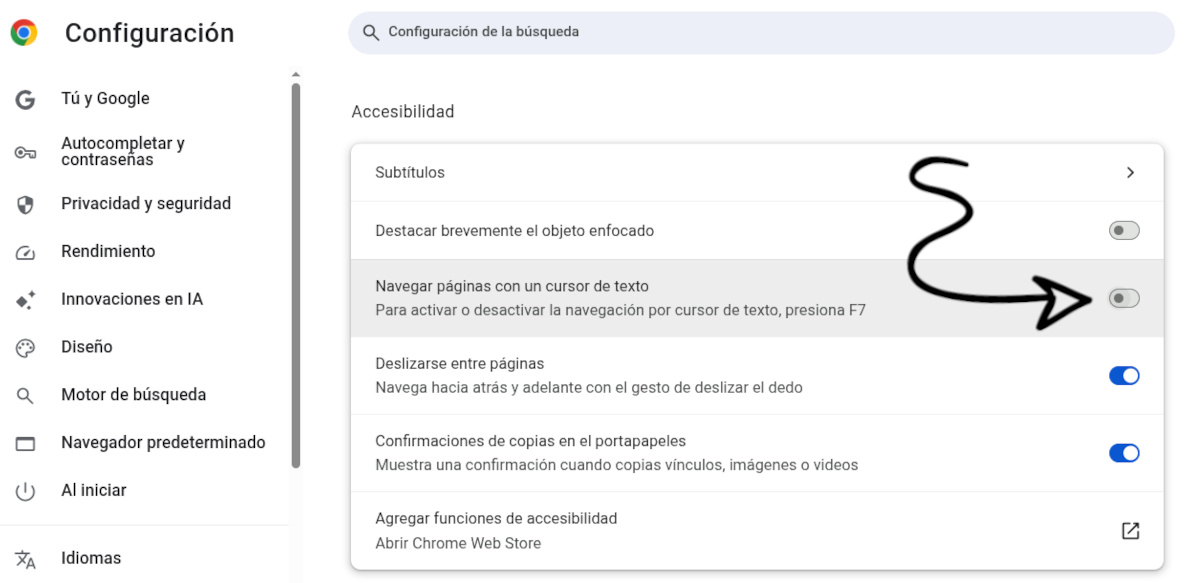
Is Chrome showing a text cursor on all websites and the F7 key not responding? The definitive solution involves the browser settings. disable the function from the internal settingsThis way there's no way to go wrong and you'll ensure the option is unchecked. Follow these steps:
- Open Google Chrome.
- Click on the three vertical dots located in the upper right corner of the window to open the menu.
- Select Configuration.
- In the left sidebar menu, find and click on the section Accessibility.
- Look for the option that says «Navigate pages with a text cursor"
- Turn off the corresponding switch or box. Done!
You can also access this setting directly typing or pasting the following address into the Chrome navigation bar: chrome://setting/accessibilityThis will take you directly to the correct panel without having to search through the menus.
What if the cursor persists? Other possible causes
By now, the issue of Chrome displaying a text cursor on all websites should be resolved. However, if the problem persists, you may be... confusing this function with another This is a feature of the operating system. It is the "Text cursor indicator" in Windows.
Windows has an accessibility option called «Text cursor indicator"What it does is add a small visual embellishment (sometimes a circle or a color) to the text cursor in all applications, not just Chrome. It's somewhat similar to the browser's cursor navigation, which is why they're often confused. (See the entry How to prevent accessibility from turning on automatically in Windows 11).
To rule out this possibility, go to Windows Settings – Accessibility – Text Cursor. There, make sure that The "Use text cursor indicator" option is disabledAnd if the problem only occurs in Chrome and not in Notepad or Word, then the cause is definitely the browser's cursor navigation.
Chrome displays a text cursor on all websites: prevent accidental activations
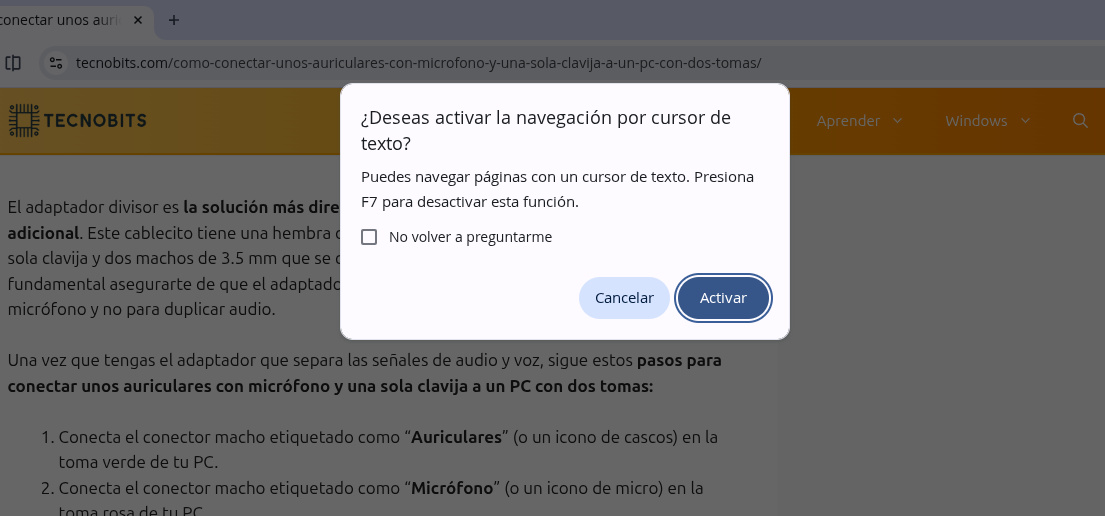
As we already mentioned, cursor navigation It is usually activated accidentally While typing and using the Function keys on the keyboard. Under normal conditions, pressing F7 will display a pop-up window asking if you want to activate cursor navigation. There you can confirm or deny the action, and also check the "Don't ask again" box so that the function is activated immediately when you press F7.
But is there a way to prevent Chrome from asking if you want to enable cursor navigation when you press F7? Yes, there is. lightweight extension for Chrome call "Disable Care Browsing"This tool specifically blocks the F7 shortcut and the confirmation dialog box."
So, if you're worried about accidentally pressing F7 again in the future, you can try installing this extension. This way you avoid accidental activations, and without interfering with other keyboard functions (such as character conversion in Asian languages). This is the most effective solution when Chrome displays a text cursor on all websites and you want to remove it.
In summary: If Chrome shows a text cursor on all websites, try pressed the F7 keyIf nothing happens, go to your browser settings and turn off the switch for Cursor Navigation. If nothing works, download the extension Disable Caret Browsing and restore your browser to normal.
Index
