- The error indicates a GPU loss or reboot; it requires rebuilding the device and resources.
- Shadows, overlays, aggressive AA, DSR and unstable drivers usually trigger it.
- TDR tweaks (TdrDelay/TdrDdiDelay or TdrLevel), cleaner drivers, improve stability.
- In D3D11 you should catch the error after Present/ResizeBuffers and handle HandleDeviceLost.

If you play on PC, you'll probably come across the message sooner or later. DXGI_ERROR_DEVICE_REMOVEDIt appears seemingly randomly, crashes the game to the desktop, and leaves you with a poker face in the middle of a game. Although it may seem frustrating, there are several well-known causes and a handful of solutions you can try today.
In this guide, I explain, in great detail and without frills, what this error means, why it occurs, and how to address it from different angles: System settings, drivers, Windows registry, game configuration, and, for those programming with Direct3D 11, robust control code. for the recreation of the device. You'll also see real-life player cases, diagnostic guidelines, and important warnings to avoid making a mess.
What is DXGI_ERROR_DEVICE_REMOVED and why does it occur?
The mistake DXGI_ERROR_DEVICE_REMOVED Indicates that the GPU is no longer available to the application, either because the system has restarted it (TDR), the driver has been updated, the computer has switching from integrated to dedicated graphics or literally, the device has been disconnected. In Direct3D 11, the old “device lost” state of D3D9 no longer exists, but adapter availability may still change and the device must be recreated.
Among the most common scenarios are: GPU reset due to driver crash, hot driver updates, switching active GPUs on laptops, timeouts due to heavy loads or stability issues due to overclocking/temperatures. Even something as simple as switching monitors or resizing the window can uncover the removed device condition.
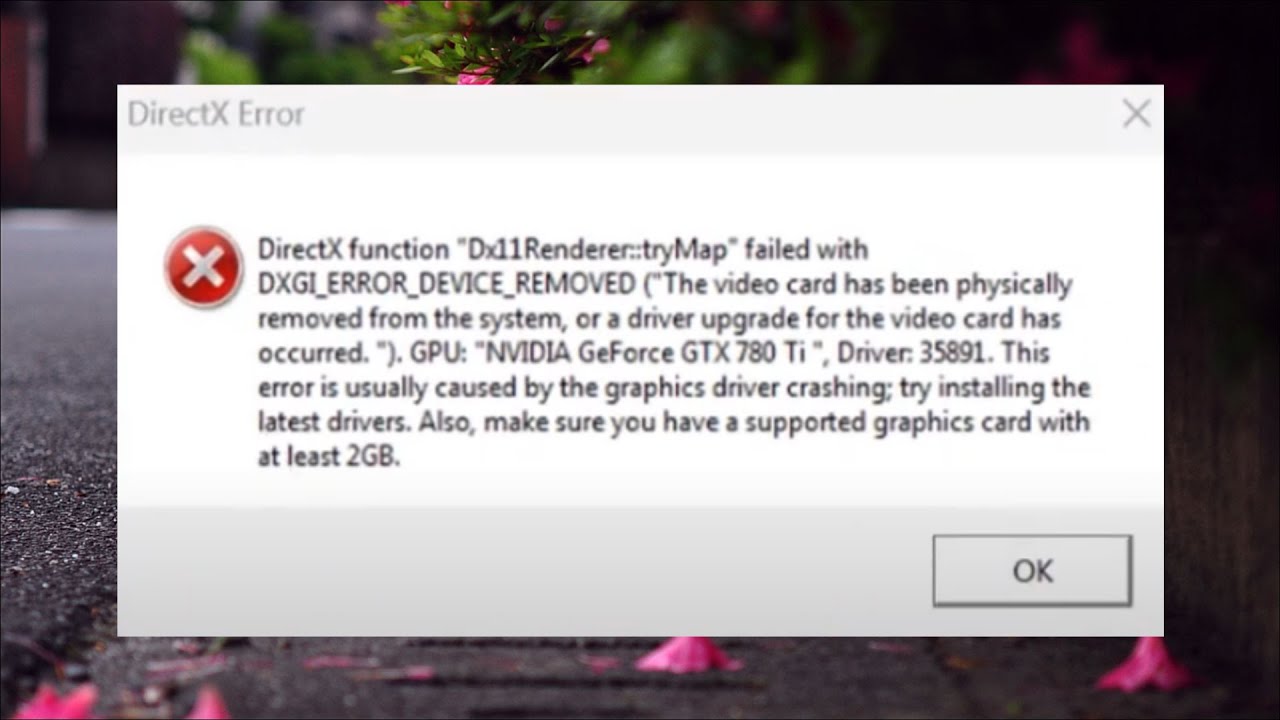
Typical symptoms and messages you will see
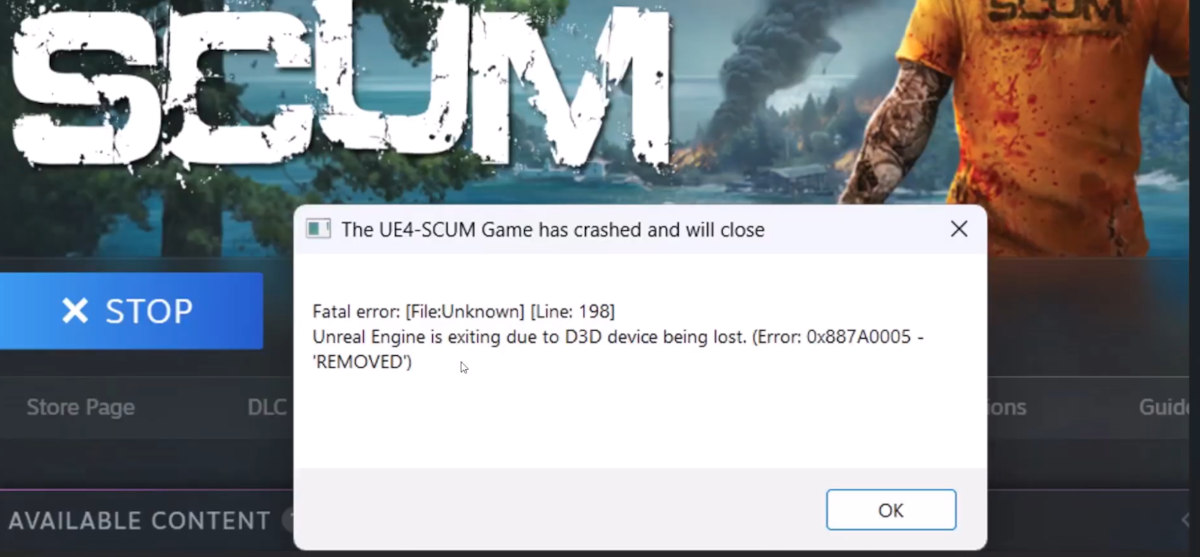
The usual manifestation is a crash to the desktop with a game engine dialog box like this: Fatal Error – Engine Error and the string “ : 0x887A0005”. In some games this warning is hidden in full screen; put the game in windowed mode can help visualize it. It is not uncommon for the Event Viewer to display generic messages such as “File System Filter 'EasyAntiCheat_EOSSys' (…) unloaded successfully” that are not the root of the problem.
Another common symptom is that after 1 to 4 hours of intense session the game closes without further ado and, when you reopen it, everything looks normal in Device Manager and in the driver logs, with no obvious critical errors. In some cases, they also appear Exception Access Violation, which should be treated as a separate issue from DXGI.
Common causes to consider
Although the list is not complete, these are the most repeated: unstable or incompatible drivers, GPU/VRAM/CPU overclock, high temperatures, background recording/shading features, aggressive graphics settings (AA, DSR, 4K@165 Hz), game scheduling (lots of commands that crash the driver) and, on laptops, active adapter changes. The combination of several factors often triggers a timeout or “hang” of the controller.
The system also influences: the characteristic Hardware-Accelerated GPU Scheduling (HAGS) Sometimes it worsens stability, so disabling it is a good first step. And be careful, a background driver update can cause this error without you even realizing it. just after restarting or resuming from sleep mode.

Quick fixes to try first
Before you start anything serious, set aside your superstitions and focus on the basics and safety measures. Some simple measures, such as Disable the in-game overlay (GeForce Experience ShadowPlay/In-Game Overlay), limiting the FPS, or lowering the graphics profile by one point give surprising results:
- Deactivate the In-Game Overlay de GeForce Experience: Open GeForce Experience as administrator, go to General and turn off “In-Game Overlay/Share”.
- Try playing on windowed or borderless mode to view the error message and reduce screen mode changes.
- Temporarily reduces resolution, refresh rate and eliminates DSR if you were forcing 3840×2160 on a 1080p monitor, because it stresses the pipeline.
- Disable HAGS: Windows Settings > System > Display > Graphics > Default Graphics Settings > Hardware-accelerated GPU programming to Off.
If it stabilizes like this, you know where it's going; if not, it's time to roll up our sleeves and continue with the following sections.
TDR Registry Tweaks: Two Safe Approaches (with Caution)
Windows integrates a mechanism called TDR (Timeout Detection and Recovery) which restarts the GPU if it takes too long to respond. We can adjust its timings to allow for heavy loads. There are two approaches reported by the community and technical guides: increasing the timings with TdrDelay and TdrDdiDelay, or adjust TdrLevelImportant: Touching the registry carries risks; make a copy before changing anything.
Essential warning: If you are not clear about what you are doing, do not continue.An erroneous Registry change can break Windows. Copy this command to a Command Prompt as administrator before continuing:
reg export "HKLM\SYSTEM\CurrentControlSet\Control\GraphicsDrivers" "%USERPROFILE%\Desktop\GraphicsDrivers.reg" /yMethod 1: Extending times with TdrDelay and TdrDdiDelay
A trick that has saved entire sessions for more than one person is to add two DWORD (32-bit) values under HKLM\SYSTEM\CurrentControlSet\Control\GraphicsDrivers with hexadecimal value 3c (60)This method has allowed people who previously dropped out after 3-4 minutes to play for hours, although it does not solve other crashes such as “Exception Access Violation”.
- Open the Start menu, type regedit and enter the Registry Editor.
- Paste into the address bar:
Computer\HKEY_LOCAL_MACHINE\SYSTEM\CurrentControlSet\Control\GraphicsDrivers. - In the right pane, right-click > New > DWORD (32-bit) value, name it
TdrDdiDelay. - Open it, mark Hexadecimal Base and put
3cas Value data (equivalent to 60 seconds). - Repeat creating
TdrDelaywith the same value 3c. - Check that both exist and restart your computer to apply the changes.
The idea is to make Windows wait longer before shutting down the GPU. In very demanding loads, that extra minute can prevent the automatic reset and game expulsionIf you don't see any improvement, undo the change or try the following method.
Method 2: Adjust TdrLevel
Another guide proposes to create the DWORD value TdrLevel to 0 in the same Registry path to modify TDR's behavior. The process is similar but with a single value:
- En
Computer\HKEY_LOCAL_MACHINE\SYSTEM\CurrentControlSet\Control\GraphicsDrivers, right click > New > DWORD (32 bits). - Give it a name
TdrLeveland sets the value to 0. - save and restart Windows.
Apply only one of the approaches at a time and test. If something goes wrong, revert to the previous state by restoring the backup copy. Record what you did at the beginning.
NVIDIA Settings: ShadowPlay and Anti-Aliasing
Background capture/overlay can interfere. In addition to the overlay, there's another interesting toggle: disable global Anti-Aliasing from the NVIDIA Control Panel. It's not ideal visually, but it's effective as a stability test.
- NVIDIA Control Panel > Manage 3D Settings > Global configuration.
- Disable all options Anti-Aliasing (Off) and apply.
- Check if the game stops throwing the DXGI after several games in a row.
If this fixes it, you can restore AA in “Application Controlled” mode or use moderate quality, and combine it with an FPS limit to stabilize the pipeline.

Drivers: Reinstall thoroughly or roll back
Most cases are resolved with a clean reinstallation of the GPU driver. The most reliable method is to use DDU (Display Driver Uninstaller) In Safe Mode, remove leftovers and then install the recommended driver. If you've already tried this without success, a useful step is revert to the previous driver from Device Manager. If you're using AMD, see Problems with AMD Adrenalin that may interfere during installation.
- Device Manager > Display Adapters > your GPU > Properties > Driver tab.
- Use Roll Back if it is active.
- If not, try “Update Driver” > Search automatically for drivers, or manually install a newer version. known for its stability.
After any driver change, reboot and check. Avoid updating the driver just before a long session; better to test in short and validate that neither DXGI nor “Device Hung” appear.
Game and system settings that make a difference
Beyond drivers and registry, getting your game and system settings right is key. The 4K, 165Hz, and DSR combo on a Full HD monitor is a classic. intermittent instability. Drops to the monitor's native resolution, limits FPS, and reduces GPU load spikes.
- Use native resolution of the monitor (e.g. 1920×1080 if your panel is 1080p) and disable DSR.
- Cap FPS in-game or by driver (e.g. 144 or 120) to avoid spikes. Peaks at 165 Hz can saturate the command queue.
- Try using properly configured V-Sync or G-Sync/Freesync; avoid frequent screen mode changes.
- If you OC GPU/VRAM/CPU, go down to stock frequencies or even a small undervolt.
In some titles, starting in window allows you to see the DXGI alert when full screen is lost. For example, a player launched «r5apex_dx12.exe» with arguments -steam +fps_max unlimited -game R2 and only in the window could he read the error; small changes in mode make the difference in the reproduction of the failure.
Checklist of good practices to minimize DXGI
Let's review, with a cool head, a logical order to tackle the issue without going crazy. The idea is to go from the least invasive to the most technical. testing between each step:
- Remove overlay/ShadowPlay and any real-time recorders; disable HAGS.
- Use native resolution, FPS cap, and AA moderate or disabled from the NVIDIA panel.
- Check temperatures, remove OCs and avoid sustained load peaks at 165 Hz unless absolutely necessary.
- Reinstall driver with DDU; if it fails, try a previous stable driver and validate.
- Only if it persists, apply one of the TDR settings from the Registry and evaluates for several hours.
- If you develop, implement the route of HandleDeviceLost, GetDeviceRemovedReason and try with dxcap -forcetdr.
During testing, keep the game windowed or borderless to see messages, and note versions, frequency of appearance and changes made. This traceability will save you time.
When to escalate the problem
If after trying all of the above you are still experiencing frequent bans, it is advisable to escalate. Open a ticket with the game support providing logs, DxDiag, driver information, exact steps, and whether the error appears with or without overlay/HAGS. Do the same with the GPU manufacturer support if you suspect a specific driver version. On new hardware, also try a stable benchmark (without falling into DXGI) to rule out physical defects.
In development environments, it generates a diagnostic capture With the Graphics Tools, trigger the TDR with dxcap and attach the trace; you will make life easier for the engineer who needs to reproduce it and you will have more chances of receive a useful correction.
With all the above you have a complete range of causes and solutions to face the DXGI_ERROR_DEVICE_REMOVED: from disabling overlays and reducing peak loads, to reinstalling or rolling back drivers, to tweaking TDR in the Registry with intelligence and, if you program, implementing device re-creation and diagnostic logic with GetDeviceRemovedReason and dxcap. There's no silver bullet, but there is a orderly path for recover long sessions and restore stability to your game without falling short.

Editor specialized in technology and internet issues with more than ten years of experience in different digital media. I have worked as an editor and content creator for e-commerce, communication, online marketing and advertising companies. I have also written on economics, finance and other sectors websites. My work is also my passion. Now, through my articles in Tecnobits, I try to explore all the news and new opportunities that the world of technology offers us every day to improve our lives.