- Disable Force Click and Haptic Feedback in system settings.
- Methods for resetting NVRAM, SMC, and preference files to correct errors.
- Accessibility settings to override the trackpad when connecting an external mouse.
- Importance of physical cleaning and software maintenance for a smooth workflow.

Has it ever happened to you that you're browsing the internet peacefully or reading a document and, suddenly, when you click a little harder, your Mac launches the definition of a word Or a preview? It's not that your computer is possessed or that the hardware is failing, but rather that you have activated a smart function that, although useful for some, can be a real nuisance for others in their daily lives.
This feature, linked to Apple's haptic feedback technology, can be incredibly frustrating if you don't have good control over finger pressure. Luckily, fixing this problem is a piece of cake, and there are several ways to customize trackpad behavior So that the cursor does exactly what you want and doesn't interrupt you with unnecessary pop-ups. We'll tell you everything about how to prevent a Mac from opening a word definition when you press the trackpad.
How to disable automatic word definition

The culprit behind these definitions is the so-called Loud click and tactile feedbackThis feature allows the system to detect different levels of pressure; a normal click performs one action, and a deeper click activates the dictionary or previews. To disable it, simply go to the Apple menu and select [the appropriate option]. System Settings and locate the Trackpad section in the sidebar.
Once inside, go to the "Point and Click" tab. There you will find the box for Loud click and tactile feedbackIf you uncheck it, the trackpad will revert to its traditional behavior, eliminating those annoying automatic settings. If you notice the change isn't applied instantly, try closing the settings window and reopening it so the system can take effect. Refresh the settings.
Solutions if the trackpad is behaving erratically

Sometimes the problem isn't just word definition; the trackpad starts to slow down or become unresponsive. In these cases, the first thing to check is the options for pan and zoom Configure them to your liking. A trick that often works when things get weird is to disable all trackpad functions, wait a few seconds, and activate them again to restart the internal process.
If the problem persists and you have a Mac with an Intel processor, you could try reset NVRAM or PRAMTo do this, turn off the computer and turn it on while holding down the Option, Command, P, and R keys for about 20 seconds. This is also recommended for older models with a T2 chip. reset the SMCwhich regulates the physical functions of the hardware and can fix touch response errors.
Advanced system maintenance and cleaning

When software starts acting up, deleting preference files can be the final solution. On Intel-based Macs, you can navigate to the Library folder in ~ / Library / Preferences and delete any files containing the word "trackpad" in their name. After restarting, macOS will create clean files, removing any corrupt configuration that was causing the failure.
We mustn't forget the physical aspect. A trackpad full of grease or dust can cause ghost clicks or incorrect pressure readings. Ideally, clean it with a microfiber cloth and a little bit of 70% isopropyl alcoholalways avoiding pouring liquids directly onto the device to prevent irreversible damage.
How to disable the trackpad when using an external mouse
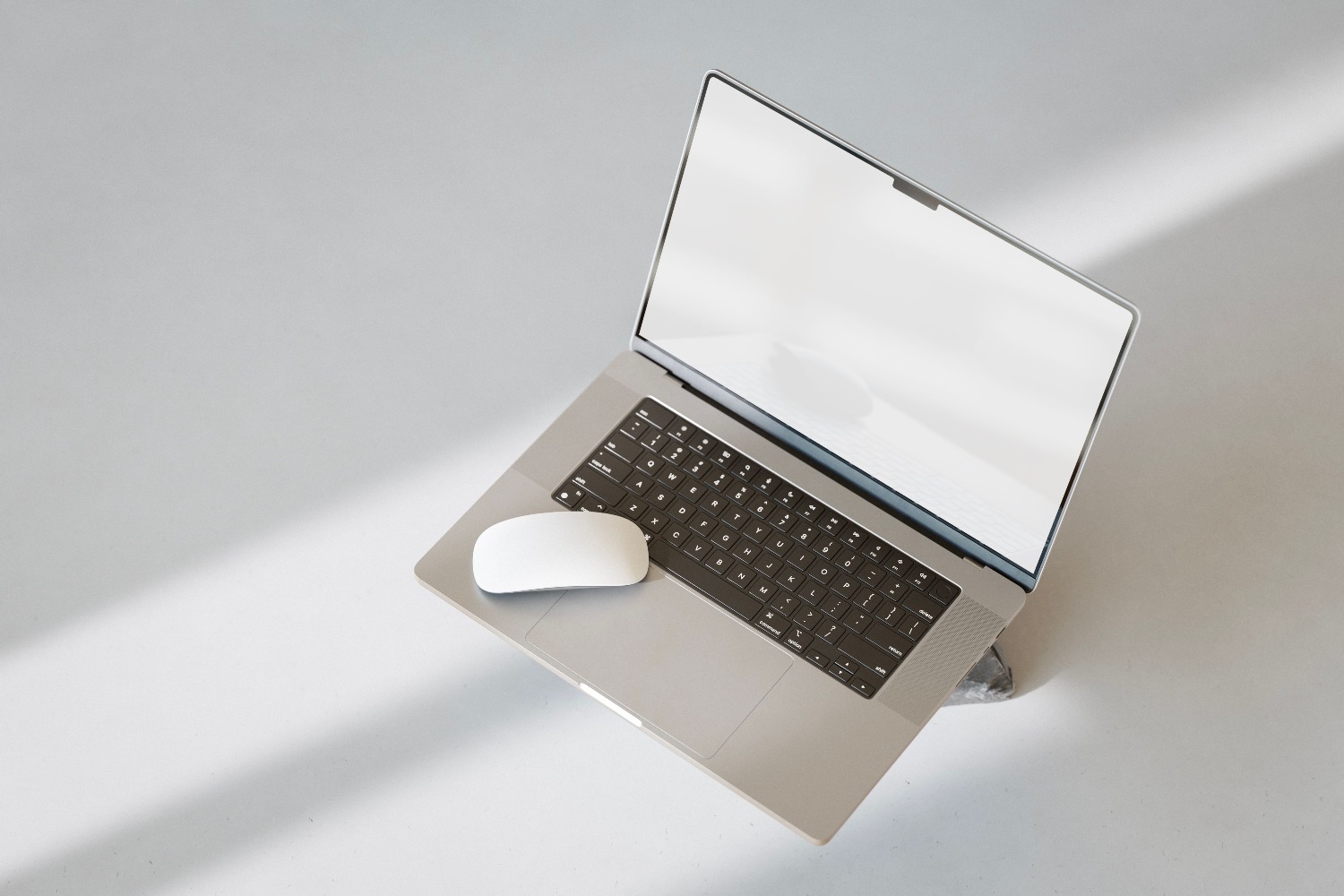
Some users prefer that the trackpad turns off completely as soon as they connect a USB or Bluetooth mouse to avoid accidental touches with their palms. To do this, go to System Settings and then to the section on Accessibility and look for the Mouse and trackpad option. There you can check the box for disable trackpad automatically when an external mouse is connected.
If you notice that the system remains slow despite these changes, there may be background processes consuming too much RAM. Use monitoring tools or run maintenance tasks Cleaning junk files can help the cursor move smoothly and avoid delays in hardware response.
Properly configuring the trackpad involves disabling Force Click to prevent unwanted definitions, keeping the hardware clean, and, in extreme cases, resetting internal memory or deleting preference files to ensure the operating system manages the pointer without errors or interruptions. Now you know why your Mac opens a word definition when you press the trackpad: how to prevent it.
Frequently Asked Questions
How do I disable automatic word definition on the trackpad?
You need to access System Settings, go to the Trackpad section and uncheck the Strong Click and Haptic Feedback option in the Point and Click tab.
Why does my Mac trackpad click on its own or move strangely?
This may be due to dirt buildup on the surface, interference from other Bluetooth peripherals, or errors in the system configuration files.
Is it possible to turn off the trackpad if I connect an external mouse?
Yes, this option is located in the System Settings menu, within the Accessibility section, under Mouse and trackpad.
What to do if the trackpad is unresponsive after changing the settings?
It is recommended to disable and re-enable the features in the control panel or, on Intel systems, to reset the NVRAM and SMC.
How do you properly clean the trackpad surface?
The safest thing to do is to use a microfiber cloth lightly dampened with 70% isopropyl alcohol, avoiding the use of direct water.
What is a hard click and how does it differ from a normal click?
A normal click performs a simple action, while a hard click detects greater pressure to activate extra features such as the dictionary or previews.
Index
