- The Cross-Device Resume error is usually linked to Windows synchronization services and corrupted system files after updates.
- Tools such as SFC, DISM, restarting explorer.exe, and checking services help to fix most issues.
- Corrupted user profiles, third-party software, and VDI configurations can trigger the failure in certain environments.
- If updates, profiles, and services are managed properly, the CrossDeviceResume.exe process will no longer cause errors or problems.
When the message appears “Cross-Device Resume error” or failures related to CrossDeviceResume.exe / CrossDeviceService.exe On Windows, the usual reaction is one of shock and considerable anger. Even more so if the warning is accompanied by a system security alert mentioning a buffer overflow and a possible malicious attack. Although the text sounds very dramatic, in most cases we are dealing with... a system or configuration problem, not necessarily a virus.
This type of error is being seen more and more in Windows 10, Windows 11 (including version 24H2) and even enterprise environments with Horizon, vSphere and FSLogix profilesThere are also users who simply don't want cross-device synchronization, but find processes like CrossDeviceResume.exe and Mobsync.exe running without their consent. Let's break down exactly what this component is. Why it fails and how to fix it step by step.
What is CrossDeviceResume.exe and why does the error occur?
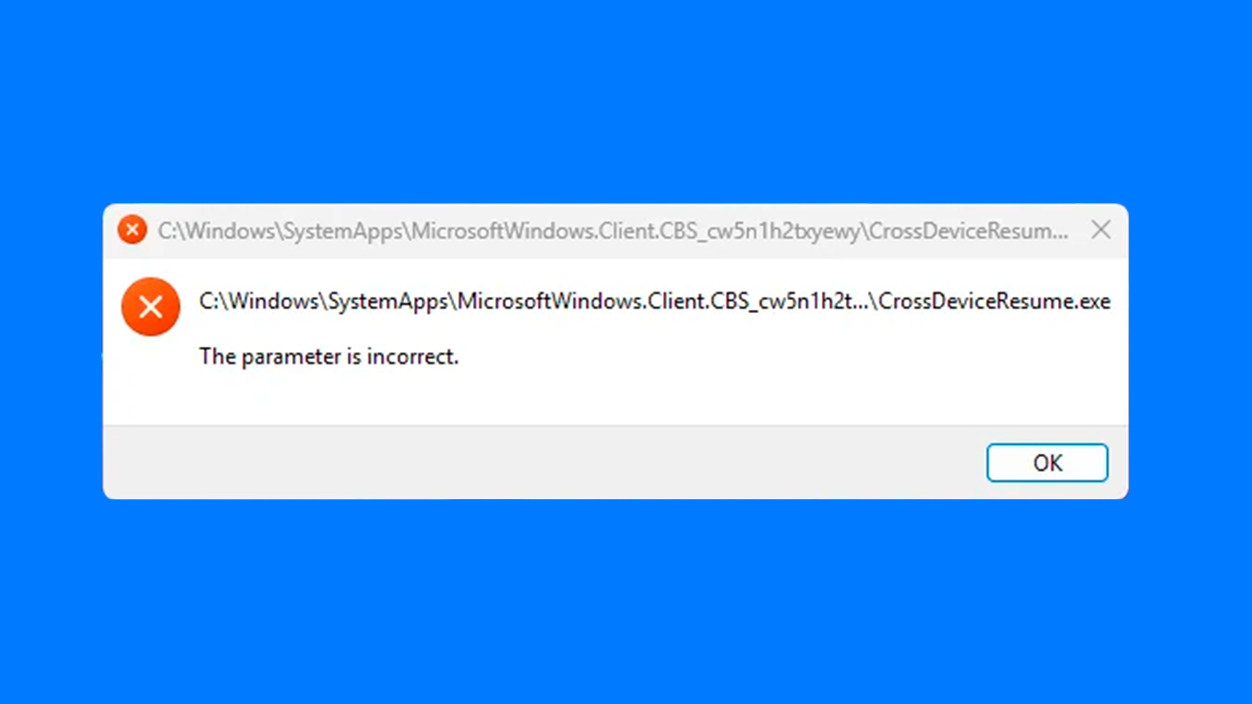
The first thing is to understand what this service does. CrossDeviceResume.exe and CrossDeviceService.exe are part of Microsoft's cross-device synchronization features.They ensure that certain applications and features can share information between your PC, other computers, mobile devices, or other devices associated with your Microsoft account.
In the background, this service can be activated by enabling synchronization options in applications or in the user account itself. Even if the user does not "see" any app called Cross DeviceThe process is launched as part of the system to manage that communication between devices and the resumption of activities.
The problem arises when Windows displays messages like: "The system has detected an overrun of a stack-based buffer in this application. This overrun could potentially allow a malicious user to gain control of this application"Translated: The system has detected a buffer overflow in an application, which could theoretically allow an attacker to take control of that process.
That warning usually pops up after Windows security updates (for example, monthly rollover packages), changes to the base image of a corporate environment, or deep system modifications. Many administrators have seen this right after deploying new snapshots in Windows 11 24H2 virtual desktops with solutions like Horizon and vSphere.
Common causes of the Cross-Device Resume error in Windows

Although the message mentions a security risk, in practice it is most often a matter of internal operating system or configuration errorsnot from an actual attack. Among the most common causes that have been detected are the following:
In many systems, the error appears because corrupted or inconsistent system filesThis could involve libraries, Windows components, or files associated with synchronization services, such as explorer.exe, that have become corrupted after updates or image changes.
Another recurring reason is the problems arising from a Windows updateCertain security patches or feature branch changes (for example, in Windows 11 24H2 with recent cumulative updates) may introduce anomalous behavior in background services such as CrossDeviceService.exe.
In many cases the origin lies in the user profileCorrupted configurations, damaged session data, or problems with profile containers like FSLogix can trigger the failure only in some users and not others, or only on machines cloned from a base image.
Nor can the influence of the taskbar, the explorer.exe process, and other interface componentsWhen these elements fail or restart unexpectedly, some synchronization and resume services become unstable and throw unexpected errors.
Finally, especially in highly customized environments, it is important to consider the conflicts with third-party software or services that load at startupA poorly integrated program, an aggressive optimization utility, or an overzealous security suite can interfere with Windows synchronization components.
Symptoms and scenarios where the failure usually appears

The most striking symptom is the error pop-up related to CrossDeviceResume.exe or CrossDeviceService.exe This message appears after logging in or when the system starts. It is usually accompanied by text about a buffer overflow, which suggests that the problem originated in a system component.
This behavior is being observed in corporate environments in Windows 11-based instant desktop pools 24H2 recently updated with the July 2025 security patches (or other cumulative patches), especially when using tools such as Horizon 2312.1, vSphere 8.0 Update 3e, FSLogix, and Horizon Agent 2406.
One important detail is that The fault is not always reproduced in the "gold image" or master imagebut it only appears in instant clones or on desktops resulting from deployment. This suggests a combination of factors, including the upgrade, cloning, image preparation (Sysprep), and the services that start afterward.
At a home or advanced user level, some discover that CrossDeviceResume.exe and Mobsync.exe are active in Task Manager Despite uninstalling almost all pre-installed Windows applications and disabling known synchronization options, these processes are still running. For those who don't want any synchronization at all, finding these processes active can be very frustrating.
There are also cases where, in addition to the emergent error, The taskbar stops responding, and the file explorer behaves strangely. Or there are minor interface freezes. All of this usually points to a broader stability problem with explorer.exe and related services.
Initial checks and basic diagnostic steps
Before you start disabling things willy-nilly, it's a good idea to do a round of basic checks that help to define the problem We have already ruled out major causes. Many of these actions apply to both personal computers and Windows Server 2019/2022 servers or virtualized environments.
A good starting point is to review the system logs in the Event ViewerFrom there you can check for critical errors, warnings, and events related to CrossDeviceService, explorer.exe, application errors, or library modules that are crashing at the time the message appears.
It is also useful to monitor the system with Task Manager, Resource Monitor, or Performance Monitor To see if there's an abnormal increase in CPU, memory, or disk usage at the time of the failure. If CrossDeviceResume.exe or related processes are triggered, you already have a clue as to where to investigate.
Don't forget to check that the system is correctly updatedOn many computers, installing the latest Windows patches (or, conversely, detecting that) A specific update has broken somethingThis is key to understanding the origin of the problem. If the error started right after a patch, that update may be the trigger.
It is also recommended to launch the integrated problem solvers (network, Windows update, etc.) and, if there are update problems, clear the Windows Update cacheStop the wuauserv and BITS services, delete the contents of C:\Windows\SoftwareDistribution, and restart the services.
Furthermore, it is always a good idea to take note of any recently installed or updated third-party software (antivirus, tuning tools, synchronization clients, etc.) that could interfere with system components or background processes.
Restart Explorer and interface processes to rule out simple failures
One of the quickest steps, and one that often resolves specific problems, is Restart Windows Explorer (explorer.exe), since it is the central piece of the taskbar, the Start menu and much of the interface.
To do this, open the Task Manager with Ctrl+Shift+Esc. On the Processes tab, locate “Windows Explorer”Right-click on it and select “Restart”This will close and reload the graphical interface, which can clean up poorly managed temporary states.
If for some reason "Windows Explorer" does not appear in the list, go to “Archive” Within the Task Manager, click on “Run new task”, writes explorer.exe and confirm. This will force it to start manually, which sometimes makes the error stop happening.
This restart is especially useful if, in addition to the Cross-Device Resume message, you notice Taskbar freezes, disappearing icons, or slow desktop responsesIf after restarting Explorer the situation improves or the error temporarily disappears, you know that there is some relation to the interface layer.
Although it may seem like a very basic step, simply restarting these processes helps to distinguish whether you are dealing with a Is this a purely visual problem or something deeper at the system level?If the error keeps appearing repeatedly, further investigation is needed at lower layers.
Repair system files with SFC and DISM
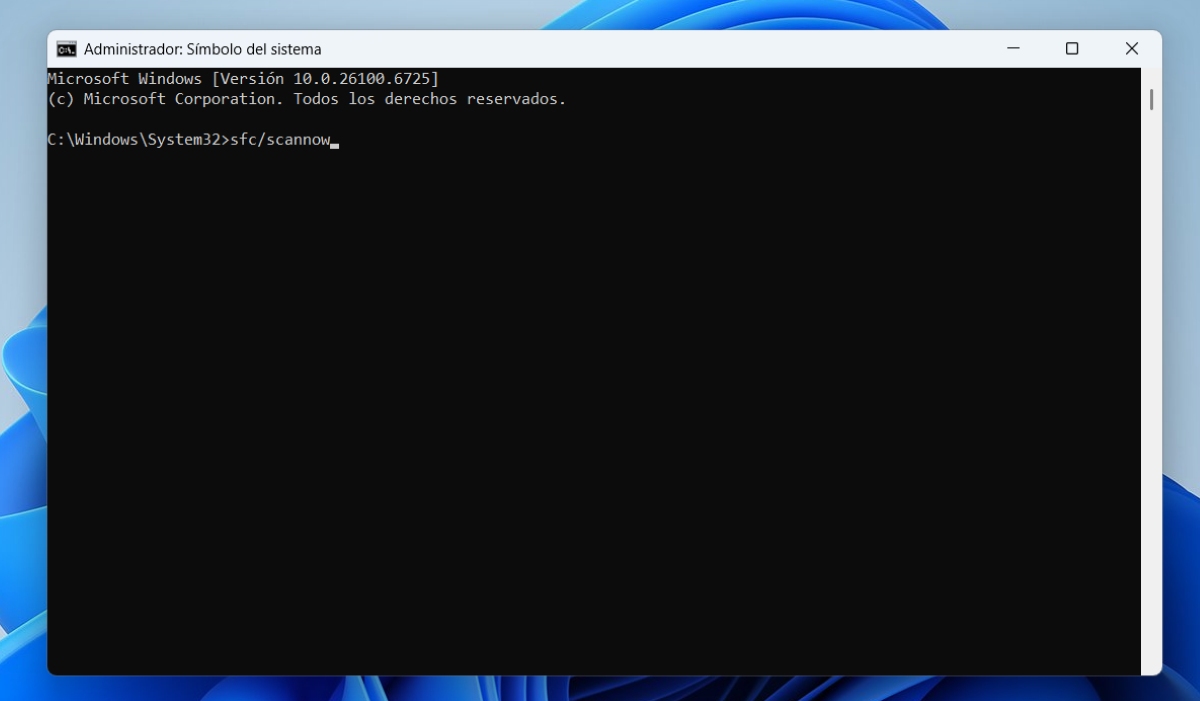
If you suspect system file corruption (and this is quite common with these types of errors), the wisest course of action is to run the tools CFS and DISM, which are designed precisely for this.
Start by opening the command prompt with elevated privileges. Search for “cmd” in the Start menu, right-click on “Command Prompt”, and select “Run as administrator”In that window, first launch:
sfc /scannow
This command scans all protected Windows files and repairs them if it detects corrupt or modified versions. It may take a while, so please be patient. When it finishes, it will tell you if it found and repaired any issues.
Next, and especially if SFC has indicated errors that it could not correct, it is advisable to run the following tools: DISM (Deployment Image Servicing and Management) to review and restore the system image:
Dism /Online /Cleanup-Image /ScanHealth

Dism /Online /Cleanup-Image /CheckHealth

Dism /Online /Cleanup-Image /RestoreHealth
These three commands can be issued in sequence. ScanHealth looking for damage to its image, Check Health check if that damage is repairable and RestoreHealth Try repairing them by pulling from the source files of Windows or Windows Update.
In many Microsoft support threads, when errors related to system processes like CrossDeviceService.exe appear, this set of commands is specifically recommended. If after SFC and DISM the error stops appearingIt is very likely that the cause was internal Windows corruption, which has now been resolved.
In some very specific scenarios, when problems persist even after the image has been repaired, it has been suggested that reinstallation of specific libraries (for example, MSVCP140.dll and other Visual C++ components). This is usually a more advanced step and, in corporate environments, should be carefully considered.
Disable problematic services and check synchronization between devices
If you don't want Windows to insist on using these features, or you suspect the problem stems from synchronization, one possible strategy is prevent the conflicting service from starting with the system. This is done from the services and startup settings.
Press Win+R To open the Run window, type msconfig and press Enter. The system configuration utility will open. Inside, go to the "Services" tab and review the list for items related to Cross Device, device synchronization, or other similar names.
Uncheck any services you suspect are causing the error (always do this carefully, without blindly disabling critical components) and apply the changes. Then, restart your computer and check if the Cross-Device Resume message still appears.
At the same time, check your Windows settings and your applications to see if you have enabled synchronization features you don't really needDisabling activity synchronization, cross-device history, or similar features may reduce the activity of CrossDeviceService.exe.
In some advanced environments, especially with Windows 11 24H2, registry tweaks have also been tested to control internal Windows features. There are keys under HKEY_LOCAL_MACHINE\System\ControlSet001\Control\FeatureManagement\Overrides\8\1387020943 where values such as EnabledStateOptions, EnabledState, Variant, VariantPayload or VariantPayloadKind can be set to specific numbers (e.g., 0 or 1) using reg add commands.
These registry modifications can influence how certain features related to device management and new Windows functionalities are enabled or disabled. However, Playing the record without a clear understanding of what you're doing involves risks.Therefore, in a professional environment, it should first be tested in laboratories or test machines before being deployed in production.
Create a new user profile and test with clean accounts

When the error only appears for some users and not others, or when we know that the base system is fine but the problems arise in specific sessions, it is worth considering create a new user profile.
In Windows, you can add a local account or a new Microsoft account by following the account wizard in Settings. Microsoft recommends, to isolate these types of issues, Log in with a newly created account and check if Cross-Device Resume is still failingIf everything works on the new account, you can practically confirm that the problem originated from the original profile.
This may be due to corrupted configurations, corrupted caches, old synchronization data or even how the profiles were created and managed (for example, with FSLogix containers in VDI environments). Sometimes completely cleaning the problematic profile and migrating the user to a new, properly configured one is faster than trying to repair each damaged part.
Microsoft's support documentation details how create local or administrator accounts and how to transfer data from one profile to another with some degree of security. It's a step that might seem excessive, but when the problem is clearly linked to the account, it's usually very effective.
In virtual desktops and instant clone pools, this same logic applies to how profiles are created and destroyed in each session. Review how they are managed profile containers, folder redirects, and login and logout scripts can make a difference.
Check for third-party software interference with a clean boot
Another area that needs to be reviewed is the possible Impact of third-party software on Windows componentsFor this, the technique recommended by Microsoft is to perform a "clean boot".
This type of startup loads Windows with a minimum set of drivers and startup programsThis allows us to determine whether the problem is caused by a service, resident program, or utility added by the user or the system administrator.
The exact procedure is documented on the Microsoft support page about how to perform a clean bootBut essentially it involves temporarily disabling all non-essential services and startup programs from msconfig and Task Manager, restarting, and testing if the error persists.
Although at first glance the steps may seem heavy, the idea is to go reactivating services and programs by groups until you find which one is causing the Cross-Device Resume message to reappear. This is a very useful method when the base system seems stable but you have very intrusive third-party tools.
If the error disappears after a clean boot, you'll know the culprit is something else. third-party application or serviceAnd you'll be able to take more specific measures (uninstall, update, reconfigure, etc.). If it doesn't disappear, the problem most likely originates in Windows itself or the base installation.
Other actions: restore the system and clean up Windows Update
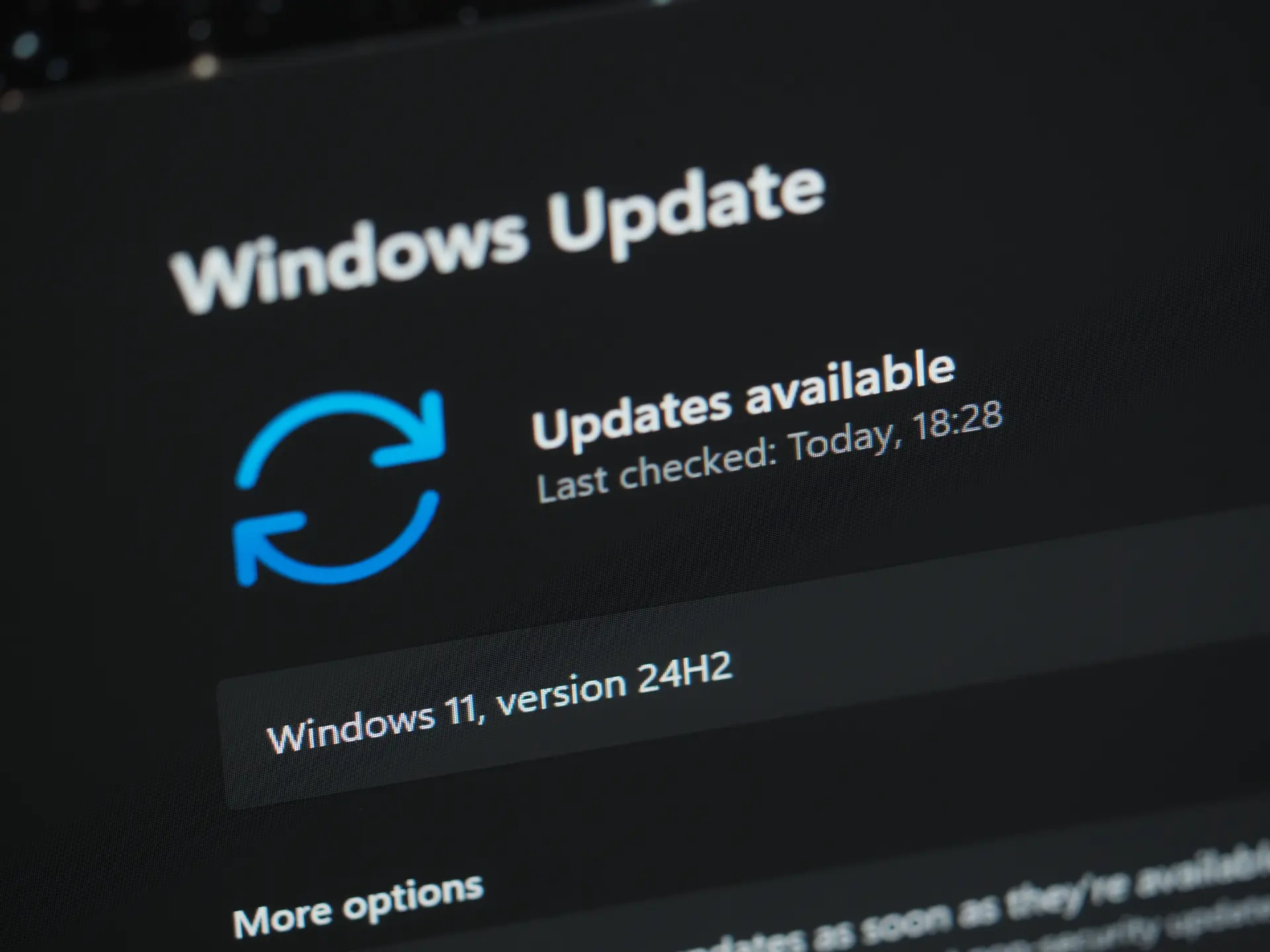
When you're certain the problem started after a specific change (an update, a program installation, a modification of the master image, etc.), sometimes the quickest solution is go backTo do this, Windows has the function of System Restore, if you have it activated.
System Restore allows you to return to a previous restore point where the system was stable. It doesn't touch your personal files, but it does undo changes to settings, drivers, updates, and programs installed since that point. If you select a point just before the Cross-Device Resume errors started, the problem will most likely disappear.
In teams where the Windows update has failed or is stuckAnother useful measure is to clear the Windows Update cache. It's already been mentioned, but it bears repeating: you need to stop the wuauserv and BITS services, empty the contents of C:\Windows\SoftwareDistribution, and restart the services to force Windows to download the packages again.
On 2019/2022 servers and critical workstations, combine this cleaning with a pass of CFS and DISM It can resolve a host of rare problems related to system components, including symptoms such as those launched by CrossDeviceService.exe and similar processes.
In virtualized environments, if after several attempts the base image continues to cause problems, it is worth reconsidering the creating a new image from scratch or from a cleaner baseSometimes, dragging layer upon layer of updates, customizations, and corrections onto the same image ends up producing side effects that are difficult to track.
What to do if you only want to disable CrossDeviceResume.exe and Mobsync.exe
There are users who don't have critical errors, but do have a clear concern: They absolutely do not want synchronization between devices nor processes like CrossDeviceResume.exe or Mobsync.exe running in the background. And they're frustrated to see that, even after uninstalling pre-installed apps and disabling visible options, those processes keep appearing.
Methods such as To disable items in Startup Apps, go to Settings > Apps > StartupBut most of the time these processes are not listed there, because they are part of the deeper system and are not controlled from that simple interface.
Elimination has also been attempted with PowerShell (Remove-AppxPackage), advanced third-party uninstallers like IObit or tricks like using the DisallowRun registry key to block CrossDeviceResume.exe and Mobsync.exe by name. However, since integrated components in WindowsThey tend to resist these methods.
In practice, the most reasonable way to reduce their presence is: disable all unnecessary synchronization features in the Windows and Microsoft account settings, and, on a more technical level, disable the associated services from msconfig or the services console, as long as you don't break dependencies with other functions that you do need.
If they still appear in Task Manager but are not consuming resources or causing errors, often the most sensible thing to do is assume that they are part of the “background noise” of Windows and focus on preventing them from generating warnings or real problems. Forcing their removal at any cost can end up causing more instability than benefits.
In any case, if a process of this type throws security errors, crashes, or causes constant problems, the advisable thing to do is follow the diagnostic and repair steps explained above, and, if we are talking about a professional environment, assess the issue with official support from Microsoft or the VDI platform provider.
In short, the “Cross-Device Resume error” is usually a symptom that something is wrong with Windows: from Corrupted system files, problems after an update, damaged profiles, or conflicts with synchronization services...even interference from third-party software. Checking registry entries, restarting Explorer, running SFC and DISM, disabling problematic services, trying new user profiles, and resorting to system restore or clean boot when necessary, allow most users and administrators to put this warning behind them and once again have a computer that works without surprises or error windows every time they log in.


I am a technology enthusiast who has turned his "geek" interests into a profession. I have spent more than 10 years of my life using cutting-edge technology and tinkering with all kinds of programs out of pure curiosity. Now I have specialized in computer technology and video games. This is because for more than 5 years I have been writing for various websites on technology and video games, creating articles that seek to give you the information you need in a language that is understandable to everyone.
If you have any questions, my knowledge ranges from everything related to the Windows operating system as well as Android for mobile phones. And my commitment is to you, I am always willing to spend a few minutes and help you resolve any questions you may have in this internet world.