- A guest network separates the Smart TV from computers, mobile phones, and home servers.
- You need to verify that the router is actually blocking access between both local networks.
- Isolation can prevent Chromecast, AirPlay, DLNA, and other local discovery features.
- A VLAN offers greater control, but requires properly configuring firewall rules.

A Smart TV needs an internet connection to access apps, streaming platforms, and updates. However, that doesn't mean it should also be able to communicate freely with computers, mobile phones, NAS servers, and other devices in the home.
Isolate the Smart TV from the home network It allows you to maintain your internet connection while blocking or limiting access to devices on the main network. If the TV were to become vulnerable or you installed a malicious application, this separation would make it harder for the problem to spread to other devices.
Network isolation does not prevent the TV from communicating with the manufacturer's servers or its applications. To reduce tracking and data collection, you should also review how prevent your TV from sending usage data to third parties.

Why it's a good idea to separate your Smart TV from other devices
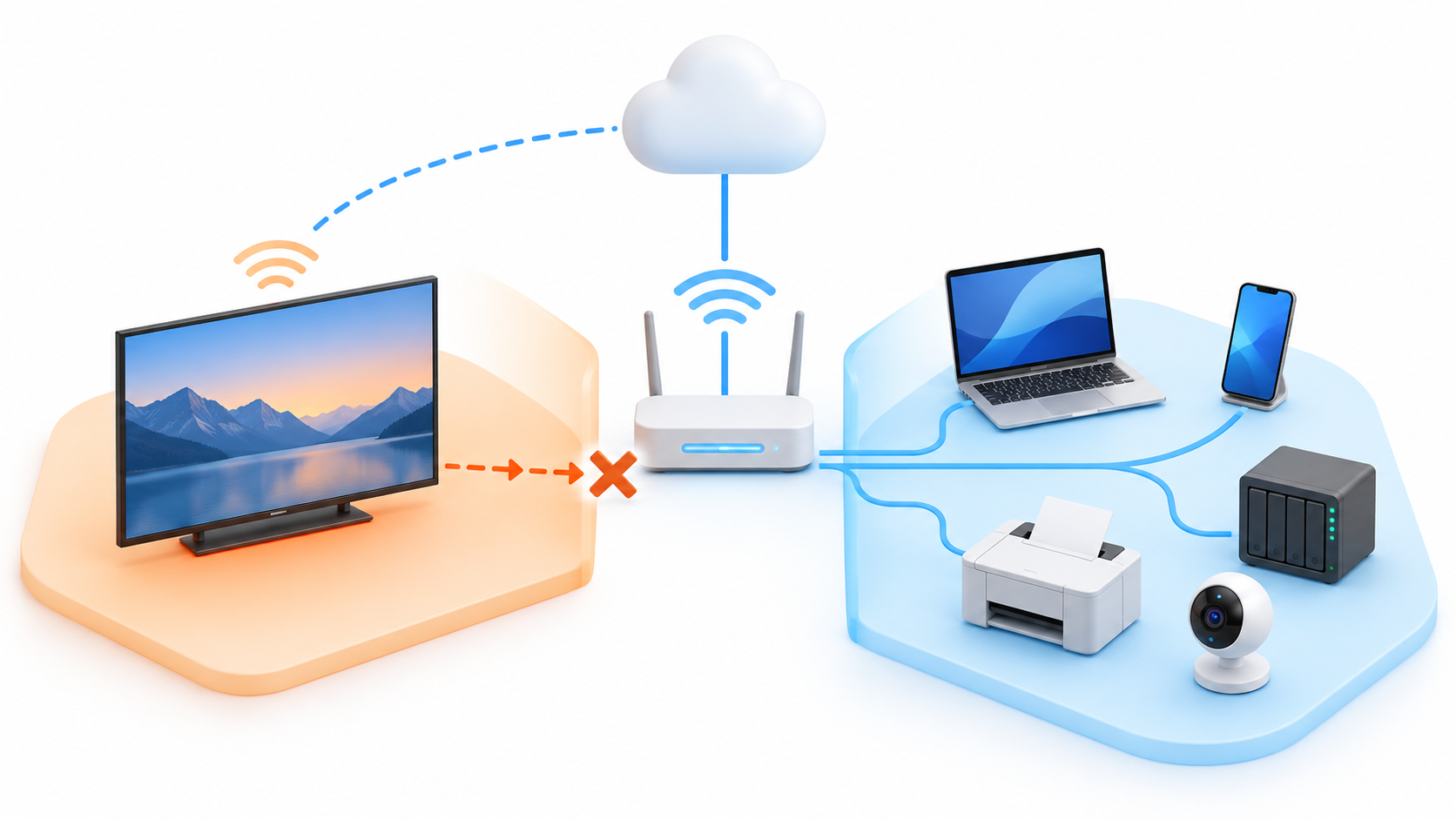
Smart TVs are part of what is known as Internet of Things or IoTLike cameras, smart speakers, and connected plugs, they run an operating system, install apps, and maintain frequent communication with external services.
The problem arises when these devices stop receiving updates or contain vulnerabilities that are not patched. That's why it's advisable Check if your Smart TV is still receiving updatesespecially if it has been in operation for several years.
If all devices are on the same local network, a compromised team could attempt to locate shared services, management dashboards, printers, or storage drives. Segmentation reduces this risk. block lateral movement between devices.
Isolating the television is especially recommended when you have the following on your main network:
- Work computers with private documents.
- NAS servers or shared folders.
- Security cameras and home automation systems.
- Printers accessible via the local network.
- Computer and mobile backups.
- Administration panels without additional protection.
Segmentation does not make the television a completely secure device, but limits the consequences of a potential breach and reduces the number of teams it can discover.
The simplest option: use a guest WiFi network
The most accessible solution is to connect the Smart TV to the guest WiFi network from the router. This network typically uses a different name and password and may prevent your devices from accessing your main home network.
However, you should check how this option works on your specific model. Some routers automatically separate the two networks, while others allow guests to access local devices unless you enable an additional setting.
Look for settings with names like:
- Isolate guest network.
- Block access to the local network.
- Intranet access.
- Customer isolation.
- AP Isolation.
The goal is for the Smart TV to be able to connect to the internet, but not to open addresses belonging to your private network. Simply creating another Wi-Fi name doesn't guarantee true separation.
How to connect your Smart TV to a guest network

Menu names vary depending on the manufacturer, but the general procedure is as follows:
- Log into the router's application or web administration panel.
- Look for the section Guest NetworkGuest Network or similar.
- Activate a separate network and assign a recognizable name.
- Protect the network with WPA2 or WPA3 and a different password than the main one.
- Disable guest access to the local network or intranet.
- Save the changes and restart the connection if the router prompts you to do so.
- Open the Smart TV's network settings and connect it to the new WiFi.
- Check that the apps have internet access and that the TV is not accessing other devices.
You don't need to hide your network name. Using a hidden SSID doesn't provide significant protection and can complicate TV reconnections.
If your Smart TV stops connecting after the change, check the password, the Wi-Fi band used, and the encryption type. You can also consult the solutions when a Smart TV does not connect to WiFi.
How to use router device isolation
Some routers allow you to isolate a specific device without moving it to another Wi-Fi network. The feature may appear as Device isolation, Client isolation, Device isolation or an equivalent name.
On compatible TP-Link routers and mesh systems, for example, it can be found within the security section of the Deco or Tether app. The usual procedure involves opening Safety → Device isolationAdd the Smart TV and confirm the change.
The exact path and available functions depend on the model and its firmware. Some devices only isolate wireless clients, while others can also block devices connected via Ethernet.
After activating isolation, check that the television:
- You can open your streaming platforms.
- Continue to receive updates.
- You cannot access shared folders or local servers.
- It does not appear in the discovery tools of other devices.
This option is convenient, but it can also block all local communication, including that needed to send content from a mobile device.
How to separate television using an IoT network or a VLAN
The most advanced routers can create a dedicated network for IoT devices or multiple virtual networks using VLANs. This solution offers more control than a conventional guest network.
A VLAN allows you to place the TV on a different segment and define, via the firewall, which communications are permitted. A basic configuration might apply these rules:
- Allow the Smart TV to access the Internet.
- Block connections initiated from the TV to the main network.
- Block access to the router's administration panel.
- Allow responses to connections initiated from authorized devices.
- Only authorize the local services necessary to send content.
Creating a VLAN alone is not enough. The router must have firewall rules between networksOtherwise, both segments could continue communicating.
This option is designed for users with routers that support VLANs, IoT networks, or advanced security profiles. If your router only offers a main network and a guest network, the latter is usually sufficient for a home environment.
What happens to Chromecast, AirPlay, and DLNA when isolating the TV?
The main drawback of completely separating the television is that you may lose certain functions. discovery and transmission within the local network.
Chromecast, AirPlay, DLNA, and other technologies require your mobile device and TV to be able to find and communicate with each other. If your router blocks all traffic between your main network and guest network, your TV may no longer appear as an available device.
They may also stop working:
- Sending videos from mobile applications.
- Screen mirroring.
- Applications that use the mobile phone as a remote control.
- Playing files stored on a NAS.
- Automatic detection using Google Home or similar applications.
The simplest solution is to temporarily connect your mobile phone to the same network as your television. If you want to keep both devices on different networks, you'll need a router that supports discovery protocols such as mDNS or multicast between specific segments.
Don't indiscriminately open access between the two networks to solve the problem, as this will negate much of the isolation. It's best to only allow the necessary traffic from the main network to the TV, without authorizing the Smart TV to initiate connections to all your devices.
What to do if your Smart TV uses an Ethernet cable
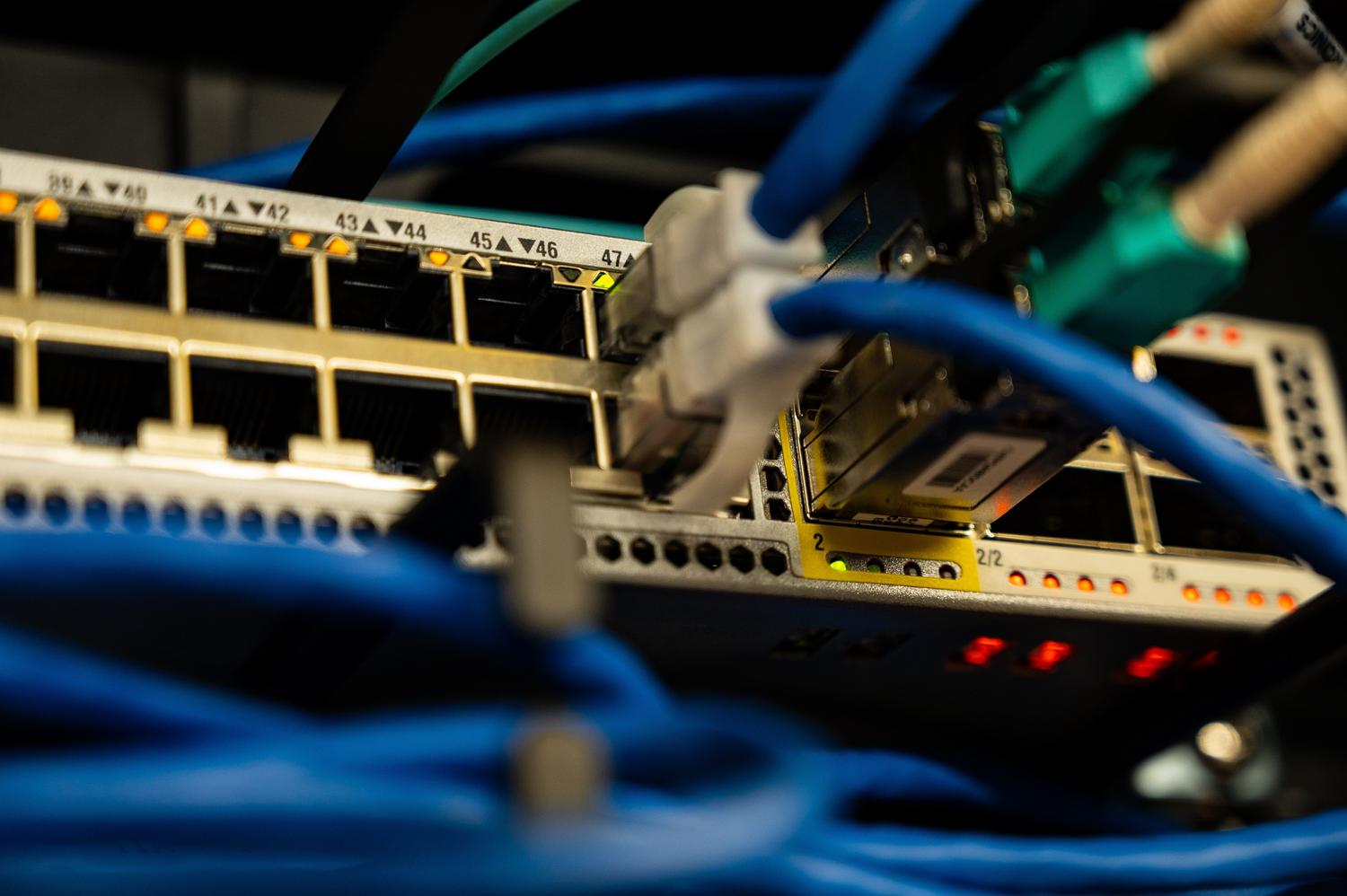
Connecting the TV via Ethernet can improve stability and avoid wireless interference, but the cable does not provide insulation on its ownIf the port belongs to the main network, the TV will continue to share a segment with your computers and mobiles.
To insulate it with cable you need one of these options:
- A router that allows isolation to be applied to Ethernet devices.
- A LAN port assigned to a guest or IoT network.
- A VLAN-compatible managed switch.
- Firewall rules associated with the TV's address or segment.
Relying solely on a manually assigned IP address to isolate the device is not recommended. A static IP address makes it easier to identify the television and apply rules, but It does not block any communication on its own..
If you need the TV to always keep the same IP address, it's best to create a DHCP reservation on your router. On certain models, you can also... Configure a manual IP address on a Samsung TVHowever, you should avoid duplicate addresses.
How to check if your Smart TV is truly isolated
After changing the settings, don't assume the isolation is working. Perform several checks to confirm that the TV maintains an internet connection but cannot communicate freely with the main network.
You can check the following:
- The Smart TV plays content from the Internet normally.
- The TV cannot open a media server located on the main network.
- Computers do not automatically detect the television.
- The router displays the TV within the correct guest network, IoT, or VLAN.
- The intranet access option remains disabled.
- There are no port forwarding rules directed towards the television.
You can also check the assigned IP address. If your main network uses, for example, addresses in the 192.168.1.x range, but the TV receives an address in the 192.168.50.x range, it's probably on a different subnet. However, using different ranges doesn't necessarily prove that the firewall is blocking communication.
Additional measures to protect a Smart TV
Segmentation must be combined with other basic measures to reduce the attack surface.
- Install the updates of the television and its applications.
- Delete apps you no longer use.
- Disable remote control and unnecessary network services.
- Use a different password for the manufacturer's account.
- Activate two-step verification when it becomes available.
- Do not expose television using DMZ or port forwarding.
- Disable installation from unknown sources if your system allows it.
- Check the permissions for the microphone, camera, and voice recognition.
Limiting your TV's bandwidth doesn't directly improve its security. If streaming is affecting other devices, use the features of QoS or traffic prioritization of the router instead of applying too low a limit to the entire guest network.
You can also filter specific advertising or tracking domains from your network. This measure has a different objective than isolation, but it can be complemented by tools for Block ads on a Smart TV with AdGuard Home.

Isolate a Smart TV from the home network It reduces the TV's access to computers, mobile devices, and local servers without forcing you to give up your connected apps. For most households, a properly configured guest network is the simplest solution.
If you need to retain Chromecast, AirPlay, DLNA, or access to a NAS, you'll have to balance isolation and compatibility using specific rules. The important thing is to prevent the TV from having unnecessary access to the entire main network.

I am a technology enthusiast who has turned his "geek" interests into a profession. I have spent more than 10 years of my life using cutting-edge technology and tinkering with all kinds of programs out of pure curiosity. Now I have specialized in computer technology and video games. This is because for more than 5 years I have been writing for various websites on technology and video games, creating articles that seek to give you the information you need in a language that is understandable to everyone.
If you have any questions, my knowledge ranges from everything related to the Windows operating system as well as Android for mobile phones. And my commitment is to you, I am always willing to spend a few minutes and help you resolve any questions you may have in this internet world.