- Versatile event management through direct transfer or duplication between different schedules.
- Ability to transfer appointment ownership to other users, ideal for corporate environments.
- Advanced synchronization and data filtering using external tools for professional control.
- Centralized management of permissions and visibility to coordinate work teams.

Sometimes, in the hustle and bustle of daily life, we accidentally write an appointment on the wrong calendar or receive an invitation on our work account that should go to our personal one. Don't worry, There's no need to delete the event and rewrite it from scratch, since Google has built-in functions to fix this in a jiffy.
Having a well-organized schedule is essential so that nothing slips through the cracks, and knowing manage the movement of events It allows us to separate our professional and private lives or coordinate better with our partner or work team without complications. Below, we'll tell you all the ways to do it, from the most basic to options for administrators.
Steps to transfer an event from the computer

If you're using the web version on your PC, the process is quite intuitive. First, you need to log in to your account and select the specific event that you want to move. Once the appointment summary is open, click the pencil icon to enter the mode of full edition of the event.
Within the editing screen, look for the section where the current calendar name appears (it's just below the notifications). Clicking on the name or the drop-down arrow will show you a list with all your available calendarsYou just have to choose the correct destination and press the button. Save to apply the change.
How to move appointments from the mobile app
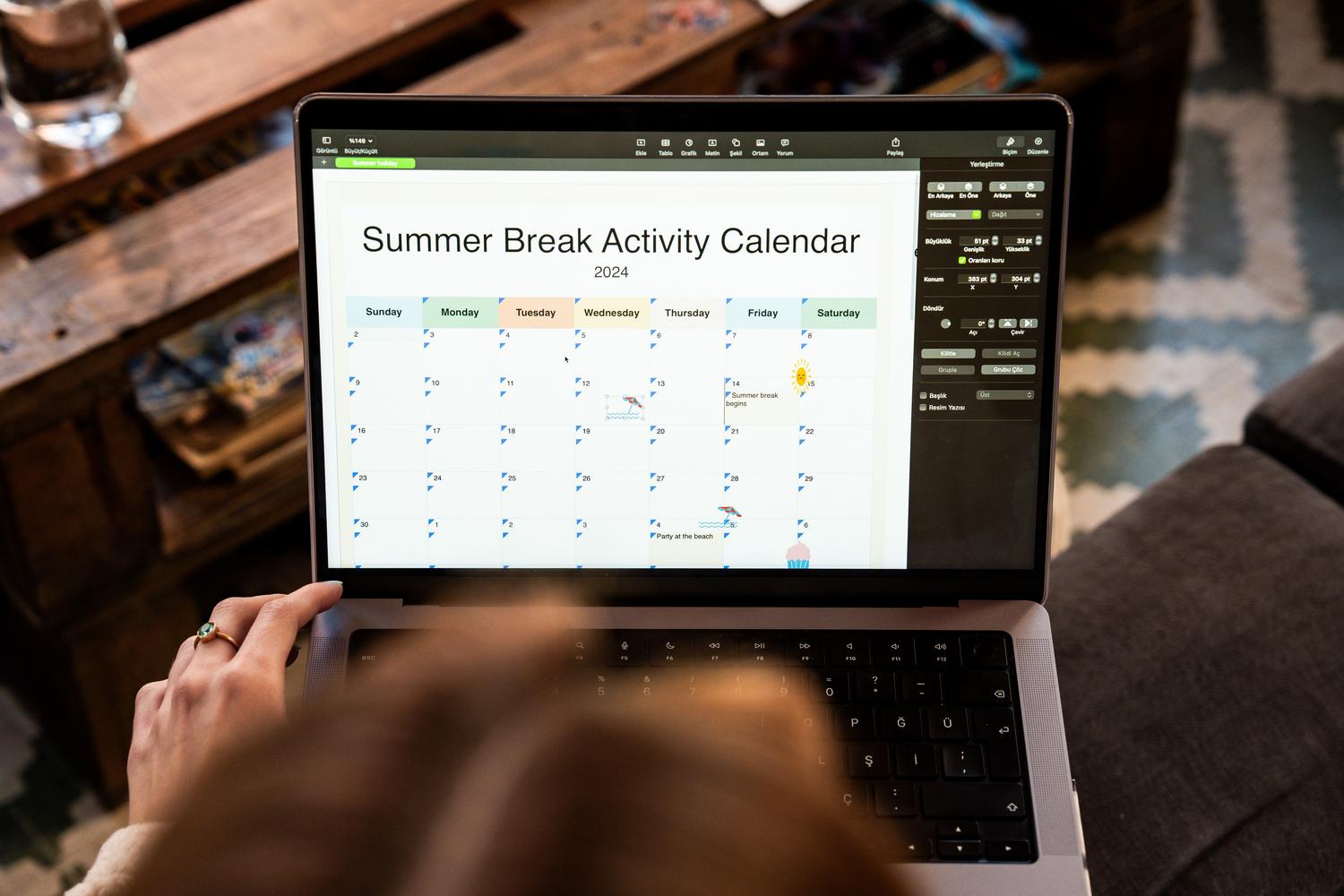
On both Android and iOS, the process is very similar to that on a computer. You simply have to tap on the event and select the edit button (the pencil icon that appears in the upper right corner). On the details screen, the first option you'll see below the title is the assigned calendar.
Click there, Choose your destination itinerary In the menu that appears, click Save. It's a very useful function that helps maintain order. without having to rewrite the details of the meeting or the address of the place.
Duplicate events instead of moving them
Sometimes we don't want to remove the appointment from the original calendar, but rather have it in two places at once. To achieve this, instead of editing the event, you must press the button of the three vertical dots (options) which appears on the event page. There you will find the option to Copy to calendar whichever you prefer, allowing you to keep a duplicate record without altering the original.
Transfer of ownership and administrative management

There are more complex cases, such as when an employee leaves a company or you want someone else to be fully responsible for an appointment. On the website, you can go to Options and select Change ownership, entering the email of the person who will assume control and an informational message.
For Google Workspace administrators, there are more powerful tools available in the Admin Console. It's possible transfer secondary calendars Complete or free up resources (such as meeting rooms) when a user is deleted. This prevents them from remaining. orphan events that block other people's schedules or physical office spaces.
Share calendars and access levels
To avoid constantly having to reschedule events, sharing your calendar is ideal. From the settings, you can add people or groups and assign them to your calendar. different levels of permission, ranging from simply seeing if you are free or busy to having total control to manage sharing.
If you need a lot of people to see your schedule (like on a blog or website), you can activate the option to share publiclyHowever, be careful with your privacy and remember that Mark events as private It will make others see only a busy block of time without knowing the details.
Advanced solutions for total control
When the volume of events is very large, Google's native tools can fall short. For those seeking precise control, there are integrations like 2sync that allow you to connect your calendar with Notion. This allows filter events by color or types, preventing the noise of Gmail's automatic quotes from cluttering the view.
Furthermore, these tools allow you to create custom views and turn each event into a full Notion page, where you can add meeting notes, contact databases, and related tasks—something the standard Google calendar can't do on its own.
Whether it's quickly moving an event from your mobile device, duplicating an appointment so you don't forget it, or managing ownership of a corporate calendar, Google offers the flexibility to adapt your schedule to any need. The key is to take advantage of both direct editing and sharing options, as well as external synchronization tools, to maintain maximum productivity.
Frequently Asked Questions
Can you move an event to another calendar from your mobile device?
Yes, it is possible by accessing the event's edit button and selecting the destination calendar from the drop-down menu that appears under the name.
How can I copy an event to two different calendars without deleting the original?
You must enter the event options via the three-dot button and choose the Copy to function to select the secondary agenda.
Is it possible to transfer ownership of an event to another person?
Yes, from the computer version you can go to Options and select Change owner to assign appointment management to another user.
What happens to the events of a user who has been removed from the organization?
Administrators can transfer those events to a new owner or release the reserved resources so they don't block other people's schedules.
Can I make my calendar visible to anyone with a link?
Yes, by activating the public sharing option in the calendar settings from a computer, being able to choose what level of detail to show.
How do I prevent guests from seeing my personal appointment details on a shared calendar?
The solution is to mark those specific events as private, so that other users only see the block as occupied.
Is there a way to filter which events are synced with other tools?
Using external integrations like 2sync makes it possible to apply filters by color, event type, or recurrence before the data reaches another platform.
Index
