There are several reasons why the real-time location sharing feature might fail or appear disabled. It's truly frustrating to need to share your location with someone right now and have the app simply not let you. "Why can't I share my location on Google Maps?" you're probably wondering. Here are the reasons. Most common causes and how to fix it.
Why can't I share my location on Google Maps?
Why can't I share my location on Google Maps? When this happens, This is mainly due to a lack of GPS permission.These could be internet connection problems, age restrictions on your Google account, or an error in the app's settings. Alternatively, there might be interference between your current device and an older one. Below is a list of the most common reasons why you might not be able to share your location on Google Maps.
Age or account restrictions
There are particular situations in which Google does not allow you to share your location.. For example:
- Minors' accountsIf Google determines that you are under 18 (under 13 or 18 years old, depending on the country), the sharing function is usually not available.
- Work or educational accountsIf you have a work or school account, your organization's administrator may have disabled this feature for all users.
Solution? Verify your personal informationReview the birth information registered in Google Maps and make sure it's correct. This will allow Google to share it.
"I can't share my location on Google Maps": Adjust your device settings
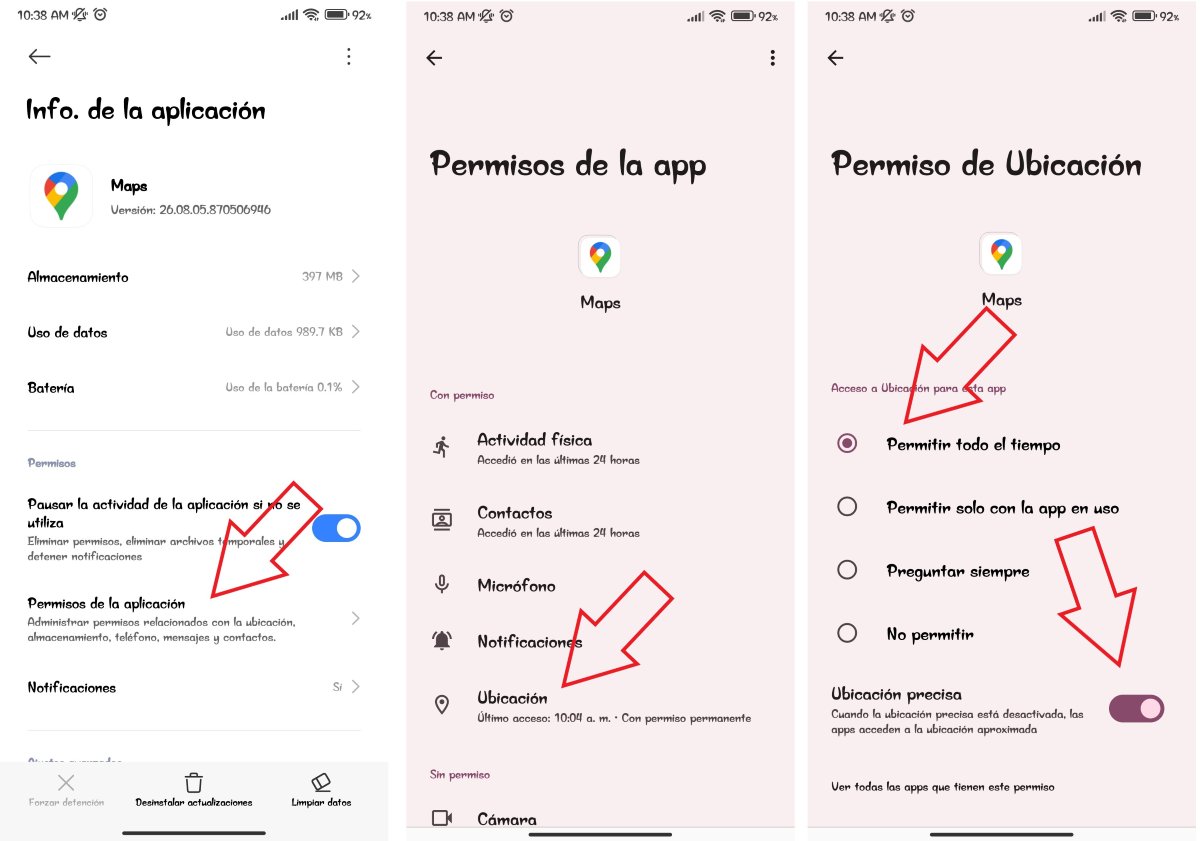
“I’m over 18 and I can’t share my location on Google Maps.” If everything is okay with your age or account type, then Check your device's location permissionsTo transmit your location, Google needs specific system permissions. The solution?
- Configure location permission to the “Always” optionIt's not enough for Google Maps to have access to your location while you're using the app. If you only have it set up this way, Google Maps will stop running in the background when you lock your phone's screen. Go to Settings – Apps – Maps – Permissions – Location – Allow all the time.
- Location accuracyIn addition to always having location services enabled, it's a good idea to turn on Google Location Accuracy in your phone's connectivity settings. To do this, go to Settings – Location – Location services – Accurate location or Google Location Accuracy – and turn it on.
Location history turned off
"Both location permissions and accuracy are fine, but I still can't share my location on Google Maps." If you have location history turned off, It may cause conflicts with the sharing functionOf course, keep in mind that it's not always mandatory to be able to share in the moment.
- The solution? Activate the Routes, Timeline, or Location History feature to see if it resolves the issue. In fact, this is one of the hidden features of Google Maps that helps you keep a history of the sites you have visited.
"I can't share my location on Google Maps": Availability by country
Another reason you might not be able to share your location on Google Maps is due to the availability of this permission in your country. In some countries or regions, Google has legal or technical restrictions. that prevent you from sharing your real-time location for privacy reasons or local regulations.
Verification of your Account
Sometimes, it is necessary to verify your identity or accept new terms of service To enable features that involve personal information, such as your geographic location, check that you don't have any pending permissions to share your location with others.
Why can't I share my location on Google Maps? Choose the correct device
It's true that Google allows multiple devices to report their location to the same account. However, this can be confusing, especially if you use one device when you go out and leave others at home, such as your tablet. In these cases, Google could get "confused" and share an incorrect location..
How can you fix it? In the Google Maps app, go to your profile – Share location – Settings. There, look for the option that says "From this device" and make sure the phone you have with you is selected.
Check the battery saver settings
"I've already checked everything above and I still can't share my location on Google Maps, what else should I do?" Did you know that Power saving may cut off GPS transmission in the background Want to extend your battery life? Yes, you can. If power saving mode is active, try temporarily disabling it to see if location sharing returns to normal.
Check your internet connection
"I don't know why I can't share my location on Google Maps"Have you made sure you have a stable internet connection? Whether it's through mobile data or Wi-Fi, You must be connected to the internet for real-time location tracking to work.Check your connection or toggle airplane mode on and off on your phone to see if a bad connection is the culprit.
Update or reinstall the app
"Is there anything else I can try if I can't share my location on Google Maps?" Yes. Check for updates on the Play Store and App StoreIf one is available, run it right away. If not, try clearing the cache and data of the Google Maps app. And if that doesn't work either, delete and reinstall it.
A quick and accurate alternative: WhatsApp
Now, what happens if This is an emergency and you need someone to see you soon. And Google Maps still won't work? The last resort is to use WhatsApp to share your location. To do this, follow these steps:
- Open the chat with the person you want to share your location with.
- Tap the paperclip icon or Attach
- Now select Location.
- Select "Real-time location". You can choose between 15 minutes, 1 hour, or 8 hours.
- Okay. This way you can get out of this situation quickly.

From a young age, I've been fascinated by all things scientific and technological, especially those advancements that make our lives easier and more enjoyable. I love staying up-to-date on the latest news and trends, and sharing my experiences, opinions, and tips about the devices and gadgets I use. This led me to become a web writer a little over five years ago, focusing primarily on Android devices and Windows operating systems. I've learned to explain complex concepts in simple terms so my readers can easily understand them.