
Customizing the new lock screen widgets in Windows 11 lets you access key information without having to unlock your deviceFrom weather forecasts to important notifications, this new system gives you almost complete control over the data you see. In this guide, we'll walk you through setting up, organizing, and adding new widgets to enhance your daily experience.
Why customize the new lock screen widgets in Windows 11?
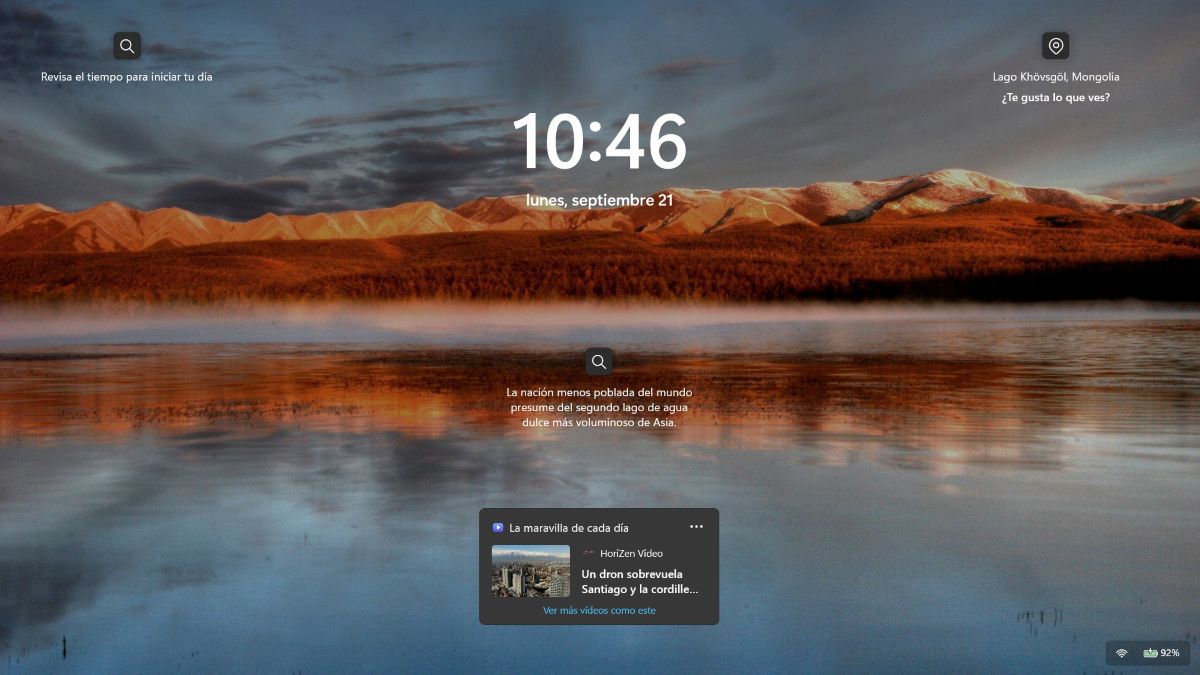
Now then, What is the purpose of customizing the new lock screen widgets in Windows 11? It allows you to access useful information at a glance without needing to unlock your device. The main advantages of taking advantage of this new system include:
- Immediate access to real-time information: For example, you can see the weather forecast, top news stories, calendar events, sports scores, or to-do lists as soon as you turn on or wake up your screen.
- Less time, more efficiency: You don't have to log in or check apps one by one to find out a quick fact like the temperature or your next meeting.
- Privacy and control: Customizing the new lock screen widgets in Windows 11 lets you choose what information appears on the screen when it's locked. This prevents others from seeing your personal information and allows them to access only general data.
- Adaptation to your workflow: It allows you to choose the cards according to your daily needs: work, study or personal use.
How to customize the new lock screen widgets in Windows 11
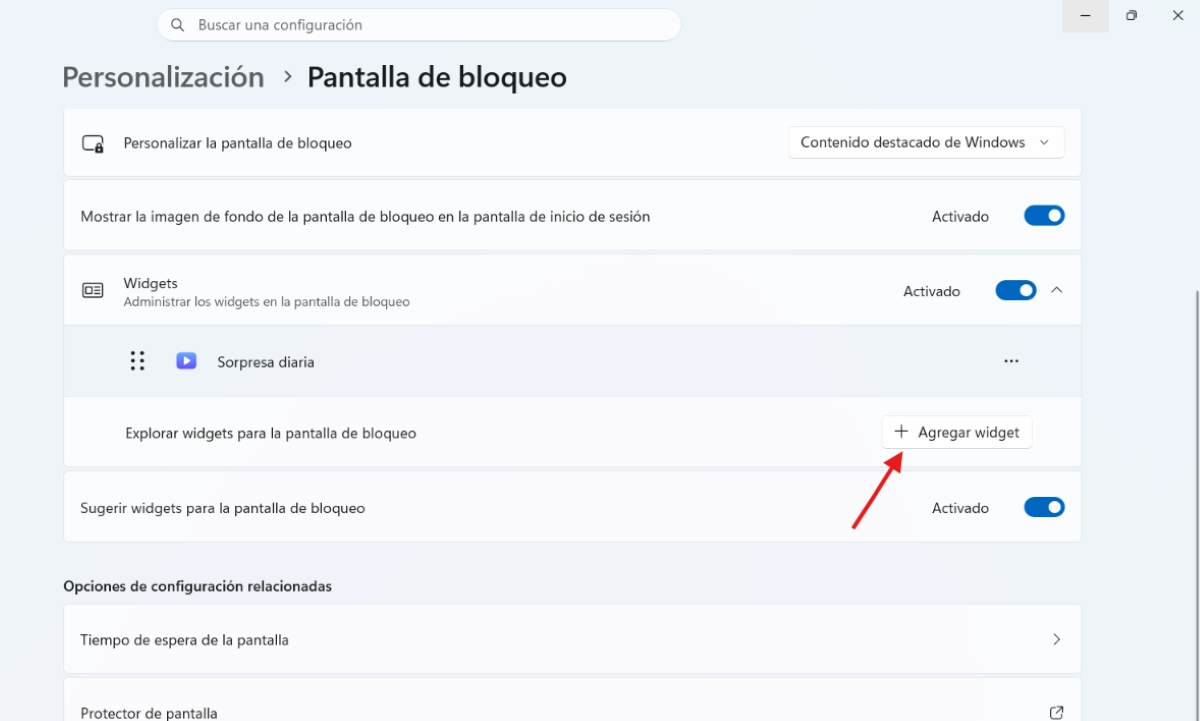
Just like you can Prevent Windows 11 widgets from opening when you hover over them. To enhance your user experience, you can also customize, add, rearrange, or remove new widgets on the lock screen in Windows 11. To do this, you need to access the system settings. These are the Steps to customize the new lock screen widgets in Windows 11:
- Access the lock screen settings: Press the Windows + I key combination to open ConfigurationIn the left sidebar, select Personalization and then it touches on Lock screen.
- Manage and add widgets: Locate the Widgets section (or it may appear as Lock screen status):
- To add a widget: Select the option Add widget Below the list to display the catalog of available compatible widgets.
- To remove a widget: Tap the three-dot button to the right of the widget you want to remove and choose Remove.
- Reorganize and customize each widget:
- Reorganize: You can change the order in which the widgets appear by dragging each one up or down in the list. The list order matches the order displayed on the lock screen.
- Personalize content: In widgets that support it, you can click on the three dots and select Customize widget if you want to change parameters such as the main city in time or the watchlists in sports.
- Disable Widgets: If you prefer a completely clean screen, free of any information that isn't useful to you, you can change the main Widgets switch to Deactivated.
Note: It's possible that when you select a widget to add, it won't be available (the "Add widget" box is disabled and appears gray instead of blue). This is because only apps and integrations that They support the small widget format and can be displayed on the lock screen.
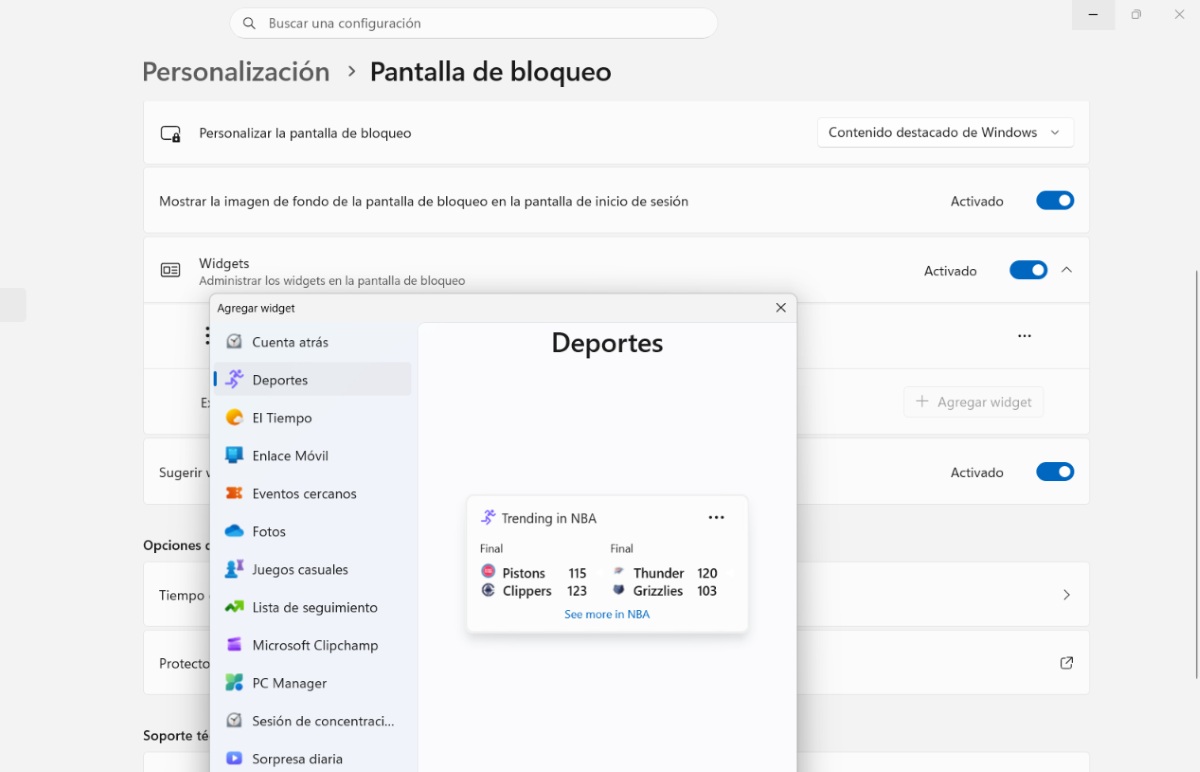
When customizing the new lock screen widgets in Windows 11, which apps are compatible?
As we can see, one way to customize the new lock screen widgets in Windows 11 is by adding other widgets. So, which third-party apps are compatible with these widgets? Compatibility with third-party widgets is conditioned by two key factors:
- First, the application must be a Universal Windows App or a adapted version installed from the Microsoft Store.
- And second, the app must implement the Microsoft Adaptive Cards API configured in small size format.
Main compatible applications
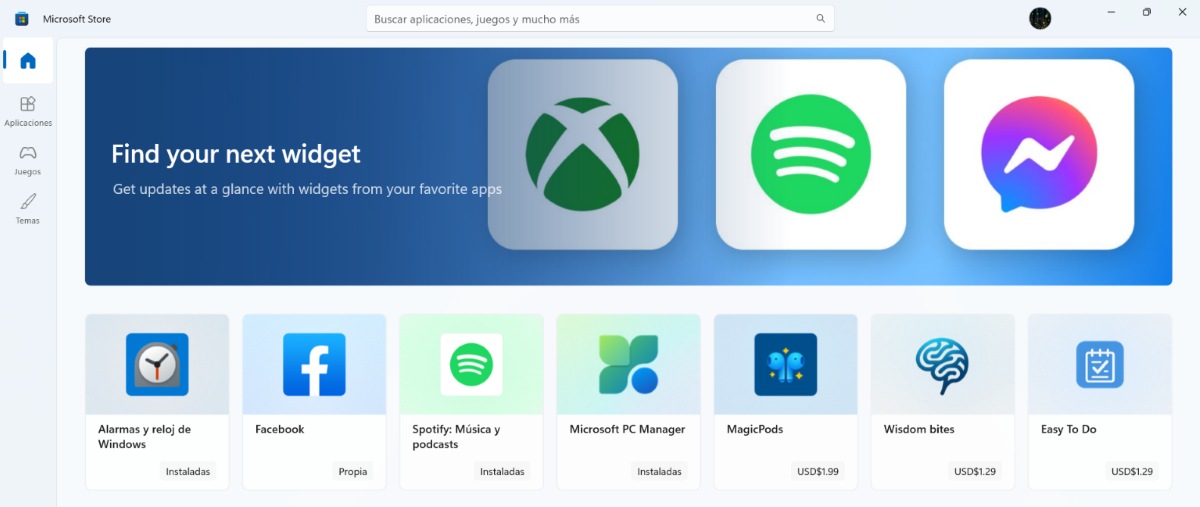
While it is true that the native catalog continues to grow more and more thanks to developers, among the Main compatible third-party applications and utilities that you can integrate into the Windows 11 lock screen are:
- Spotify: If you want to customize the new lock screen widgets in Windows 11, Spotify is one of the apps you can add. You'll see active playback information, quick access to recent playlists, and quick launch options.
- Facebook: Quick notifications and recent statuses appear.
- BeWidgets: It allows you to integrate shortcuts, customizable clocks, or financial cards directly into the widget system.
- Smart Widgets or Widget Launcher: These are Microsoft Store utilities that generate monitoring components. For example, you can view CPU usage, disk space, and RAM, which are compatible with your system dashboard.
- Monitoring tools / System utilities: You get quick status access for extended weather, counters, and equipment resource monitoring.
How do I find and install more compatible apps to customize the new lock screen widgets in Windows 11?
- Enter Settings – Personalization – Lock screen.
- Click on Add widget.
- At the bottom of the drop-down menu, select Search for more widgets.
- The Microsoft Store will open, directly displaying the applications in its catalog that have native support for Windows 11 widgets. You'll see both the ones you already have installed on your computer and those you can install.
- Done! The app widget should now appear on your lock screen.
Important note: It's possible that when you install a compatible app from the store, it won't immediately appear in the lock screen list. If that's the case, simply... Restart your computer so that Windows can register the new component. and show it.
In conclusion, customizing the new lock screen widgets in Windows 11 transforms your daily experience, because You optimize access to important information before logging inBy adapting these cards to your needs, you achieve an ideal balance between productivity and privacy. This way, the screen becomes a functional panel tailored to your specific requirements.

From a young age, I've been fascinated by all things scientific and technological, especially those advancements that make our lives easier and more enjoyable. I love staying up-to-date on the latest news and trends, and sharing my experiences, opinions, and tips about the devices and gadgets I use. This led me to become a web writer a little over five years ago, focusing primarily on Android devices and Windows operating systems. I've learned to explain complex concepts in simple terms so my readers can easily understand them.