Do you want to prevent Firefox from opening the downloads panel every time you download a file? While its function is to provide access to the list of downloaded files, sometimes it can become a nuisanceIn this post we'll tell you what to do to prevent it from appearing without hindering your ability to track the progress of a download.
How to prevent Firefox from opening the downloads panel every time you download a file
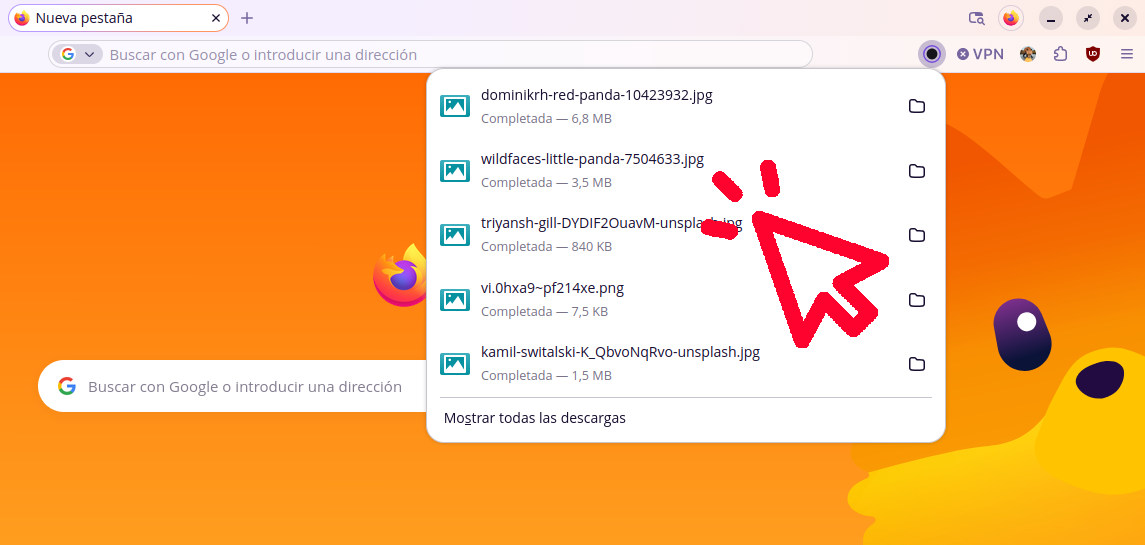
Do you frequently download files from your browser? We all appreciate it when it shows us the download progress and gives us direct access to the Downloads folder. But, if You use FirefoxYou may have noticed that your downloads panel is especially largewhich is sometimes a nuisance.
Every time you save an image, PDF, installer, or any other document, Firefox automatically displays the download panel in the upper right cornerThe panel displays the current download and your download history, including the last four downloads. Below that is a button to Show all downloads.
All this data means that the download panel occupies a few pixels of the screen, which can interrupt your workflow or cover up the content you're viewingIs there a way to prevent Firefox from opening the downloads panel every time you download a file? Yes, you can suppress the panel and instead use a more discreet visual confirmation, just like in previous versions of the browser.
The best part is that you don't need to install third-party extensions or resort to complicated methods. Firefox maintains a hidden preference in its advanced configuration editor This allows you to permanently disable this behavior. Below, we explain step by step how to do it to restore peace of mind while browsing.
Prevent Firefox from opening the downloads panel: step by step
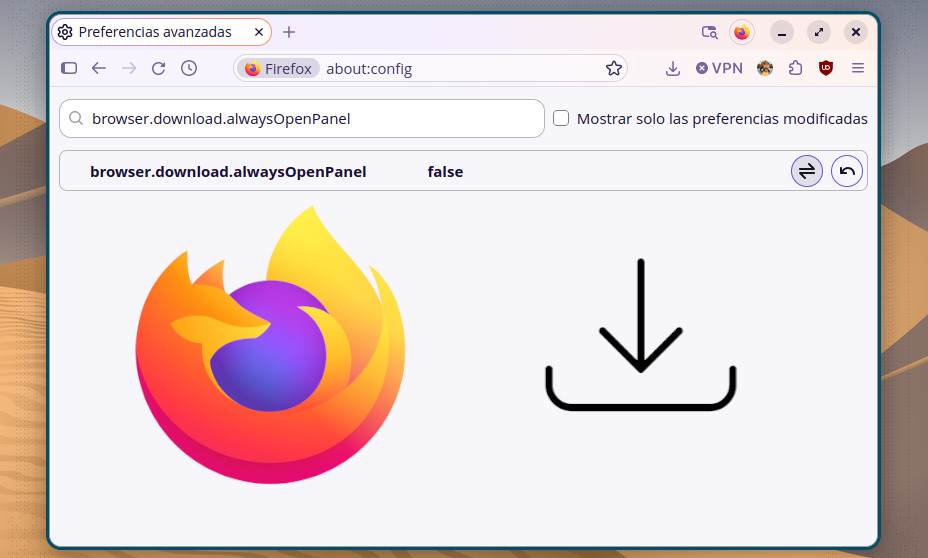
To prevent Firefox from opening the downloads panel every time you download a file, you need to access advanced browser settingsThis is done by writing about:config In the address bar, type "Add to Settings" and press Enter. The browser will display a warning about the risks of modifying advanced settings. Click "Accept the risk and continue" to proceed.
Once inside the configuration editor, you'll see a long list of parameters. To avoid getting lost, use the search field at the top and enter the following exact key: browser.download.alwaysOpenPanelBy filtering, you should only see that. preference, whose default value is set to true (true), which indicates that the panel should always be opened.
Finally, click the toggle button that appears to the right of the row or double-click on itThe value will change from true a falseThis prevents Firefox from opening the downloads panel every time. You don't need to restart your browser for the change to take effect; you can close the settings tab and continue browsing immediately.
What exactly changes with this adjustment?
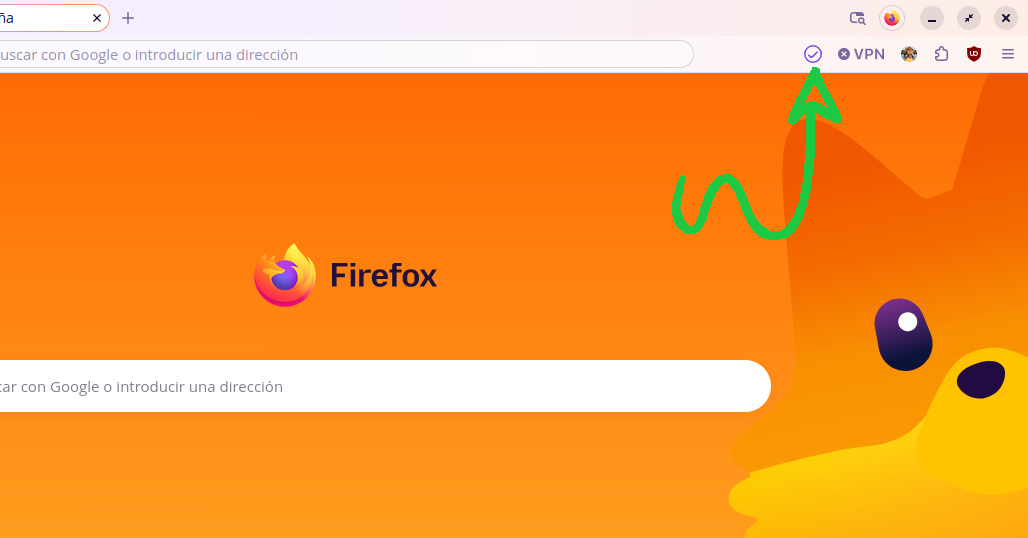
And in this simple way, you can prevent Firefox from opening the downloads panel every time you download a file. What can you expect from now on? The browser will continue to download your files and save them to your configured location. But The download panel pop-up window will stop opening..
Instead, you'll see a small visual indicator The download button (a downward-pointing arrow) will show the progress with a filling circle. Once the download is complete, the icon will return to its normal state without interrupting you or taking up a quarter of the screen.
It's important to clarify that this setting doesn't remove the downloads panel or delete your download history. If at any point you need to... view the list of downloaded itemsYou can click on the downloads icon. And you can also access your downloads library anytime with the shortcut. Ctrl + Shift + Y (on Windows and Linux).
Preventing Firefox from opening the downloads panel: other considerations

If you've been using Firefox for a while, you probably remember that in previous versions the download confirmation was more discreet. The new panel was introduced starting with version 98 of the browser, released in March 2022. According to the official documentation, the new "Optimized" download flow It stopped asking what to do with each file by default.
Instead, it automatically started displaying the downloads panel for confirm that the file had been saved to the diskIt wasn't bad, but for many users, that visual confirmation is unnecessary and repetitive. This is especially true when working with many downloads or while reading.
The good news is that you can prevent Firefox from opening the downloads panel every time you download a file. This trick is a relief for all those users who prefer a... a browser that doesn't interrupt us with pop-up windowsFortunately, customization is one of Firefox's biggest advantages over other browsers: a small adjustment and you can remove elements or even return to previous design.
What to do if the downloads panel reappears?

You now know how to prevent Firefox from opening the downloads panel every time you download a file! Simply change the preference setting. browser.download.alwaysOpenPanel from about:config for establish a more discreet visual confirmation of downloadsHowever, it's important to remember that modifications made from about:config are not officially supported by Mozilla.
This means that, while the option to remove the download panel exists and works, Firefox doesn't guarantee it will remain available in the future. In theory, A major browser update might remove or rename this keyalthough to date it has remained stable after each update.
So, if you update Firefox at any point and notice the panel reopening on its own, don't worry. It's just... repeat the process Check if the preference still exists or if it has been renamed. In the meantime, you can already enjoy a quieter and less interrupted browsing experience in Firefox.
Index
