- Coil whine is the vibration of inductors under load: annoying, not dangerous.
- Limiting FPS, power limit, and undervolt usually reduce buzzing noticeably.
- Check source (GPU/PSU), connections and if applicable, try another power supply.
- If the noise is excessive and you are on time, consider replacing the unit.

When your computer is running smoothly and suddenly makes a high-pitched whistling noise, it's easy to think something's broken. That annoying sound, which many describe as a whirring or whirring, is a common occurrence. How to reduce coil whine on your GPU? In practice it is the electrical noise produced by certain coils when vibrating under load, and it can become very evident in games with very high FPS.
The good news is that it's not usually dangerous, although it can be frustrating if you play silently or even with headphones. Here we explain what it is exactly, what it sounds like and, above all, what real measures you can take. to minimize it on the GPU and, if applicable, the power supply unit (PSU).
What coil whine really is
Coil whine literally means “coil whine.” It originates when the alternating current that passes through inductors and transformers causes mechanical vibrations. in these components; these vibrations are translated into an audible sound, usually high-pitched.
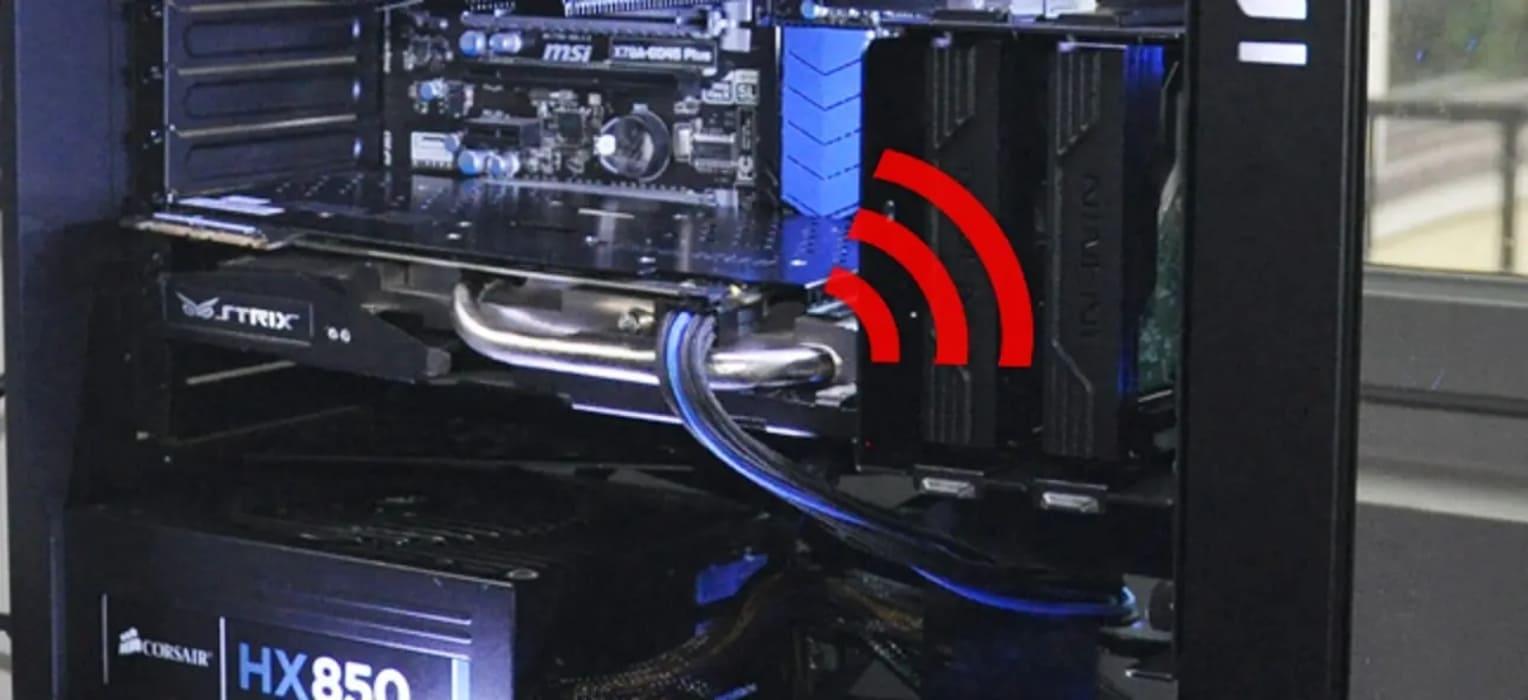
In a modern graphics card there are several large inductors responsible for regulating the power going to the GPU and memory. Under high loads or with rapid fluctuations (for example, at very high FPS), these pieces can vibrate at frequencies that our ear perceives.
This phenomenon is not exclusive to GPUs: it affects virtually any device with inductors. The difference is that on powerful graphics, the energy and transients are higher., and therefore the noise becomes more evident.
What it sounds like and when it appears
Coil whine doesn't always "whine" exactly; sometimes it sounds like a sizzle, a buzz, or a thin squeal that rises and falls with the load. You will notice it change tone depending on the FPS, game menus or scenes with less or more demand.
There are typical cases that trigger it. For example, very light titles like Minecraft or menus without FPS limiter, where the GPU can shoot hundreds or thousands of frames per second. In these situations the noise worsens precisely because of the consumption and power fluctuations become very pronounced. In these scenarios, reducing coil whine becomes almost a necessity.
It can also appear in the power supply, especially with graphics cards that draw a lot of instantaneous power. If you hear a high-pitched tone from the PSU area when the GPU exceeds a certain power consumption (e.g. >150 W), the source may be the font itself and not the card.
Is it dangerous? Is it a defect?
Under normal conditions, coil whine does not indicate a fault or shorten the life of the hardware by itself. Most manufacturers and enthusiasts agree that it is an annoying but harmless phenomenon.. Therefore, in many cases, when the noise is not exaggerated, it does not matter to bother trying to reduce the coil whine.
That said, poor or unstable power can be detrimental to the entire system. Hence the importance of using a quality PSU and firm connections.. Not because coil whine “kills” the GPU, but because power quality does matter.
Does it disappear over time? Sometimes it diminishes slightly after a few hours or days of use, but there are no guarantees. If the buzzing is excessive and you are within the return period, changing the unit or model may be the quickest way.
First of all: identify the source of the sound
To reduce coil whine, the first thing to do is to determine whether the noise is coming from the GPU or the power supply. Carefully bring your ear closer to the area of the graph and then to the PSU. while running a load that causes the sound (a game, a benchmark or a menu without limiter).
If you suspect the graphics card, turn off the PC, remove the card from its slot, and reinsert it carefully. Also check the PCIe connectors and fit them fully.A faulty seat or an improperly positioned cable does not cause the phenomenon by itself, but it can worsen electrical stability.
For modular power supplies, try relocating or even changing the cables (always use official cables from the manufacturer). Some PSUs allow switching between multi-rail and single-rail mode.; if your power supply supports it, test both to see if noise performance improves under load.
To quickly isolate the case of “runaway FPS,” enable V-Sync or an FPS limiter and see if the pitch drops. If you set the limit to 60–144 FPS the noise drops noticeably, you now have a clear clue of the origin linked to performance peaks.
Software measurements and quick adjustments
- Limit FPS: This is the simplest test and usually gives immediate results. Set a frame rate limit in the game, enable V-Sync, or use the driver limiter (in NVIDIA Control Panel/AMD Adrenalin) to reduce power spikes and transients.
- Power limit or Eco modeMany modern GPUs allow you to lower the power limit or enable a low-power profile. Reducing the power limit by 10–20% trims power spikes, often reducing coil whine without significantly impacting actual performance.
- Undervolt: Lowering voltage while maintaining reasonable frequencies is a great advantage. Done wisely, undervolting doesn't entail any noticeable loss of performance; sometimes it even maintains the same boost with less noise and lower temperatures. It adjusts to frequency/voltage curves and passes stability tests.
- Disable overclocksIf you applied manual overclocking or are using an aggressively overclocked model, try returning to stock. Removing the overclock reduces power and transients, and can significantly alleviate noise.
- Fan control: It doesn't eliminate coil whine (because the source isn't the fans), but a more stable profile can prevent peaks in the coils that confuse your hearing diagnosis. The useful thing here is to distinguish clearly between coil whine and aerodynamic noise so as not to chase after ghosts.
- Drivers and profiles: Although it's not the usual solution, changing the driver version or system power profile can alter power states. If the problem persisted after an update, try a previous version or adjust the Windows power plan to Balanced.
Hardware measurements and physical checks
- Firm connectionsMake sure the GPU is properly seated and the PCIe connectors are fully inserted. A loose connection doesn't cause coil whine, but it can introduce minor electrical issues that can make the situation worse.
- Power supplyIf the whistling noise is coming from the PSU or worsens under certain loads, try a different quality unit to see if the situation improves. Some power supplies handle the sharp transients of modern GPUs better; if another PSU significantly reduces the noise, you've already found the culprit.
- Cables and rails- For power supplies with multiple rails, distribute connectors and avoid "doubles" that overload a single rail. Always use cables from the PSU manufacturer and in good condition; mixing cables between brands can be dangerous.
- Coil sealingSome people coat inductors with resin to "fix" vibrations. This isn't recommended: you void the warranty and can damage the component. Leave this as a last resort to expert hands and at your own risk.
- Box and cushioningA well-isolated chassis with anti-vibration pads helps mask annoying noises. It doesn't eliminate them completely, but it does reduce coil whine from your playing position.
Frequently Asked Questions
- What is coil whine? It is a high-pitched noise generated by the mechanical vibration of coils/inductors when the current passing through them changes rapidly, common in GPUs and PSUs under load.
- Why does it appear on the GPU? Because power regulators and their inductors operate with variable currents. The higher the load and the higher the FPS, the more transients there are and the greater the likelihood of the sound being audible.
- It is normal? To a certain extent, yes. Many units emit a slight hum under certain conditions. The intensity depends on the quality of the components, the design, and the applied load.
- Should I be concerned about the health of the team? Generally, no: it's annoying, but not destructive. Still, using a good PSU and solid connections is always advisable to ensure stable power.
- How to reduce coil whine without losing performance? Start by limiting FPS or enabling V-Sync/G-Sync/FreeSync. Then, try a fine-tuned power limit or undervolting; these usually maintain practical performance and reduce noise.
- Does changing the font help? Maybe. If the sound is coming from the PSU or it handles GPU transients poorly, a higher-quality power supply or a different topology may make a difference. Test before buying if possible.
- What if the noise is coming from “light” games like Minecraft? It's typical: shooting at hundreds of FPS increases stuttering. Limiting the frame rate to 60–144 FPS usually significantly calms the stuttering.
- Is opening the GPU to “secure” coils a good idea? No. You'll void your warranty and risk damaging your hardware. Instead, prioritize power settings, FPS limiters, undervoltage, and evaluating PSU/return.
Coil whine is an occasional companion of modern power supplies: it's not usually harmful, but it can drive you crazy if you're sensitive to noise. With a few tweaks (FPS cap, power limit/undervolt) and basic PSU checks, most users can reduce coil whine to tolerable levels; if not, a timely return or replacing the specific power supply/unit is usually the final solution.

Editor specialized in technology and internet issues with more than ten years of experience in different digital media. I have worked as an editor and content creator for e-commerce, communication, online marketing and advertising companies. I have also written on economics, finance and other sectors websites. My work is also my passion. Now, through my articles in Tecnobits, I try to explore all the news and new opportunities that the world of technology offers us every day to improve our lives.