- Causes related to Windows 11 updates and specific versions of pre-RDNA AMD drivers.
- Importance of using hardware encoders such as NVENC, AMF or QuickSync to avoid lag.
- ViGEmBus needs to be installed to ensure the correct operation of the controls.
- Network optimization using Ethernet cable and opening ports for remote access.
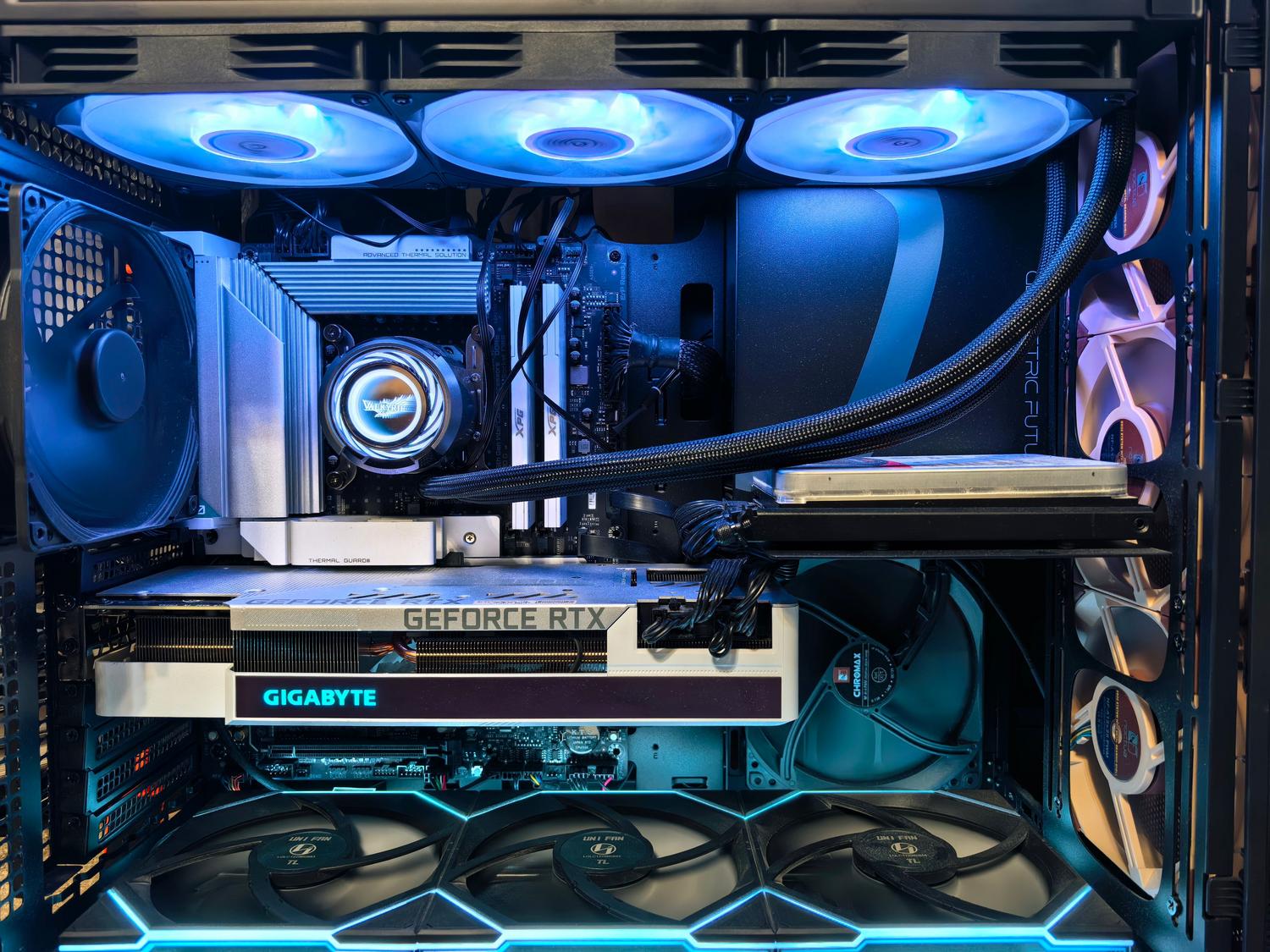
If you've set up your own streaming system to play games from the couch or even from another city, you probably already know that the Sunshine and Moonlight combo is simply amazing. However, it's not all smooth sailing, and it's very common to run into that dreaded error that tells you that Sunshine does not detect the GPU or the encoder, leaving you with a black screen and a strong desire to play.
This error can be a real headache, as it can be caused by anything from a silly Windows update to more serious problems with your graphics card drivers. In this article, we'll break it down. all possible causes and solutions that exist so that you can stream your games again with the lowest possible latency and without fatal errors.
Common causes of GPU and Encoder detection error
When Sunshine displays the fatal message that it cannot find the display or encoder, it is usually due to a communication problem between the software and the hardware. A very recent and frustrating case occurs with the Windows 11 24H2 updatewhere some users have reported that the service does not start correctly at startup, forcing them to manually restart the application for the encoder to be recognized.
On the other hand, the problem may lie in driver compatibility. It has been detected that in older AMD graphics cards (pre-RDNA)For example, with RX Vega cards, certain driver versions (especially from 23.5.2 onwards) have broken compatibility with AMF encoding in Sunshine, even though other apps like Steam Link continue to work. This shows that sometimes the problem isn't with your PC, but with the drivers. how the driver specifically interacts with Sunshine.
How to troubleshoot and optimize hardware encoding
For smooth streaming, it's vital that Sunshine utilizes the power of your graphics card and doesn't overload the CPU. Depending on your brand, you need to ensure you have the correct encoder enabled: NVENC for NVIDIA, AMF for AMD o QuickSync for IntelIf the program does not detect them, the first thing to do is check that the drivers are up to date or, in rare cases with AMD, try to revert to a previous, stable version.
If you're on Windows and the service fails to start, a temporary but effective solution is disable automatic service startup and configure Sunshine as a manual startup application. Additionally, to prevent the system from freezing without detecting the monitor, ensure the display is powered on and connected, or use tools to resolution automation to trick the system into always believing that there is an active screen.
Advanced settings to reduce latency
Once the encoder is working, the next step is to optimize its performance so that the experience is nearly identical to having the PC connected via HDMI. On the Sunshine panel, this is crucial. avoid the software encoder at all costs, as it significantly increases input lag. It is recommended to configure a stable bitrate: between 80 and 120 Mbps for 2K resolutions on a wired network, and lower it to 40-70 Mbps if using Wi-Fi to avoid annoying micro-cuts.
- Process priority: On Windows, you can raise Sunshine's priority so that the system allocates more GPU/CPU resources to it.
- UDP Protocol: Always choose UDP instead of TCP to gain response speed.
- Moonlight settings: On the client, enable "Low Latency Mode" and disable VSync to eliminate any additional visual lag.
Essential hardware and peripheral requirements
Don't forget that for the full experience, your hardware must be compatible. NVIDIA requires GTX 900 series or RTX and above, while AMD needs the RX 400 series or higher. One detail that many people overlook is the installation of ViGEmBusWithout this driver, Sunshine will most likely transmit the video perfectly, but Your Xbox or PlayStation controllers are not responding on the client device.
For those who play away from home, the best option is to configure the port forwarding on the router (by opening TCP ports 47984, 47989 and UDP ports 47998, 47999, 48000, 48002) or use a VPN like Tailscale. If you're looking for the highest quality, always prioritize using Ethernet cable over Wi-Fi4K streaming at 60 FPS requires stability that only a cable can guarantee without overloading the network.
Troubleshooting GPU detection issues involves checking your Windows version, updating or rolling back drivers depending on your graphics card architecture, and ensuring the Sunshine service starts correctly. By combining a good encoder configuration with the ViGEmBus driver and an optimized network using wired connections or open ports, any user can turn their PC into a powerful game server accessible from anywhere in the world. Now you know how to fix Sunshine not detecting your GPU or encoder: causes and solutions.

Passionate about technology since he was little. I love being up to date in the sector and, above all, communicating it. That is why I have been dedicated to communication on technology and video game websites for many years. You can find me writing about Android, Windows, MacOS, iOS, Nintendo or any other related topic that comes to mind.