- Regularly reviewing activity and connected devices helps detect suspicious access on Google and Facebook.
- Strong, unique passwords and properly configured two-step authentication are the foundation for preventing intrusions.
- Revoking third-party apps, closing remote sessions, and using only official applications limits entry points.
- Protecting your WiFi network, keeping systems updated, and using antivirus software reduces the risk of malware stealing your credentials.

See a unknown device connected to your Google account It's frightening, and rightly so. That account is often the key to your Gmail, your mobile backups, your photos, your documents, and even your payment methods. When, despite changing passwords, enabling two-step verification, and reviewing your settings, the supposed intruder keeps appearing, it's normal to feel overwhelmed and like someone is reading your email or controlling your digital life without permission.
In this article we're going to calmly break down what it means for you to see access from devices or locations you don't recognizeHow Google's activity log actually works, what common misinterpretations occur (for example, a MacBook suddenly appearing as a Samsung or a device disappearing after logging out), and above all, what advanced steps you can take to secure your account when basic measures fall short.
Why viewing unknown devices in your Google account is so important
Your Google account and your profiles on social networks like Facebook are a gateway to personal and professional informationEmails, family photos, work documents, mobile backups, locations, search history, etc. If someone gains unauthorized access, they can do more than just snoop; they could also impersonate you, change your passwords, steal your identity, or use that information for scams and blackmail.
That's why it's so important to check regularly. login activity and device list that have access to your accounts. Both Google and Facebook offer dashboards where you can see which devices and locations have logged in, along with the date, browser, operating system, and, in many cases, the approximate IP address or city from which the access occurred.
When you start to see devices you don't recognize (a Mac you don't own, a Samsung phone you don't recognize, a city different from your own)If you're experiencing an unauthorized login, or access at unusual hours, it's wise to assume there may be a security issue, even if you've already taken basic steps like changing your password or enabling two-step verification.
Furthermore, the Google panel itself can display confusing messages such as “There is no data on this session because it was not used for several months."which don't exactly help in understanding what's happening. That's why it's important to understand how Google interprets device activity, how long it keeps the history, and in what cases there might be simple identification errors that appear to be hacks but aren't."
Real case: when the intruder keeps reappearing
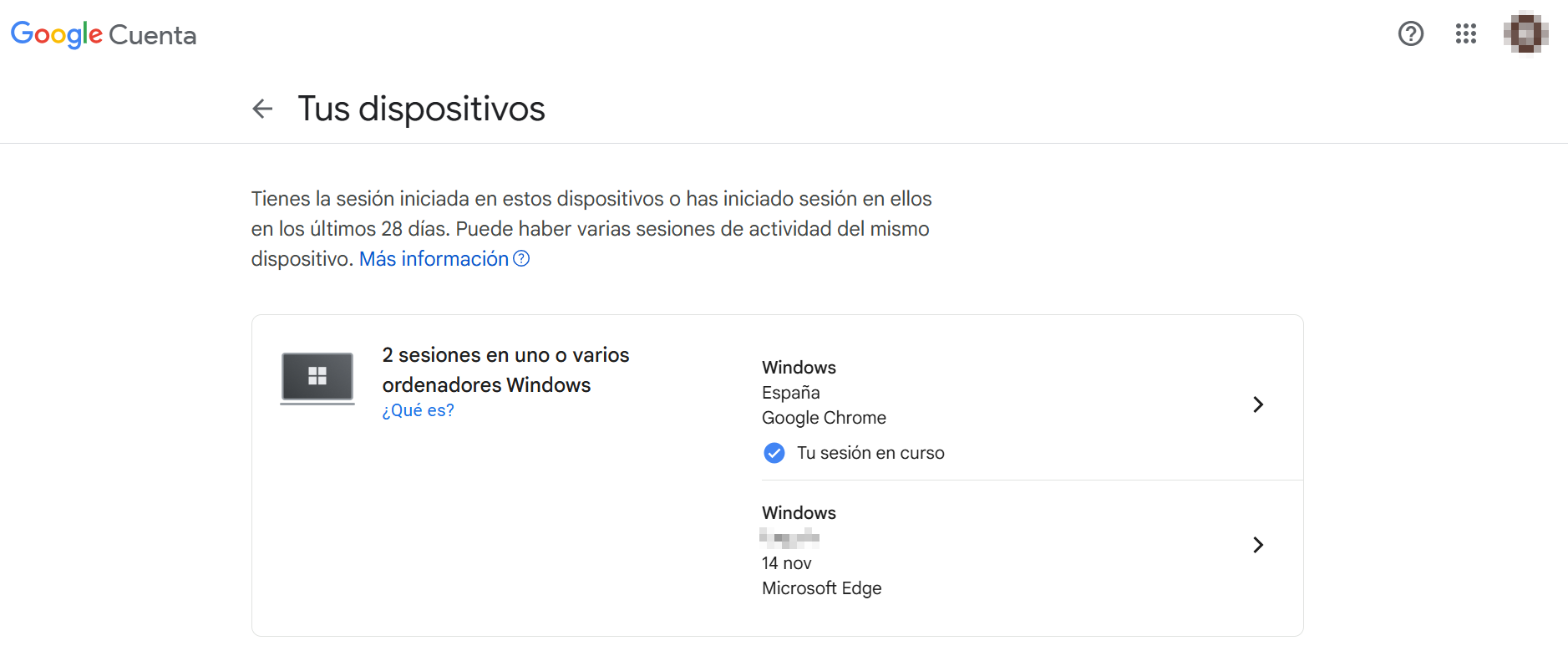
To illustrate the problem, imagine this situation based on several real cases: a person has been watching for months how A Mac appears in the "Your devices" section of Google. to whom it rings a bell. He changes the password several times, disables WPS on the router, modifies the WiFi password, prohibits his father (who is the one suffering from the problem) from using public networks, checks the apps installed on Android in case any are suspicious, and still the darn device reappears with recent sessions.
In another case, someone detects that their Google account has been Logged in without notification apparently in JuneAnd he doesn't see it again until August. He's changed the password, enabled two-step verification, updated the recovery number, disabled "bypass password" on trusted devices, cleared cookies, and cached all unrecognized sessions... and he's still finding strange devices. To add to the confusion, the same old login that previously appeared as a MacBook now shows up as a Samsung, with the same login and logout dates, and the Mac "disappears."
Does anyone else see an ad like this?There is no data on this session because it was not used for several months."on an unknown device. He logs out from the security panel, and the device disappears instead of remaining listed as "closed" for 28 days, as is usually the case. Alarmed, he changes his password, removes his phone number from two-factor verification and replaces it with an authenticator app, regenerates his recovery codes, and checks that no new recovery emails or phone numbers have been added. However, he's left wondering: was this a one-off Google glitch, or was someone actually inside the account?"
These kinds of stories illustrate two things: firstly, how easily legitimate access can appear suspicious if we don't fully understand how the Google ecosystem works; and secondly, that Attackers can still get in even if you've already applied basic security measures. If there are any weaknesses you haven't noticed (malware, third-party apps, reused or leaked passwords, etc.).
How to review activity and devices on your Google account
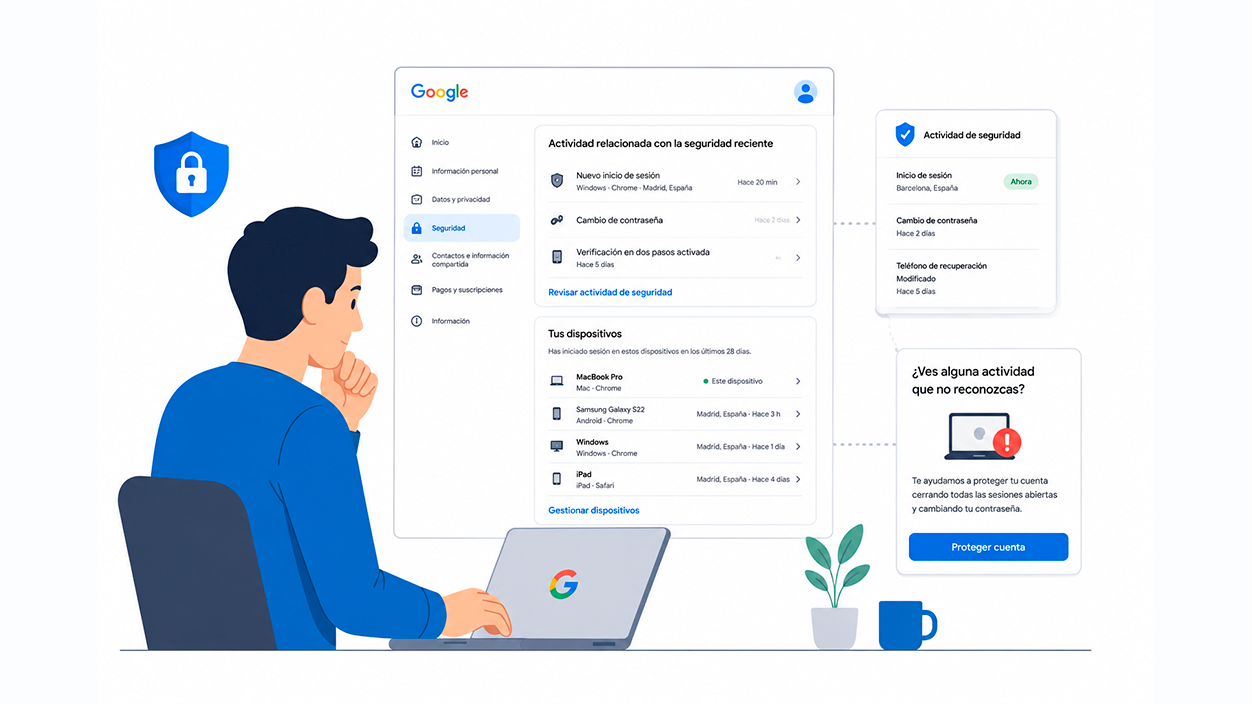
Google offers several key sections within its account dashboard for monitor suspicious access and manage devicesIt is advisable to understand them well before drawing hasty conclusions.
To access the security panel, simply log in to any Google service (for example, Gmail) and, from the top right corner, click on your profile picture and then click on “Manage your Google account”There you will see several tabs, including "Security", which is the one we are interested in now.
Within “Security”, one of the most useful sections is “Recent security-related activity”There you'll find a list of important events: new logins, password changes, enabling or disabling two-step verification, changes to the recovery phone number, etc. You can tap "Review security activity" to expand each event and see which device and location it occurred from.
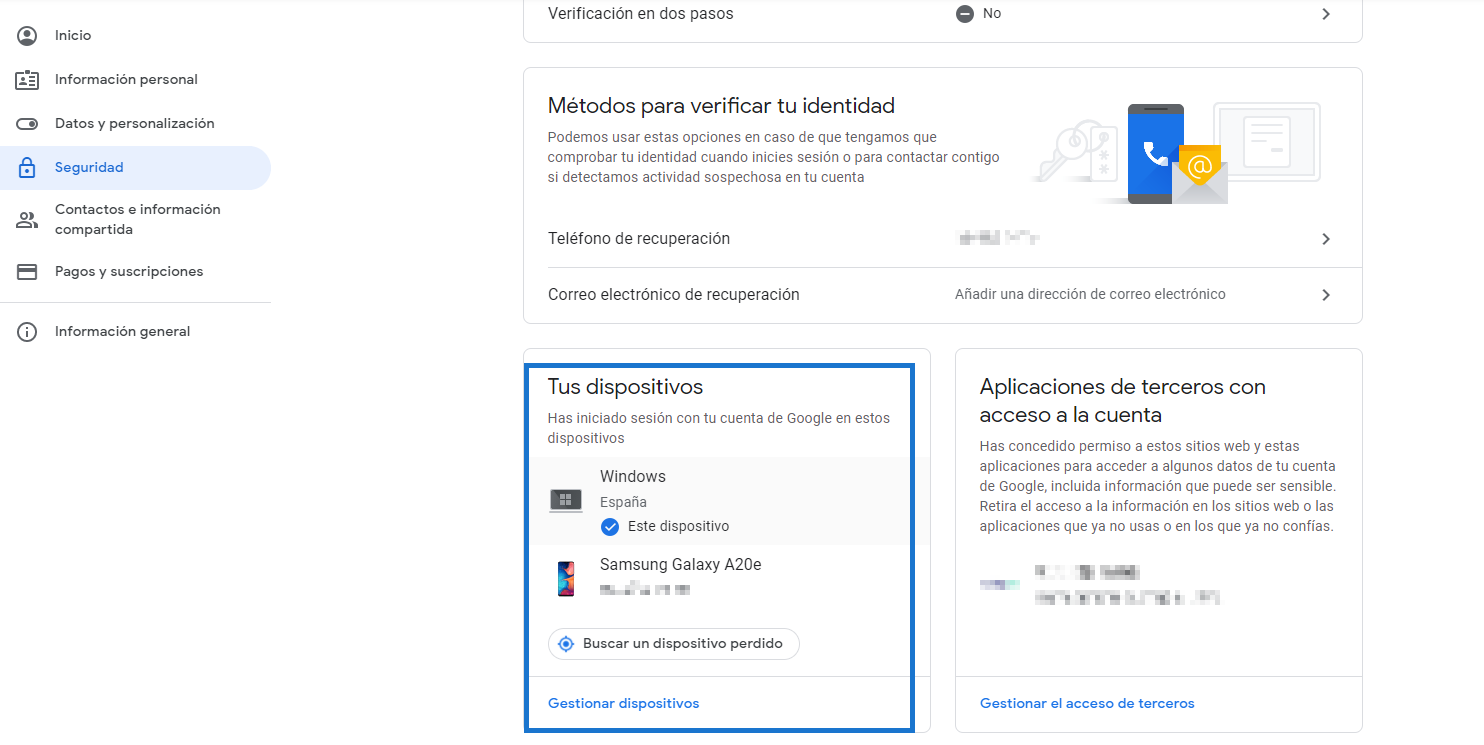
Another key section is “Your devices”If you select “Manage devices,” you’ll see a list of phones, computers, and tablets that have accessed your account or been active in the last 28 days. For each one, you’ll see the device type (for example, “Mac,” “Windows,” “Android,” “Samsung…”), the browser or app used, and the last time it was used with your account. From here, you can log out of a specific device or mark that you don’t recognize that access.
If you see an unfamiliar login in "Recent Security-related Activity", Google will give you the option to report it. "Do you see any activity that you don't recognize?"When you do this, the platform usually guides you to close all open sessions and recommends that you change your password immediately, which is highly recommended if you have even the slightest doubt.
Case study: How to review login activity on Facebook
Although the focus here is on Google, Facebook also offers valuable tools for detect logins from unknown devicesOften, whoever gains access to your Google account also tries to access your social media, so checking your Facebook profile is a good idea.
To check where you're logged in, on the web version of Facebook simply go to the top right corner, click on your profile picture and enter “Settings and privacy”From there, access the "Activity Log" and locate the "Where you're logged in" section. You'll see a list of the devices, operating systems, and approximate locations from which you've recently logged in.
If you find an access point that doesn't suit you, whether due to the city, the time, or the type of device, you can use the menu of three dots that appear next to each session to close it immediately or to find out how clear login historyThis action not only expels potential intruders, but also helps you regain control if you had logged into a shared computer and forgot it was open.
Furthermore, if something seems even slightly strange to you, it's highly recommended. Change your Facebook password instantlyUsing a strong, unique password. We'll discuss secure passwords later, but it's important to understand that any unusual access to Facebook or Google should be considered a general red flag for all your accounts.
Why strange devices appear: errors, old sessions, and other factors
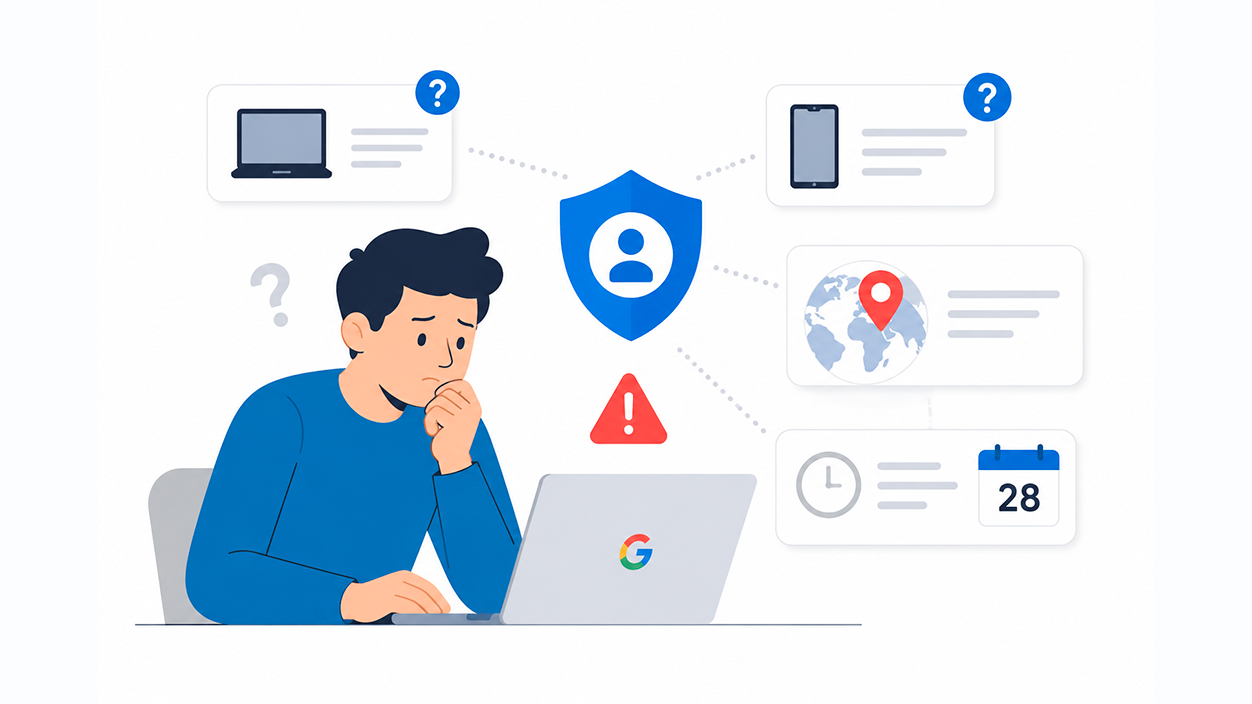
Before assuming someone has access to your account, it's worth reviewing some of the reasons why. Google can display devices that look strange even without an actual hack..
First, the way Google identifies devices isn't always perfect. For example, The same access point can change its label over time.Initially, it might appear as "MacBook," but after some internal platform adjustment or changes to the browser's user agent, it might identify itself as "Samsung" or another model, while maintaining the same login date. This doesn't necessarily mean the device has actually changed; it simply means Google is classifying it differently.
It's also common to see access points with locations that you They seem strange but they are close from your actual city. This is usually due to how Internet Service Providers (ISPs) assign and geolocate IP addresses. For example, you live in Valencia and see an IP address that Google identifies as belonging to another nearby city, or even another province. This is not uncommon and does not in itself imply intrusion.
Another confusing point is the message type “There is no data on this session because it was not used for several months.This usually indicates an old session with no recent activity. Signing out from the security panel may remove the device from the list before the usual 28 days have elapsed, especially if it was a very old session or a device that Google already considers inactive.
Having said all that, if you see repeatedly the same suspicious device If your password reappears after changing passwords, activating two-step verification, and reviewing your recovery data, then there are plenty of reasons to think that there is some vulnerability that you are not seeing, and it is advisable to move to more advanced protection measures.
Essential basic measures: strong passwords and properly configured 2FA
The first line of defense to prevent unknown devices from accessing your Google or Facebook account is to have strong passwords and properly configured two-step authenticationIt may sound like a cliché, but in practice this is the point where users most often fail.
A good password should have, at a minimum, between 8 and 10 charactersHowever, nowadays it's advisable to go much further if possible. The longer the password, the harder it is to crack using automated brute-force or dictionary attacks. Ideally, it should combine uppercase and lowercase letters, numbers, and special symbols like @, #, $, %, or others, forming a string that doesn't seem to make sense.
It is key to avoid any obvious personal dataName, surname, date of birth, phone number, your pet's or partner's name… All this information is easy to obtain through social media or quick searches, and attackers use it to try typical combinations. Likewise, it's best to avoid common dictionary words or simple sequences like "123456," "qwerty," or "password," which are literally the first things automated attack programs try.
Another common mistake is reusing the same key across multiple services. If you use exactly the same key, the same password for Google, Facebook and other websitesIf just one of them suffers a data breach, the rest can be compromised. To minimize risks, use a unique password for each critical account, and if necessary, use a password manager to help you remember and update them regularly (for example, every six months for sensitive services).
Regarding two-factor authentication (2FA), it is essential to activate it, but it is also important to choose the safest possible methodGoogle and Facebook allow the use of codes received via SMS, authenticator apps (like Google Authenticator or similar), and even physical security keys. While SMS is still better than nothing, it's more vulnerable to SIM spoofing or message diversion attacks, so using an authenticator app or a physical key is clearly preferable whenever possible, and you should also consider how to use it. Encrypt data on mobile devices.
How to activate and strengthen two-step authentication on Google and Facebook
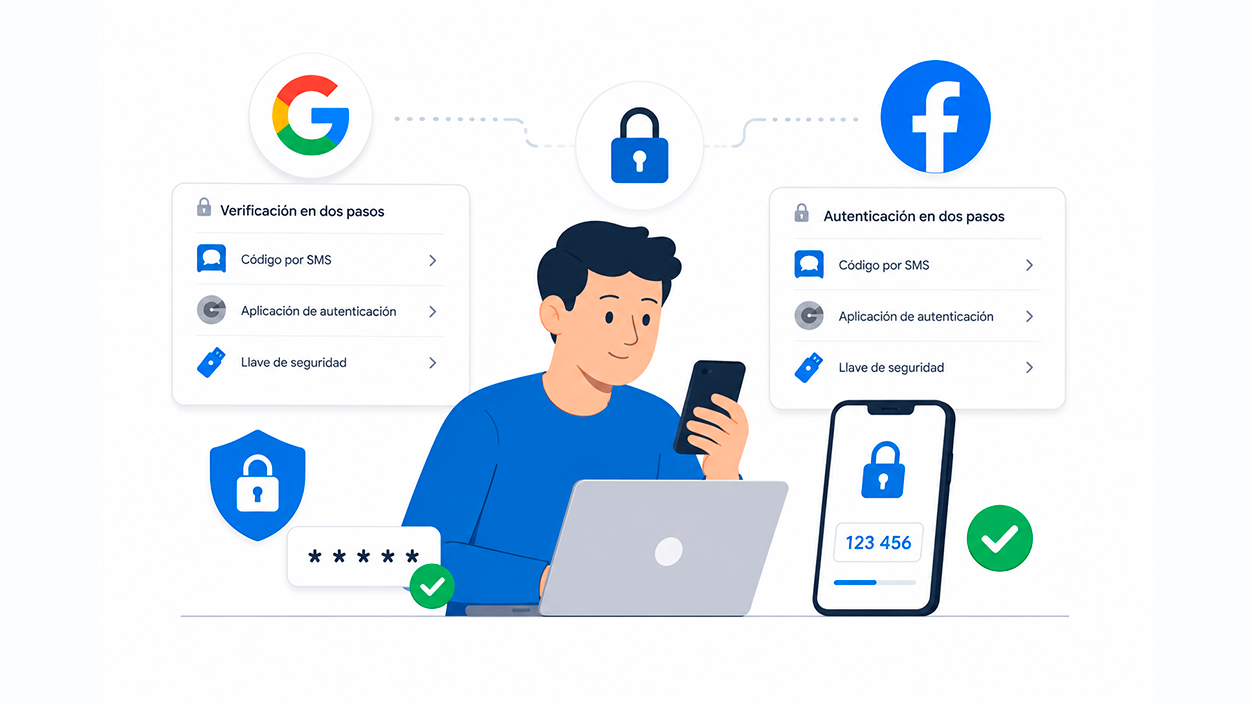
On Google, you can set up two-step verification from your account dashboard. Once you're in "Manage your Google Account," go to the section on “Security” and enter “Two-Step Verification”There you can choose whether you want to receive codes via SMS, use an authenticator app, or set up a compatible physical security key. It's important that, if you've relied solely on SMS until now, you consider switching to an authenticator app or key, and that you review your recovery codes, regenerating them if you suspect someone may have seen them.
On Facebook the process is similar: from the menu in the upper right corner access “Settings and privacy” and then “Settings”Within the "Password and Security" section, you'll find the "Two-Step Authentication" option, where you can choose between SMS, an authenticator app, or a security key. Once activated, every new login from an unrecognized device will require this second factor, making it much harder for anyone who has obtained your password.
In both cases, in addition to activating 2FA, you should carefully review recovery phone numbers and emails linked to your account. If you see any you don't recognize, delete them immediately and change both your password and recovery methods. This is a common way more advanced attackers can force a password reset without your consent.
When you suspect there's an intruder in your Google account, one of the first reflexes is usually to revoke permissions for third-party applications and clear your browser's cookies and cache. It's a good step, but it's best to do it methodically to avoid leaving any loose ends.
In your Google account, within the security section, you can see what Applications and services have access to your dataOften, apps you once tried on your Android phone, browser extensions, or web services you granted permission to access your email, contacts, or calendar appear there, and it's advisable to... Check your devices for stalkerwareIf there are apps you don't remember or no longer use, it's good practice to revoke their access; the fewer open doors, the better.
In addition, after changing the password, it is very useful to use the option of Log out of all devices This feature is offered by Google when you detect suspicious activity. It forces any device using your account, legitimate or not, to re-enter the new password and second authentication factor.
Clearing cookies and browser cache also helps to clean up old sessions and prevent them from being stored. saved access tokens that might still be valid. Do this on all the devices you regularly use (home computer, work computer, laptop, mobile phone, tablet…), and make sure that after deleting them you only log back in on devices you personally control.
If after all this you still see devices that don't seem right, you should consider the possibility of a deeper problem, such as the presence of malware or a compromise of your home network itself.
WiFi, routers and public networks: closing the physical front door
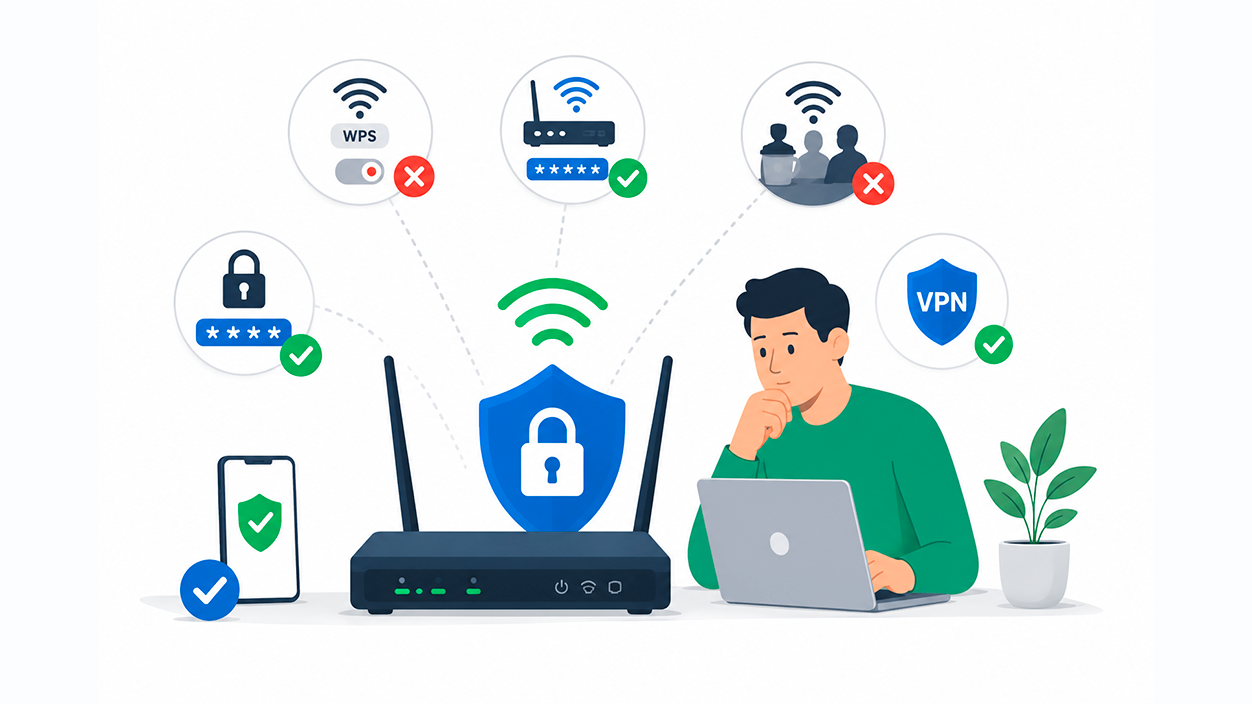
It's not all about passwords and apps. Often, the weak link lies in... the home WiFi network and routerIf internet access is not well protected, an attacker who is physically nearby can enter the network and, from there, launch attacks against your devices or capture unencrypted traffic.
A crucial first step is to deactivate the WPS (WiFi Protected Setup) The router's built-in feature lets you connect by pressing a button or entering a simplified PIN. It's convenient, yes, but it has also proven to have significant vulnerabilities. It's best to access your router's settings and ensure it's turned off, and if necessary, learn how to... Remove devices from the WiFi router.
It is also crucial to change the default WiFi password and router passwordDon't leave the password that was on the sticker or the one the installer gave you on the first day. Choose a long, strong password, like the ones we talked about earlier, and avoid network names (SSIDs) that clearly identify you (for example, your last name or your apartment number). That way, anyone trying to hack in will have a much harder time, and you'll know how. block devices from my WiFi if necessary.
Another important point is to avoid connecting to public or open WiFi networksEspecially when accessing sensitive accounts like Google, Facebook, or your bank. Although many connections are encrypted these days, in insecure environments it's easier to carry out man-in-the-middle attacks, spoof websites, or capture session information. If you have no other option than to use a public network, consider doing so through a trusted VPN.
Finally, if there are people at home who install many apps or are constantly trying out new devices, it's a good idea to educate them about the importance of Do not connect unknown devices to your home network. without first taking certain precautions, and always having an updated antivirus, both on the PC and on the mobile, to reduce the risk of infections that can steal credentials.
Official apps, updates and antivirus: protecting your devices
A very common vector of attack is the unofficial or outdated applicationsIn the case of Android, installing apps from outside Google Play or trusted stores can open the door wide to malware, which will then steal passwords, record keystrokes, or send your data to remote servers.
The best practice is to always download apps from official stores like Google Play or the App StoreAnd be wary of APK files circulating on obscure websites, forums, or messaging groups. Although they may sometimes appear to be "modified" or "free" versions of paid applications, the risk of them containing malicious code is very high.
It's equally important to keep your operating system (Windows, macOS, Android, iOS…) and your apps up to date. Updates don't just bring new features; many include security patches that fix serious flaws discovered in previous versions. If you repeatedly postpone updates, you're leaving gaps that attackers know about and can exploit.
Regarding antivirus software, it remains a key component, especially on Windows computers and devices used for extensive browsing or installing numerous apps. A good, up-to-date antivirus can detect and remove malware. Malware designed to steal credentials, block malicious websites and offer real-time protection while you browse.
Configure your antivirus to perform regular scans and update automatically, so it's always protected against the latest threats. If you suspect someone has had unauthorized access to your account and changing your password or adjusting your security settings hasn't helped, it's highly recommended to perform a security check. a complete scan of all your devicesDesktop computer, laptop, mobile phone, and tablet. Sometimes, the problem originates from a single infected app on one device that keeps capturing new passwords you enter, so it's also advisable to balancing safety and performance on your devices.
Ultimately, the feeling of seeing unrecognized devices connected to your Google account can be very distressing, but with a combination of Good digital practices, regular activity reviews, strong passwords, properly configured two-step authentication, control of third-party applications, secure networks, and protected devicesIt is possible to greatly reduce the chances of a real intruder remaining inside without you detecting them and without being able to permanently remove them.
Index
- 1 Why viewing unknown devices in your Google account is so important
- 2 Real case: when the intruder keeps reappearing
- 3 How to review activity and devices on your Google account
- 4 Case study: How to review login activity on Facebook
- 5 Why strange devices appear: errors, old sessions, and other factors
- 6 Essential basic measures: strong passwords and properly configured 2FA
- 7 How to activate and strengthen two-step authentication on Google and Facebook
- 8 Third-party applications, cookies, and sessions: what to revoke and when
- 9 WiFi, routers and public networks: closing the physical front door
- 10 Official apps, updates and antivirus: protecting your devices
