- Check the original before modifying the tracks.
- Convert to CFR when the editor has problems with VFR.
- Distinguish between a fixed delay and a progressive drift.
- Check the synchronization in the exported file.
If the The audio in a VFR video becomes out of sync when editing it.First, check if the original file plays correctly outside the editor. If the problem only occurs when importing, converting a copy to a constant frame rate may improve compatibility.
However, VFR doesn't explain all sync issues. A fixed delay, a gradual drift, and a sudden jump require different solutions. Before moving tracks or changing speeds, identify where the problem begins and keep the original file.
Check if the video is VFR and where the desynchronization occurs.

La variable frame rate or VFR It allows the frame rate to change during the video. In CFR, the frame rate remains constant.
You can inspect the file with MediaInfo. In the video information, look for Frame rate mode o Frame rate modeDon't confuse it with bit rate mode: VBR and VFR describe different things..
That data is a clue, not a definitive diagnosis. Play the original at the beginning, at a midpoint, and near the end. Then compare those same moments in the editor and in a test export.
If you were listening via Bluetooth, repeat the check using wired speakers or headphones. This will help you rule out any playback delay before modifying the file.
Distinguish between fixed phase shift, progressive drift, and jumps
It uses several easily recognizable events: a visible clap, a bang, or an action with a distinct sound. A reference at the beginning allows you to align that moment, but it doesn't prove that the entire video is synchronized.
| What do you observe? | What you should investigate | First performance |
|---|---|---|
| The difference is approximately the same throughout the clip. | A fixed offset between tracks or a playback delay. | Discard the audio output and adjust the track position. |
| The separation increases gradually. | Temporal interpretation, VFR compatibility, or clock differences between devices. | Review the original and test a CFR copy when appropriate. |
| The synchronicity changes abruptly after a point. | Cuts, discontinuities, or problems in the recording. | Examine that section and correct it separately. |
| The original is fine and the error only appears when editing. | Importing, decoding, previewing, or configuring the project. | Compare a short export and a transcoded copy. |
Don't stretch the entire track to correct a localized jumpYou could fix one area and mess up the rest.
How to convert a VFR video to CFR with HandBrake
If the editor is having problems with the VFR material, try a copy before modifying the entire project:
- Open the original file in Handbrake.
- Select a suitable preset for the material and check its dimensions.
- Go to the tab Video.
- En Framerate (FPS)Choose a frequency appropriate for your project or Same as source.
- Mark expressly Constant Framerate.
- Save the result with a different name and start encoding.
Same as source alone does not guarantee CFRYou should also select constant mode. Do not choose Peak Framerate if you need a strictly constant frame rate.
Don't force 60 fps as a universal solution. Check if the footage is rated at 25, 29,97, 30, 50, 59,94, or another frame rate.
The conversion process re-encodes the video and may duplicate or discard frames for adjustment. Check the quality, duration, and audio tracks before using the result.
How to incorporate the converted file into the project
First, test the result on a new sequence. Check the same beginning, middle, and end events that you used to analyze the original.
If it works, duplicate your project before replacing or relinking media. In advanced editing, double-check the cuts: don't assume that any substitution preserves all the edit points exactly.
Don't confuse transcoding to CFR with reinterpreting fpsChanging the interpretation of the clip may alter its speed and duration; it is not a substitute for normalizing its temporal cadence.
If the CFR copy exhibits the same error, return to the diagnostic process. The cause could be in the audio, a discontinuity in the original, or another point in the workflow.
How to correct a constant offset without extracting the audio

For a fixed delay, usually it is enough to temporarily unlink audio and videoIn Premiere you can select the clip and use Clip > Unlink.
- Expand the timeline and locate a clear visual reference.
- Find the beginning of the corresponding sound in the waveform.
- If the sound arrives late, move the audio to the left, to an earlier moment.
- If it arrives too soon, move it to the right.
- Check other points and relink the clips when you're finished.
Avoid deleting useful content to compensate for the difference. Also, check the beginning and end points after the scroll.
If you need to transfer the audio to another program, it's best to use a WAV or AIFF working file. Converting it to MP3 won't improve the quality.
What to do if the drift continues (see CFR video)
When image and sound come from separate devices, their clocks can accumulate slight differences during a long take. Aligning them at the beginning doesn't guarantee they'll match at the end.
Find two shared references separated in time. Align the first and check the second. If the difference grows regularly, you can adjust the audio duration to match both events.
Use a tool to Temporary stretching with preservation of toneDo not apply an arbitrary percentage: calculate the adjustment based on the segment you are comparing.
Audition has duration and stretch controls that allow you to modify the timing without necessarily changing the pitch. Listen carefully to the result, because an adjustment can introduce artifacts.
If the lag appears in jumps, work by segments and check the joins instead of stretching the entire recording.
Why 44,1 kHz and 48 kHz do not automatically imply an incorrect speed
Audio sampling rate and video frame rate are different parameters.
An editor can Properly resample 44,1 kHz audio to a 48 kHz stream without changing its intended duration. Premiere documents this treatment through its conform processes.
It would be different if you misinterpreted the original frequency instead of converting it. Therefore, don't change audio tags or speeds without checking how your program is reading the file.
Working with a consistent configuration makes the process easier, but matching all values does not replace diagnosis.
What to check in screen recordings and OBS
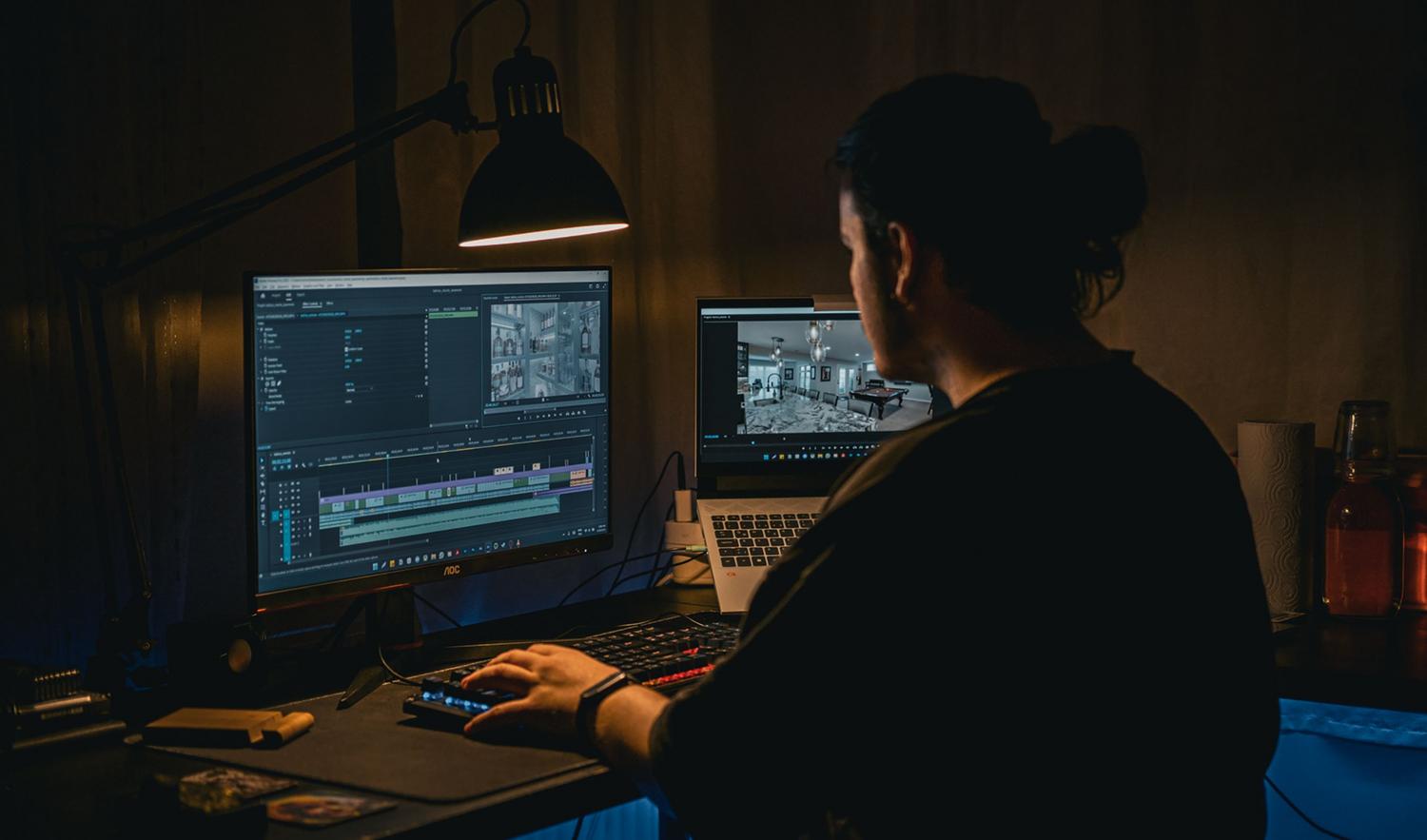
Do not automatically classify OBS recordings as VFR. Even an ID as variable after a remux can be related to the representation of timestamps.
If you experience stuttering or overload warnings, check your capture performance. Reduce the resolution or frame rate when your computer can't maintain them, simplify your scenes, and free up resources for OBS.
Trimming audio does not recover images that were never recorded.Examine the discontinuities before deciding whether you need to realign a section, use another shot, or rebuild the edit with the available material.
Final check and prevention
To measure a fixed delay during playback, VLC allows you to adjust the synchronization using its controls. This is a playback correction; it doesn't mean you've generated a new file with the problem resolved.
Before submitting, export a test and check the start, several intermediate points, and the end. Don't just validate the editor preview.
In future recordings, do a test run with the same equipment and settings you'll be using. When recording audio separately, include references at the beginning and end to check for any differences in duration.
If your editor requires CFRs, prepare the material before editing. Keep the originals and remember that Converting, moving, and stretching are different solutionsEach one addresses a specific problem.

I am a technology enthusiast who has turned his "geek" interests into a profession. I have spent more than 10 years of my life using cutting-edge technology and tinkering with all kinds of programs out of pure curiosity. Now I have specialized in computer technology and video games. This is because for more than 5 years I have been writing for various websites on technology and video games, creating articles that seek to give you the information you need in a language that is understandable to everyone.
If you have any questions, my knowledge ranges from everything related to the Windows operating system as well as Android for mobile phones. And my commitment is to you, I am always willing to spend a few minutes and help you resolve any questions you may have in this internet world.