- Most YouTube crashes and freezes on Smart TVs are due to network problems, outdated software, or internal system conflicts.
- Updating the app and firmware, properly restarting the TV, and checking the network and location settings solves most of the problems.
- When the TV is very old or no longer compatible, an external streaming device allows you to continue using YouTube without errors.
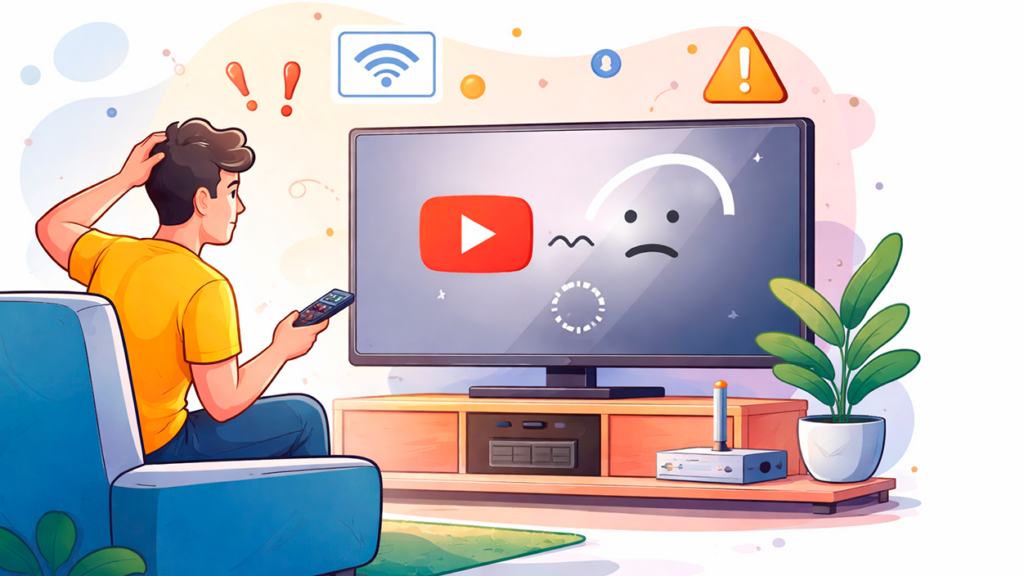
It can be infuriating when YouTube closes on your Smart TV or the TV even restarts in the middle of a video. Constant crashes, strange errors, and apps that close on their own These are very common faults in televisions with Android TV, Google TV and other systems, especially when they are a few years old.
Although at first glance it may seem that your television is broken, in most cases the problem can be solved at home. Check your internet connection, update your system, adjust certain settings, and reinstall YouTube. This is usually enough to stop unexpected shutdowns and restore a smooth user experience, without having to call technical support.
Typical problem: YouTube keeps closing on Smart TV
One of the most frequent cases is that of users with relatively recent televisions, for example a Smart TV with Android 9 and about 3 years of use, who suddenly begin to notice that Any application closes on its own and sometimes the television restarts.YouTube is usually the app where the problem is most noticeable, because it doesn't stay open for more than 4 or 5 minutes before closing.
In these situations, even if one tries to uninstall YouTube updates, delete Android System WebView, or even perform a factory resetThe problem may persist. This indicates that the fault isn't always with the app itself, but rather a combination of factors related to the system, the network, or the condition of the television.
Besides these extreme cases, it is also very common that YouTube stops opening, gets stuck on the home screen, or displays a 400 error. or the message “YouTube is unavailable. Please try again later” appears. Other users find that it simply Playback stops, buffers constantly, or the image freezes. while the sound continues or vice versa.
When the television is very old, there is another possibility: that the YouTube app has stopped being compatible with that specific model. In that scenario, it's not a one-off error: the app stops updating and, over time, The videos start to glitch or simply stop playing. on that Smart TV.
Most common reasons why YouTube closes on its own on Smart TV
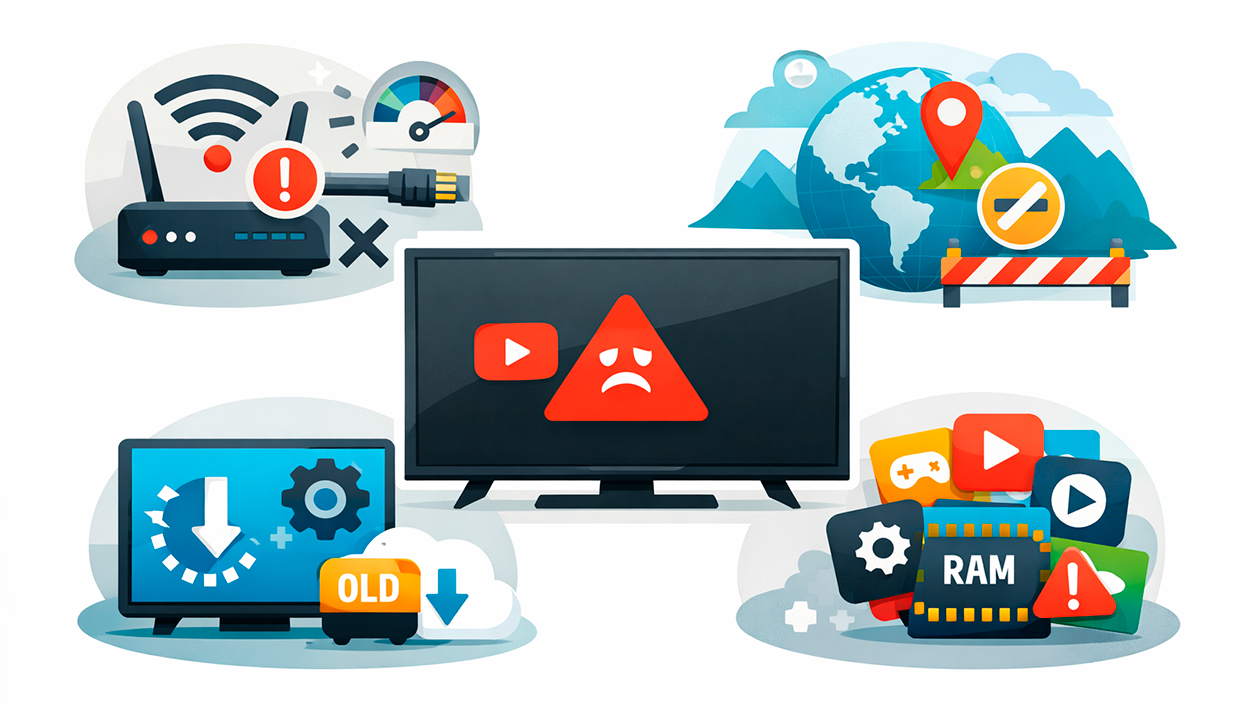
Before messing around with settings willy-nilly, it's a good idea to understand what's usually behind these problems. Google and TV manufacturers share several common causes which causes YouTube to close, not open, or give errors on Smart TV.
Internet connection problems
In many cases, when YouTube stops, freezes, or stops playing content on a Smart TV, the root of the problem is the unstable, slow, or intermittent internet connectionThe problem could be with either the router or the television itself.
For YouTube to work properly, a minimum speed of 3 Mbps for standard definition (SD) video and about 7 Mbps for 1080pIf you want to stream 4K content, you should have at least 25 Mbps. If your actual connection speed is below this or you experience latency spikes, you're very likely to experience buffering, freezing, or the app may crash.
Another important factor is the type of connection. An Ethernet cable connection is usually much more stable than Wi-Fi.especially if the router is far from the TV, there are many walls in between, or the network is saturated with mobiles, consoles, computers, and other devices connected at the same time.
Location settings and regional restrictions
The YouTube app on Smart TV uses the Location settings to determine what content can be displayed Depending on the licenses and restrictions of each country or region. If the location is incorrectly configured, or does not match the actual area, playback errors, login issues, or strange messages when opening the app may occur.
On modern Smart TVs, you can go to the YouTube app itself. user profile and the “Location” or “Current Playback Zone” section To check if the country setting is correct. An incorrect setting here can cause the app to behave erratically.
Outdated software on the TV or in the app
Another very common cause of failure is having the TV firmware or the YouTube app itself may not be updatedManufacturers periodically release new versions of the system to:
- Correct known errors which can cause unexpected application closures.
- Improve compatibility with services like YouTube, Netflix and other streaming platforms.
- Adjust performance so that the TV can better manage memory and background apps.
If the TV's system is outdated or the YouTube app hasn't been updated in a long time, problems are likely to occur. crashes on startup, loading screen freezes, and error messages related to reproduction.
Background apps and lack of resources
In many Smart TV models, especially those with limited RAM and storageHaving multiple applications open at the same time can cause the system to automatically close some of them to free up resources.
If you frequently use services like Netflix, Disney+, Prime Video or other streaming apps And if you don't close them properly, the system may end up cutting off YouTube without warning, resulting in sudden closures or app restarts.
Temporary system errors or corrupted data
Just like on any Android device, it's possible for data to accumulate on a Smart TV. temporary files, corrupted cache, or minor internal glitches of the system that directly affect the operation of YouTube and the rest of the applications.
When this happens, symptoms such as the following may occur: spontaneous TV restarts, apps that close as soon as they open, or intermittent freezesA simple shutdown is not always enough to clear these errors; sometimes a deeper restart or even reinstalling the affected app is necessary.
Device limits on YouTube TV
In the specific case of YouTube TV (YouTube's streaming television service available in some countries), it should be noted that the same account It only allows playback on up to three devices simultaneously.If you try to use a fourth device at the same time, you may see playback error messages.
Although this doesn't usually cause the app to close automatically, it can lead to Errors loading channels, interruptions in the middle of a live broadcast, or inability to log in correctly on the television.
Limited compatibility on older Smart TVs
If your Smart TV is quite old, it may directly the YouTube app is no longer supported with your model. When this happens, even though the app still appears in the menu, it's possible that:
- New updates cannot be installed from YouTube.
- The app keeps freezing on the initial screen or display constant errors.
- Some videos or modern features (e.g., HDR, recent codecs) cannot be reproduced at all.
In these cases, the problem isn't with your connection or your settings, but with the lack of official support for that TVThe solution involves using external devices such as Chromecast, Fire TV Stick, or other USB sticks with their own operating system.
Steps to prevent YouTube from closing on your Smart TV
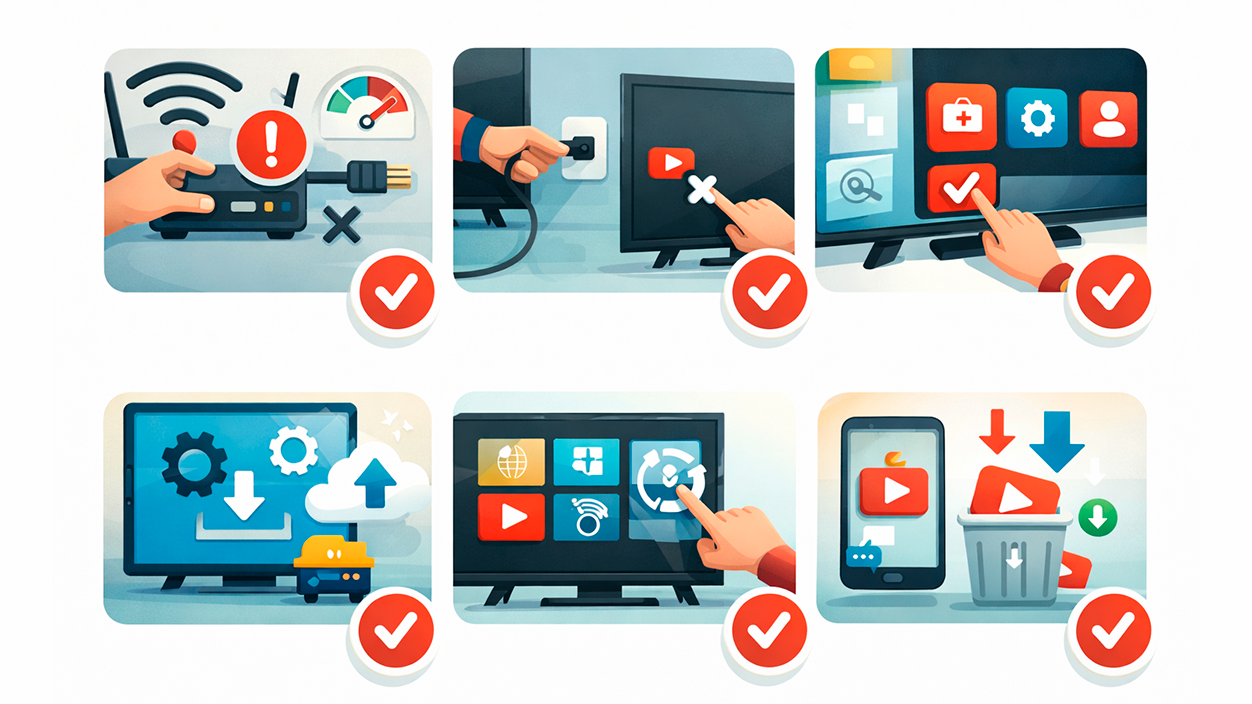
Although some problems are inevitable when a television has become very old, most everyday errors can be resolved by following a series of logical steps. You don't need to be a technician or go into strange hidden menusIt's enough to rule out possible causes one by one.
1. Review and optimize the network connection
The first thing to check is that your Smart TV is connected to the correct Wi-Fi network and with a good signalIn the TV menu you can see the connection status and, on many models, run a network diagnostic to check for problems with the router or internet connection.
It is advisable to restart both the router and the television: Turn off the Smart TV, unplug it from the power outlet for about 30-60 secondsAnd do the same with the router. Then reconnect everything and check if YouTube stops closing.
If you continue to notice that the videos are pausing, you can do a Speed test from your mobile connected to the same Wi-Fi networkIf you find that the line is slow, unstable, or becomes overloaded when many devices are connected, you may need:
- Move the router closer to the television or use a Wi-Fi repeater.
- Reduce the number of connected devices both.
- Switch to an Ethernet wired connection for Smart TV, which is more stable for streaming.
2. Restart the TV correctly
Simply turning it off with the remote doesn't always solve anything, because many televisions remain in a They enter sleep mode and do not clean memory or processes. in the background. To perform a "real" restart, follow this procedure:
- Turn off the TV using the remote control or the physical button.
- Disconnect the power cord from the current for at least 30 seconds or, better yet, a minute.
- Plug it back in and turn it on.
This complete reset usually removes temporary failures, internal conflicts, and minor corruption within the system that cause applications like YouTube to close automatically.
3. Close and restart the YouTube app
Often, the YouTube app gets stuck in a strange state and all it takes is close it completely and reopen it to get everything working again. It's not just a matter of going back with the remote, but making sure the app stops running in the background.
On TVs with Android TV or Google TV, you can go to Settings > Apps > YouTube or YouTube TV > Force stopThis will close all active processes of the app. Then, wait 10-30 seconds and reopen YouTube from the main menu.
If your TV displays a list of recent apps, go into that view and Swipe or close YouTube from there.Also take this opportunity to close other applications you are not using, such as Netflix or cloud gaming platforms, to free up memory.
4. Update YouTube and the Smart TV system
A fundamental step is to check if there are Updates are pending for both the YouTube app and the TV system itself.For the app:
- Go to your Smart TV's app store (Google Play Store, Samsung store, LG Content Store, etc.).
- Search for YouTube or YouTube TV and check if the update button appears.
- If there is a new version, install the update and restart the TV.
For the system, the process varies depending on the manufacturer, but in general you have to go to Settings > Support, About or Software Update and check for new firmware versions. If you find an update, install it following the on-screen instructions.
These updates not only fix bugs, they also improve performance and compatibility, so it's very likely that Reduce unexpected closures, app crashes when starting up, and playback errors.
5. Review the app's location and permissions
If you suspect the problem might be related to your location, open the YouTube app on your TV, access your profile, and go to the section for “Location” or “Current Breeding Area”Make sure the country set matches yours.
If you use a linked mobile device (for example, to send videos to the TV), also check that The mobile phone must have location services enabled and a stable internet connection. When establishing the connection. Problems in this process can result in interruptions or strange errors when playing from the smartphone.
6. Reset network and accessibility settings
On some TVs, especially those with Android, it can be very helpful. Reset certain settings without performing a full factory resetTwo of the most useful are:
- Reset accessibility settingsIn the Settings > General Management menu or similar, there is usually an option to return the accessibility settings to their original state.
- Reset network settingsIn the network or connections section, you can reset the Wi-Fi, mobile data (if your TV has it), and Bluetooth settings. Then, you'll just need to re-enter your Wi-Fi password and set up your devices again.
These soft resets can fix Internal conflicts between system services and YouTube without deleting your apps or accounts.
7. Uninstall and reinstall the YouTube app
If after updating and restarting everything you continue to experience constant crashes, it's possible that there is corrupted data within the app itselfIn that case, the most effective solution is to uninstall and reinstall YouTube.
- Go to Settings > Apps > YouTube or YouTube TV.
- Select the option “Uninstall” or “Delete” the application.
- Turn off the TV and unplug it for a minute to thoroughly clear the memory.
- Turn it on, go to the app store and Download YouTube again from the official store.
- Open the app, log in with your account, and try playing content.
This process deletes faulty configurations or corrupted files, which usually fixes Persistent errors, crashes as soon as a video is opened, and freezes on the home screen of the app.
8. Check the device limit on YouTube TV
If you use YouTube TV as your live TV service, check your account settings to see how many devices are connected. By allowing only three simultaneous playsExceeding that limit can cause:
- Error messages appear when trying to view channels.
- The transmission was cut off on one of the active devices.
- You cannot start a new playback on the TV.
If there are many of you at home, the best thing to do is Log out of devices that are not in use or let others know to free up slots when you're going to watch something on the Smart TV.
9. Assess the compatibility of the television and alternatives
When none of the above works and the TV is quite old, it's time to consider whether the problem is one of compatibility. The manufacturer's documentation or their support website can indicate if this is the case. There are known issues between that Smart TV model and the YouTube app..
If your TV has stopped receiving updates and YouTube is no longer supported, you have several alternatives:
- Connect an external streaming device such as Chromecast, Fire TV Stick or similar, which have their own system and frequent updates.
- Use a USB Stick or TV Box with Android TV or Google TV to install YouTube and other modern apps from scratch.
- If the manufacturer recommends it, use the following features: screen sharing or mirroring from your mobile phone or computer.
These types of devices usually offer a smoother and more up-to-date experience, even on televisions that have become outdated in terms of software.
Technical requirements for YouTube to work properly on Smart TV
In addition to fixing specific problems, it's important to know the minimum requirements your installation must meet for YouTube to run smoothly on a daily basis. It's not just about having "fiber optics", but about how that connection reaches the television and that the system has sufficient power.
Adequate internet connection
As mentioned, YouTube recommends at least 3 Mbps for SD, 7 Mbps for 1080p and 25 Mbps for 4KBut beyond these figures, the following also matter:
- La line stability (without micro-cuts or signal drops).
- La latency and jitter, which influence abrupt cuts.
- El type of connection between the router and the television (cable vs Wi-Fi).
Whenever possible, use one direct Ethernet connection to the router For the TV. If that's not possible, try to keep the router relatively close to the TV, avoid large obstacles, and don't overload the network with heavy downloads or many simultaneous streams on other devices.
Smart TV Features
For YouTube to run smoothly, your TV must have a compatible and relatively modern operating systemAmong the most common are Android TV, Google TV, Tizen (Samsung), webOS (LG) and Roku OS.
In any of them, the YouTube app should be able to Install from the official store and receive regular updates. If you haven't seen an update in a long time or the app has disappeared from the store for your model, it's a sign that support is starting to become limited.
It's also important that the television has sufficient RAM and free storageIf memory is always at its limit, apps may close, restart, or fail to install new software versions.
Firmware and app updates
Keeping both your TV's firmware and the YouTube app up to date is key to avoiding strange errors. Manufacturers release patches relatively frequently for:
- Correct incompatibilities with new features of the YouTube service.
- Improve reproductive performanceespecially with 4K, HDR or high frame rate content.
- Adjust security policies and permissions which may affect logging in or linking with other devices.
Taking a few minutes now and then to check for available updates can save you many hours of headaches with unexpected shutdowns and errors with no apparent explanation.
Extra tips to improve your YouTube experience on TV
Once you've managed to get YouTube to stop closing on its own and work as it should, you can go a step further and Improve image quality, sound, and overall system fluidity to enjoy the content on another level.
Opt for a good device with Google TV or similar
If you're thinking about upgrading your TV or adding an external device, options with Google TV can offer a Highly polished integration with YouTube and YouTube TVThese systems typically have a more modern interface, voice search, personalized recommendations, and extended update support.
High-end models, such as certain Google TVs with QD-Mini LED panels, image processors with AI to optimize color, contrast and sharpnessVery high brightness and advanced sound systems with Dolby Atmos allow YouTube videos to look spectacular even in HDR.
Furthermore, if the television includes features such as VRR, high refresh rates and FreeSync-type technologiesYou'll also gain in smoothness if you use YouTube to watch content at high frames per second or for video game streams.
Adjust the TV picture and sound
We often accept the factory settings as acceptable when, with a couple of tweaks, the experience improves significantly. In the image settings you can:
- Select a appropriate image mode (cinema, standard, game…), avoiding overly saturated modes if they bother you.
- Adjust brightness, contrast and color depending on the lighting in your living room.
- Activate the HDR mode if your TV supports it and YouTube content is available in that format.
In sound, you can try specific modes for movies, voice, or music, or connect a external sound system or soundbar to get the most out of music videos, concerts or documentaries with great audio work.
Use a wired connection whenever possible
If you notice that, despite everything, there are occasional stutters or the quality drops, seriously consider connect the TV to the router via cableThe difference in stability is usually very large, especially if:
- You live in an area with many nearby Wi-Fi networks that overlap.
- You have multiple devices playing video at the same time.
- You use a lot of content 4K or 8K with high bitrate.
With a simple, inexpensive Ethernet cable you can achieve that YouTube stops buffering at the slightest thing and that closures due to connection problems disappear almost completely.
Close applications you are not using to free up resources.
Finally, although it may seem silly, getting used to Close the apps you're not using. This makes a difference on many TVs. If you often leave several streaming platforms, music services, and gaming apps open, the system will eventually run out of memory.
By closing everything you don't need, you allow the TV to dedicate its resources to YouTube, reducing the likelihood of crashes, performance drops, and automatic shutdowns forced by the system itself.
With all of the above, it's clear that most of the time YouTube closes on its own on a Smart TV, it's not due to a serious malfunction, but rather a combination of unstable connection, outdated software, accumulated apps, and minor internal glitches that can be resolved with patience and some basic adjustments. Only when the TV is very old or the app is no longer compatible is it advisable to use external devices or, if necessary, consider upgrading the equipment to continue enjoying YouTube on the big screen without any issues.

I am a technology enthusiast who has turned his "geek" interests into a profession. I have spent more than 10 years of my life using cutting-edge technology and tinkering with all kinds of programs out of pure curiosity. Now I have specialized in computer technology and video games. This is because for more than 5 years I have been writing for various websites on technology and video games, creating articles that seek to give you the information you need in a language that is understandable to everyone.
If you have any questions, my knowledge ranges from everything related to the Windows operating system as well as Android for mobile phones. And my commitment is to you, I am always willing to spend a few minutes and help you resolve any questions you may have in this internet world.