- Using KVM switches to share a monitor, keyboard, and mouse between two computers.
- Taking advantage of the monitor's multiple native video inputs.
- Implementation of HDMI signal switches to quickly change sources.
- Using remote desktop tools to control a PC from another.

Having one computer for work and another for gaming is super common these days, but the problem arises when Table space is limited and you don't want to fill it with screens.The idea of share a single monitor Between two towers or a laptop and a desktop computer is the ideal solution to keep your desk clean and organized.
Many people drive themselves crazy connecting and disconnecting the HDMI cable every time they want to switch machines, which is a hassle and, in the long run, can ending up damaging the portsLuckily, there are several technical alternativesFrom specialized hardware to software tricks, this allows you to make this jump from one device to another without breaking a sweat.
Taking advantage of the monitor's own inputs
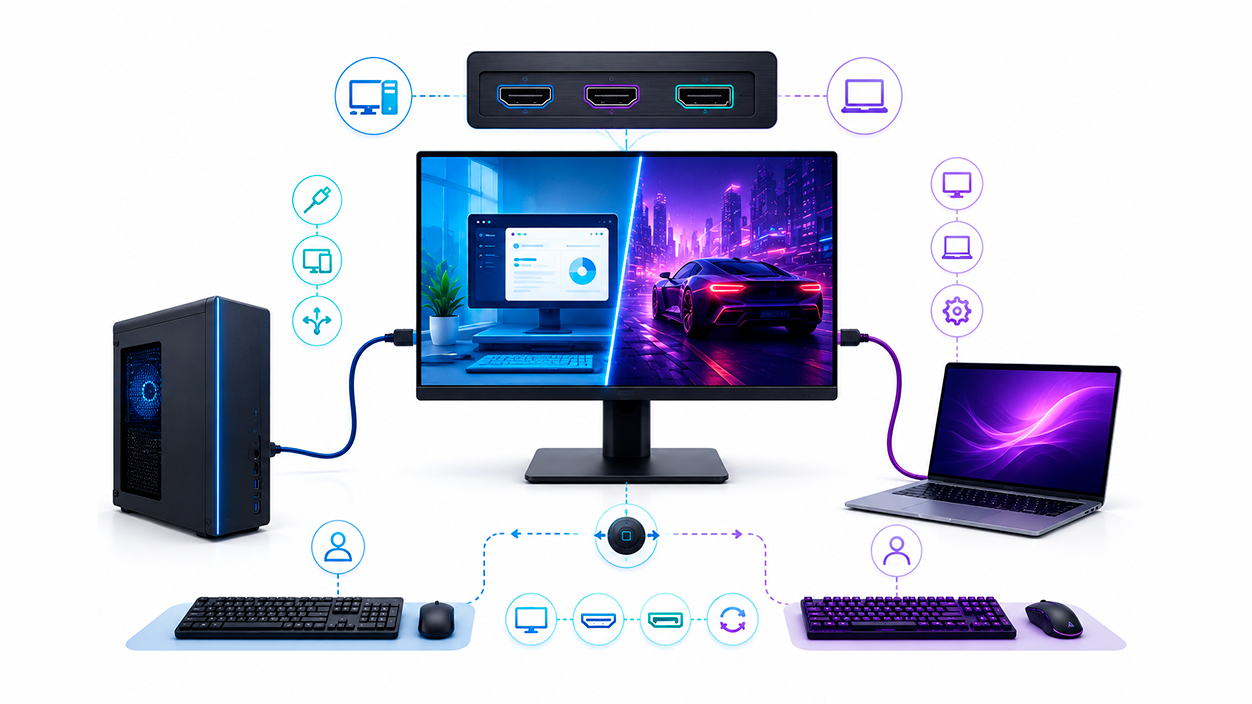
The simplest option, and one we sometimes overlook, is to look at the back of our screen. Many modern monitors come with multiple video entriessuch as two HDMI ports or a combination of HDMI and DisplayPort. If you're lucky and your monitor has these options, you can leave a PC connected to each port.
To change the image, simply use the monitor's settings menu (the source or input button) and choose the one you want to see. However, keep in mind that with this method... You will need separate peripheralsThat is, one keyboard and one mouse for each computer, unless you use a multipoint wireless keyboard.
The installation process is a piece of cake: Connect the cable from the first device to port 1 and the cable from the second device to port 2.When you turn one on, the monitor will detect the signal; if both are on, You change the font manually from the screen controls.
The KVM switch: The professional solution
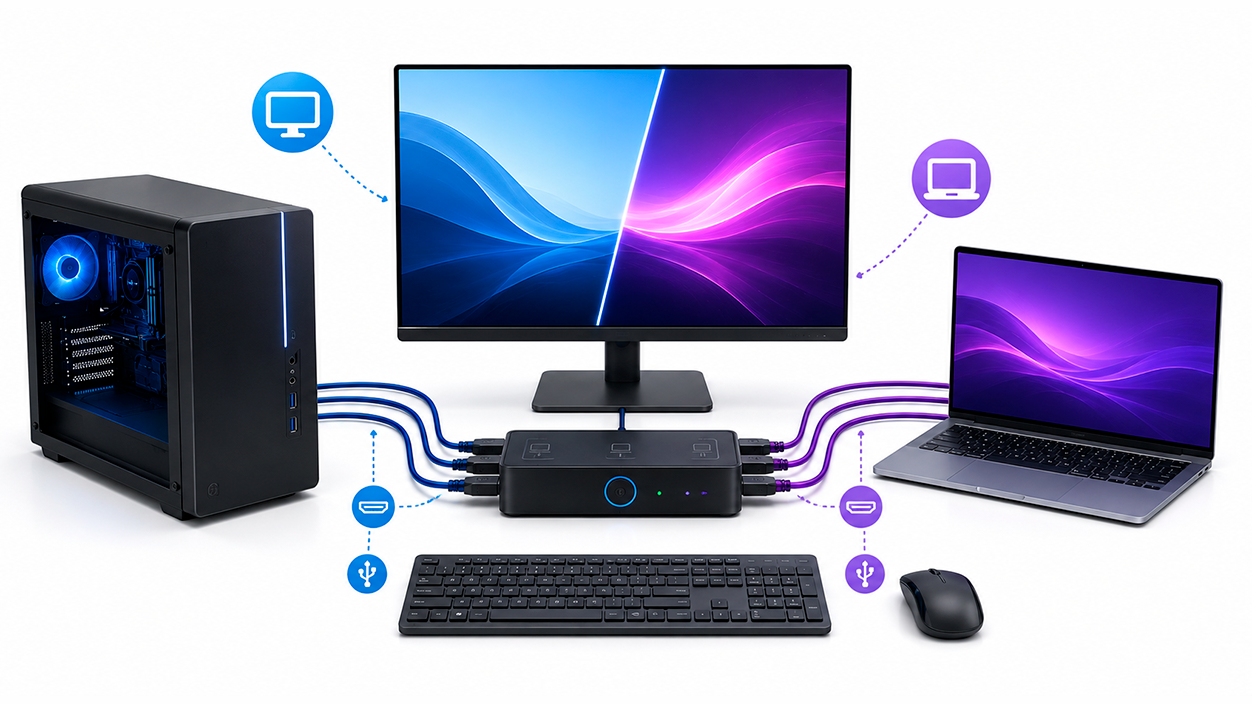
If you're looking for maximum convenience, a KVM (Keyboard, Video, Mouse) switch is your best friend. This little device is basically a central hub where you connect your monitor, keyboard, and mouse, and from there cables run to both computers. That way, with just press a physical buttonYou can instantly change the entire set of peripherals and the image from one PC to another.
One of the great advantages is that You save a lot of space. And you avoid the mess of cables. However, it's not all sunshine and roses: these devices usually require external power and, depending on the quality, can take a couple of seconds to switch signals, which is normal for most models.
To get it up and running, you must first power the KVM, connect the monitor to the main output, and then link each computer to the corresponding inputs via HDMI and USB. It is the preferred option for those who work with a company laptop and a personal PC on the same desk.
Video signal switches (HDMI Switch)
If you don't mind having two keyboards or if you use console controllers, a video signal switch is a more economical alternative to a KVM switch. Unlike a KVM switch, an HDMI switch only manages the imagenot the peripherals. It is a passive or active device that allows two video sources to reach a single monitor input.
It's an ideal solution if, for example, you want to switch between your PC and a game console on the same screen without being fighting with the cables behind the monitor. These devices are very cheap and easy to find, although remember that to control the PC you will still need the mouse and keyboard connected directly to the machine.
Installation is incredibly quick: you connect the switch's output to the monitor and the switch's inputs to your computers. Through a LED indicatorYou will always know which device is projecting the image at that moment.
Remote control via software
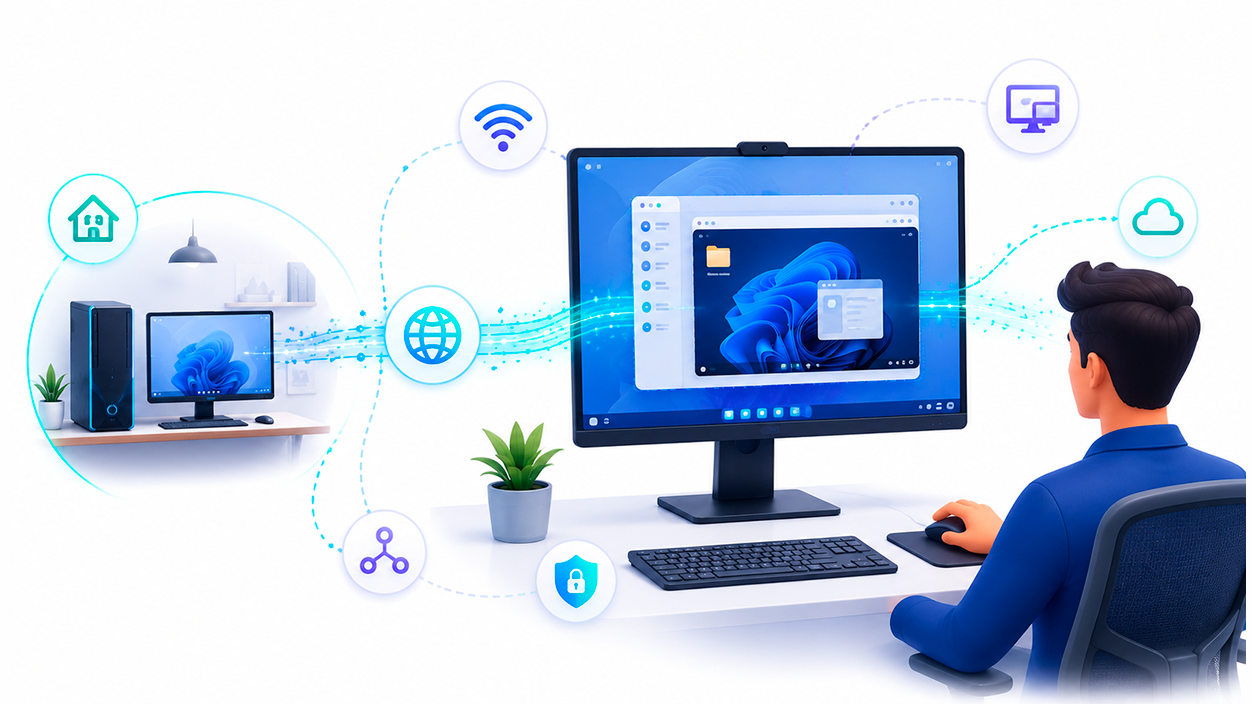
When we don't want to spend a single euro on hardware, or the teams are in separate rooms, remote desktop technology is a lifesaver. Tools like Chrome Remote Desktop, TeamViewer Microsoft Remote Desktop allows one computer to act as a client and control another (server) over the local network or the internet.
With this system, you can have the window of the second computer open on your main screen, controlling it like any other program. It's extremely useful if you only need consult specific data on the other device without changing screens, although the smoothness will depend entirely on the stability of your Wi-Fi or Ethernet connection.
To configure the Microsoft system, for example, you need to go to the system settings of the remote PC and activate the Remote Desktop switchOnce this is done, from the main PC you open the RDC application, enter the IP address of the second computer and you now have full control of the remote machine on your monitor.
There are multiple ways to manage two computers on a single screen, whether through the physical port management, the purchase of an inexpensive HDMI switch, the investment in a KVM system to share peripherals, or the use of remote control software for a fully virtual experience.


Index