- There are multiple ways to register: from the Samsung Members app and the TV menu to telephone support and postal mail.
- It is essential to have the serial number and model, adding the IMEI in the specific case of mobile devices.
- The Samsung account centralizes the management of personal data, privacy, and greatly streamlines technical repair requests.
- The B2B business channel offers additional benefits such as volume discounts, tax-deductible invoices, and free shipping.

Samsung phones offer many more customization options than those initially available in One UI. Many of these are found within Good Lock, an official application that allows you to install specialized modules to modify different parts of the system.
One of these modules is Samsung RegiStarThis tool is designed to rearrange the Settings screen, view changes made to settings, and assign additional actions to the phone's buttons and gestures. Its functionality is unrelated to product registration or Samsung warranty, despite its name potentially causing some confusion.
What is Samsung RegiStar and what is it used for?
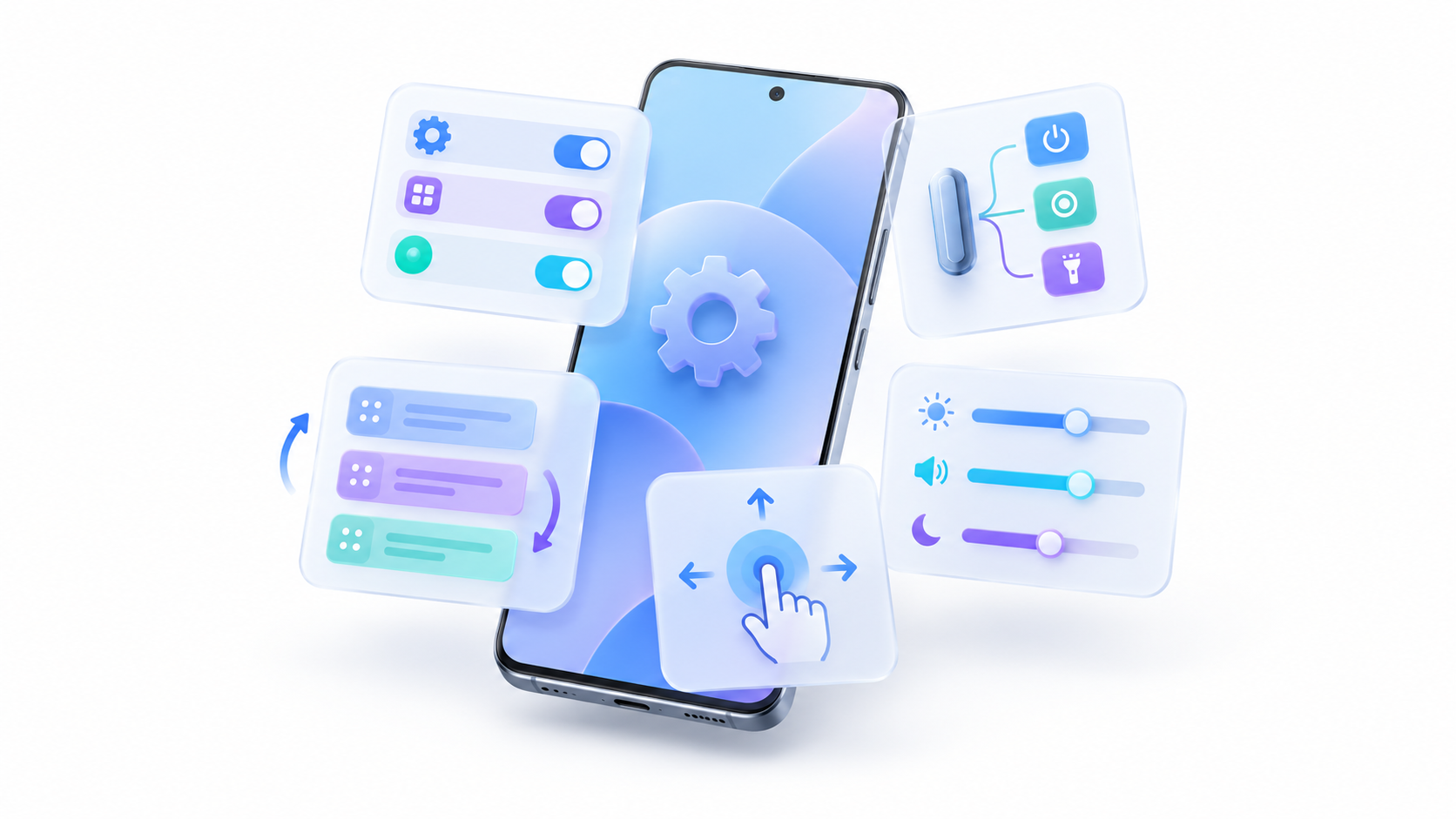
RegiStar is a official Samsung Good Lock module This expands the customization possibilities of One UI. It doesn't change the entire system's appearance, but focuses on the Settings app and certain methods of interacting with the device.
Its main functions include:
- Reorganize, group, or hide sections from the main Settings screen.
- Change how your Samsung account appears in Settings.
- Check for certain changes made in the settings.
- Assign actions to a double or triple tap on the back.
- Customize the long press of the side button.
- Use special pressure tactics on some compatible foldable Galaxy devices.
Not all of these features are available on all phones. Samsung indicates that features may vary depending on the model. Galaxy model and installed software versionFor example, Back Tap is primarily designed for certain Galaxy S and Galaxy Z Flip models.
How to install RegiStar from Good Lock
To install the module, you first need to have Good Lock on your device. You can download it from the Galaxy Store and complete the process by following these steps:
- Open the app Galaxy Store.
- Seeks Good Lock and install the official Samsung app.
- Open Good Lock and accept the initial terms and conditions.
- Locate the module Register within the list of tools.
- Press the download button located next to the module.
- Go back to Good Lock and open RegiStar to start setting it up.
If RegiStar isn't listed, check that Good Lock and One UI are up to date. It's also possible that some features aren't compatible with your model, even if you can install the module.
How to customize the main Settings screen
The function Customize your home settings It allows you to control which items appear when you open Settings and in what order they are displayed. This is especially useful if you frequently use certain options and want to avoid navigating through menus you rarely need.
From this section, you can reorganize categories, hide entries, and modify how your Samsung account information is displayed. The specific names of the options may vary slightly depending on your One UI version.
It's best to hide only sections you recognize. RegiStar modifies its appearance, but it doesn't remove functions or disable its corresponding services.
How to check the changes made to the settings
RegiStar includes a section designed to locate certain Recent configuration changesThis can be useful when a function stops behaving as it used to and you don't remember which option you changed.
This tool should not be confused with a complete log of all phone activity. Its purpose is to facilitate the location of modified settings and offer more control over notifications related to those changes.
It can help you, for example, to identify why the behavior of a connection, notification, or system function has changed after you have been testing different configurations.
How to activate rear double or triple tap

The function Back-Tap Action It allows you to perform an action by tapping the back of the phone two or three times. To configure it:
- Open Good Lock and enter RegiStar.
- Select Back-Tap Action.
- Turn on the main switch.
- Enter Double Tap o Triple Tap.
- Select the action you want to perform with each gesture.
Available actions may include opening an app, displaying notifications, accessing recent apps, or taking a screenshot. The exact catalog depends on the phone and the RegiStar version.
If you use a very thick case, the device might have difficulty recognizing impacts. Unintentional activations can also occur when you place the phone down or handle it, so it's a good idea to try different combinations before leaving the feature active.
How to customize the long press of the side button
RegiStar can also assign a function to the prolonged press of the side buttonThis allows you to quickly open an application or perform a compatible action without having to navigate through the screen.
To configure it, go to RegiStar, open the option related to the side button press, and select the desired action. Before doing so, check how this key is configured in your phone's general settings, as it might be reserved for opening the digital assistant or displaying the power menu.
The ability to modify the button again depends on the model and the One UI version. If an option mentioned in another guide doesn't appear on your device, it doesn't necessarily mean that RegiStar is malfunctioning.
Special features for foldable Galaxy phones
Some foldable models have additional options. Samsung mentions a feature called Force-Touch Action, originally designed for the Galaxy Z Fold4, which allows you to perform actions by pressing and holding a specific area of the screen.
It should not be assumed that this feature is available on all Galaxy Z Fold devices. It is recommended to open RegiStar and check the options that the module itself presents for your specific model.
Common mistakes when using Samsung RegiStar
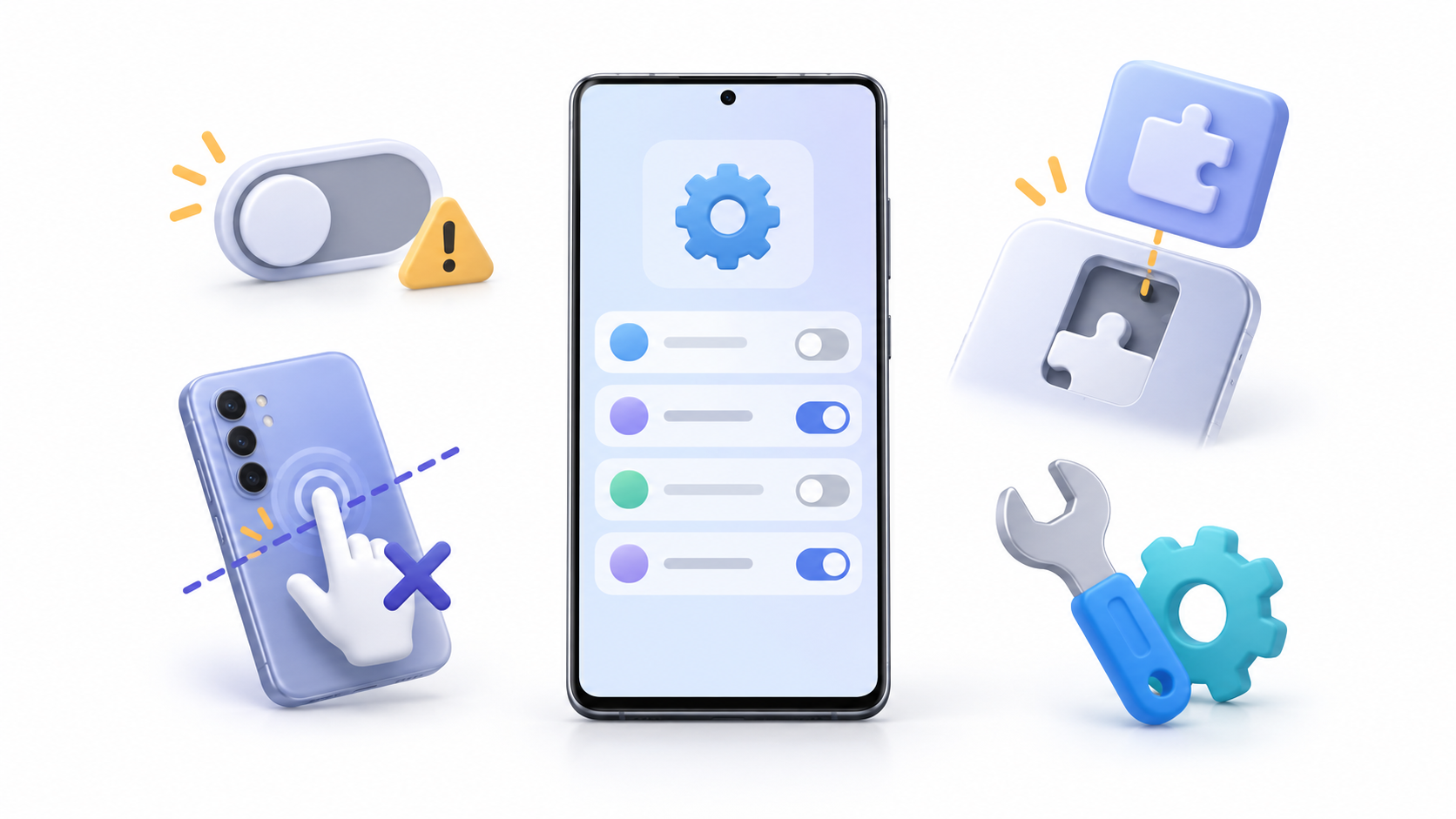
One of the most common problems is that RegiStar does not appear within Good LockIn that case, update Good Lock, the Galaxy Store, and your phone's software. If it still doesn't appear, the module may not yet be compatible with that model or version of One UI.
If Back Tap isn't responding correctly, check that the function is enabled, try it without a case, and tap firmly but moderately. You should also check the pause settings available within the module itself.
When the gesture is accidentally activated, change the double-tap action to a less problematic one or use the triple-tap, which is usually harder to perform unintentionally.
If long-pressing the side button continues to open the wizard or shutdown menu, check both the RegiStar settings and the option Side button included in the general settings of One UI.
After a major system update, some options may temporarily disappear or become unresponsive. Update Good Lock and RegiStar, restart your phone, and check if Samsung has released a version compatible with the new One UI.
Samsung RegiStar is a particularly useful tool for those who want to go beyond the basic customization of One UI. The ability to rearrange Settings, view recent changes, and assign actions to gestures or buttons allows users to adapt their phone to their workflow, keeping in mind that its availability depends on the model and the installed software.
Index
- 1 What is Samsung RegiStar and what is it used for?
- 2 How to install RegiStar from Good Lock
- 3 How to customize the main Settings screen
- 4 How to check the changes made to the settings
- 5 How to activate rear double or triple tap
- 6 How to customize the long press of the side button
- 7 Special features for foldable Galaxy phones
- 8 Common mistakes when using Samsung RegiStar

I am a technology enthusiast who has turned his "geek" interests into a profession. I have spent more than 10 years of my life using cutting-edge technology and tinkering with all kinds of programs out of pure curiosity. Now I have specialized in computer technology and video games. This is because for more than 5 years I have been writing for various websites on technology and video games, creating articles that seek to give you the information you need in a language that is understandable to everyone.
If you have any questions, my knowledge ranges from everything related to the Windows operating system as well as Android for mobile phones. And my commitment is to you, I am always willing to spend a few minutes and help you resolve any questions you may have in this internet world.