- Windows voice dictation often fails due to microphone permissions, incompatible language, or misconfigured privacy and group policies.
- Word and Microsoft 365 may have specific dictation errors that can be resolved by checking language, permissions, organizational policies, and repairing Office.
- The stability of the dictation also depends on a reliable internet connection and a clean audio environment, with a well-adjusted microphone.
- Dedicated AI-powered dictation tools offer a more consistent and adaptable experience than the dictation systems integrated into each platform.
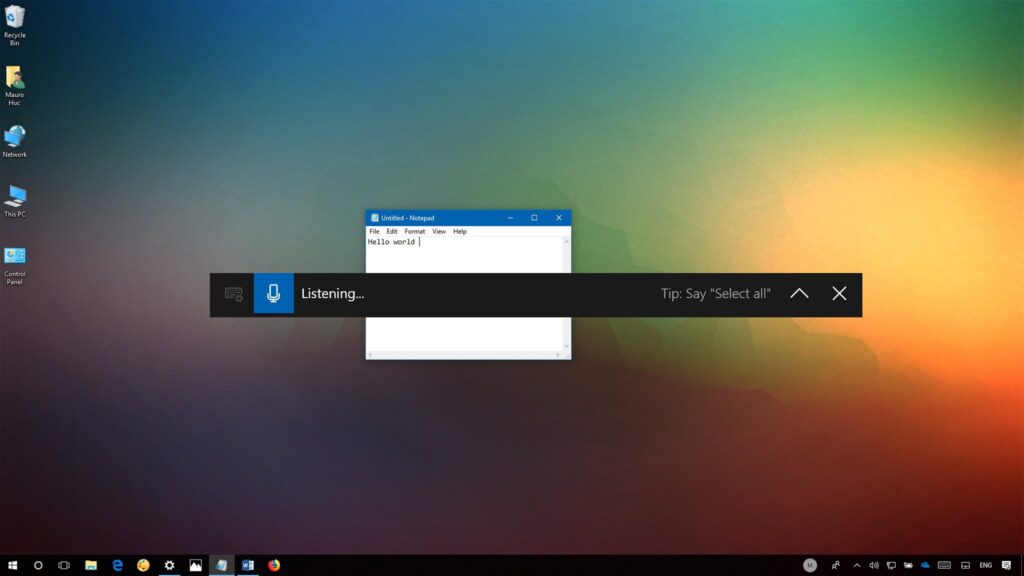
When Windows voice dictation isn't workingThe first thing we notice is that everything slows down: writing emails, drafting papers, or taking quick notes becomes an ordeal. Even if the microphone seems to work perfectly in other applications, Windows, Word, or Office may refuse to transcribe what you say and display error messages that aren't always clear.
The good news is that It's almost always a configuration errorMicrophone permissions, unsupported language, network issues, organizational policies, or even a corrupted Office installation. In this guide, you'll find everything you need, clearly explained, to identify the cause and apply the appropriate solution. Windows 10 and Windows 11 as in Microsoft 365, Word, and other apps.
Basic checks when Windows dictation is not working
Before getting into advanced changes, it's advisable review some simple details who are usually the ones responsible for the dictation not responding or not transcribing anything.
- Make sure Windows is using the correct microphoneIt's quite common to have multiple input devices (built-in microphone, USB headset, Bluetooth headphones, etc.) and for the system to be listening through the wrong one. To check this in Windows 10 or 11, do the following: select Home > Settings > System > Soundgo to the section Entrance And check which microphone is selected. If you're using an external one, choose that device and verify that the input level bar moves when you speak.
- If you are using an external microphone (USB, jack or Bluetooth), confirm that it is properly connectedthat the cable is not loose and that the device is turned on or properly paired. On laptops, headphone/microphone connectors can malfunction if the jack is not fully inserted. If you don't have an external microphone, you can also use your mobile phone as a microphone.
- To rule out physical problems, test the microphone in other applicationsFor example, in Teams, Discord, Google Meet, or the Windows Voice Recorder app, or check solutions when a The website does not detect the microphone.If they can hear you there and the recording sounds fine, the problem is almost certainly in the Windows settings, permissions, or the Office app itself.
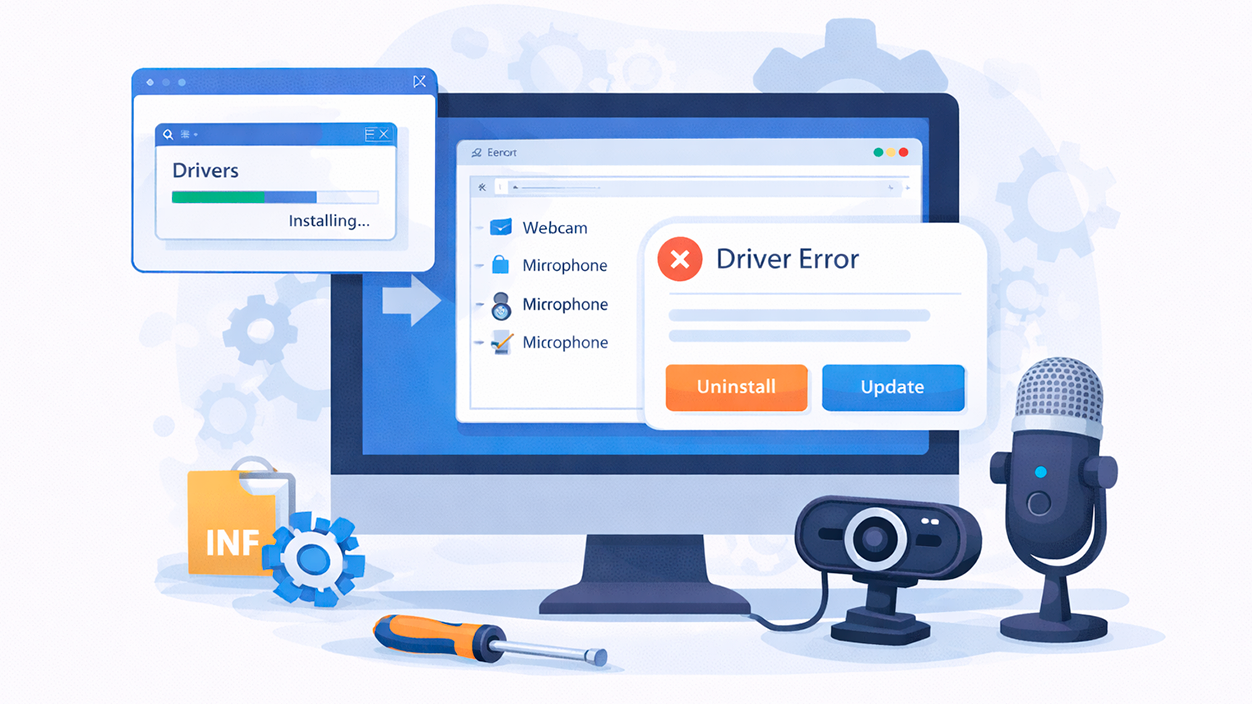
Microphone permissions and privacy in Windows
One of the most common reasons why voice dictation doesn't work is that Windows doesn't allow applications to do so. use the microphone due to privacy settings.
In Windows 11
Go to Settings > Privacy and security > MicrophoneCheck that the option Microphone access is activated for the device and that switch Allow apps to access the microphone It's also on.
Below you'll see a section dedicated to desktop applications (like Microsoft Office). Make sure the box is checked. Allow desktop applications to access the microphone It is enabled because Word, Excel, and PowerPoint depend on that option to be able to use dictation.
In Windows 10
The route is very similar: enter Settings > Privacy > Microphone and verify that both general access and access to desktop apps are allowed. If you change anything, close Word or Office completely and reopen them.
If when using dictation you see a message like “Voice typing requires microphone access. You’ll need to enable this in the settings to use voice-to-text,” is a clear indication that the solution lies in this privacy setting. To check for input, learn how to hear your own voice into the microphone.
Language problems and dictation compatibility
Another classic: Windows dictation or Word dictation is not available in your current language.This causes errors such as "Voice dictation is not available in the current language" or blocks Windows speech recognition.
Windows requires that the input language, system language, and speech language be compatible. with cloud-based dictation services. If there's an unusual mix of regions and languages, the service may refuse to start.
In Windows 11, go to Settings > Time & Language > Language & Region And check which language is set as default. If you want to use Spanish dictation, it should be Spanish (Spain) or the appropriate variant. If you don't see the language you need, add it and download the voice components.
In some cases It is necessary to install the speech recognition packageWhen adding a language, select the options for voice or “enhanced speech recognition” if available, as they improve accuracy and prevent compatibility errors.
In Windows itself You can quickly switch the input language Use the Windows key + spacebar combination and choose the correct language before you start dictating. If you speak in Spanish but the system is listening in English, the transcription will be a disaster or it simply won't understand anything.
When the text does not appear when speaking or is misspelled
There are situations where dictation seems to activate, the microphone icon appears, but when you speak nothing is written on the screen or the words that appear do not resemble what you say at all.
- If no text appears after speakingFirst, check your microphone's input level. In Settings > System > Sound > Input, select your microphone and adjust the volume or gain. You should see the indicator move when you speak at a normal tone. If you don't see it, learn how to hear your voice on the microphone.
- When the laptop's built-in microphone doesn't perform wellIt might be worth trying a headset with a microphone or a USB microphone. They usually pick up your voice more clearly and reduce the background noise that so often confuses voice recognition.
- If the words are transcribed incorrectly or with too many errorsTry dictating in a quieter environment and confirm that the selected language is correct. Remember that you can switch languages with Windows + Spacebar just before you start speaking.
Many inaccuracies are due to background noise, echo, or speaking too quickly. Speaking clearly, at a steady tone, and with natural pauses greatly improves the accuracy of the speech recognition engine, both in Windows and in Word or other apps.
Internet connection and cloud dictation errors
Modern Windows 10/11 dictation and Microsoft 365 dictation They depend on cloud-based servicesIf your internet connection is unstable or Windows thinks you're not connected, errors will appear even if you can browse normally.
If you have already run the internet connection troubleshooter and you have reset the network from Network and Internet > Advanced network settings > Reset network If that doesn't work, try some additional steps: change Wi-Fi networks, use a wired connection, or share your mobile internet to rule out a router blockage.
Sometimes the problem lies in How Windows validates access to Microsoft serversAn aggressive firewall, antivirus, or VPN can block the specific communication used by dictation, even if other websites are working.
If you suspect your network securityTemporarily disable your third-party antivirus or firewall and try dictation again. If it works, create an exception for Microsoft services and Office applications instead of blocking them permanently. If you need to dictate offline, see how. use offline voice access.
Dictation in Microsoft Word and Office: when it only fails there
It's not uncommon for the microphone to work perfectly in TeamsDiscord or the voice recorder, but that the dictation button in Word, Excel, or PowerPoint remains silent, without detecting the voice or showing activity on the level bar.
In these cases, the first thing to do is confirm that Office has microphone access permission as a desktop app, as we saw in the privacy section. If that's okay, the next step is to check the language settings in Word and in your Microsoft 365 account.
Word dictation uses Microsoft 365 cloud servicesTherefore, in addition to Windows settings, it also depends on whether your subscription is active, whether the region is compatible, and whether the language is one of those supported for dictation. It's also advisable to check the voice recognition and its adjustments.
If the problem occurs only in Word and not in other desktop appsTry starting Word in Safe ModeTo do this, close Word, press Windows + R, writes winword /safe and press Enter. This temporarily disables the plugins and lets you see if any are interfering.
Troubleshooting with built-in Windows tools
Windows includes several problem solvers which, with a bit of luck, can detect conflicting settings related to audio, recording, or voice.
In Windows 11 you can go to Settings > System > Troubleshooting > Other troubleshooters and execute those related to Audio recording or with the part of VoiceThese assistants check drivers, services, and basic parameters.
You can also go to Settings > Accessibility > Voice and review the options of Windows speech recognitionFrom there, you can launch the dedicated speech recognition troubleshooter, which checks language, microphone, and compatibility. If you need further guidance, see how. configure the voice assistant.
If, when activating Windows speech recognition, you receive a message that the language settings are not supported, return to the section of Language and regionMake sure the voice language is supported and that the necessary packages are installed.
In some cases, a simple Restart of audio services or the team itself after running these solvers can make all the difference and bring dictation back to life.
Update, repair, or reinstall Microsoft Office
When everything seems fine at the Windows level but Word or Office dictation still isn't working, it's time to look directly at the Office installation.
First, Make sure you have Office updated.Open any Office app (for example, Word), go to File > Account > Update Options and select Update nowOlder versions may have compatibility issues with dictation services.
If after updating you're still having the same problemConsider running an Office repair from the Control Panel > Programs > Programs and FeaturesSelect Microsoft Office, press on Change and choose the option Fix (This may be a quick or online repair, depending on the version).
In more serious cases, where the installation is severely damaged, The solution involves completely uninstalling and reinstalling Office. Before doing so, make sure you have your Microsoft 365 credentials and installation methods handy.
Remember that The version of Office also mattersOlder or non-subscription editions may not have the cloud dictation feature or may have it very limited compared to Microsoft 365.
Windows 11 Integrated Dictation: Activation and Recommended Use
In Windows 11, voice dictation has improved considerably. compared to previous versions, including features such as automatic scoring which places commas and periods according to your pauses and intonation.
To activate dictation in any text fieldYou just have to press Windows + HA small floating window will open at the top of the screen with the microphone button and settings options.
From the settings gear in that window you can turn the on or off automatic scoring and configure the dictation initiator so that it appears when you place the cursor in text boxes. You also have other behavior parameters according to your preferences.
Windows 11 dictation works in almost any application where you can type: Word, browsers, messaging, email, etc. Simply place the cursor and start speaking when the microphone is active. In addition to dictation, there are voice commands tools that complement the workflow.
To get the most out of it, it's recommended to use a good quality microphone.Speak clearly and work in a relatively quiet environment. The cleaner the audio signal, the fewer transcription errors you'll have.
Practical tips for improving the reliability of voice dictation
Beyond the technical adjustments and repairs, there are a number of practical recommendations which help make Windows and Office voice dictation much more reliable on a daily basis.
- Use the quietest environment possibleVoice recognition systems work much better when background noise is minimal. Avoid loud music, television, or nearby conversations while dictating.
- Speak at a moderate pace, enunciating clearly.If you speak too fast or omit syllables, the system will have more difficulty distinguishing the words, a problem exacerbated by low-quality built-in microphones.
- Rely on automatic scoring when availableBut don't hesitate to check the text afterward. Although the system detects many pauses and intonations, it doesn't always get commas and question marks perfectly.
- Periodically check your language and microphone settingsThis is especially common after major Windows or Office updates. It's very common for some preferences to change or be reset without you noticing.
- If the dictation fails again and again Even if you have everything set up correctly, consider combining the built-in dictation with a dedicated AI dictation tool to have a more robust and adaptable plan B for your workflow.
With a good combination of correct settings, well-configured permissions, and careful usage habits.Windows and Microsoft 365 voice dictation can become a very powerful tool for saving time, improving accessibility, and making writing long amounts of text much more manageable.


Editor specialized in technology and internet issues with more than ten years of experience in different digital media. I have worked as an editor and content creator for e-commerce, communication, online marketing and advertising companies. I have also written on economics, finance and other sectors websites. My work is also my passion. Now, through my articles in Tecnobits, I try to explore all the news and new opportunities that the world of technology offers us every day to improve our lives.