- To share an album with someone who uses Ente Photos, invite them by email and choose whether they can only view the photos, add their own, or manage the album.
- If the other person doesn't have Entity, you can send them a link. Anyone who gets that URL will be able to open the album, so it's a good idea to protect it with a password and an expiration date.
- In a collaborative album, each participant uses their own quota when uploading photos. If you allow contributions via a public link, those photos will use up space in your account.

Sharing photos from a trip or a family gathering should be simple, but it's also important to know who can see them and who can add new ones. Ente Photos allows you to create shared albums with end-to-end encryption, both for people who already use the application and for those who will only receive a link.
The two methods don't offer exactly the same control. In this guide we'll see How to share an album on Ente Photos, what permission to choose for each guest and what you should keep in mind before sending a public link.
How to share an album with another Ente Photos account
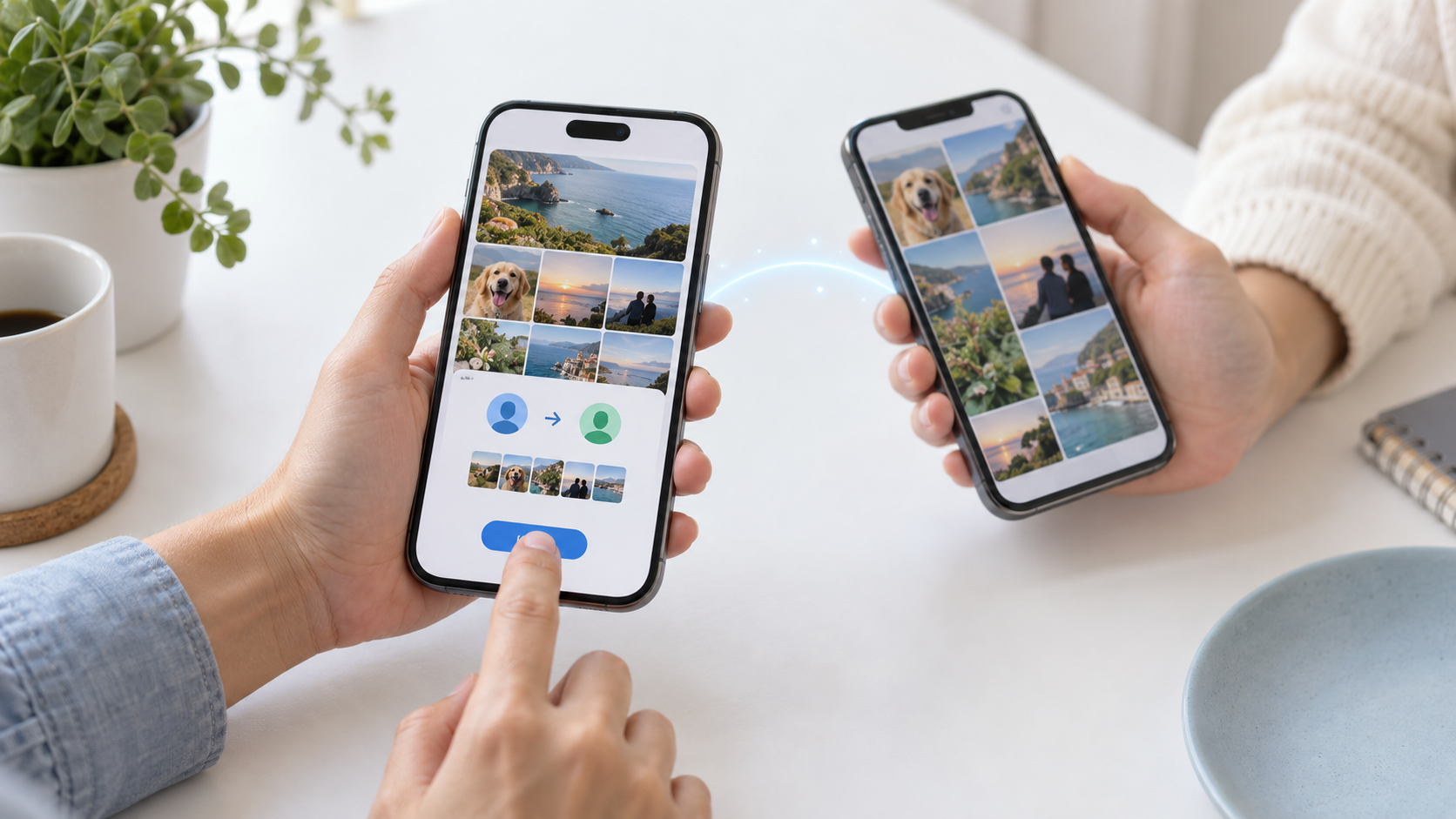
If the other person also uses Entity, the most appropriate thing to do is invite her directly to the album using her email addressThis way, you will access it from your account and you can decide what to do with the photographs.
- Open Ente Photos and go to the album you want to share. If it doesn't exist yet, create one and add the corresponding photos.
- Tap the icon of Share located within the album.
- Choose the option for share with Entity users and enter the email address of the invited person.
- Select your permission: reader, contributor, or administrator.
- Send the invitation. The other person will be able to open the album from their Ente account.
You don't need to share your entire photo library to show images from an event. The recipient accesses the album you have selected The new photos you add to it will be saved there, but not to the rest of your private albums.
What permissions should you give to each participant?

Choosing the correct permission prevents a reference album from becoming a space where anyone can modify its contents:
- Reader: You can view the photos, download them, comment on them, and save copies to your own albums, but you cannot add files to the shared album.
- Collaborator: In addition to the above actions, he can upload photos and videos, as well as remove files that he himself has contributed.
- Administrator: This feature can help manage participants and remove photos from the album, including those contributed by others. Reserve this permission for someone you trust.
To organize photos from a trip with friends, it's common to give each participant permission to collaboratorThis way everyone can contribute their images without gaining management rights to the album.
The storage used by each file is deducted from the fee of the person who uploaded itFor example, if a friend adds their photos to your collaborative album, those images don't automatically use up your available space.
How to share photos with someone who doesn't have Entity
If the recipients don't want to create an account, you can generate a public linkOpen the album, press ShareSelect the option to create a link and copy it to send it via your preferred method. You can also select specific photos and use the link sharing function without first creating a traditional album.
Although the content remains encrypted, there is an essential nuance: Anyone with the link will be able to open the photographs.The key needed to view them is part of the URL itself. Therefore, do not post it in public spaces or forward it to larger groups than intended.
Before sharing it, go into the link management settings and consider these options:
- Password: It adds an additional access control. It's best to communicate this through a different channel than the one used to send the link.
- Expiration: This causes the link to stop working after the set time limit.
- Device limit: It restricts the number of accesses, although it does not necessarily equate to the number of people.
- Downloads: You can hide the option to download originals, but this doesn't prevent someone from taking a screenshot.
Ente allows you to create public links even with the free plan, although it currently applies a limit of ten devices to these links. If you need to share the album with many people, check the terms of your plan.
How to let others add photos to the album
You have two options. If everyone uses Entity, invite them as collaboratorsIt is the most organized option for a stable group: each person accesses from their account and their contributions count towards their own storage quota.
If some participants don't have an account, create one. link to collect photos By activating the option that allows adding images, anyone with that link can contribute from their browser. In this case, there is an important difference: Photos uploaded via the link consume space in the account that owns the album..
When the event is over, review the content and disable new contributions, set an expiration date, or delete the link. This will prevent it from continuing to circulate and receive files when it's no longer needed.
How to save photos from a shared album and revoke access
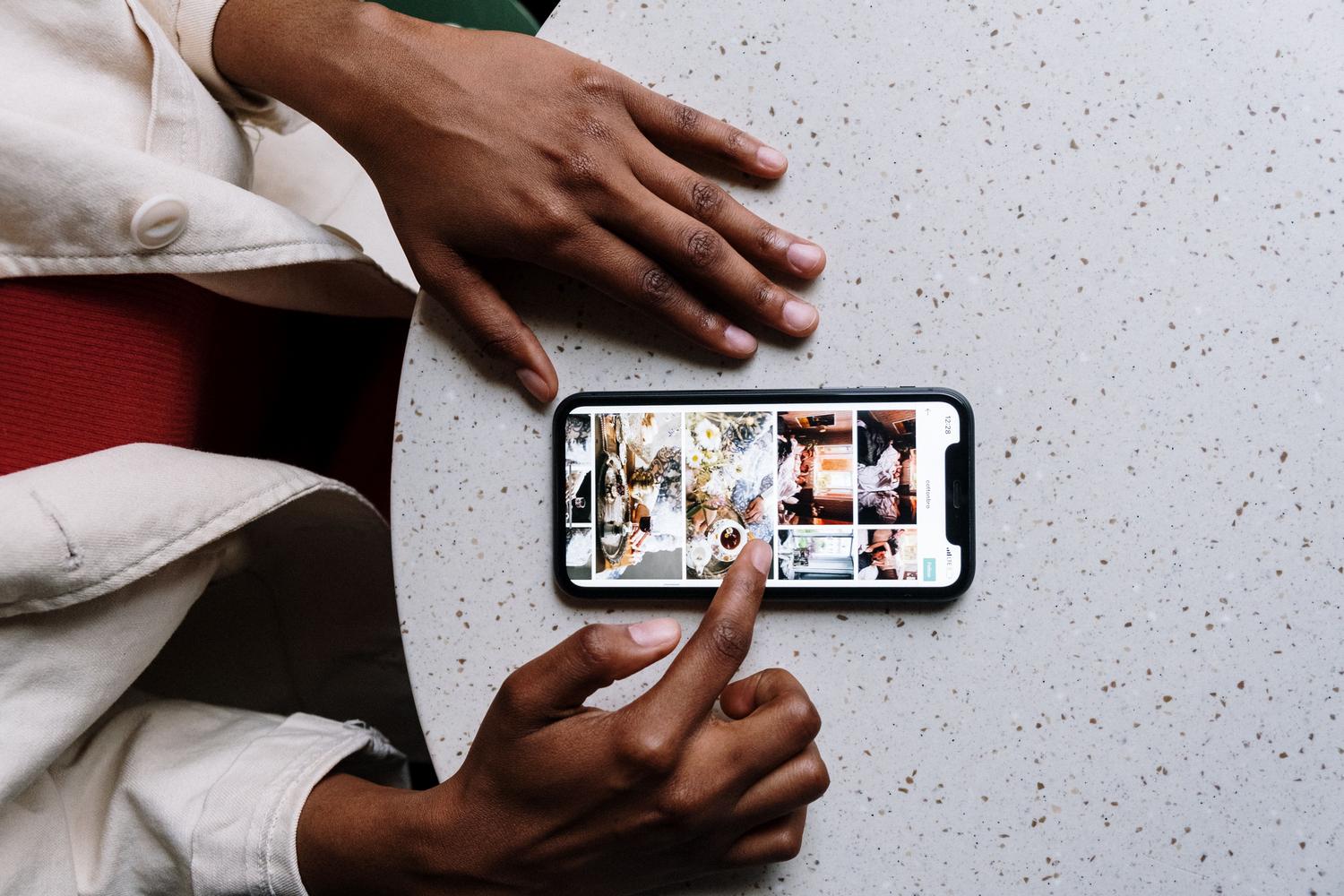
Viewing someone else's album doesn't mean their photos become yours. If you want to keep an image even after its owner stops sharing it, add it to one of your albums. This will create a copy under your control which will count towards your storage space. If you don't save it, you could lose access when the album is deleted or you stop participating in it.
As the owner, you can review who has access to the album and modify permissions or remove participants. If you shared it via a link, you can change its terms or delete it to prevent further access.
Revoking access does not recover files already downloaded by other people. That's why it's a good idea to select photos before sharing them and treat public links as invitations that can be forwarded.
Sharing with family is not the same as sharing the plan
Ente's family plans allow you to share the rented space with up to five additional family members, but Each account maintains its own private gallerySubscribing to the plan does not make your photos visible to other members.
If you want a family member to see specific albums, share them as explained. In the compatible iOS and Android versions, you can also access... Settings > FamilyChoose a member and select the albums you want to share. There's also an option to automatically share new albums you create. Before enabling it, check the exclusions and make sure you really want to expand that access.

Ente Photos offers several ways to gather memories while keeping them secure. The practical choice is simple: Invite via email those who already use Ente and need specific permissions; use links for recipients without an accountAdding expiration dates and passwords when photos are private. And, if other people contribute images, check who will be responsible for the storage space they occupy.

Index
- 1 How to share an album with another Ente Photos account
- 2 What permissions should you give to each participant?
- 3 How to share photos with someone who doesn't have Entity
- 4 How to let others add photos to the album
- 5 How to save photos from a shared album and revoke access
- 6 Sharing with family is not the same as sharing the plan