- Only the host needs to purchase, install, and run the compatible game on their computer.
- Steam transmits video and audio while returning control of each guest to the host.
- Four players can participate, or even more when the game and connection allow it.
- An Ethernet connection and reducing the resolution help avoid buffering, pixelation, and latency.
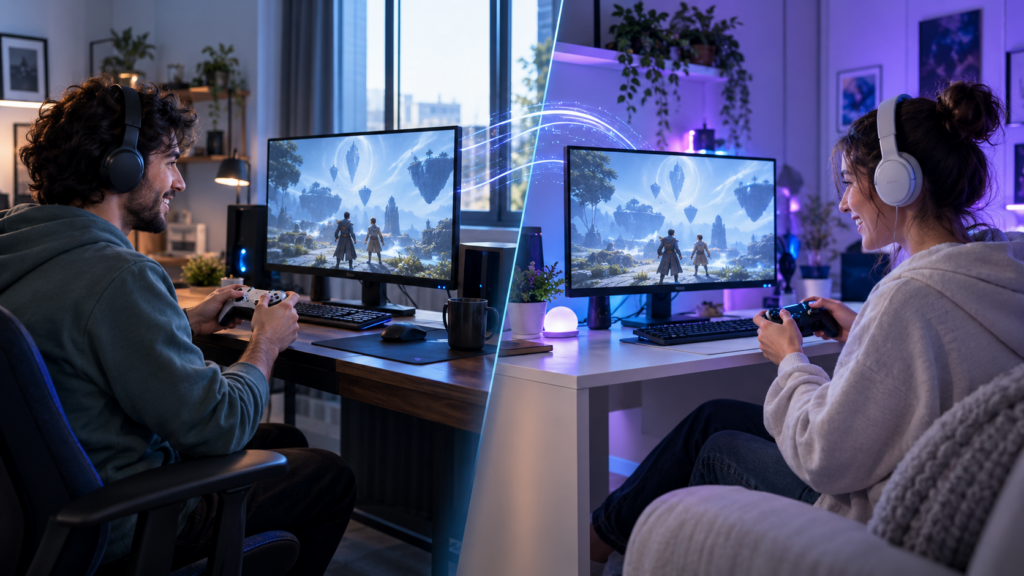
The games with local multiplayer They are designed to bring several people together in front of the same screen. However, it's not always possible to share a sofa, computer, or console with the friends you want to play with.
Steam Remote Play Together It allows you to bring that experience online. The host runs a compatible game on their computer, while guests receive the image and sound and send commands from their controllers, keyboard, or mouse.
In this way, you can play online games that only offer local multiplayerFurthermore, guests do not need to purchase or install the game, as everything runs and is processed on the host's computer.
What is Steam Remote Play Together and how does it work?
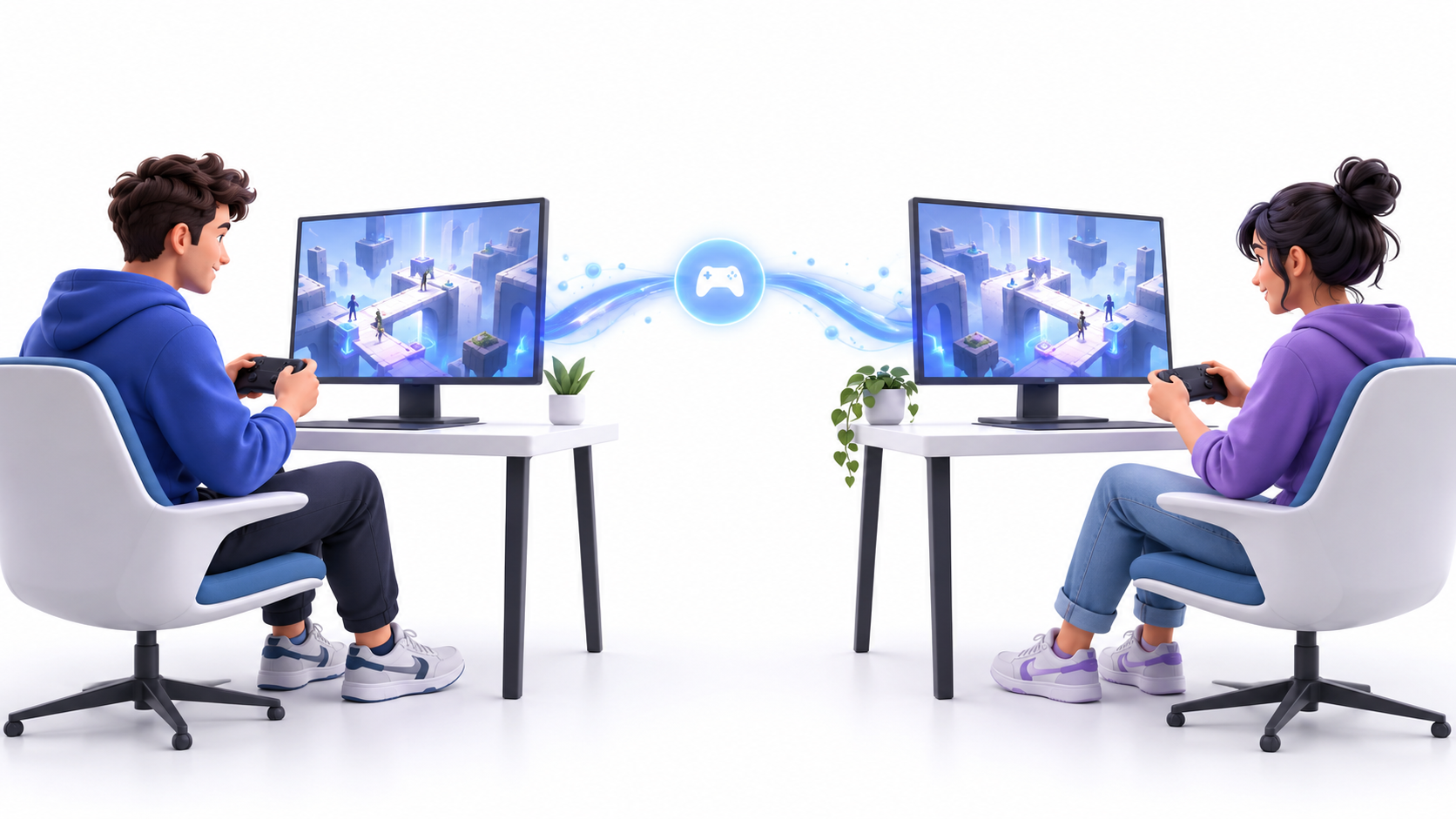
Steam Remote Play Together is a feature that turns the local multiplayer of a game in an online experienceOne of the players acts as the host, runs the game, and streams the game to the other players.
It doesn't create a virtual LAN or modify the game's internal workings. Steam uses its streaming technology to send video, audio and voice communications to the guests. The presses of their controllers or peripherals are returned to the host computer practically in real time.
During the session, guests can only see the streamed game. The host's desktop, windows, and other private content are not visible. They do not appear in the broadcast.
This feature should also not be confused with conventional Remote Play. The latter allows you to run your own games from another computer, mobile phone, tablet, or television. Remote Play Together, on the other hand, is designed so that several people participate in the same local game from different locations.
What you need before starting a game
To use this feature, you must have a game that explicitly states its compatibility with Remote Play TogetherYou can check this on the title's page within the Steam store or in your library filters.
You must also meet these requirements:
- Have an updated version of Steam client.
- Have a sufficient upload speed connection on the host computer.
- Use a computer capable of running the game and simultaneously encoding the transmission.
- Connect the controllers, keyboard, or mouse that each participant will use correctly.
- Keep Remote Play features enabled in Steam settings.
The host is the only person who needs buy, download and install the gameThe other players connect to the streamed session, so they don't need to have another copy in their library.
How to use Steam Remote Play Together step by step
To start a shared game, follow these steps:
- Open Steam on the computer that will act as the host.
- Go into your library and launch a compatible game Remote Play Together.
- Access the Steam interface by pressing Shift + Tab.
- Open your friends list and find the person you want to invite.
- Right-click on their name and select Invite to Remote Play Together.
- Wait for the guest to accept the request and the transmission to be established.
- Assign the necessary controls from the Remote Play panel.
- Return to the game and configure local players from your multiplayer menu.
If the Shift + Tab combination does not open the interface, check if the Steam Overlay is not working or it's disabled for that game. Without the overlay interface, managing invitations and permissions can be more difficult.
Users of compatible mobile devices can also accept invitations via the Steam Chat app. The game then opens in Steam Link, from where they can connect to the host computer.
How to configure the controllers, keyboard, and mouse

Each player can use their own controller, provided Steam and the game recognize it correctly. This is usually the most comfortable setup for cooperative games, fighting games, and split-screen matches.
The host can open the Remote Play panel to grant or withdraw entry permitsFrom there it is possible to decide who can use a controller, keyboard or mouse.
Although Steam allows keyboard and mouse sharing, both peripherals behave as shared devices. This means that two players could potentially press the same keys or interfere with each other. Whenever possible, it's best if each guest uses their own keyboard and mouse. an independent controller.
Steam only transmits the controls to the host computer. The assignment of characters, profiles, or local players remains dependent on the game itself. For example, a split-screen title might require each person to press a button to join, as happens when configuring the split screen in Rocket League.
How many people can play at the same time?
Steam indicates that they can participate up to four players via Remote Play Together. With sufficiently fast connections, certain games and equipment can support even more participants.
However, the actual limit also depends on the number of local players supported by the game. If a title only offers multiplayer for two people, Remote Play Together It will not add additional places.
You should also consider the number of compatible controllers and the capabilities of the host computer. The more guests there are, the greater the encoding load and the bandwidth required to maintain a stable stream.
How to reduce lag and improve quality
Performance depends primarily on the host's computer and internet connection. Since the game runs on their computer, it must process the game, encode the image, and simultaneously receive commands from the guests.
To reduce latency and dropouts:
- Connect the host computer to the router using Ethernet cable.
- Avoid downloads, backups, and streaming while you're playing.
- Use a 5 GHz or higher Wi-Fi network when you can't use a cable.
- Reduce the resolution and transmission quality from the Remote Play parameters.
- Limit the frame rate if the computer cannot encode stably.
- Close applications that are unnecessarily consuming CPU, GPU, or bandwidth.
A high download speed alone does not guarantee a good experience. The host especially needs a stable rise speed, while guests must maintain a low-latency connection.
If the image is pixelated but the controls respond correctly, you probably lack bandwidth. If the image is sharp but actions are slow to appear, the problem is usually related to the connection latency.
Common errors in Steam Remote Play Together
If you don't see the option to invite another player, first check that the game displays the Remote Play Together label. Not all titles with local multiplayer automatically support this feature.
These are other common problems:
- The invitation is not appearing: Restart Steam, update the client, and check the game's compatibility.
- The guest sees a black screen: Change the game's display mode and update your graphics drivers.
- The remote control is not responding: Check the login permissions and verify that Steam recognizes the device.
- Two players control the same character: Reassign the controllers from Steam and from the game menu.
- The session is disconnected: It reduces transmission quality and prevents saturated Wi-Fi connections.
- The sound doubles: mute the shared broadcast or adjust the voice chat used.
Firewalls, antivirus software, and restrictive router settings can also prevent a connection from being established correctly. Before disabling any protection, check that Steam has the necessary settings. network permissions required and restart both clients.
Differences compared to Steam Families and local transfers
Remote Play Together is not for permanently lending a game or copying its files to another computer. Its purpose is to allow multiple people to participate in the same session executed by the host.
The main differences are:
- Remote Play Together: stream a local game to play together over the Internet.
- Remote Play: It allows a user to play from another of their devices.
- Steam Families: Share compatible games between authorized members of the same household.
- Local network transfer: Copy installation files between devices connected to the same network.
If you're looking to lend games to someone else to play separately, you should check out the options for Share games on SteamRemote Play Together keeps all participants within the same game.
This separation avoids confusing three different needs: sharing a library, transferring a facility, and play a game together with local multiplayer.
What to do if the game does not support Remote Play Together
If the title is not compatible, first check if it has native online multiplayer. In that case, each participant will typically need their own copy and will have to use the invitation system included in the game.
Another option is to use a remote streaming application that supports multiple controllers. However, these tools require additional setup and don't necessarily offer the same integration with your Steam library, controllers, and friends list.
Applications that create a virtual private network are only useful when the game incorporates a real LAN modeThey do not stream the game or replace the purchase of the title, so each player must install a copy and meet its corresponding license requirements.
Traditional remote desktop programs are also generally unsuitable for gaming. While they allow you to control another computer, their latency, peripheral management, and image compression are primarily geared towards productivity tasks.
Steam Remote Play Together It's the most direct way to remotely recreate the local multiplayer experience. The host runs a single copy, guests provide their controllers, and Steam handles the streaming.
A good internet connection, properly assigned controllers, and a compatible game are essential for a stable session. If problems arise, checking the overlay, input permissions, and streaming quality usually resolves most issues.

I am a technology enthusiast who has turned his "geek" interests into a profession. I have spent more than 10 years of my life using cutting-edge technology and tinkering with all kinds of programs out of pure curiosity. Now I have specialized in computer technology and video games. This is because for more than 5 years I have been writing for various websites on technology and video games, creating articles that seek to give you the information you need in a language that is understandable to everyone.
If you have any questions, my knowledge ranges from everything related to the Windows operating system as well as Android for mobile phones. And my commitment is to you, I am always willing to spend a few minutes and help you resolve any questions you may have in this internet world.