- Checking physical connections, compatibility, and drivers allows you to rule out most camera and microphone failures in Windows.
- Privacy settings and per-app permissions often block camera and microphone access in Windows 10 and 11.
- Many errors are due to software conflicts (antivirus, voice changers, browsers) rather than hardware failures.
- Testing the device on other computers helps determine if the camera or microphone needs to be replaced.
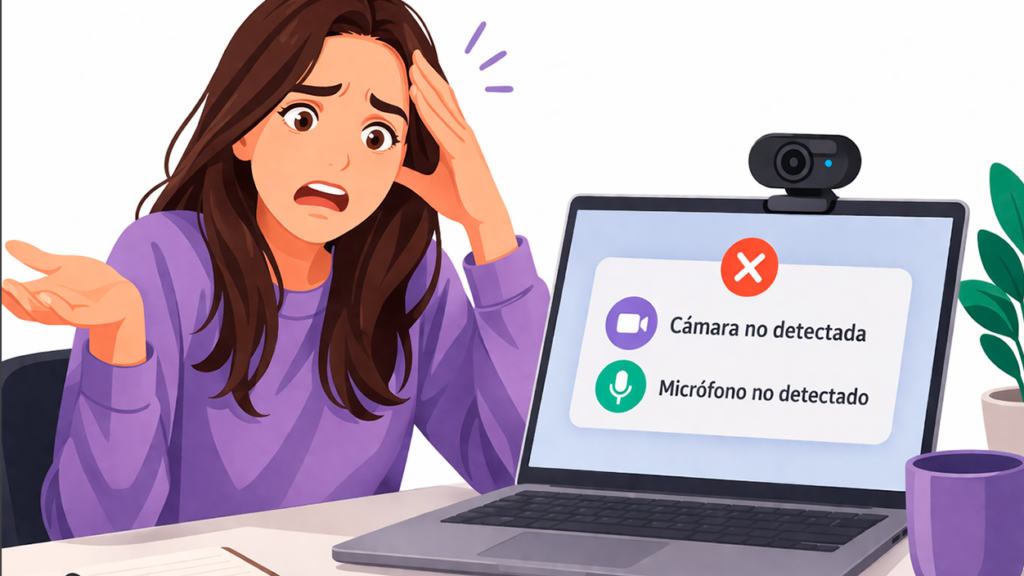
When suddenly Windows stops detecting the camera or microphoneJust before an important video call or an online game, the situation can be a real headache. Often the system displays confusing messages, such as driver errors or privacy notices, and It feels like nothing we do is worthwhile. to fix it.
In this article you will find a guide complete and detailed for diagnosing and solving Camera and microphone problems in Windows 10 and Windows 11, including rare cases such as webcams that freeze during startup, apps like Windows Camera that repeatedly ask for microphone permissions, or browsers like Chrome that don't recognize the microphone even though it works perfectly in Discord.
Typical problems: what's really going on
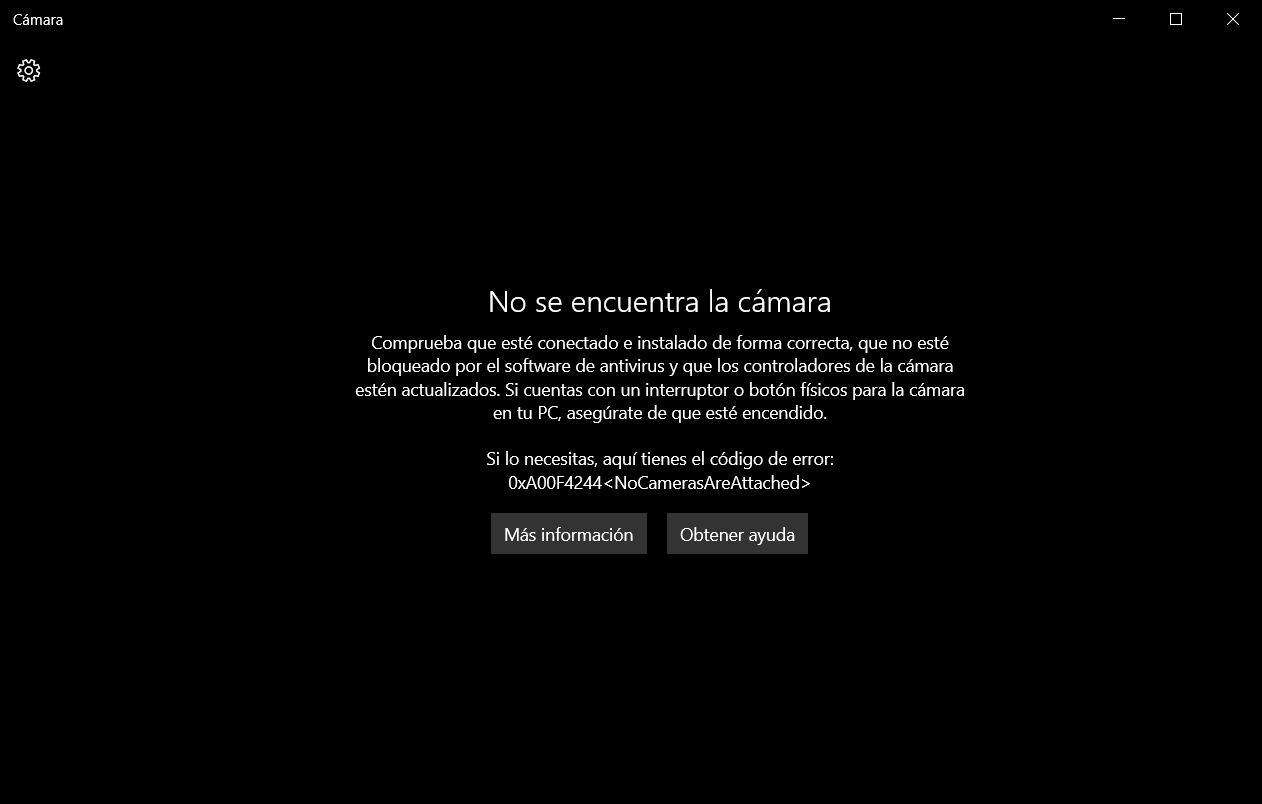
Before we start tweaking settings haphazardly, it's worth understanding what types of errors are most common when Windows does not detect camera or microphone or detects them partially (for example, when The camera works in one app but not in others.).
A very common case is connecting an "old" USB webcam after a while and having Windows display a driver errorEven if you try updating through Device Manager, uninstalling the device, or changing the USB port, the problem reappears. In some models, even the camera's built-in microphone continues to function perfectly, but the image doesn't appear in any app.
Another common scenario is that the Windows 10 or Windows 11 Camera app itself displays a warning such as: “Change your privacy settings to enable the microphone”You go to Settings → Privacy, activate everything you see, restart, and yet the app insists on the same message over and over again.
It can also happen that, after installing or uninstalling certain applications (for example, voice changers like Clownfish or video recording software), audio permissions and devices are left "touched". The result is that the Camera app stops accessing the microphone, or Windows selects a virtual micro that no longer exists.
And finally, there are the specific problems of some applications: for example, Chrome or a messaging app that doesn't detect the microphoneWhile in Discord, OBS, or the Windows Voice Recorder everything works without a problem. Here, the fault is almost never with the hardware, but with permissions or settings within the browser or program itself; there are specific cases described where the The camera works in the browser but not in apps..
Check physical connections and USB ports
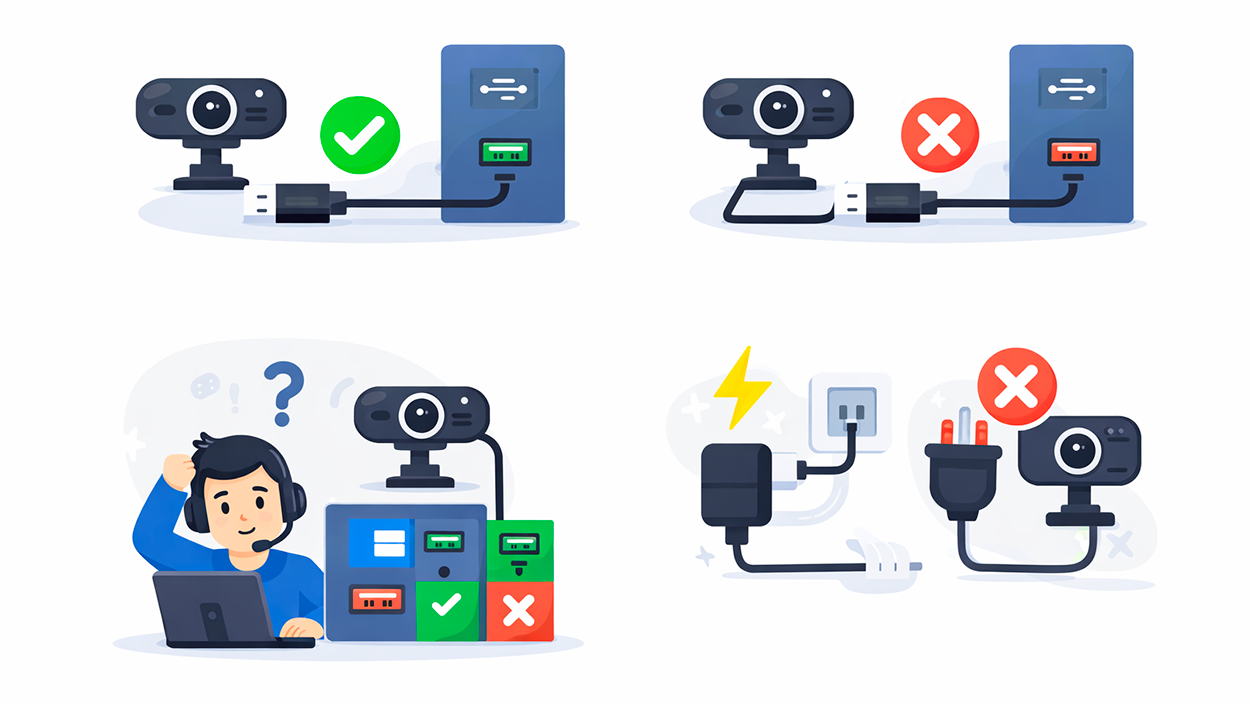
It may sound basic, but many times the problem is solved with just one thorough inspection of cables and portsA bad connection can cause Windows to only partially detect a device (for example, only the webcam's microphone, but not the video sensor).
If you're using a USB webcam, make sure the cable is properly inserted into both the camera and the PC. It's a good idea to unplug and replug it, and if possible, Try it on different USB ports. (especially those on the back of the desktop computer, which usually go directly to the motherboard and are more stable).
If your camera requires external power (power adapter), check that the transformer is connected and has powerA lack of power can cause strange behavior: lights on, but without proper detection in the system.
When the problem is more serious, such as in the case of a webcam that causes a Windows 11 laptop to freeze black screen on startup If the camera is plugged in, it's almost always a low-level conflict between the device's firmware and the motherboard. In these situations, testing the camera on another computer and in different ports is essential to rule out physical damage or a serious incompatibility.
Camera and microphone compatibility with your system
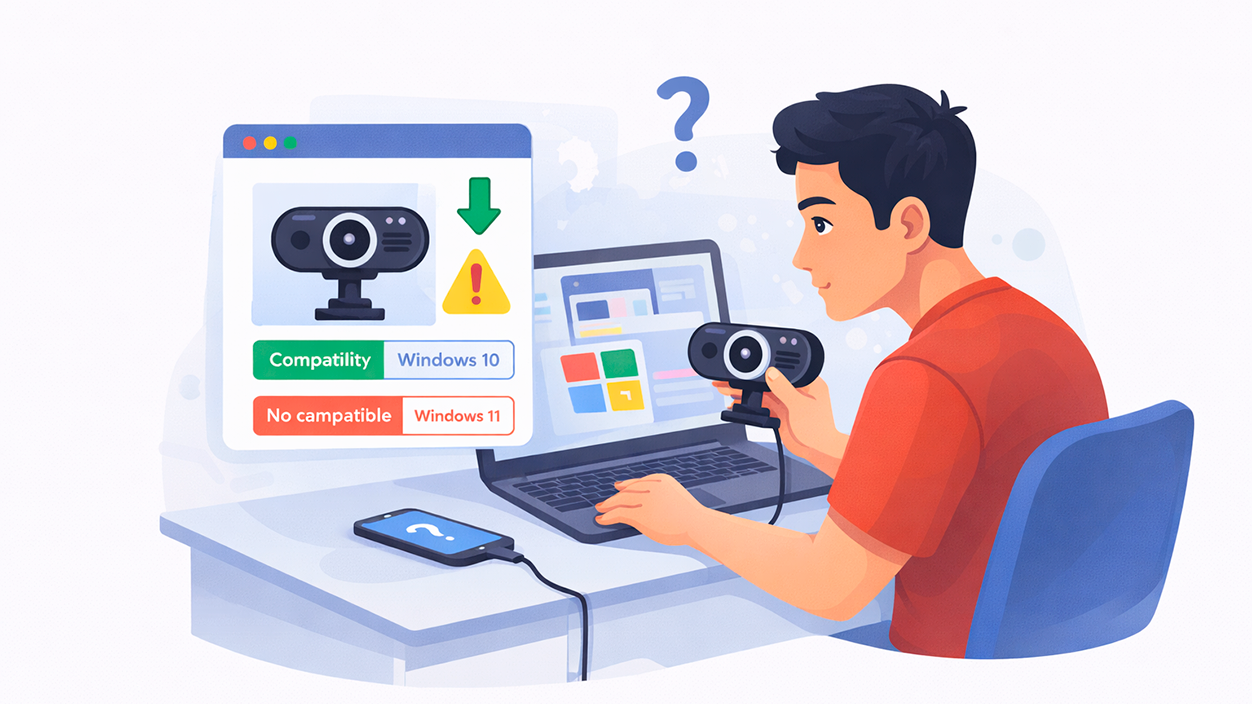
Not all cameras and USB micro drives work equally well with all versions of Windows. A significant portion of the current problems stem from older cameras or cameras without official support for recent versions such as Windows 10 or Windows 11.
The first thing to do is check the manufacturer's website to see if your model is compatible with your version of Windows. Sometimes they explicitly state which systems are supported, and if you see that it only lists up to Windows 7 or 8, you may be dependent on... generic Microsoft driverswhich don't always work perfectly.
We also need to take into account the hardware requirementsSome high-resolution webcams with advanced features require a certain amount of USB bandwidth or specific chipsets to function optimally. If you use many USB devices simultaneously (external hard drives, capture cards, controllers, etc.), the bus may become saturated and limit the camera's performance.
In laptops, it is relatively common for the manufacturer to offer specific drivers For the integrated camera, and the Windows Update drivers aren't ideal. Visiting your brand's support page (Lenovo, HP, Dell, etc.) and downloading the latest update package for your model often resolves many unusual detection issues.
Updating and reinstalling drivers in Windows
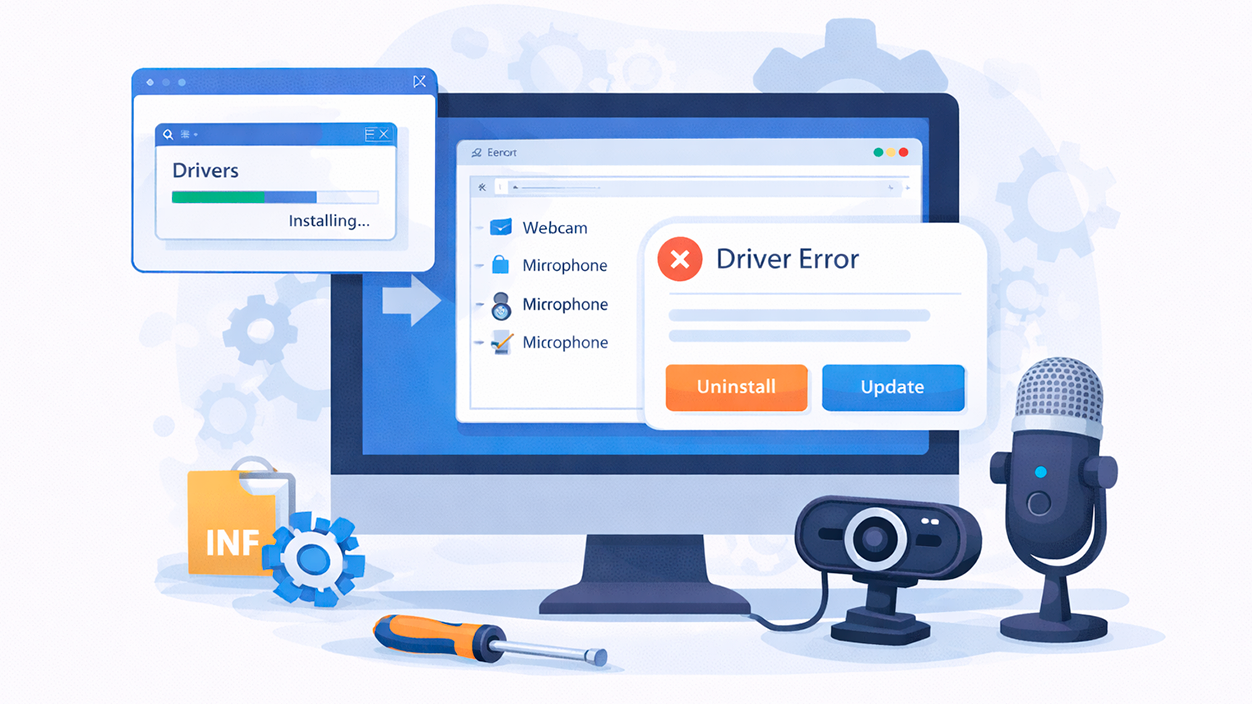
Driver errors are one of the most frequent causes when Windows does not properly recognize the webcam or microphone.Even if you've tried "Update driver" from Device Manager, that might not be enough.
In Windows 10 and Windows 11, open the Device Manager (Right-click the Start button → Device Manager). If you need specific help enabling the camera microphone, see how Activate the camera microphone in Windows 10.
If you see yellow warning icons or error messages, right-click on the device and choose “Uninstall device”Check the box next to "Delete the driver software" if it appears. Once you've done this, physically disconnect the camera, restart your PC, and when it boots up again, reconnect the camera so Windows can attempt to reinstall the drivers from scratch.
If the automatic method doesn't solve anything, it's time to go to manufacturer's website Download the camera driver manually. Install it using the executable they provide, or if they only give you INF files, Use the "Update driver" option → "Browse my computer for driver software" and point to the folder where you extracted them..
Also keep an eye on Windows updates. Sometimes, cumulative patches like the KB5053606 or other similar They introduce changes to the camera or audio subsystem that may break compatibility.If the problem started right after a specific update, check your Update History and consider temporarily reverting that update to confirm if it's the cause.
Privacy and camera and microphone permissions in Windows
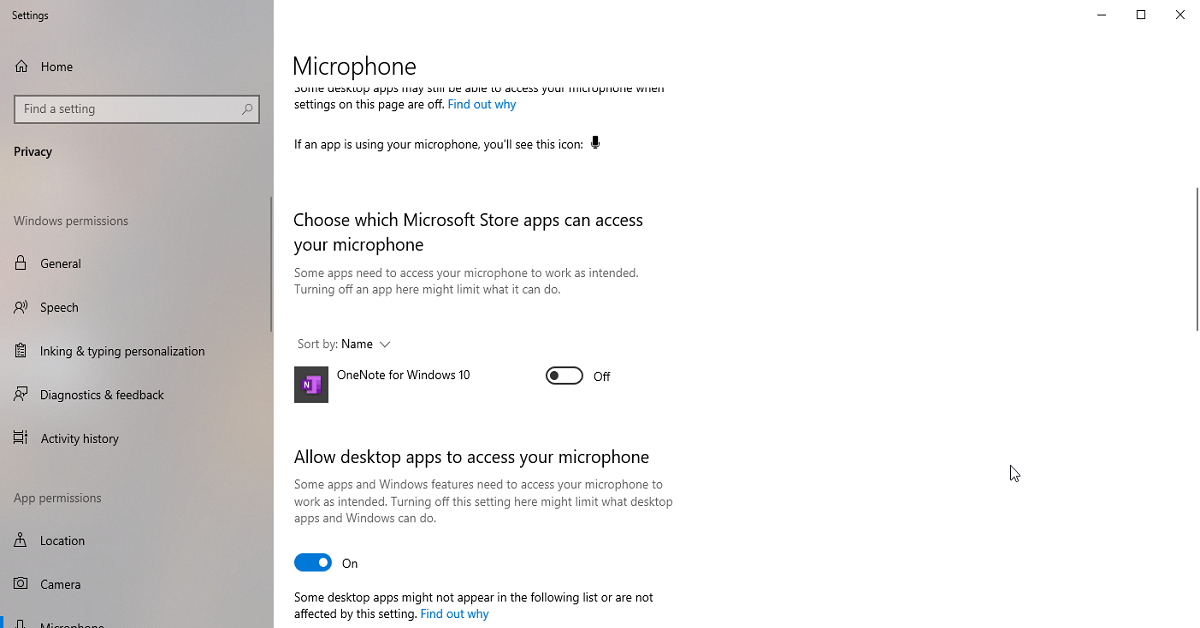
Since Windows 10, Microsoft has incorporated a system of privacy permissions For camera and microphone, you can block access to these devices, both globally and on a per-app basis. When the settings get stuck, strange errors appear, such as the Camera app insisting you change the privacy settings even though everything is already enabled.
In Windows 10 and Windows 11 go to Settings → Privacy and security → Camera. Make sure the “Allow apps to access your camera” option is enabled, and check the list of apps below (Camera, Zoom, Teams, browsers, etc.) to verify that they have the switch set to “On.” To confirm which apps have permissions, also check this article on apps with access to your microphone and camera.
Do the same in the section MicrophoneCheck the main microphone access switch and, further down, the permissions for each app individually. It's also important to review the "Desktop apps" section (Chrome, OBS, Discord, etc.) because they have independent control over apps from the Microsoft Store.
If, however, the Windows 10/11 Camera app continues to show the "Change privacy settings for microphone use" noticeThere might be a problem with the system itself. In these cases, it usually helps to... reset the Camera app from Settings → Apps → Installed apps → Camera → Advanced options → Reset.
When the origin of the problem has been a program like a voice changer (Clownfish)Since it installs virtual audio drivers, it's quite common for remnants to remain after uninstallation. Check in Settings → System → Sound the input and output devices, and remove, disable, or change any that correspond to those virtual microphones, leaving the correct physical microphone as the default.
Test the camera and microphone in different applications
A key part of the diagnosis is checking if the fault is global across the entire system or only in certain appsIf the webcam doesn't work in any application, it's probably a driver, hardware, or general permissions issue. If it only fails in one application, the problem is usually with the app itself.
For the camera, in Windows 10/11 you can use the application Camera (Find it in the Start menu). If you see your image in real time when you open it, at least you know the video device is working and the system is accessing it without problems; here's a guide for Record with webcam on Windows.
If everything is black in the Camera app or an error message appears, but you can see yourself in other applications (like Zoom or Teams), the problem may be with the internal settings of the Camera app or in a conflict with another program that is using the device at the same time.
For the microphone, try the app Voice recorder from Windows, or with online testing tools in your browser. Record a few seconds, play the recording, and check if the audio is clear; if your The microphone works in tests but not in recordings.The problem will be different from that of a device that simply does not detect the system.
In many cases, users report that the microphone It works on Discord but not on Chrome.or vice versa. This indicates that the hardware and drivers are fine, but Chrome doesn't have permission, is using the wrong device, or has been blocked by a previous user choice.
Specific settings in Chrome and other applications
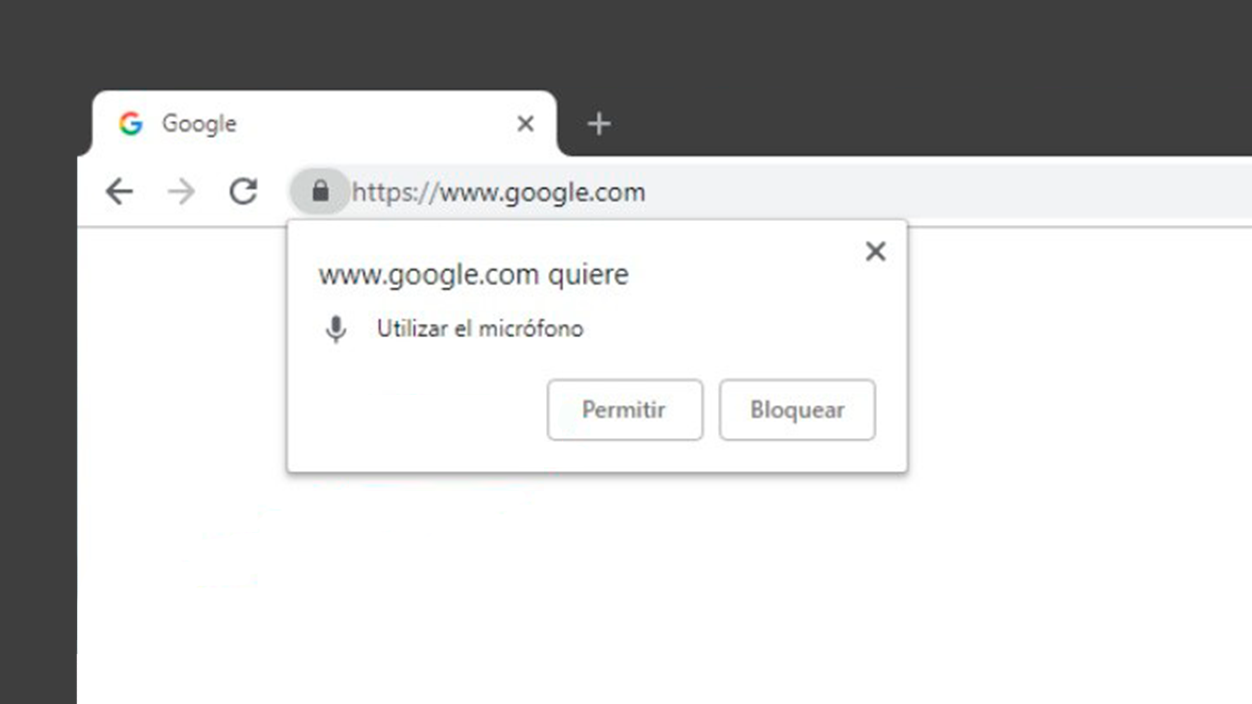
When the problem is limited to specific applications, their implementation needs to be reviewed. internal device settings and permissionsIn the case of browsers like Chrome, this issue can be somewhat confusing.
In Chrome, go to Settings → Privacy and security → Site settings → Camera y MicrophoneYou'll see which device is selected by default and whether the browser has global permission to access. Make sure it is not set to “Block” and that the default device is the microphone or camera you want to use, not a virtual or outdated one.
When a website asks you to use your camera or microphone (for example, in a video call), look for the padlock icon to the left of the address bar. From there you can adjust the permissions for that specific site and Change from “Block” to “Allow” if you accidentally denied access at some point..
In messaging or video calling applications (Zoom, Teams, Skype, etc.), enter Audio and video settings And check which microphone and camera device you have selected. Many apps let you choose between several devices, and if you changed the settings at some point, a virtual microphone or the laptop's built-in camera might have been set instead of the external webcam.
If you've overconfigured or changed too many things, in some programs it's a good idea to use the option to Reset to default settings of audio/video and reselect the devices from scratch, thus avoiding having old profiles that no longer match the reality of the system.
Software conflicts: antivirus, firewalls, and resident programs
Sometimes it's not Windows itself, but other software installed on your computer Anything that interferes with the camera or microphone. Antivirus, firewalls, security tools, or capture programs may block access to these devices for privacy reasons.
Some antivirus programs include specific features for block webcamThis prevents any application from using it without your consent. Check your security suite settings for terms like "Webcam protection," "Webcam shield," or similar, and temporarily disable it to test this.
It's also a good idea to close any apps that might be using the camera or microphone in the background: Video calling programs, screen recorders, games with voice chat overlayetc. Many audio/video devices can only be used by one application at a time, and if another application is monopolizing it, the rest of the programs will see it as if it doesn't exist.
In some cases, improperly uninstalled software (such as the aforementioned Clownfish or other audio filters) leaves behind services and drivers that continue loading at the beginning. Review the Task Manager → Startup, and disable anything you don't recognize. or if it is not essential, it helps to rule out these conflicts.
If, after temporarily disabling antivirus, third-party firewalls, and resident programs, the camera and microphone start working normally, you'll know the problem lies with that piece of software and you can adjust its settings or look for a less intrusive alternative.
When to suspect a hardware problem
When you've tried different ports, reinstalled drivers, checked permissions, and things still don't improve, it's time to consider that there might be a physical failure in the camera or microphone or even in the PC ports.
A quick way to check is to connect the webcam or microphone on a different computerIf the exact same symptoms appear there (driver error, freezing, no image but audio, etc.), the chances of the device being damaged are very high; as a temporary alternative you can Use your mobile phone as a microphone in Windows while you decide to replace the equipment.
In the case of webcams that light up the LED but cause black screens, Windows startup crashes, or strange USB errors, there may be internal components that have deteriorated after years of disuse, or a internal short circuit that triggers the equipment's protections.
If the device is under warranty, it's best to contact the manufacturer technical support to process a repair or replacement. If it's a few years old and there's no support, it's probably wiser to consider buying a new camera or microphone with official support for the latest versions of Windows.
Regarding the PC's USB ports, if you discover that the camera only has problems in one specific port and works fine in the others, That connector is probably damaged.In desktop computers, switching to rear ports usually avoids many headaches, because they are better powered and less exposed to shocks or dirt.
When to consider changing equipment or seeking professional support
Although many breakdowns can be resolved at home by following logical steps, there are cases where it is worth considering other options: specialized technical support or a new device camera/microphone.
If, for example, you have two webcams of the same model and both exhibit identical driver errors on different computers, or cause them to A laptop freezes when starting upThis could be an indication that that particular model has poor compatibility with current versions of Windows or firmware problems without a simple solution.
In professional contexts (streaming, daily remote work, content creation), rely on specialized suppliers of webcams with microphones It often makes a difference. These manufacturers offer catalogs with compatible models, updated drivers, and direct support to help you set everything up correctly.
Before buying a new camera, carefully check the specifications: compatibility with Windows 10/11, resolution, connection type, and whether it includes... integrated noise-canceling microphoneAnd if the manufacturer publishes drivers and configuration utilities, this will greatly reduce the likelihood of encountering the classic "Windows does not detect the camera or microphone" error.
And if you prefer to be even more certain, many providers offer support teams that can guide you on the most suitable model for your use (work video calls, online classes, game streaming, etc.) and help you afterwards with the start-up to avoid software conflicts and permission problems.
After checking connections, compatibility, drivers, privacy permissions, specific application settings like Chrome or Discord, and possible conflicts with antivirus or other programs, it's possible to pinpoint with considerable accuracy whether the camera or microphone failure in Windows is due to a simple misaligned setting, leftover software like voice changers, a recent system update, or a hardware problem. Following this systematic approach, most users manage to restore normal operation of their video and audio devices without resorting to drastic solutions.


I am a technology enthusiast who has turned his "geek" interests into a profession. I have spent more than 10 years of my life using cutting-edge technology and tinkering with all kinds of programs out of pure curiosity. Now I have specialized in computer technology and video games. This is because for more than 5 years I have been writing for various websites on technology and video games, creating articles that seek to give you the information you need in a language that is understandable to everyone.
If you have any questions, my knowledge ranges from everything related to the Windows operating system as well as Android for mobile phones. And my commitment is to you, I am always willing to spend a few minutes and help you resolve any questions you may have in this internet world.